Assess Inventory and Run a Wave
Use the Order Analysis agent to identify at-risk orders, assess inventory with a selected wave template, and decide which orders to wave.
Review orders that need attention
-
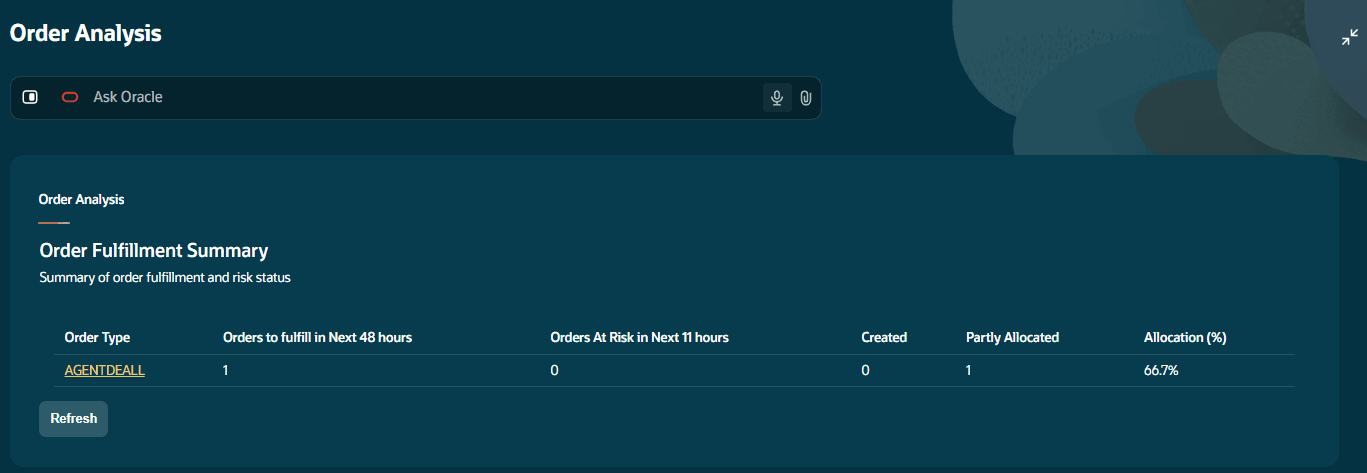
Review the Order Analysis landing view. It groups upcoming orders by Order Type and displays the top seven order types.
-
Compare the number of orders requiring fulfillment with the number at risk.
-
Expand the view to review allocation percentage and the counts of Created and Partially Allocated orders.
-
Select an Order Type to view its individual at-risk orders.
The order details include remaining time to ship, allocation percentage, wave template, allocation probability, and order lock information.
Each order type displays up to 50 orders at a time. Inventory availability is assessed only for the currently displayed orders. As orders are allocated, the next set of up to 50 orders becomes available for assessment.
Understand filtered results
The referenced Order workflow excludes internal order type 91 and canceled order details, and applies additional date filters. An order missing from the display may be outside these filters. The inspected summary and detail requests use 500-row pages without demonstrated aggregation of all pages, so administrators should validate high-volume facilities.
Assess inventory availability
-
Select a wave template for the inventory availability check.
-
Run the check for the displayed orders.
-
Review the selected wave template, updated allocation percentage, allocation probability, and any order locks.
Allocation Probability remains blank until an assessment has been performed.
The assessment evaluates inventory using the selected wave template’s allocation mode and sequence. It considers applicable Active and Reserve locations, item matching and quantities, area and allocation-zone restrictions, inventory status and locks, and existing allocations.
Locked, expired, or otherwise ineligible inventory is not considered available.
Assessment limit: Each request supports a maximum of 1,000 eligible order-detail lines. This limit applies to the lines evaluated by the wave template, rather than simply the total number of lines in the submitted orders.
No execution transactions are created: The assessment does not create waves, allocations, tasks, picks, replenishment transactions, inventory transactions, or Inventory History records.
Interpret allocation probability
| Result | Range |
|---|---|
| Low | 0–50% |
| Medium | Greater than 50% through 75% |
| High | Greater than 75% through 100% |
In short-pick recovery, Not Allocatable can also appear when an order is locked, or when partial allocation is not allowed and inventory does not cover the full requirement.
Run the wave
After a successful assessment, orders with a High allocation probability are selected automatically for wave execution using the template used for the check.
-
Review the selected orders and wave template.
-
Run the wave.
-
Review the remaining orders after execution.
Confirm execution and refresh
A successful inventory assessment does not execute a wave. Review the wave execution response before treating an order as waved. Run Wave refreshes Order and Wave in the referenced application; refresh any other affected panel when reconciling its data with WMS.
After successful execution, only the orders included in the wave are removed from Order Analysis. Other unfulfilled orders remain available for review.
Look up a specific order with Ask Oracle
Use Ask Oracle to retrieve fulfillment and shipment information for a specific order number.
The response includes order status and quantity, allocation percentage, picked, loaded, shipped, and shorted quantities, remaining time to ship, and Required Ship Date.
Ask one record question at a time
Include an exact order number, for example order: ORD123. The Query agent routes a question to Wave or Order, and may ask for clarification if the identifier is missing or the request mixes both domains. App-level query routing does not establish equivalent record lookup for Picking or Replenishment.
Interpret the shorted indicator
The Ask Oracle order card uses IHT-12 for its Shorted indicator, while Picking short-pick analysis uses IHT-92. These indicators describe different event coverage. The order card intentionally omits risk labels. Run Wave can be offered for eligible Created or Partly Allocated orders after wave-template selection.