Configure
High Availability
High Availability (HA) refers to the ability of a system, application, or services to remain operational and accessible with minimal downtime. It ensures that an application continues to function even in the event of failures, such as hardware crashes, network issues, or software bugs. You can configure High Availability for the Oracle GoldenGate Veridata Server and Agent in several ways. This article explains one such method.
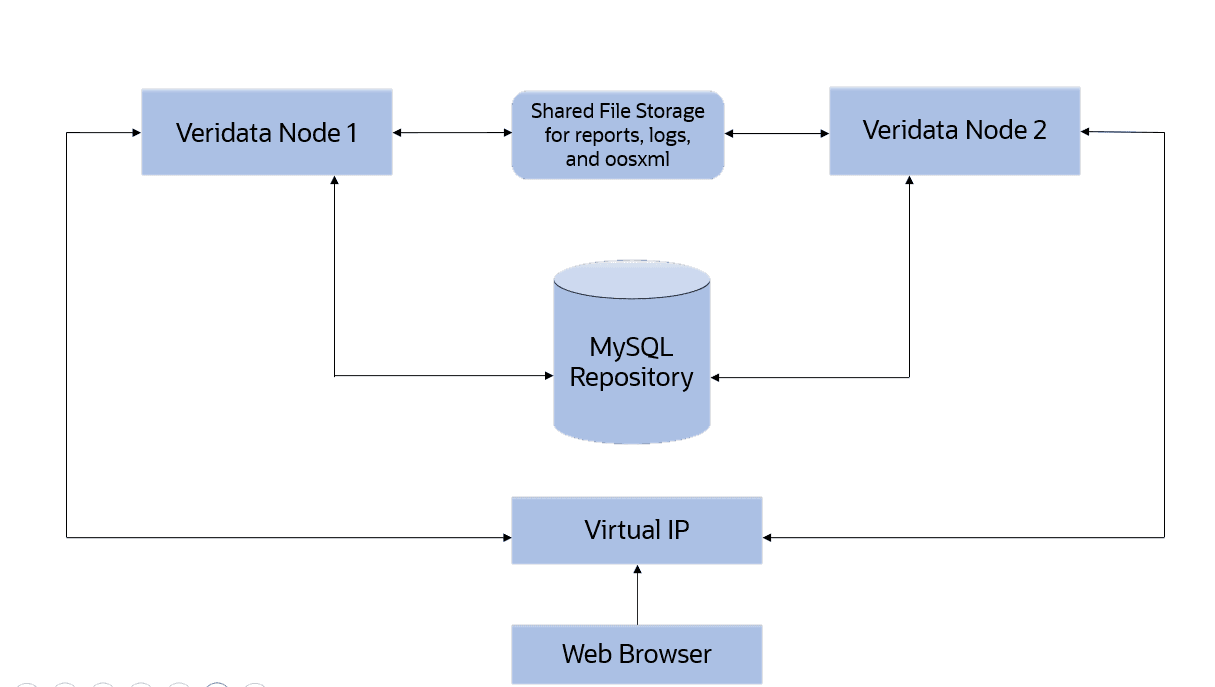
Figure 1: High Availability for Veridata Server
To establish High Availability in Oracle GoldenGate Veridata:
-
Deploy Veridata Server on the nodes that share a Virtual IP between them.
-
Connect to Veridata Server using a VIP to establish an Active-Passive setup. In such a set up, even when one Server node goes down, the other node serves the purpose. Ensure that there is a shared file system for storing the logs, reports, and oosxml files from the active server, so that when the Standby server turns active it can have access to all the files.
Note:
For the MySQL repository:
-
Install external MySQL, version
mysql-commercial-8.0.42and above. -
Ensure that the repository is highly available.
-
Setting Up the High Availability for Oracle GoldenGate Veridata Server
-
Setting up High Availability for Oracle GoldenGate Veridata Agent
Setting Up the High Availability for Oracle GoldenGate Veridata Server
To set up HA for Veridata Server:
-
Install Veridata Server on all the nodes which share a common Virtual IP between them.
-
Ensure that all nodes use the same port for Veridata Server.
-
Edit the
repository.urlproperty in<veridata_home>/config/oggvdt_cainput.propertiesfile, to ensure that both the servers point to the same shared repository. -
For more information about Oracle GoldenGate Veridata installation, see Installing and Running Oracle GoldenGate Veridata.
Configuring a Shared File Path
Reports
Ensure that Oracle GoldenGate Veridata reports are stored in a shared file system which can be accessed by all the nodes configured using the VIP. Shared storage path can be given in veridata.cfg as follows:
server.veridata_data property must be updated to the new shared storage path:
server.veridata_data new_path/veridata/reports
Wallet
The wallet that stores the passwords of connections or users must also be stored in the shared file path.
To configure wallet to shared path:
-
Nagivate to the
configin the Veridata installation directory. -
Open
jps-config-jse.xmland update the shared path in the below xml tag in location attribute.<serviceInstance name="credstore" provider="credstoressp" location=". ">For example:
<serviceInstance name="credstore" provider="credstoressp" location="/u01/config ">
In the Veridata server, the wallet path is hard-coded in the JPS configuration file.
To change it to a user-preferred directory path, follow the steps below:
-
Set the environment variable to override the wallet path to
export CREDENTIAL_LOCATION=<path> -
Restart the server after setting the environment variable.
Setting up High Availability for Oracle GoldenGate Veridata Agent
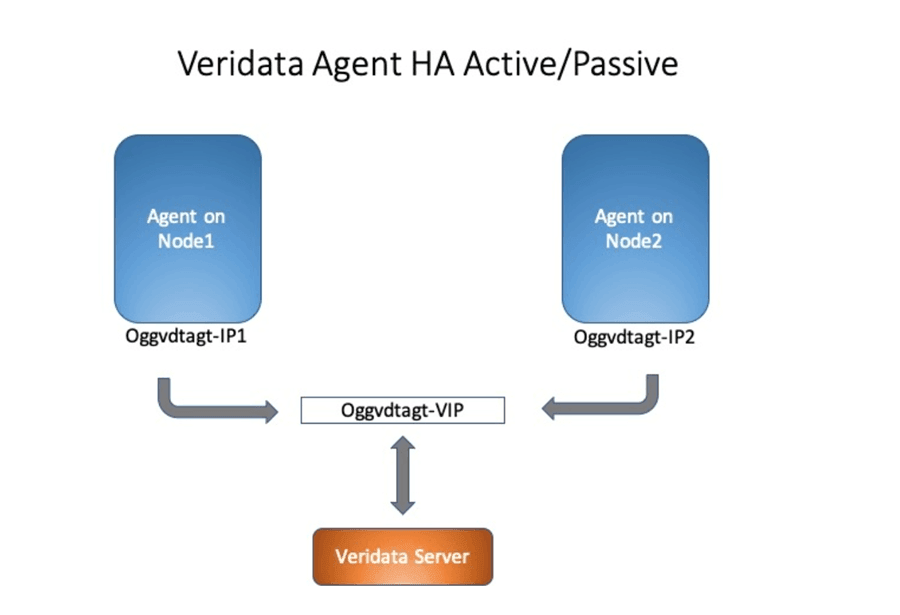
In Oracle GoldenGate Veridata, the agent is deployed as a Java Standalone application. To establish agent HA, deploy the agent on nodes sharing a Virtual IP (VIP) between them and then connect the Veridata Server to agent via VIP.
Ensure that agents running on different nodes are using the same port number. The agent.propreties from node1 must be copied to node2 as well and must be kept in sync for the changes.
Figure 2: High Availibility for Oracle GoldenGate Veridata Agent