RAG Agents
What is a RAG Agent
Agent that augments AI Vector Search and LLM capabilities with information from organization-approved content, including enterprise repositories, OCI Object Storage, S3-compatible object storage, internal sites, uploaded files, and, where permitted, public web sources.
-
Contextual retrieval from unstructured sources and files
-
Grounded responses traceable to enterprise-approved sources
-
Supports unauthenticated web sources for broader knowledge retrieval
-
Supports file system sources for knowledge retrieval
-
Supports data sources from repositories such as SharePoint, Google Drive, OCI Object Storage, S3-compatible object storage, internal sites, and uploaded files.
-
Creates context based suggestions to ask the Agent
-
Web crawling support for dynamic web pages
-
Metadata detection for PDF documents
Create a RAG Agent
-
Add Data Sources:
Before creating a RAG Agent, make sure at least one data source is configured. RAG Agents rely on data sources such as SharePoint, Google Drive, OCI Object Storage, S3-compatible object storage, internal sites, and uploaded files to retrieve and ground their answers. Create the knowledge sources for your agent to learn from by adding one or more unstructured data sources, such as file uploads, Microsoft SharePoint document repositories, Google Drive, OCI Object Storage, S3-compatible object storage, or web content, including unauthenticated web pages. See Web Source, File Source, SharePoint Source, Google Drive, OCI Object Storage, and S3-Compatible Object Storage for instructions on adding data sources that serve as the agent’s knowledge base.
Important: Markdown
.mdfiles are not supported for RAG Agent data source file ingestion. You cannot upload, parse, index, or retrieve content from Markdown files in RAG Agent data sources. -
Automated Data Processing:
Each data source you configure is automatically processed and progresses through the following stages.
-
Ingestion Queued: The data source is queued for ingestion, but processing has not started.
-
Crawling: Retrieve data from configured sources.
-
Parsing: Analyze unstructured data and transform into structured format.
-
Storing: Write the structured data from parsing stage to the database.
-
Chunking: Divide the text data into chunks for direct embedding in the next stage.
-
Embedding: Convert collected data into vector representations.
-
Ingestion: Store processed data in the vector database.
See Data Sources Troubleshooting for information about data source-related statuses and errors.
Note: Data processing runs automatically after a data source is configured and is not part of RAG Agent creation. A data source can remain queued before processing starts.
-
-
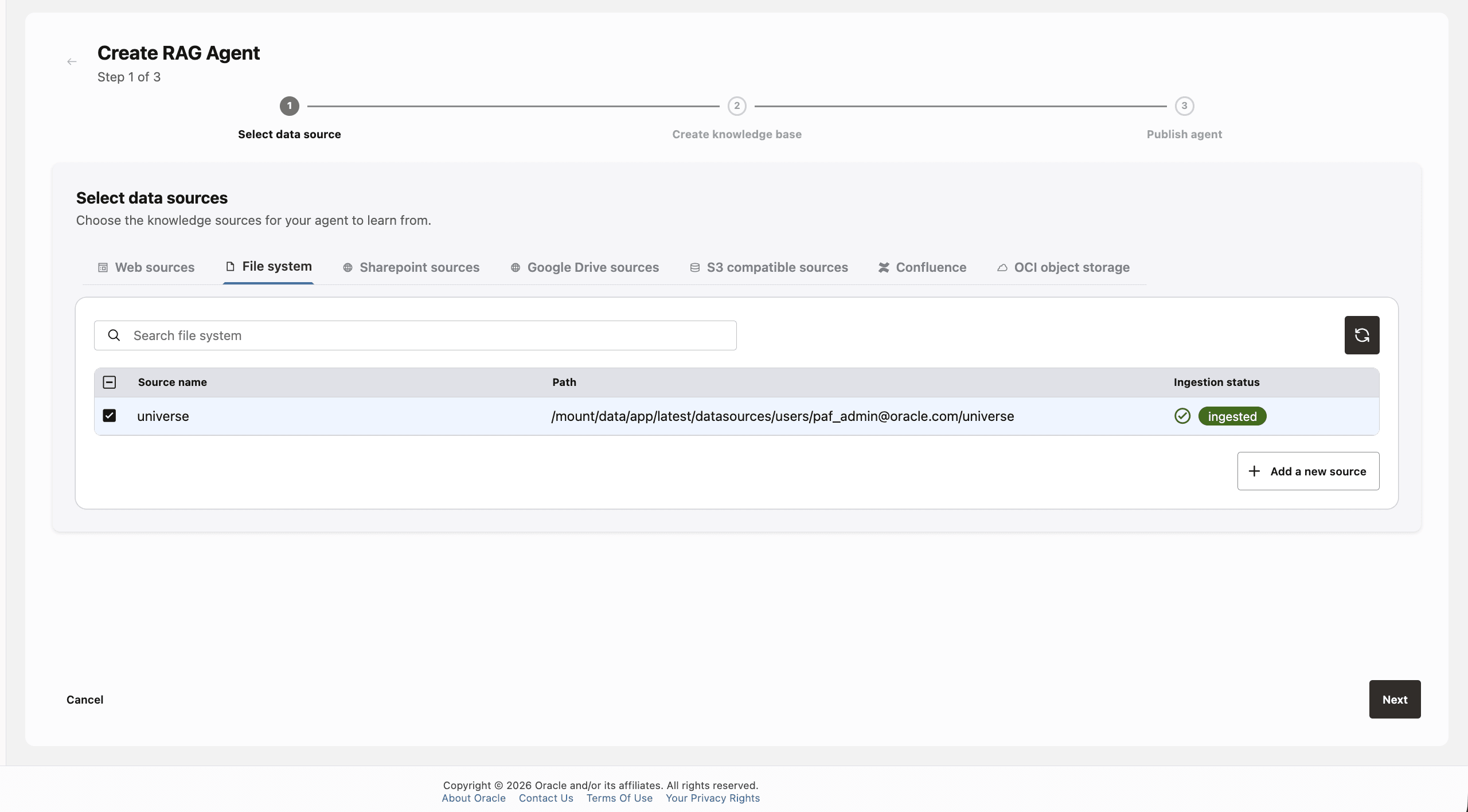
Select Data Sources:
Once the configured data is fully processed and ingested, it becomes available for selection as a data source for the RAG Agent. You can select any number of data sources, including a mix of web, SharePoint, Google Drive, OCI Object Storage, S3-compatible object storage, and file system sources.
Note: All data sources selected for a RAG Agent must use the same embedding model.
-
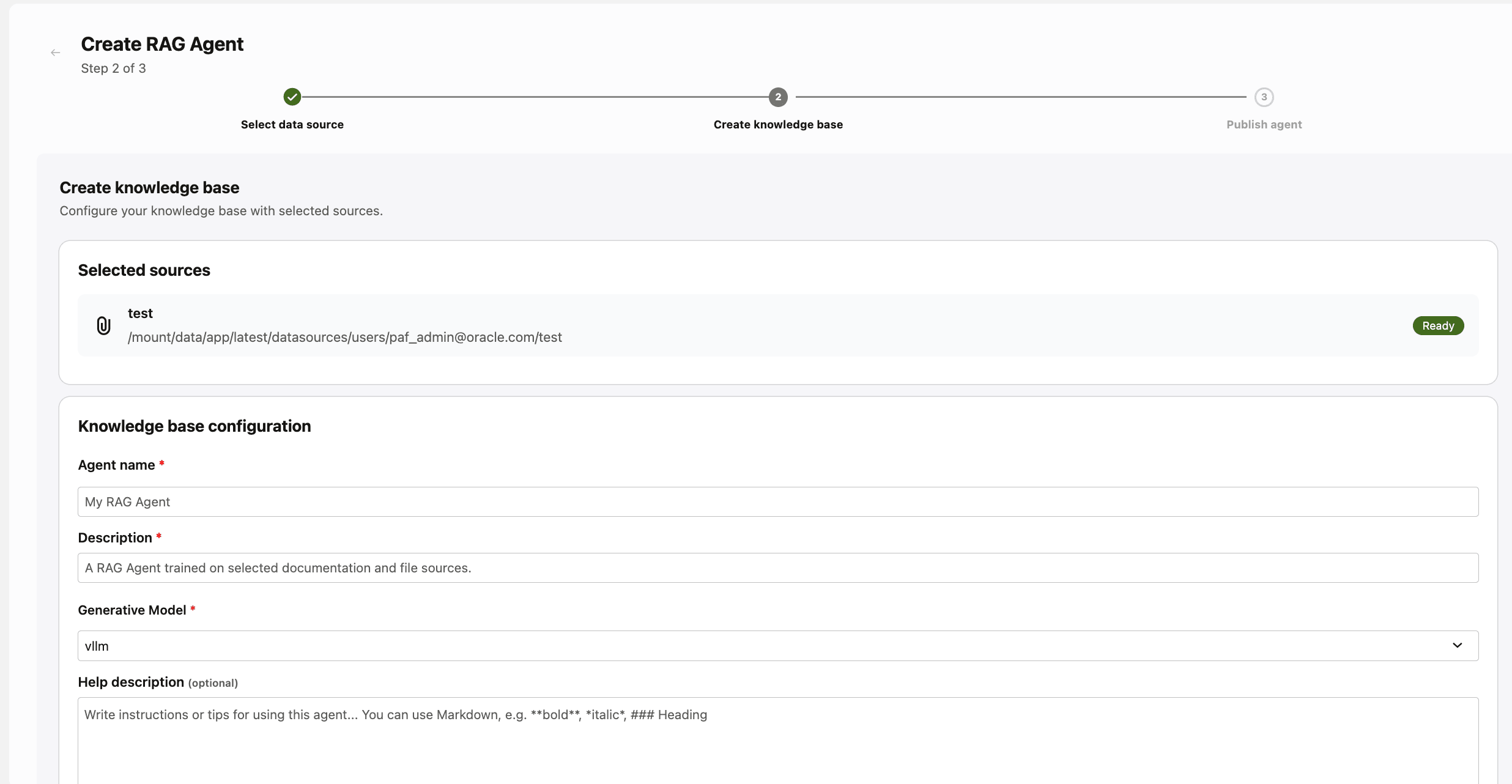
Create Knowledge Base:
Assign a name and description to the RAG Agent. Make the description as detailed as possible because it will be used for many downstream purposes.
-
Select a Generative Model:
Select a configured generative model to associate with the RAG Agent. The agent uses the selected model to generate responses from the retrieved content.
Note: Some OpenRouter LLM and embedding models listed in the OpenRouter model catalog have model IDs that start with
batch. RAG Agents do not support these models. Select another model version without thebatchprefix.You can change the generative model associated with a RAG Agent after creating it. See Change the LLM for an Existing RAG Agent.
-
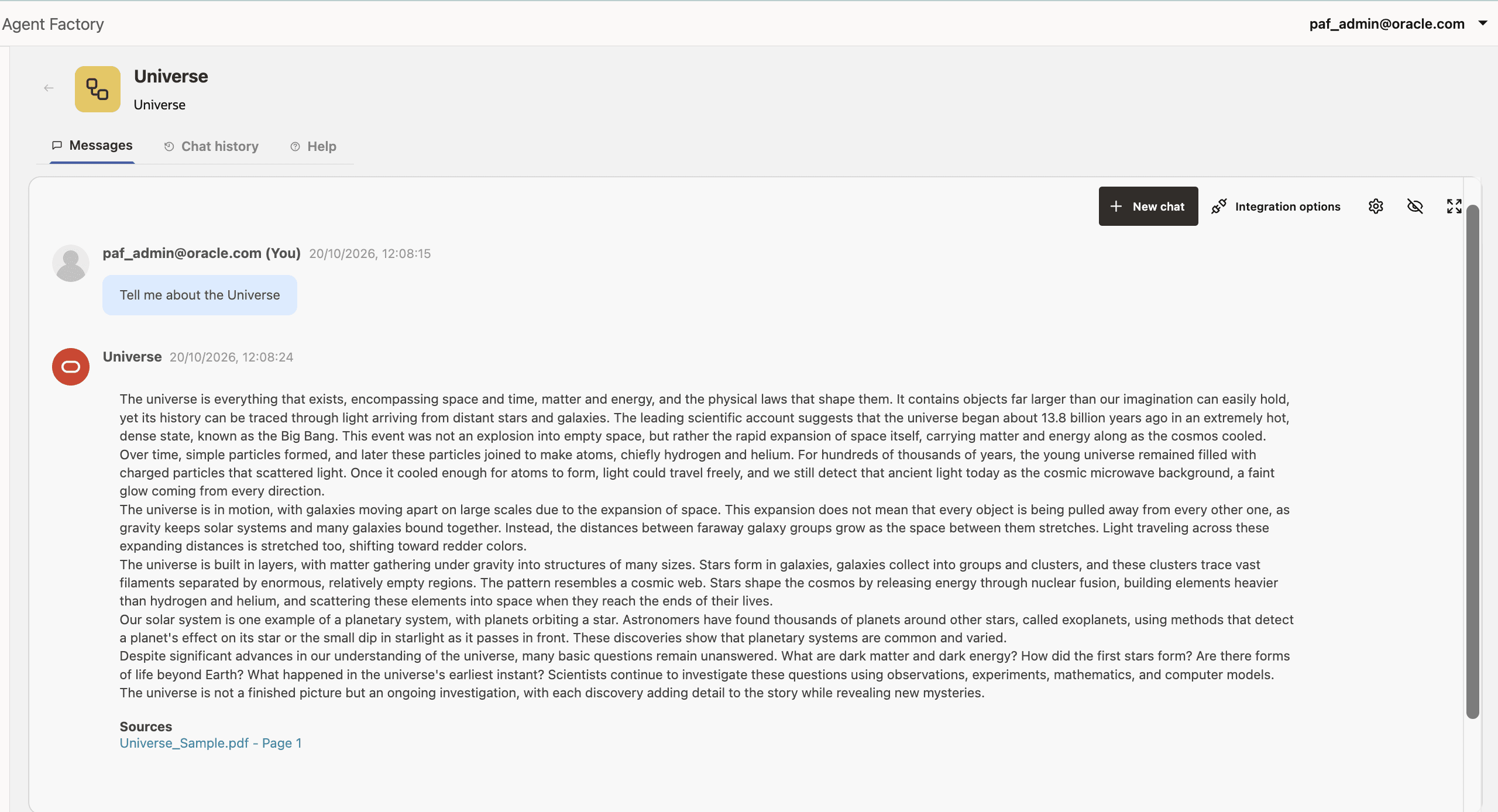
Publish the Agent and Start Conversing:
Publish the agent to make it available. Chat with the RAG Agent and receive answers based on the ingested data.
-
Click on the referenced resources to open the documents used by the LLM.
See Collect Diagnostics for information about downloading application logs for troubleshooting or support.
Use Images with a RAG Agent
RAG Agents can process standalone JPG, JPEG, and PNG images from supported data sources and use them as context when answering questions. JPG and JPEG images have the same behavior. Images embedded in other documents are not processed as image inputs. Use an OCI Generative AI model that supports image input.
The following OCI Generative AI models support image input:
cohere.command-a-visiongoogle.gemini-2.5-flashgoogle.gemini-2.5-progoogle.gemini-3.1-flash-litegoogle.gemini-3.5-flashgoogle.gemini-3.7-flashgoogle.gemini-3.8-flashmeta.llama-4-maverick-17b-128e-instruct-fp8meta.llama-4-scout-17b-16e-instructopenai.gpt-5.6-lunaopenai.gpt-5.6-solopenai.gpt-5.6-terraopenai.gpt-6-astraopenai.gpt-6-lunaopenai.gpt-6-solxai.grok-4.20-0309-reasoningxai.grok-4.20-multi-agentxai.grok-4.20-multi-agent-0309xai.grok-4.3xai.grok-4.6xai.grok-4.7
-
Configure image-capable models: Configure the default LLM and embedding model. The LLM used by the RAG Agent to interpret images must support image input. The default LLM is used during ingestion and can also be used by the RAG Agent; you can use the same LLM or another configured LLM.
Note: If the LLM used during ingestion is not vision-capable, select a vision-capable LLM for the RAG Agent.
-
Add images to a supported data source: Supported sources are File System, SharePoint, Google Drive, S3-compatible storage, and OCI Object Storage. Direct image upload through the File Data Source is still pending. Wait for ingestion to complete before selecting the source.
Note: If either image dimension exceeds 2048 pixels, the image is resized so that its longest dimension is 2048 pixels, preserving the aspect ratio. The model provider might resize or tile the image further.
-
Select the image source: When creating or configuring the RAG Agent, select the data source that contains the images.
-
Ask about the images: Ask questions about the images in the RAG Agent conversation.
-
Open a cited image: In the response’s Sources section, select the image name to open the image in a new browser tab.
Share a RAG Agent
You can share a RAG Agent that you own or for which you have the Can manage access level.
Note: Users who receive access to a shared RAG Agent can interact with it even if they do not have access to the agent’s configured LLM. The RAG Agent uses its default LLM for their interactions.
Currently, RAG Agents can be created only with data sources that use the same embedding model. The user interface validates this requirement before it allows you to create the RAG Agent and associates the common embedding model with the agent.
When you share a RAG Agent, it retains its associated embedding model even if the recipient uses a different embedding model. The recipient’s or system default embedding model is not used directly by the RAG Agent.
- Open the RAG Agent page.
- Select Share from the Actions menu for the agent.
- In the Share dialog, review the users and groups that have access and their current access levels.
- Search for and select users or groups to add, change an existing access level, or remove access. Click Save changes to apply the changes.
The Share dialog identifies the resource owner as Owner. You cannot change or remove the owner’s access. See Manage Identity and Access for access-level definitions.
Change the LLM for an Existing RAG Agent
You can change the generative model associated with a RAG Agent at any time from its chat window.
-
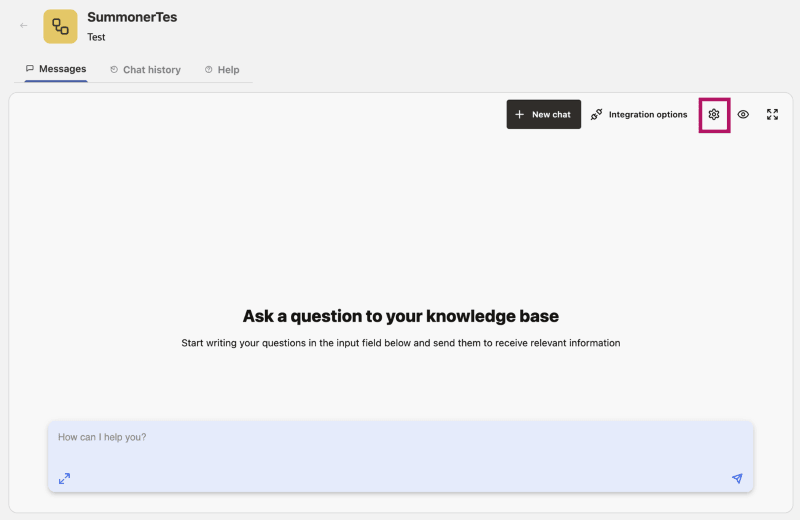
In the RAG Agent chat window, click the Settings gear icon between Integration Options and the eye icon.
-
In the tray that opens on the right, select another configured generative model from the Generative Model list.
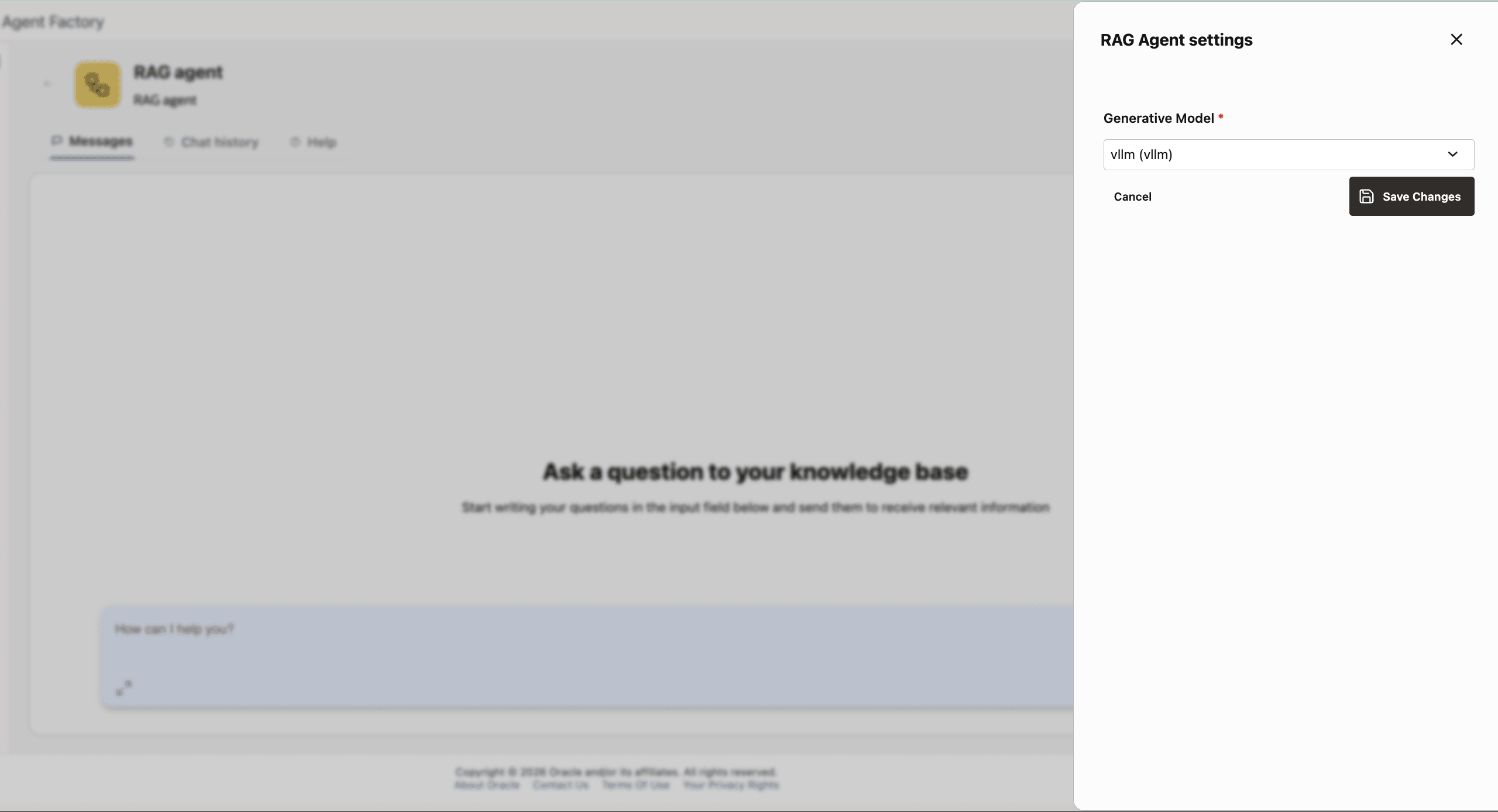
The RAG Agent uses the newly selected model for subsequent responses, including when it is used from an Agent Builder workflow.
Note: If you change a RAG Agent’s default LLM, the agent uses the new model for all end users.
Troubleshoot RAG Agents
| Symptom | Check |
|---|---|
| A source is not available when creating a RAG Agent | Confirm the source is an unstructured source supported by RAG Agent and ingestion has completed. |
| Source status remains not ingested or error | Review data source status details, connector credentials, network access, and application logs. |
| Answers do not cite expected documents | Confirm the document was ingested, contains extractable text, and is included in the agent’s selected sources. |
| PDF content is missing | Confirm the PDF contains text. Scanned image PDFs may require OCR before upload. |
| Pre-built Knowledge Assistant was not installed | Confirm the deployment is not air-gapped, required embedding model is configured, and wallet certificates were available if using a database wallet. |
For unresolved ingestion or chat failures, collect diagnostics after reproducing the issue. See Collect Diagnostics.
Oracle AI Database Private Agent Factory Knowledge Assistant
When running outside of an air-gapped environment, Agent Factory installation sets up an out-of-the-box knowledge assistant that can answer your questions about this documentation.
Note:
If the application is running in an air-gapped environment, the Oracle AI Database Private Agent Factory Knowledge Assistant will not be installed. Not installing this agent does not compromise the functionality of the Agent Factory application or the RAG Agent component.
If running outside an air-gapped environment but using a database wallet, you need to set up wallet certificates in order to install this agent. See Add Wallet Certificates.
If the agent was not installed out of the box for any of the above reasons, you can install the Oracle AI Database Private Agent Factory Knowledge Assistant from the Datasets tab by selecting Import Dataset.
The Agent Factory Knowledge Assistant uses the bundled multilingual-e5-base embedding model. During installation, Agent Factory imports embeddings for the Agent Factory User Guide that use this model. The assistant does not use the default embedding model configured in Model Management.
Note: The Oracle AI Database Private Agent Factory Knowledge Assistant supports only multilingual-e5-base. OCI Generative AI Cohere embedding models-cohere.embed-v4.0, cohere.embed-multilingual-light-v3.0, cohere.embed-english-v3.0, and cohere.embed-multilingual-v3.0 remain available for custom external data sources and custom RAG Agents.
Once installation is complete, you can find the Oracle AI Database Private Agent Factory Knowledge Assistant under RAG Agents in the left menu, ready for use. As part of this setup, Oracle data source - Oracle AI Database Private Agent Factory Documentation is also added.
You cannot delete the Oracle AI Database Private Agent Factory Knowledge Assistant as its shipped by default.
You also cannot delete the “Oracle data source - Oracle AI Database Private Agent Factory Documentation” data source, nor can you use it to create a custom RAG Agent.
What Can the Oracle AI Database Private Agent Factory Knowledge Assistant Help With?
You can ask questions about Agent Factory features, configuration, and administration, including:
- Installation, Deployment, and Upgrades: Prerequisites, Linux and macOS setup, container-image and OCI Marketplace deployment, and upgrades.
- Building Agents and Workflows: Agent Builder, nodes, templates, sample workflows, testing, publishing, and Agent Spec import and export.
- Pre-Built Agents: RAG Agents, Deep Research RAG Agents, and Data Analysis Agents.
- Models and Data Sources: Generative and embedding model configuration, and supported data-source connectors.
- Integrations and Interoperability: MCP servers, API-key access for published agents and workflows, and Agent2Agent (A2A) integrations with external agents.
- Security, Access, and Administration: Users, roles, resource sharing, SSO, proxy, SMTP, observability, certificates, Agent Memory, and CLI administration.
- Utilities and Troubleshooting: Datasets, Prompt Lab, AI Enrichment, diagnostics, FAQs, and troubleshooting guidance.
How to Use the Oracle AI Database Private Agent Factory Knowledge Assistant?
-
Type Your Question
Enter your question in the chat, for example: How do I add a custom RAG Agent? For best results, be as specific as possible with your queries. For troubleshooting related questions, mention the scenario or error message you are experiencing. Select Editor Mode icon in the chat box to view and type your query in an expanded text input area.
-
Get Expert Guidance
The Assistant will respond with relevant, accurate information drawn from Oracle AI Database Private Agent Factory documentation.
Note: The Oracle AI Database Private Agent Factory Knowledge Assistant provides information based on the latest official documentation. For sensitive implementations or Oracle-internal topics, always verify against Oracle’s official guidelines, security, and compliance policies.
-
Ask Follow-Up Questions
Need more details or clarification? Simply submit a follow-up question.
-
Provide Feedback
Help us improve! Use the thumbs up or thumbs down icons to rate the helpfulness of the response.
-
Review Chat History
You can click on “Chat History” to view your previous interactions with the Assistant at any time.
Caution: The Oracle AI Database Private Agent Factory Knowledge Assistant relies on artificial intelligence models or systems. While useful when properly used, materials generated may be incomplete and/or contain errors and inaccuracies. Your access and use of this feature is at your own risk. Oracle has no responsibility or liability for any damages resulting from such access or use.
See Collect Diagnostics for information about downloading application logs for troubleshooting or support.
Oracle Database Knowledge Assistant
You can install the Oracle Database Knowledge Assistant from the Datasets tab by selecting Import Dataset. You can ask queries related to Oracle Database and its related products. Database Assistant uses the below public Oracle Database sources to answer questions:
- Oracle product documentation
- Oracle technical briefs
- Oracle blogs
- Oracle error messages
- Oracle product new features guides
Once the import is completed, you can find the Oracle Database Knowledge Assistant under RAG Agents in the left menu. During import, the following data sources are automatically created: Oracle Product Documentation, Oracle White Papers, Oracle Error Messages, Oracle Blogs, and Oracle Product New Features.
The Oracle Database Knowledge Assistant, including its shipped data sources, uses the bundled multilingual-e5-base embedding model. It does not use the default embedding model configured in Model Management.
Note: The Oracle Database Knowledge Assistant supports only multilingual-e5-base. OCI Generative AI Cohere embedding models-cohere.embed-v4.0, cohere.embed-multilingual-light-v3.0, cohere.embed-english-v3.0, and cohere.embed-multilingual-v3.0 remain available for custom external data sources and custom RAG Agents.
You cannot delete the Oracle Database Knowledge Assistant.
You cannot delete the data sources that are automatically created during import, nor can you use them to create custom RAG Agents.
How to Use the Oracle Database Knowledge Assistant?
-
Type Your Question
Enter your question in the chat, for example: Can I install Oracle Database Free into VirtualBox? For best results, be as specific as possible with your queries. For troubleshooting related questions, mention the scenario or error message you are experiencing. Select Editor Mode icon in the chat box to view and type your query in an expanded text input area.
-
Get Expert Guidance
The Assistant will respond with relevant, accurate information drawn from the Oracle Database sources.
Note: The Oracle Database Knowledge Assistant provides information based on the official Oracle Database documentation, technical briefs, Oracle blogs, and other sources. For sensitive implementations or Oracle-internal topics, always verify against Oracle’s official guidelines, security, and compliance policies.
-
Ask Follow-Up Questions
Need more details or clarification? Simply submit a follow-up question.
-
Provide Feedback
Help us improve! Use the thumbs up or thumbs down icons to rate the helpfulness of the response.
-
Review Chat History
You can click on “Chat History” to view your previous interactions with the Assistant at any time.
Caution: The Oracle Database Knowledge Assistant relies on artificial intelligence models or systems. While useful when properly used, materials generated may be incomplete and/or contain errors and inaccuracies. Your access and use of this feature is at your own risk. Oracle has no responsibility or liability for any damages resulting from such access or use.
See Collect Diagnostics for information about downloading application logs for troubleshooting or support.