Installation from OCI Marketplace
Deploy Agent Factory with an OCI Resource Manager stack that configures a VM, network, database, and Vault secrets based on your selections.
The Oracle AI Database Private Agent Factory Marketplace listing launches a Resource Manager stack. The stack provisions a VM and configures Agent Factory. Depending on your selections, it can use an existing VCN and Autonomous AI Database (ADB), create a private ADB in an existing VCN, or create both a VCN and a private ADB. The stack uses the Agent Factory container image publicly released at the time of publication.
The resulting VM is not managed by the Agent Factory team. See Security and Operational Requirements for your responsibilities related to maintenance, security updates, certificates, and tenancy-specific requirements.
Note: If you already have a Marketplace instance configured, see Upgrade Your Marketplace Instance to upgrade to a newer version.
Important: The stack supports the configuration options shown in the deployment form. If your environment does not meet the prerequisites, your ADB uses an unsupported network configuration, or the database requires wallet-based mutual TLS, create a new network and ADB with the stack or install Agent Factory manually.
For other configurations or help designing OCI networking and access controls, see Set Up on Linux.
Prerequisites
Complete these prerequisites before you launch the Marketplace stack.
OCI Access and Permissions
You need access to the tenancy and region where you will deploy Agent Factory. Your account must be able to launch the Marketplace stack and create the Resource Manager stack and jobs. It also needs permissions for the compute, network, database, Vault, and secret compartments that you select. If your account does not have these permissions, contact your tenancy administrator.
Before deployment, you or your tenancy administrator must complete these tenancy preparations:
- Create or identify an active OCI Vault with an enabled encryption key.
- Create a Dynamic Group that matches the Agent Factory VM. Use a dedicated compute compartment for the VM when possible.
- Grant the Dynamic Group permission to read secret bundles in the selected Vault.
- Grant the deployment group permission to create and use the resources selected in the form.
The stack does not create IAM policies, Dynamic Groups, Vaults, encryption keys, or secrets. Allow IAM and Dynamic Group changes time to propagate before deployment.
The stack uses an Oracle Linux 8 platform image and pulls the Agent Factory container image from OCI Container Registry (OCIR). It does not require a Marketplace compute image subscription, App Catalog permissions, permissions to manage IAM policies or Dynamic Groups, or Resource Manager private endpoint permissions. You still need permission to launch the Marketplace stack listing. See Required IAM Policies.
Secrets and Registry Access
Create the following secrets in the Vault that you select in the stack form:
- Agent Factory administrator password for every deployment. It must be at least 8 characters and include an uppercase letter, lowercase letter, digit, and special character.
- Agent Factory application database password for every deployment. It must comply with the selected Autonomous AI Database user profile. For a new database created by this stack, use 12 to 30 characters with at least one uppercase letter, lowercase letter, numeric character, and supported special character. Do not include the database username or a double quote.
- ADB
ADMINpassword only when the stack creates an ADB. It must be 12 to 30 characters with at least one uppercase letter, lowercase letter, and numeric character. It cannot containADMINin any letter case or a double quote. For details, see Create an Autonomous AI Database and Manage User Profiles with Autonomous AI Database.
An OCIR authentication token is not required for the Marketplace deployment.
For a deployment that uses an existing ADB, create a dedicated Agent Factory database user before you launch the stack. Store that user’s password in the selected Vault. Use the grants described in Database Preparation and Grants.
Enter only secret OCIDs in the Resource Manager form. Do not enter passwords or tokens in Terraform variables, tags, descriptions, logs, or support requests.
Network and Compute Requirements
The selected compute shape must be available in the target region, supported by your tenancy, and have sufficient quota and capacity. A boot volume of at least 100 GB is required. Use an ED25519 SSH public key to administer or troubleshoot the VM.
During first boot, the VM needs outbound access to OCI Vault, OCIR, Oracle Linux package repositories, PyPI when required, and the target ADB. It also needs an inbound path from your users to the application port.
When you use an existing VCN, you are responsible for its routes, DNS, egress, database reachability, and client access. The stack does not change existing route tables, security lists, network security groups, public IP policies, or database access controls.
When you create a VCN, the stack creates the required networking. A public compute subnet uses an Internet Gateway. A private compute subnet uses a Service Gateway for OCI services and a NAT Gateway for package and registry access. A private VM still needs a client access path, such as a load balancer, VPN, FastConnect, or Bastion port forwarding.
When you create an ADB in an existing VCN, use an ADB endpoint-subnet CIDR that is within the VCN and does not overlap any subnet in that VCN, including subnets in other compartments. Do not use 10.0.2.0/24; it overlaps the rootless Podman network range used by the current image.
Important: Deployment failures during VM creation are often caused by regional capacity, service limits, quota, or shape availability. If instance creation fails, try another supported shape or availability domain, review quota, or contact your tenancy administrator.
Required IAM Policies
Create these policies at the tenancy root. Replace the placeholders with your group’s and compartments’ OCIDs. Scope each permission to the compartment where the resource resides.
For background, see Required IAM Policy to Access Marketplace and Securing Resource Manager.
Deployment Permissions
Create a policy for the IAM group that launches and runs the Resource Manager stack. For example, name the policy agent-factory-deployment.
# Marketplace stack listing and Resource Manager
Allow group id <deployment-group-ocid> to use marketplace-listings in tenancy
Allow group id <deployment-group-ocid> to manage orm-stacks in tenancy
Allow group id <deployment-group-ocid> to manage orm-jobs in tenancy
Allow group id <deployment-group-ocid> to inspect compartments in tenancy
Allow group id <deployment-group-ocid> to inspect availability-domains in tenancy

# Oracle Linux platform image lookup
Allow group id <deployment-group-ocid> to read instance-images in compartment id <compute-compartment-ocid>

# Compute instance and boot volume
Allow group id <deployment-group-ocid> to manage instance-family in compartment id <compute-compartment-ocid>
Allow group id <deployment-group-ocid> to use volume-family in compartment id <compute-compartment-ocid>

# Existing VCN selection and stack-created network resources
Allow group id <deployment-group-ocid> to manage virtual-network-family in compartment id <network-compartment-ocid>

# Vault and secret selection
Allow group id <deployment-group-ocid> to read vaults in compartment id <vault-compartment-ocid>
Allow group id <deployment-group-ocid> to read secret-family in compartment id <vault-compartment-ocid>

# Required only when the stack creates an Autonomous AI Database
Allow group id <deployment-group-ocid> to manage autonomous-database-family in compartment id <database-compartment-ocid>
If you apply defined tags through the stack, also add this statement:
Allow group id <deployment-group-ocid> to use tag-namespaces in tenancyThe Marketplace policy grants access to the stack listing. The stack does not require permissions to manage IAM policies or Dynamic Groups.
Runtime VM Permissions
Create a separate policy for the Dynamic Group that matches the Agent Factory VM. For example, name the policy agent-factory-vm-runtime.
Allow dynamic-group id <vm-dynamic-group-ocid> to read secret-bundles in compartment id <vault-compartment-ocid> where target.vault.id = '<agent-factory-vault-ocid>'This policy lets the VM retrieve only the secrets in the selected Vault:
- Agent Factory administrator password.
- Agent Factory database password.
- ADB
ADMINpassword when the stack creates an ADB.
If you use secrets in more than one Vault or compartment, create an equivalent policy statement for each Vault. Do not grant broad tenancy-wide secret access.
Dynamic Group Matching Rule
Match only the Agent Factory VM. Where possible, use a dedicated compute compartment and this matching rule:
All {instance.compartment.id = '<compute-compartment-ocid>'}Do not use a compartment that contains unrelated instances. Every VM that matches this rule receives permission to retrieve the selected Vault secrets.
Launch Stack
-
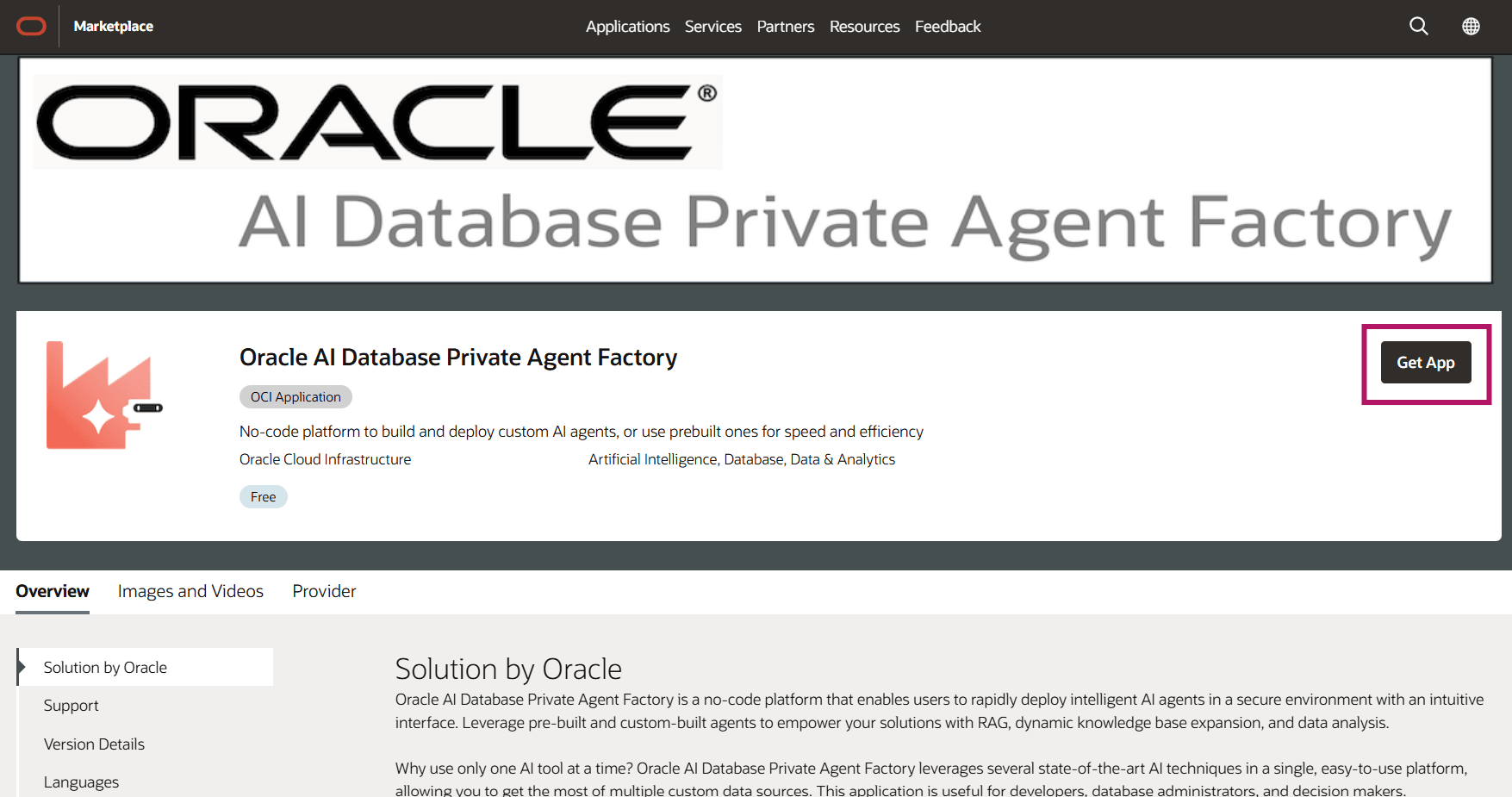
Visit the Agent Factory listing on Oracle Cloud Marketplace.
-
Select Get App and sign in to the OCI tenancy and region where you want to deploy Agent Factory.
-
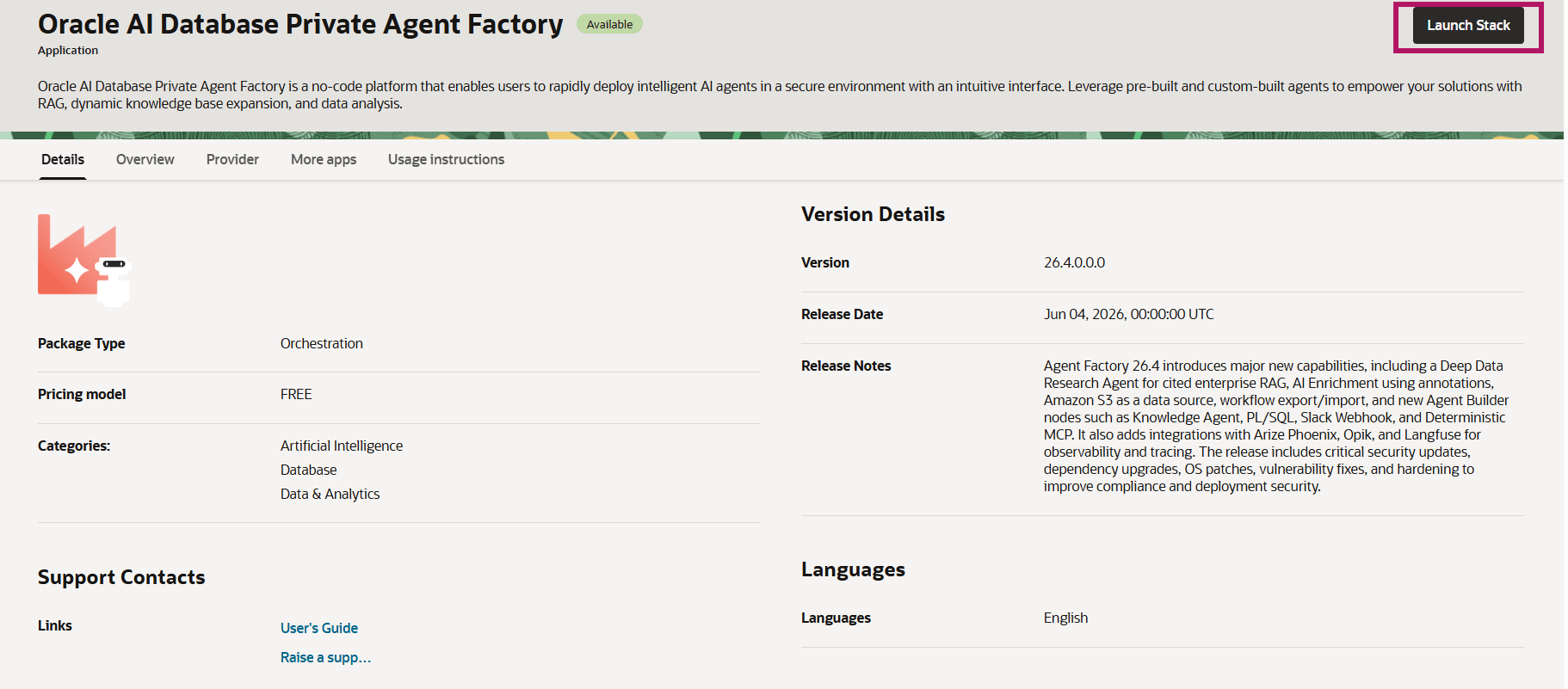
Review the product information and usage instructions, then select Launch Stack.
-
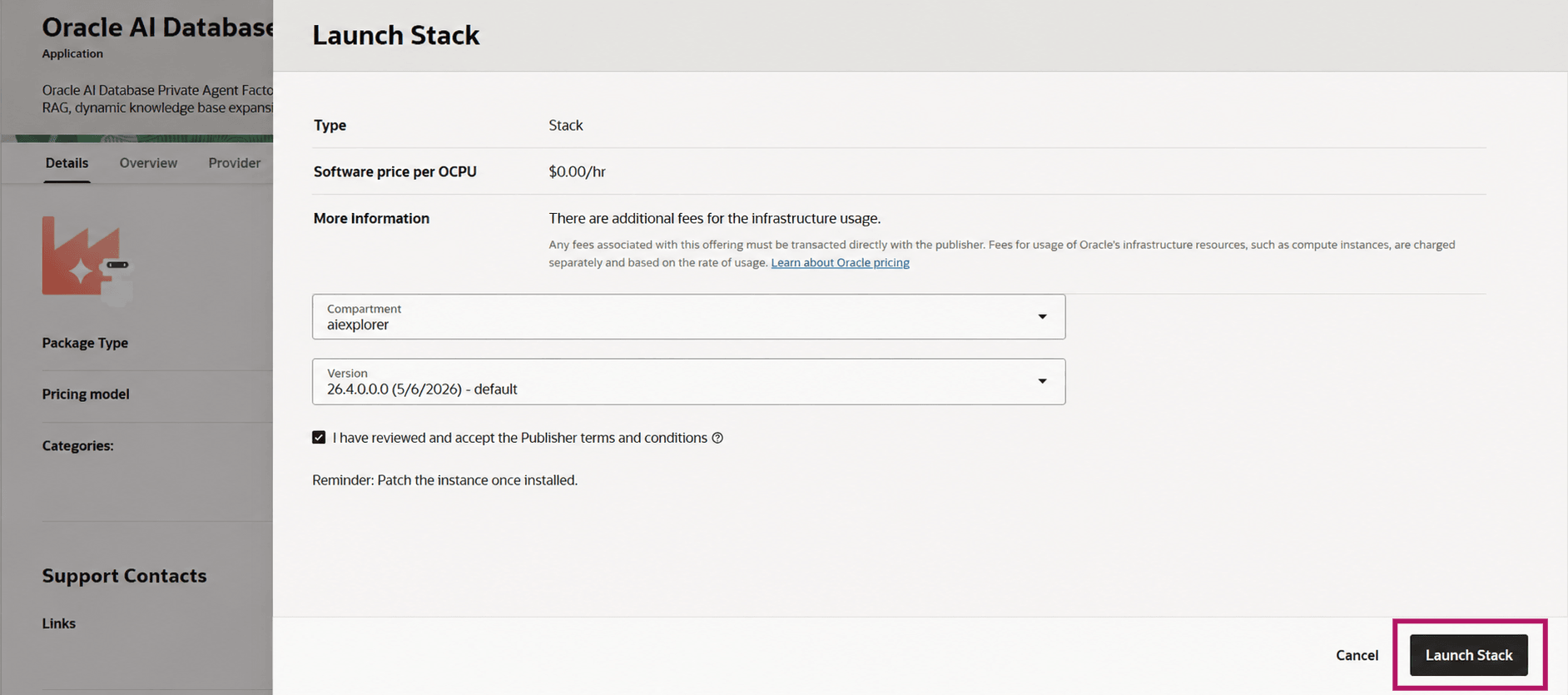
Review and accept the Publisher terms and conditions, then select Launch Stack.
By default, the Resource Manager stack is created in the selected compartment.
-
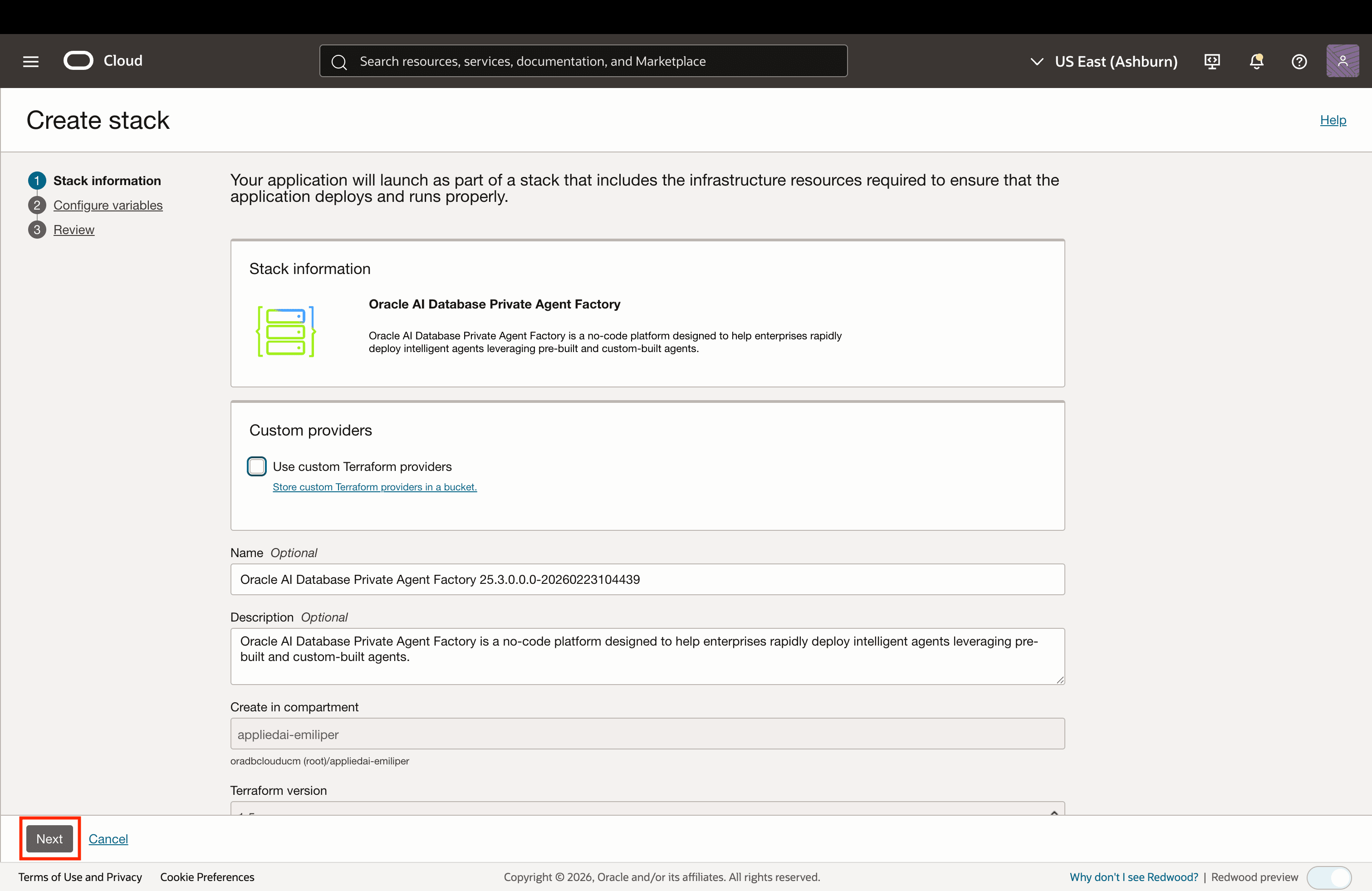
In Stack Information, optionally rename the stack and select the Resource Manager compartment where you want to create it.
-
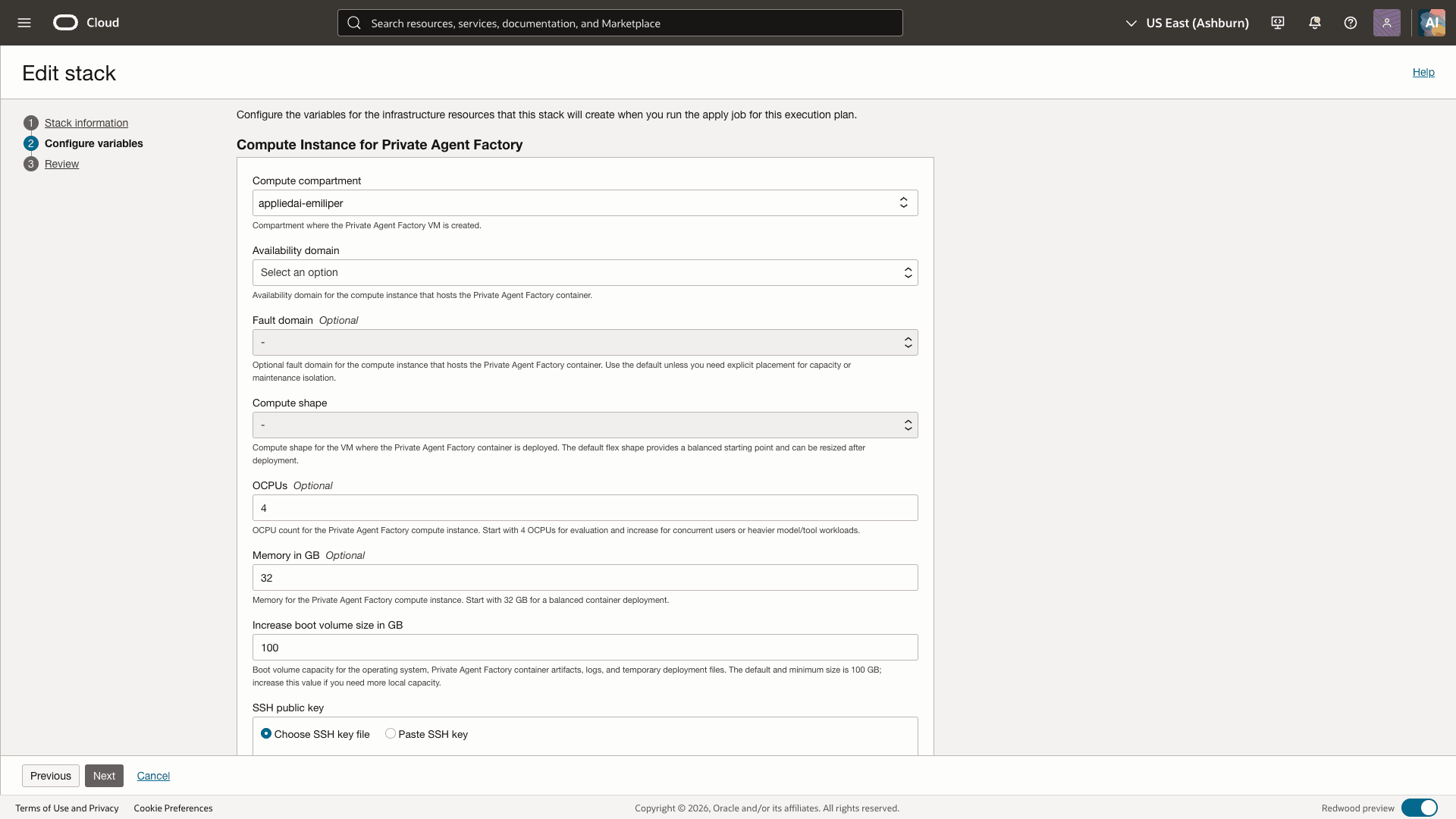
In Compute Instance for Private Agent Factory Container, select the compute compartment, availability domain, shape, and boot volume size. For a flexible shape, set the OCPU and memory values. Upload or paste your ED25519 SSH public key.
-
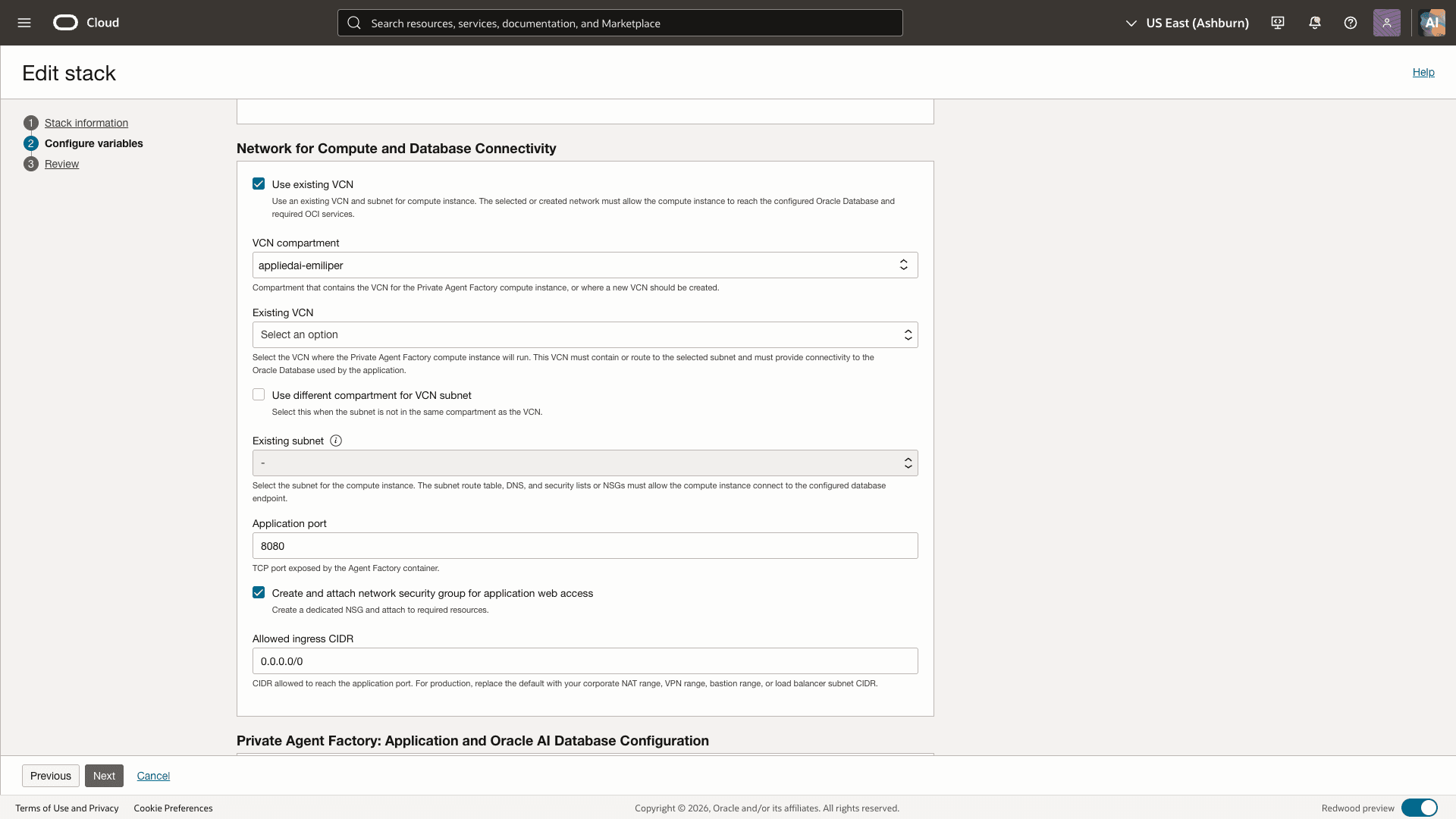
In Network for Compute and Database Connectivity, configure the VCN and compute subnet:
- To use an existing VCN, select its compartment, VCN, and compute subnet. The VCN and subnet can be in the same or different compartments. Select an existing ADB or choose to create a new ADB.
- To create a VCN, enter nonoverlapping VCN and compute subnet CIDRs, then select public or private compute access. The stack creates a new private ADB with the VCN.
- When you create an ADB in an existing VCN, provide a valid, unused ADB endpoint-subnet CIDR that does not overlap another subnet in the VCN.
-
In the application and database configuration sections, enter the required database information.
- For an existing ADB, select its compartment and a reachable database. Indicate whether the database is air-gapped. Use the dedicated application database user that you prepared before deployment.
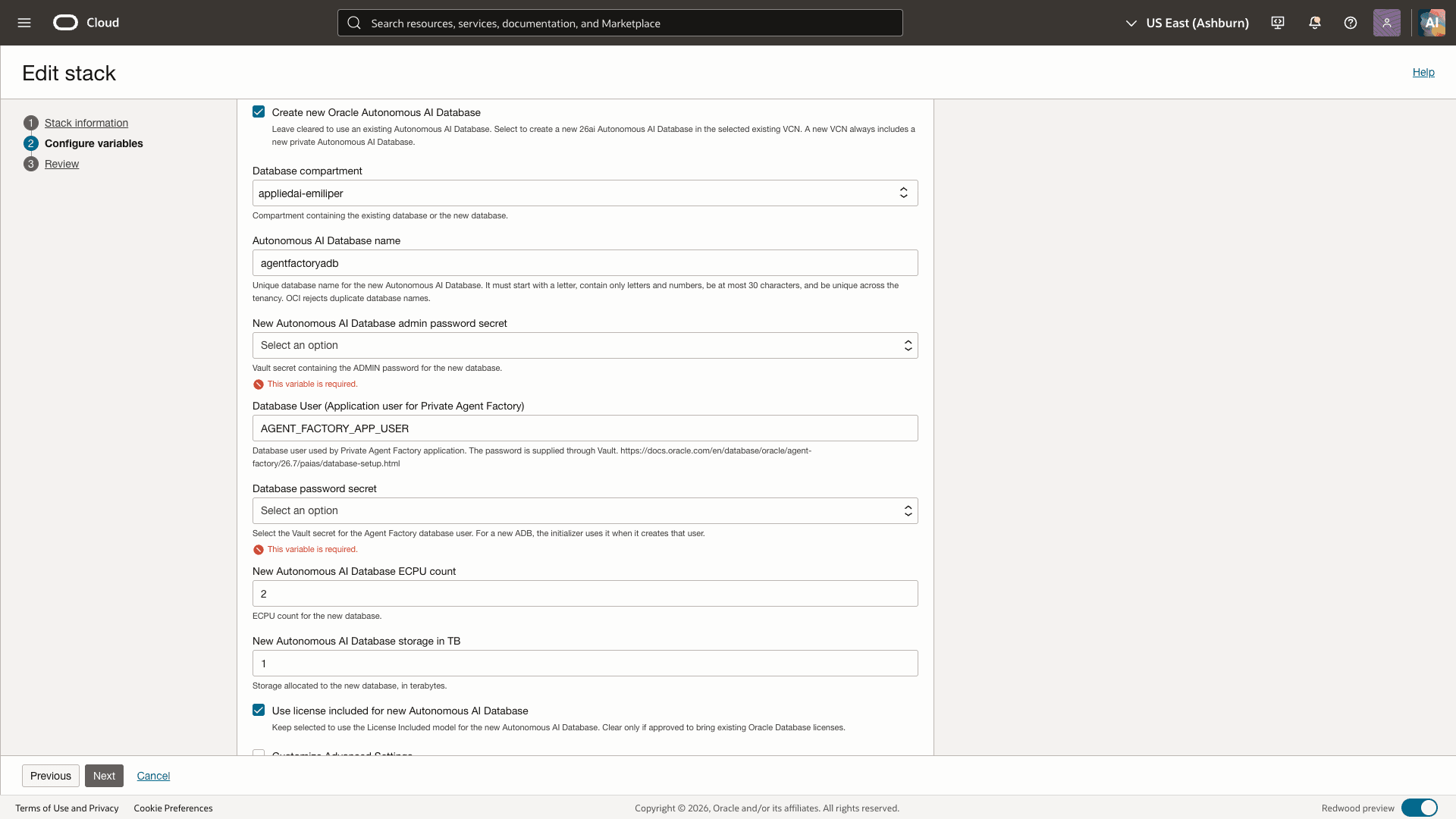
- For a new ADB, select its compartment, provide a unique database name, select the ADB
ADMINpassword secret, and set the ECPU count and storage. The database name must start with a letter, contain only letters and numbers, and be no more than 30 characters. - Select the Agent Factory database user. The stack uses the password secret to create this user when it creates a new ADB.
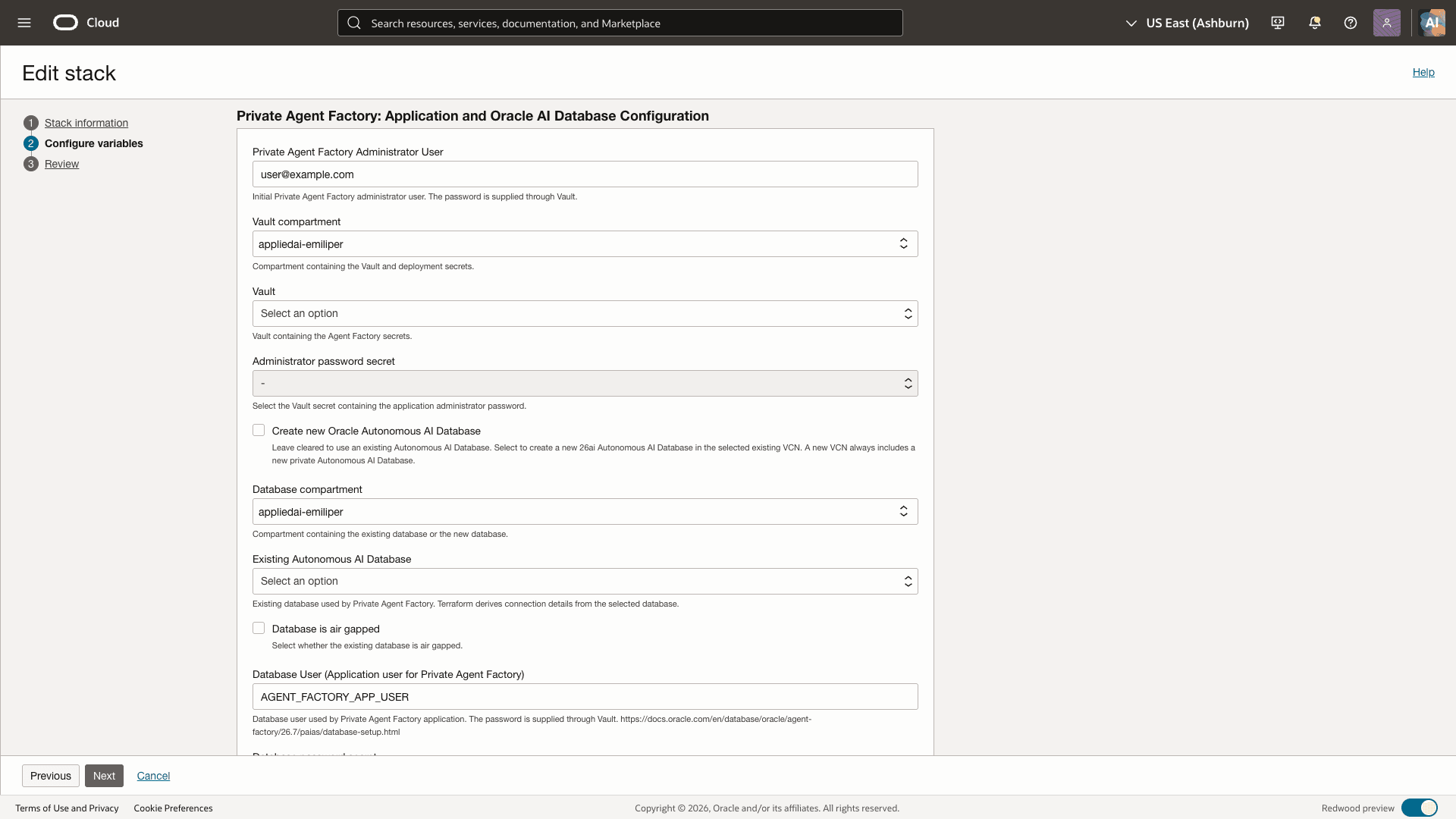
Description of the illustration application-settings.png
For a new ADB, the form also asks for the database name, ADB administrator password secret, ECPU count, storage, and license model. Keep Use license included for new Autonomous AI Database selected unless you are approved to use an existing Oracle Database license.
-
Select the Vault compartment and Vault. Select the administrator password and database password secrets. When creating an ADB, also select the ADB
ADMINpassword secret. Enter the Agent Factory administrator user name and OCIR user name or email address. -
Set the application port and allowed client CIDR. The default port is
8080. For production, use a narrow CIDR such as your corporate NAT, VPN, Bastion, load balancer, or on-premises address range. Use0.0.0.0/0only for short-lived testing.Both OCI network rules and the VM firewall must allow this port. The stack configures both when it manages the relevant resources.
-
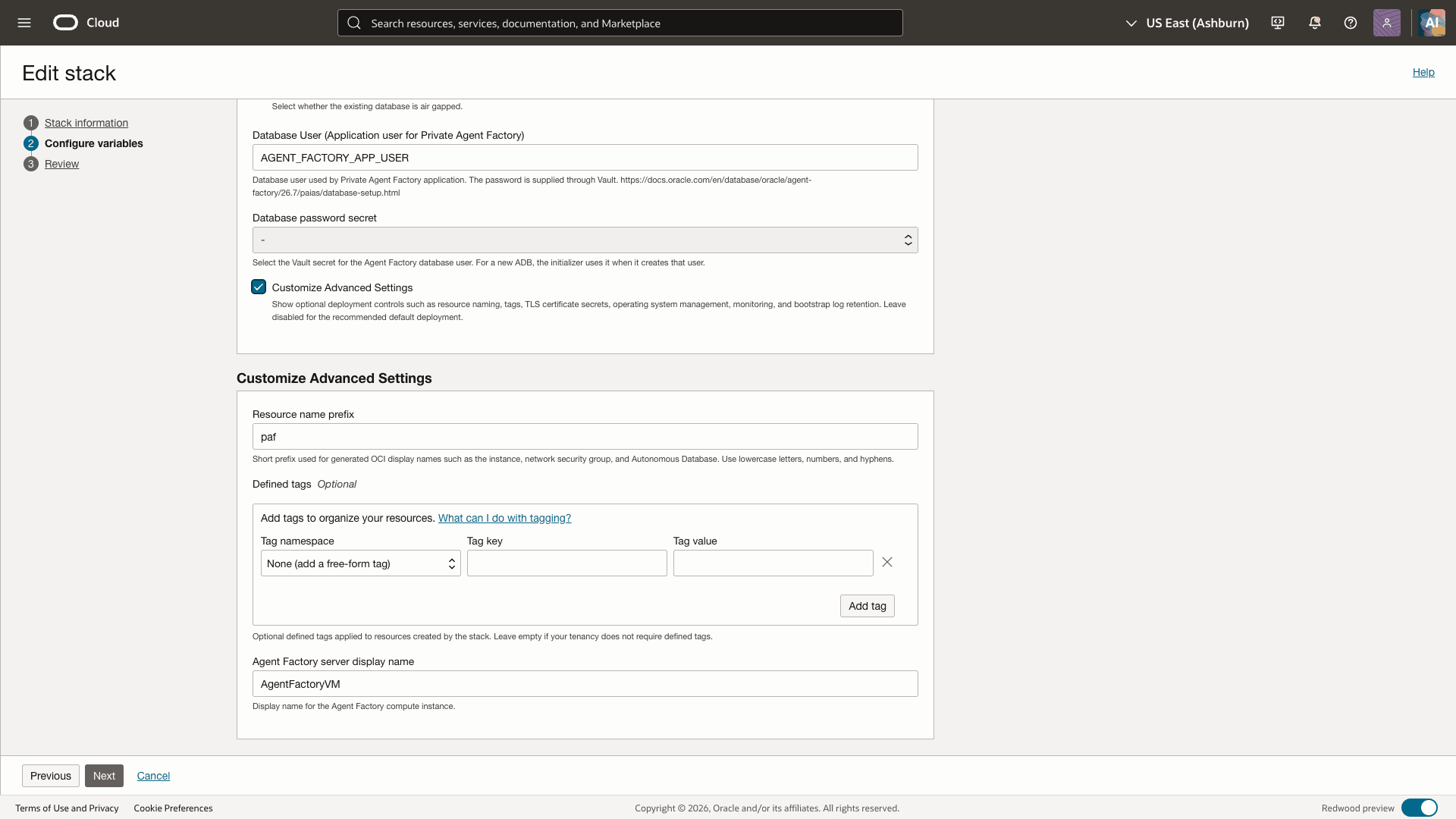
Optionally, in Advanced settings, configure a resource name prefix and defined tags. If you create an ADB, use a unique name for each deployment.
-
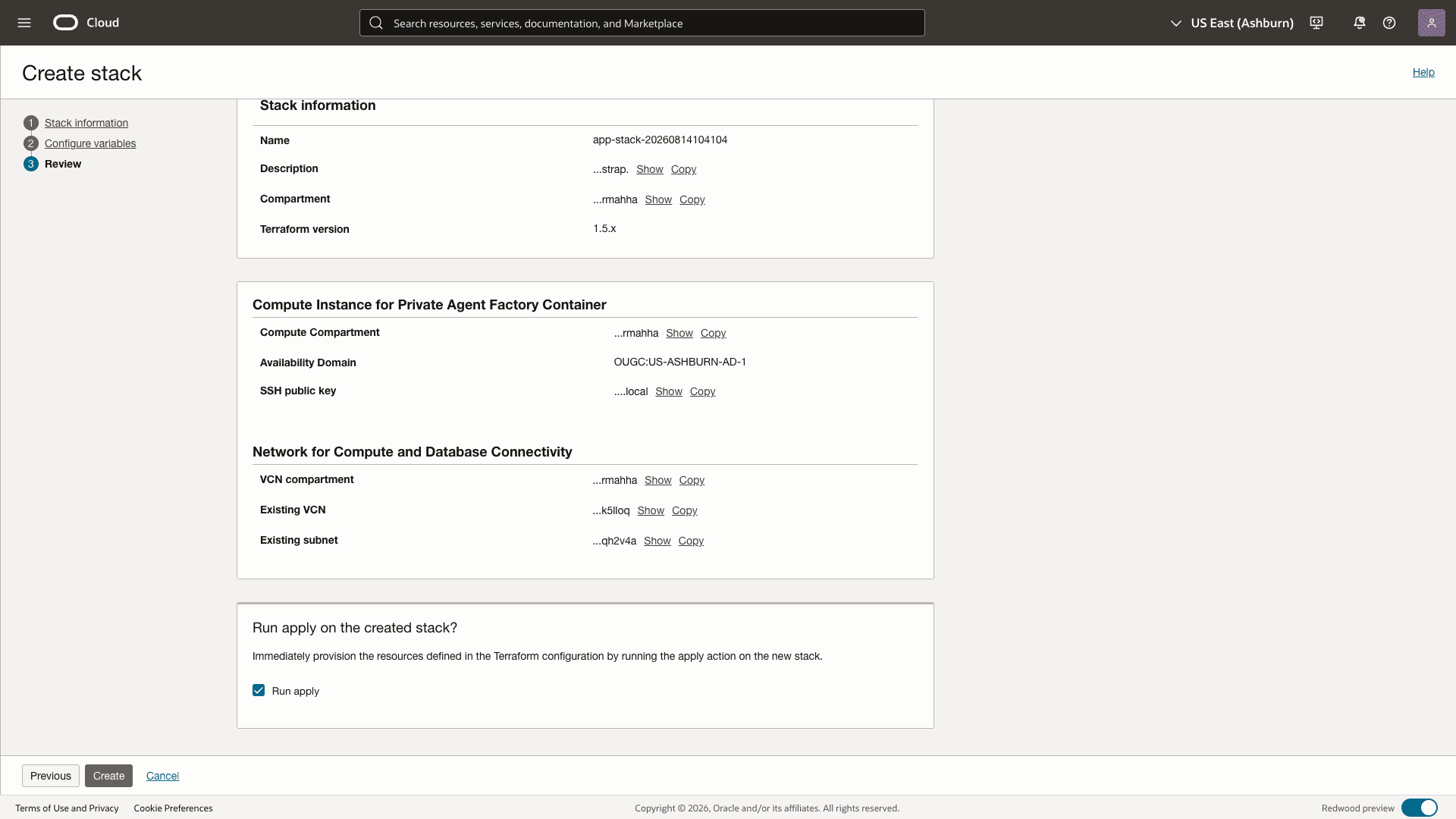
Review the configuration and select Create. Run the Resource Manager Plan and Apply jobs when prompted.
-
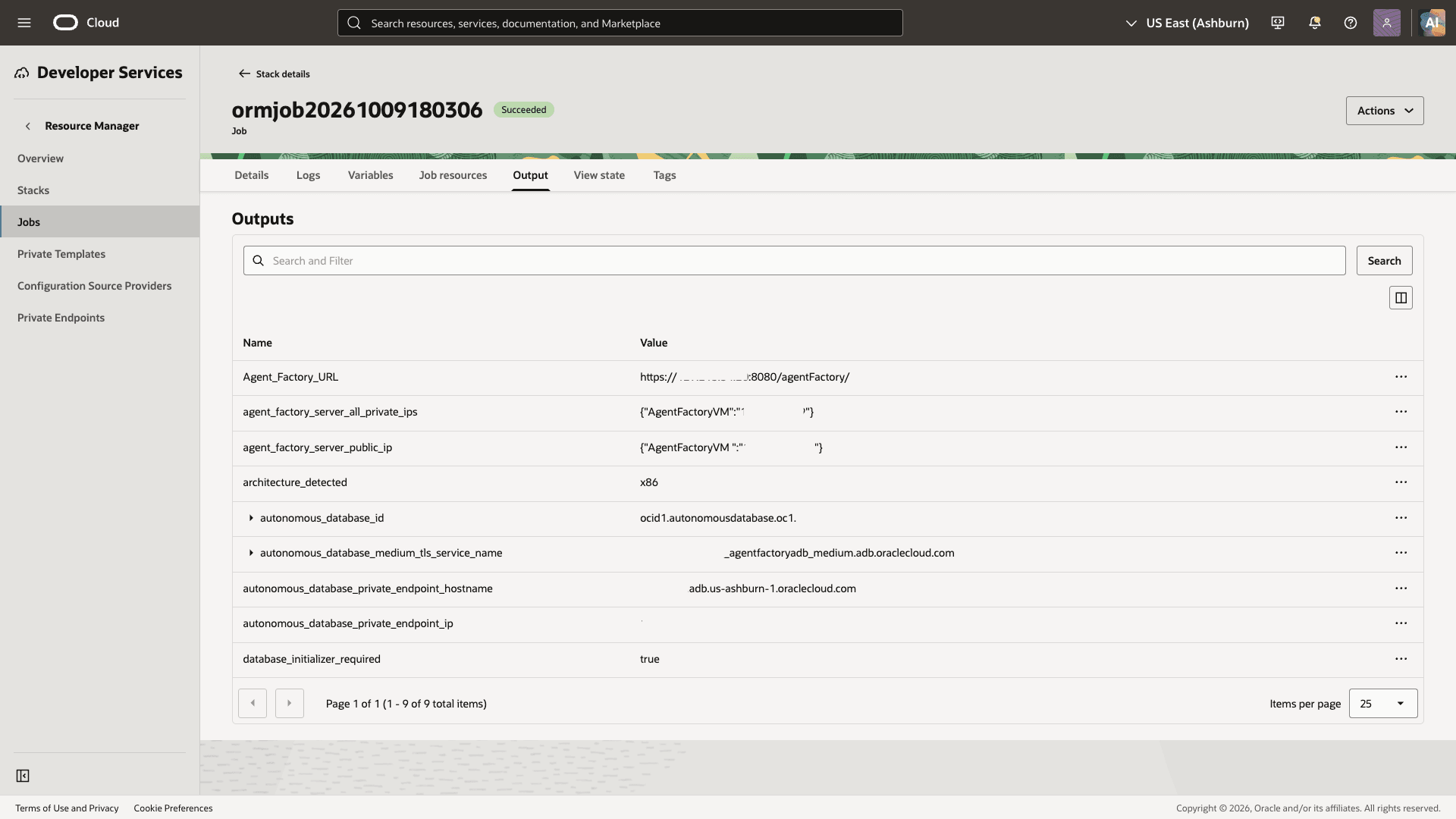
When the Apply job completes, open the stack Outputs tab and copy the application URL. For a public VM, the URL has this format:
https://<instance-public-ip>:<application-port>/agentFactory/installationIf the VM is in a private subnet, the URL might not be accessible from your network. Access depends on your tenancy’s routes and security rules. Contact your tenancy administrator for help. See Access Agent Factory Deployed in a Private Subnet.
Access and Configure Application
Access the Application
After the Apply job completes, wait a few minutes for cloud-init and the container setup to finish. Do not repeatedly restart the VM during its first configuration. The application might load before setup is complete; wait until it redirects you to the login page before you configure it.
- Open the application URL in a browser.
-
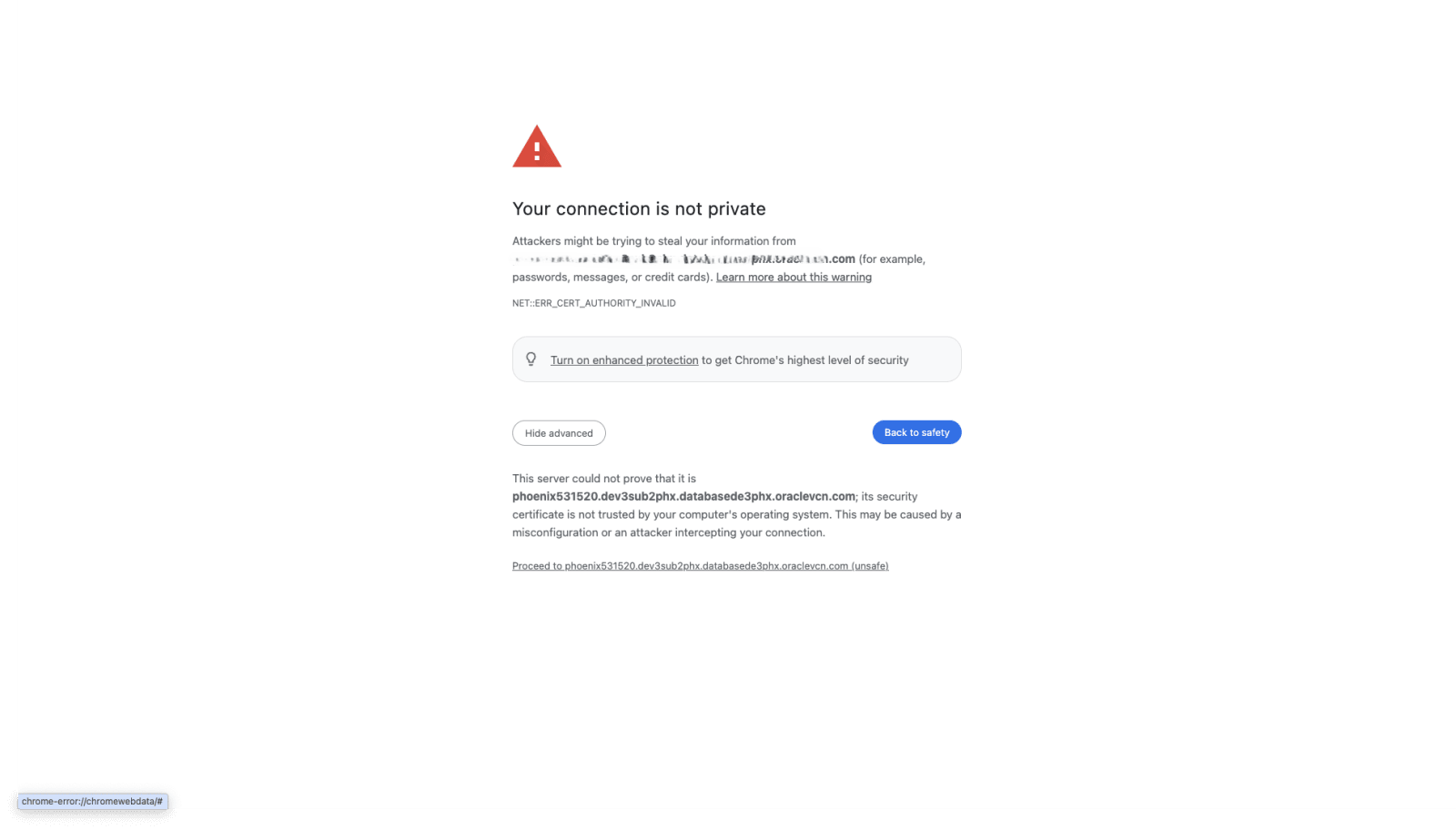
The deployment uses a self-signed certificate by default. If the browser displays a certificate warning, verify that the host is the VM you deployed before you proceed. Replace the certificate with an organization-approved certificate before production use.
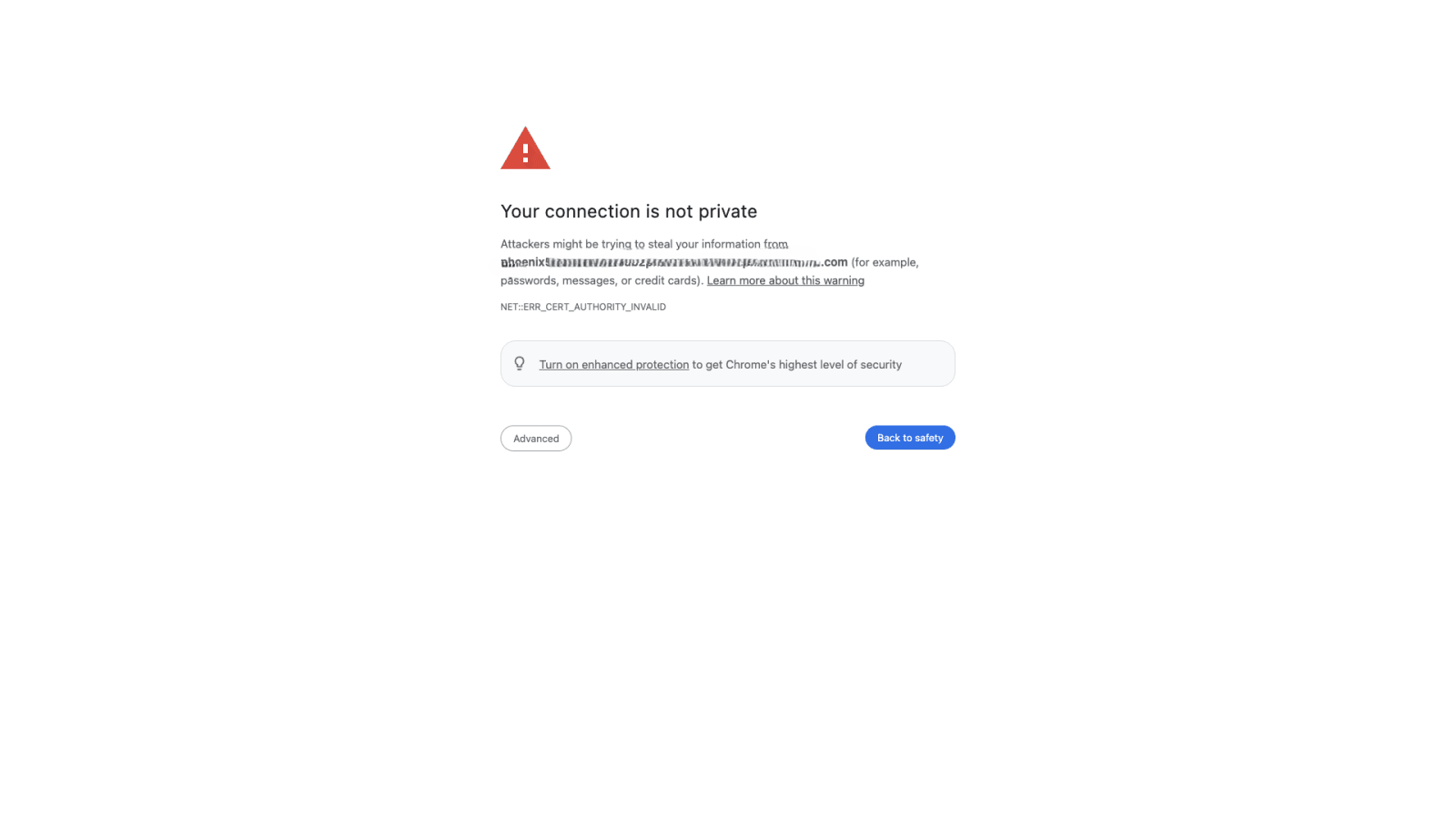
If you have verified the host and choose to proceed, select Advanced, then select Proceed to host or the equivalent option in your browser.
-
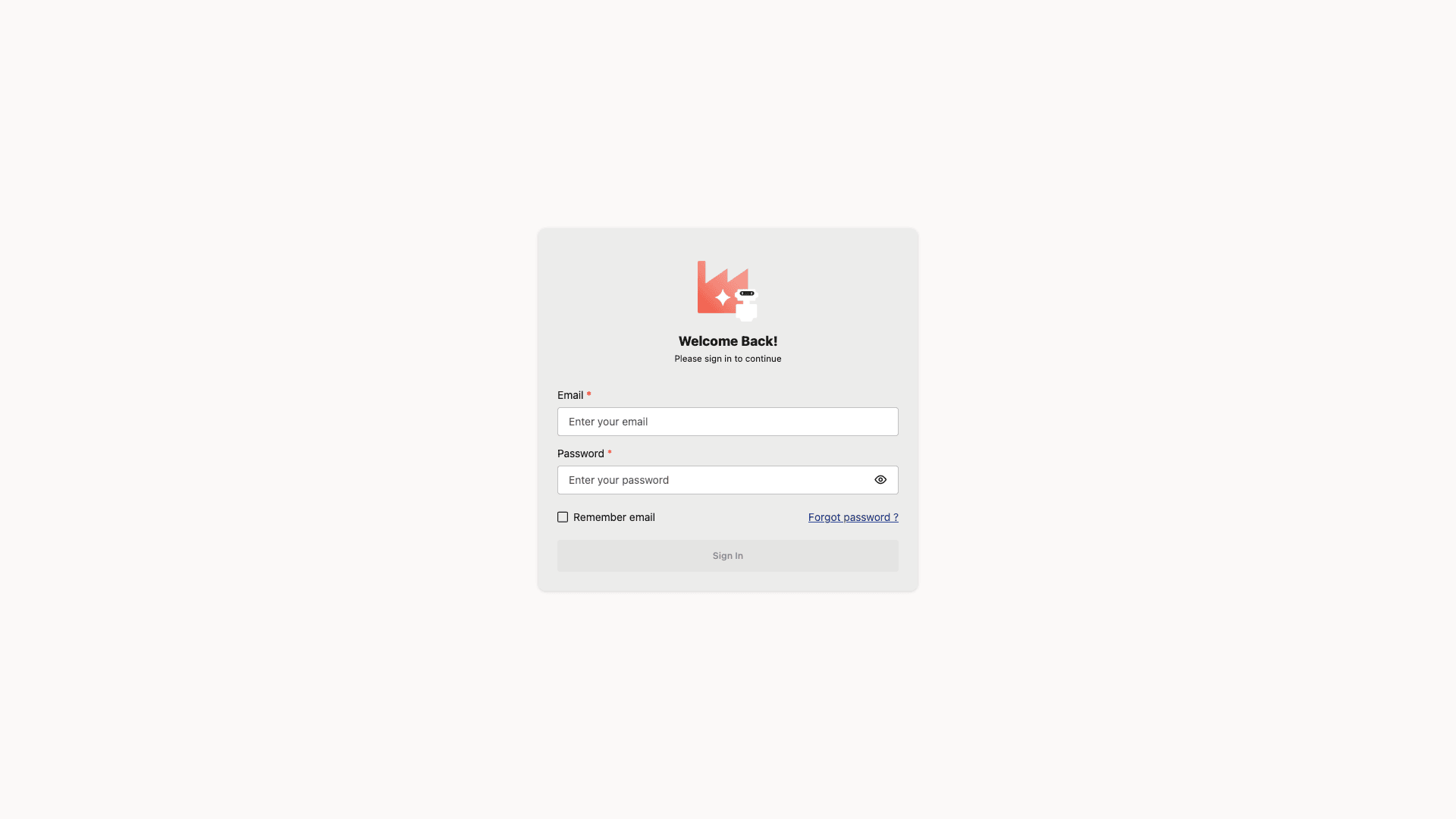
Sign in with the Agent Factory administrator user name and the password stored in the Vault secret selected during deployment.
Configure LLM
Before you use Agent Factory, configure an LLM and set it as the default model. See Manage LLM for supported models and providers.
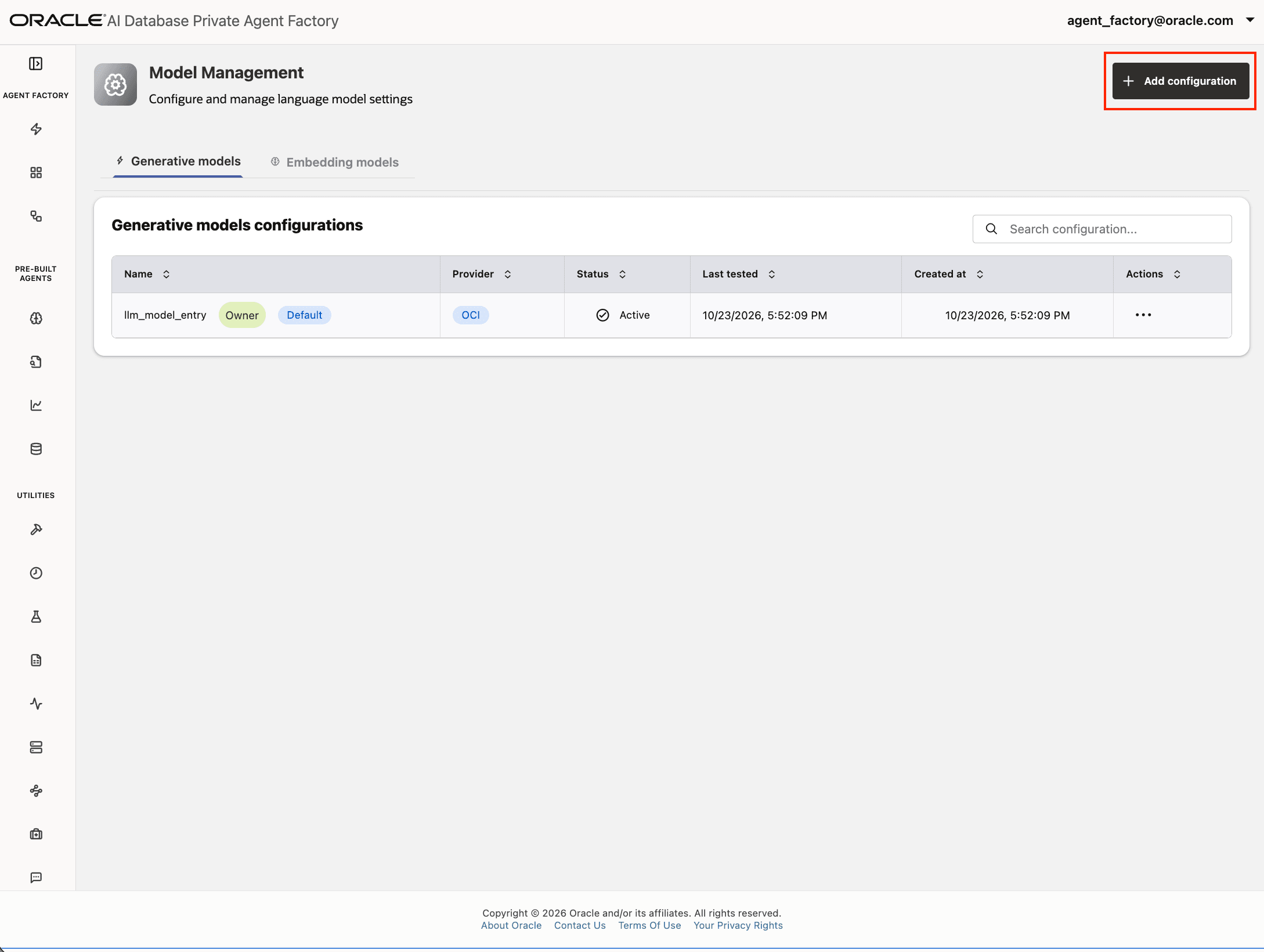
- Sign in and open Model Management.
-
Create an LLM configuration for your provider. Enter the provider-specific endpoint, model, authentication, and other required settings.
- Select Test Connection and confirm that the connection succeeds.
- Save the model configuration.
- Select the saved model and set it as the default model.
Optionally, configure an embedding model for data ingestion and retrieval. By default, Agent Factory uses the local multilingual-e5-base model to generate embeddings. If you choose OCI Generative AI as the embedding provider, the following embedding models are supported for RAG Agents:
cohere.embed-v4.0cohere.embed-english-v3.0cohere.embed-multilingual-v3.0cohere.embed-multilingual-light-v3.0
Troubleshoot a Deployment
If the Resource Manager Apply job fails, review the job log. Common causes include insufficient permissions, unavailable compute capacity, overlapping network CIDRs, a missing Vault permission, or blocked access to OCIR.
If the Apply job succeeds but the application is unavailable, review Console history on the instance details page. Alternatively, connect to the VM through SSH and run:
sudo cloud-init status --long
sudo journalctl -u cloud-final -b --no-pager
sudo tail -n 200 /var/log/cloud-init-output.log
podman ps -a
podman logs -f oracle-appliedai-selfcontained
For an existing VCN or ADB, verify DNS, routes, security rules, and TCPS connectivity from the VM to the database. For a private VM, also verify the client access path.
Do not include passwords, tokens, or other secret values in support requests or diagnostic output.
Security and Operational Requirements
When you deploy Agent Factory through OCI Marketplace, review the following security and operational requirements.
- Host Security Software. The Marketplace deployment does not include endpoint security software, such as Falcon, Griffin, or similar sensors. Install any required monitoring, security, or compliance tools according to your organization’s standards.
- SSH Key Support. SHA-1-based SSH keys are not supported. Use an ED25519 SSH key for a Marketplace deployment.
- SSL Certificates. Agent Factory uses self-signed certificates by default. Certificate management requirements vary by organization, and some deployments might not have a registered domain name for obtaining trusted certificates. You are responsible for managing the certificate lifecycle. You can import organization-approved certificates, replace the defaults with trusted CA-signed certificates, or regenerate self-signed certificates using the built-in tooling. See Managing SSL Certificates.
- Ongoing Security Maintenance. The Marketplace stack provisions a VM and installs Agent Factory, but you are responsible for maintaining the environment. Apply operating system security updates, address newly disclosed vulnerabilities, install organization-specific security tools, and maintain certificates and access controls according to your policies. Evaluate and remediate security findings according to your security requirements.
- Wallet-Based Database Connectivity. The Marketplace stack does not currently support wallet-based database connectivity. If your database requires wallet-based mutual TLS, create a new network and ADB with the stack or use manual installation.