Manage Identity and Access
Manage users, groups, roles, and access to shared resources in Agent Factory.
The User Management page provides a centralized dashboard for managing users in Agent Factory. Administrators can onboard users, assign roles, and organize people into groups. Groups simplify access for teams or project-based collaboration.
Role descriptions are provided to clarify the permissions for:
- Viewers
- Editors
- Administrators
Role Guidance
Use roles to separate agent usage from platform administration.
| Role | Typical use |
|---|---|
| Viewer | Users who can interact only with agents that are shared with them. |
| Editor | Builders who create, edit, test, and publish agents or workflows. |
| Administrator | Users who configured Agent Factory and the first user who signs in through SSO. The Administrator role cannot be granted to any other user. Administrators manage users, SSO, SMTP, proxy, observability, certificates, models, data sources, and diagnostics. |
Administrators can configure outbound connections and credentials that affect the entire environment.
Local Users, SSO Users, and API Access
Users can appear in the directory after accessing the system through SSO. SSO authentication uses a browser redirect flow. Local credential authentication for API tools, such as loginValidation, is separate from SSO and is intended for local user credentials.
If an integration must call Agent Factory APIs, validate the authentication method in a non-production environment before depending on it. See Agent Builder.
Manage Users and Groups
Administrators can create local users, manage user accounts, and organize users into groups.
Note: If SSO user creation is enabled, the User Directory lists all users who have accessed the system via Single Sign-On (SSO), along with their roles, and statuses.
Add a Local User
When SSO user creation is not enabled, administrators can create a local user.
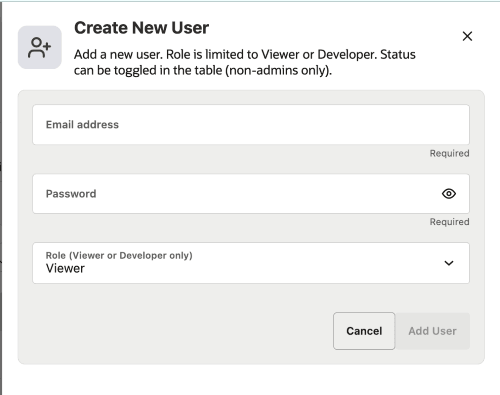
- Open the User Management page.
- Click Create Local User.
- Enter the user’s email address and password, and select a role.
- Click Add User. You receive a success or error notification.
The new user appears in the users table.
View and Manage Users
The users table displays each user’s email address, role, status, and available actions. Administrators can search by email address, user ID, role, or status. Non-administrators can view only their own user details.
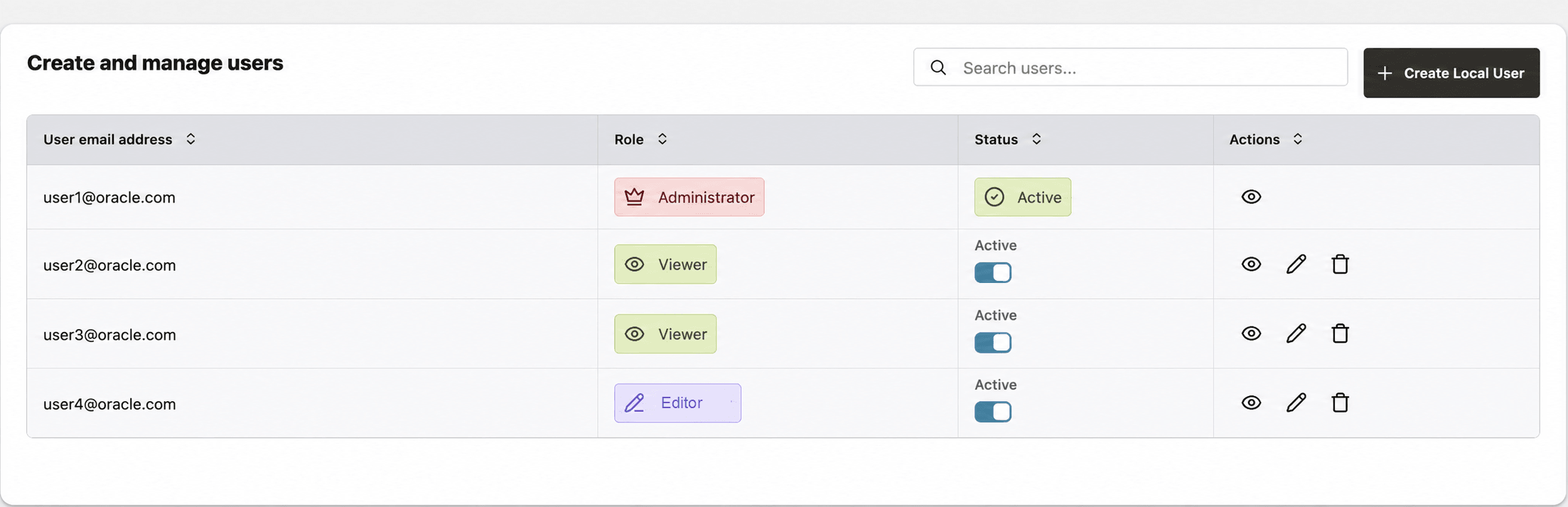
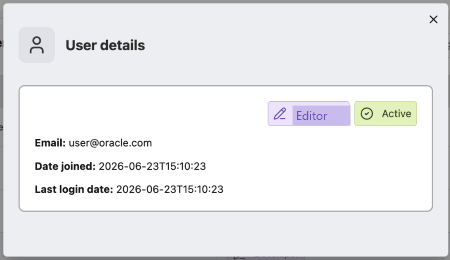
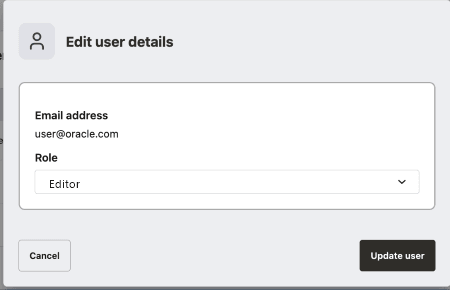
Administrators can use row actions to view user details and to edit, delete, enable, or disable non-administrator users. Administrator users cannot be edited, deleted, enabled, or disabled from the table.
Create a Group
- Open the User Management page.
- Navigate to Manage user groups.
- Click Create group.
- Enter a group name and description.
- Click Save group. You receive a success or error notification.
The new group appears in the groups table.
View and Manage Groups
The groups table displays the group name, description, and available actions. Administrators can search by group name, description, or group ID and select a group to manage its members.
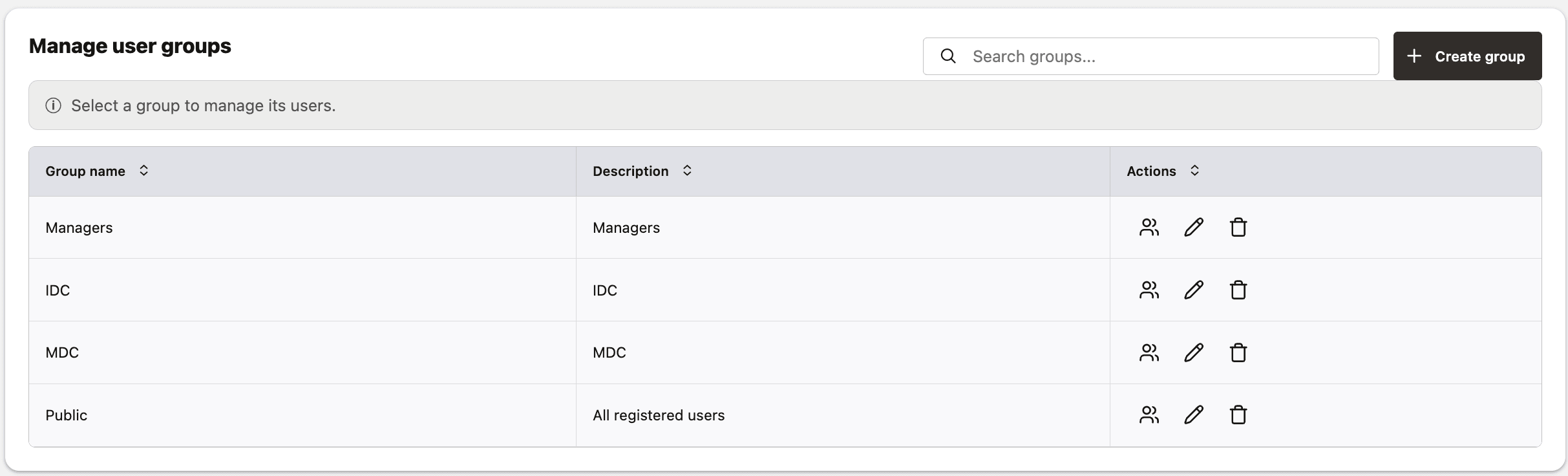
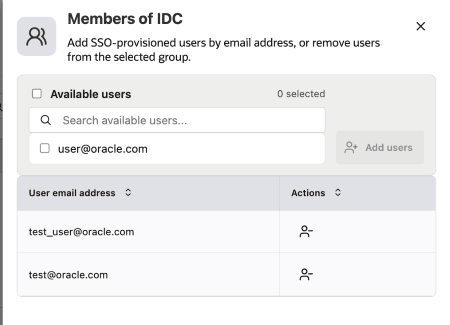
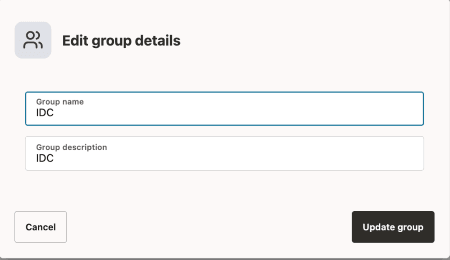
Use the actions for a group to open its members drawer, edit its name or description, or delete the group after confirming the deletion. In the members drawer, search for available users, select one or more users, add them to the group, or remove existing group members.
Manage Resource Access
Review and manage user and group access to shared resources from one administrative page.
Only administrators can access Settings > Manage Resources. This page lets administrators review and update access controls for all supported resources.
View and Filter Resources
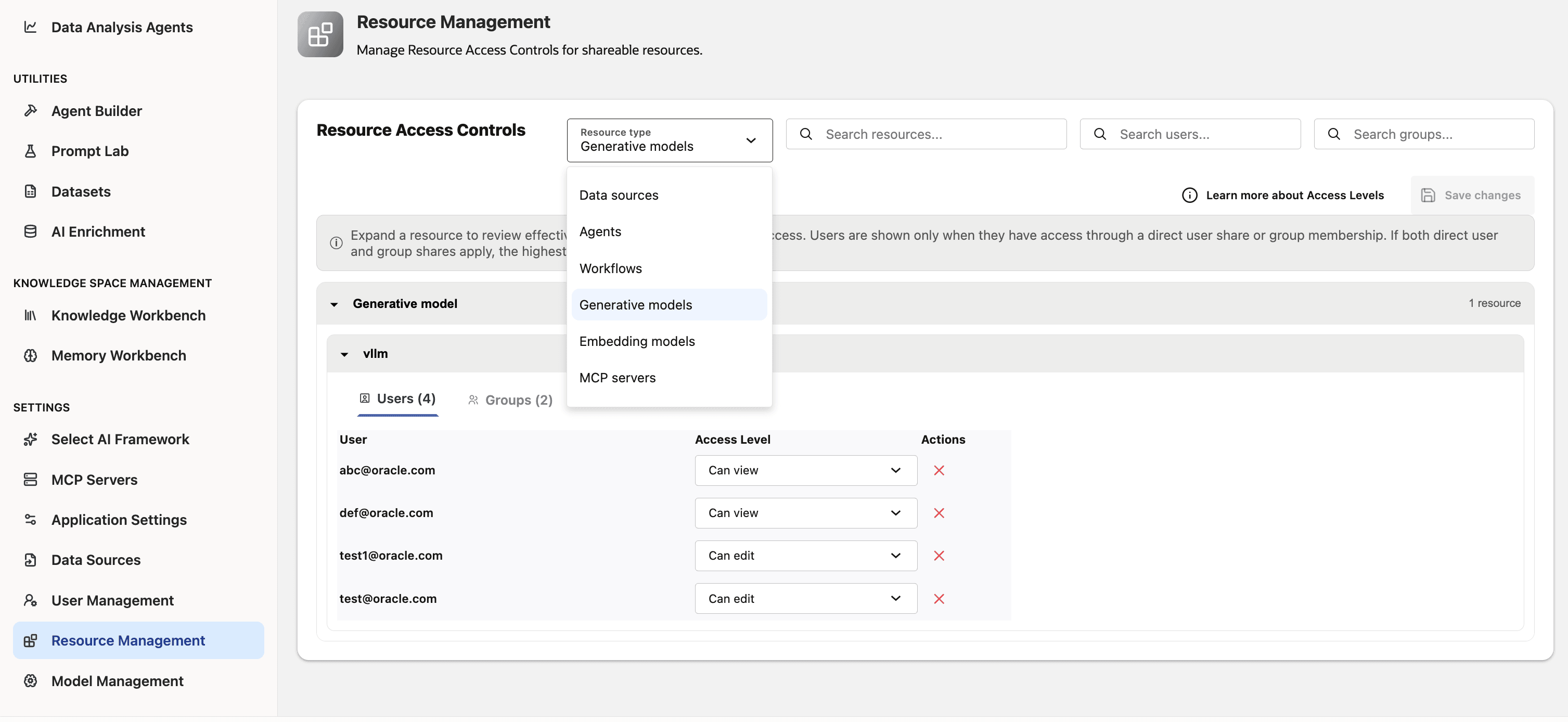
Select a resource type to view its resource access controls. You can view data sources, agents, workflows, generative models, embedding models, MCP servers, and API keys.
Resources are grouped by type and can be expanded or collapsed. Use search to find a resource by its name, type, display type, or resource key. If no resources match the filter, an empty-state message is displayed.
Review Resource Access
Expand a resource, then select the Users or Groups tab to review its access controls. Each row shows the user or group and its access level.
When a user has both direct access and access through a group, the page shows the highest effective access level. Access levels have the following permissions:
- Can view: View and use the resource.
- Can edit: View and use the resource, and edit its details or configuration.
- Can manage: View, use, and edit the resource, and delete or share it.
Select Learn more about Access Levels on the page to review these permissions.
Update Access
To change a user’s or group’s access level, select a new value from the Access Level list in its row. For a group, the effective access level updates for users who inherit access through that group.
The page enables Save changes after you make a change. Your updates are not applied until you save them.
Revoke Access
To remove a direct access grant, select the remove action for the user or group and confirm the revoke dialog.
If a user also has access through a group, that group permission continues to apply. When you revoke a group, users who only received access through that group lose access to the resource.
Click Save changes to remove revoked grants.