10.2 Configuring Master/Detail Grids
Set up master-detail grids that stay coordinated and save together.
Exercising the Master/Detail Grid Behavior
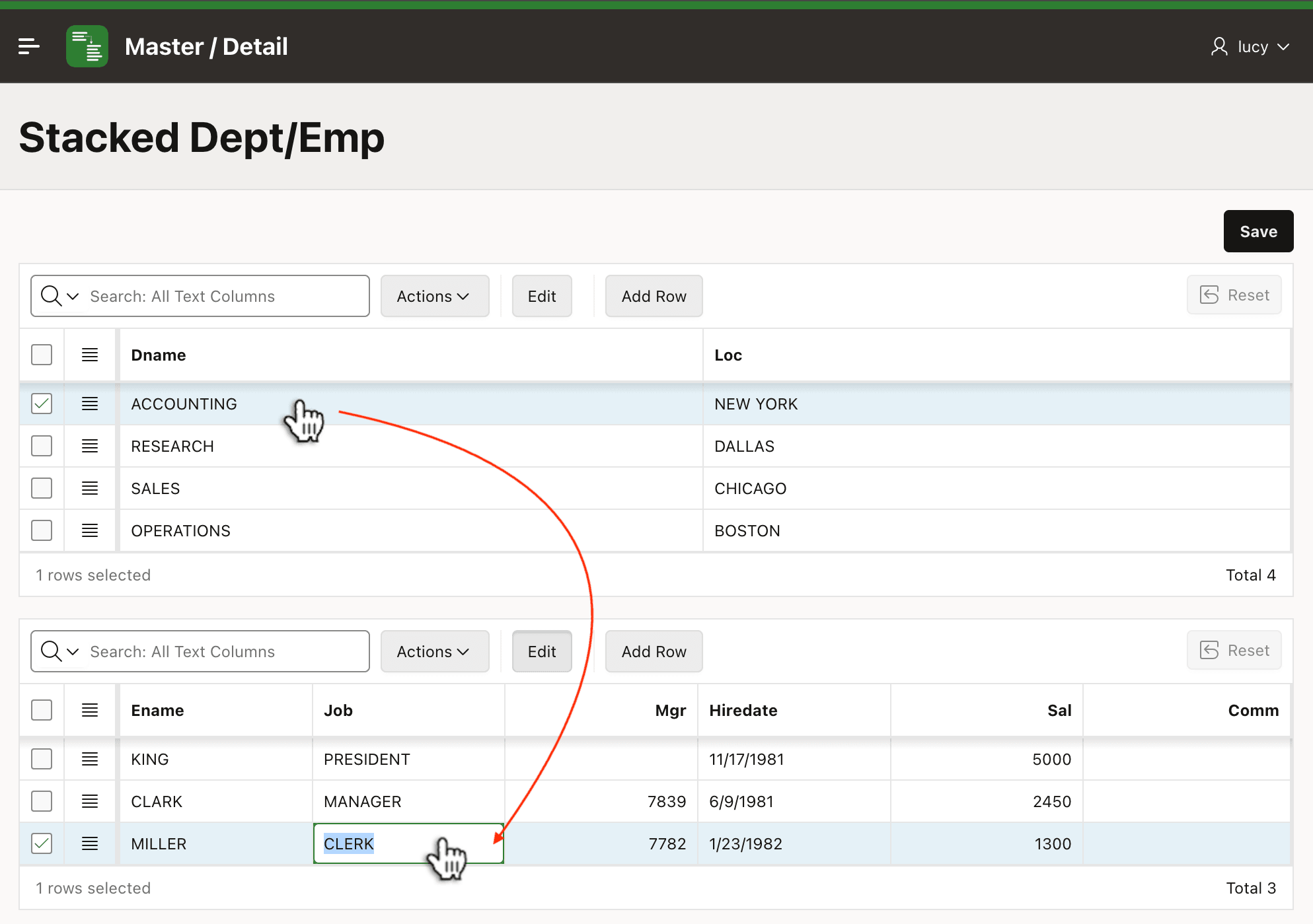
If you choose the Stacked pattern in the Master/Detail wizard, the resulting page has two editable, coordinated Interactive Grids. As shown below, clicking on a row in the master grid refreshes the detail grid to show only rows that reference the selected master row's primary key.
Notice the two Interactive Grid toolbars. Each has an (Add Row) button, but no (Save) button. Users can work with departments and employees, but cannot save each grid separately. Instead, the page-level (Save) button submits the page so changes from both grids get processed in the same transaction. If validation fails, no edits are saved.
Figure 10-2 Edit Multiple Master Rows and Respective Detail Rows, Then Save
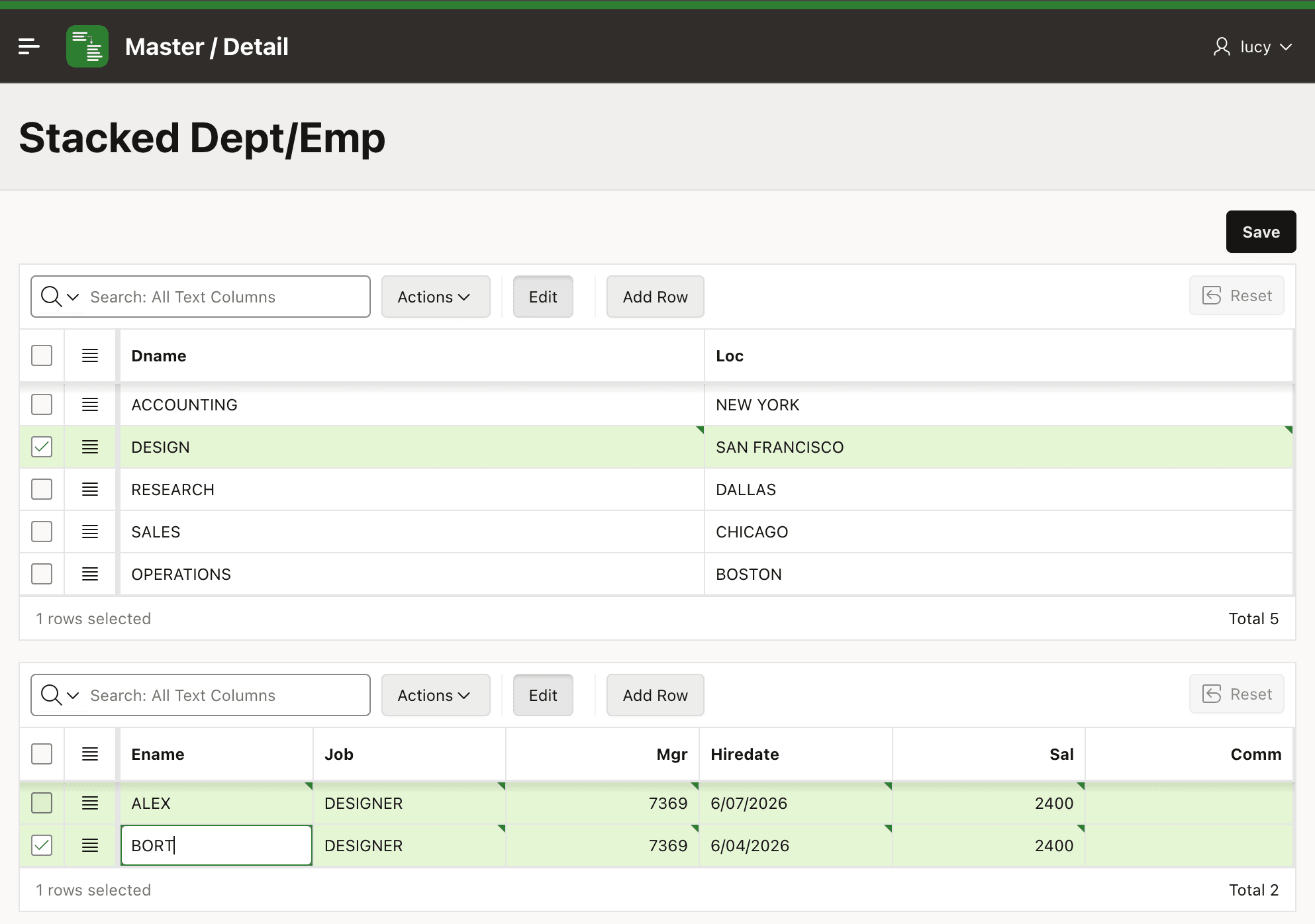
The Interactive Grid's client-side tracking of rows to display and edit automatically handles the master/detail relationship as well. Users can add, update, and delete departments and employees, accumulating changes to many departments and many employees, then save all the changes together. As shown below, the user can even add a new department DESIGN and multiple new employees in the new department as part of their changes. The user can continue to navigate through master and detail rows to complete necessary changes, then submit them all by clicking the page-level (Save) button.
Figure 10-3 Enter New Master Row with New Detail Rows as Part of Other Changes
Understanding the Settings that Drive Master/Detail Grids
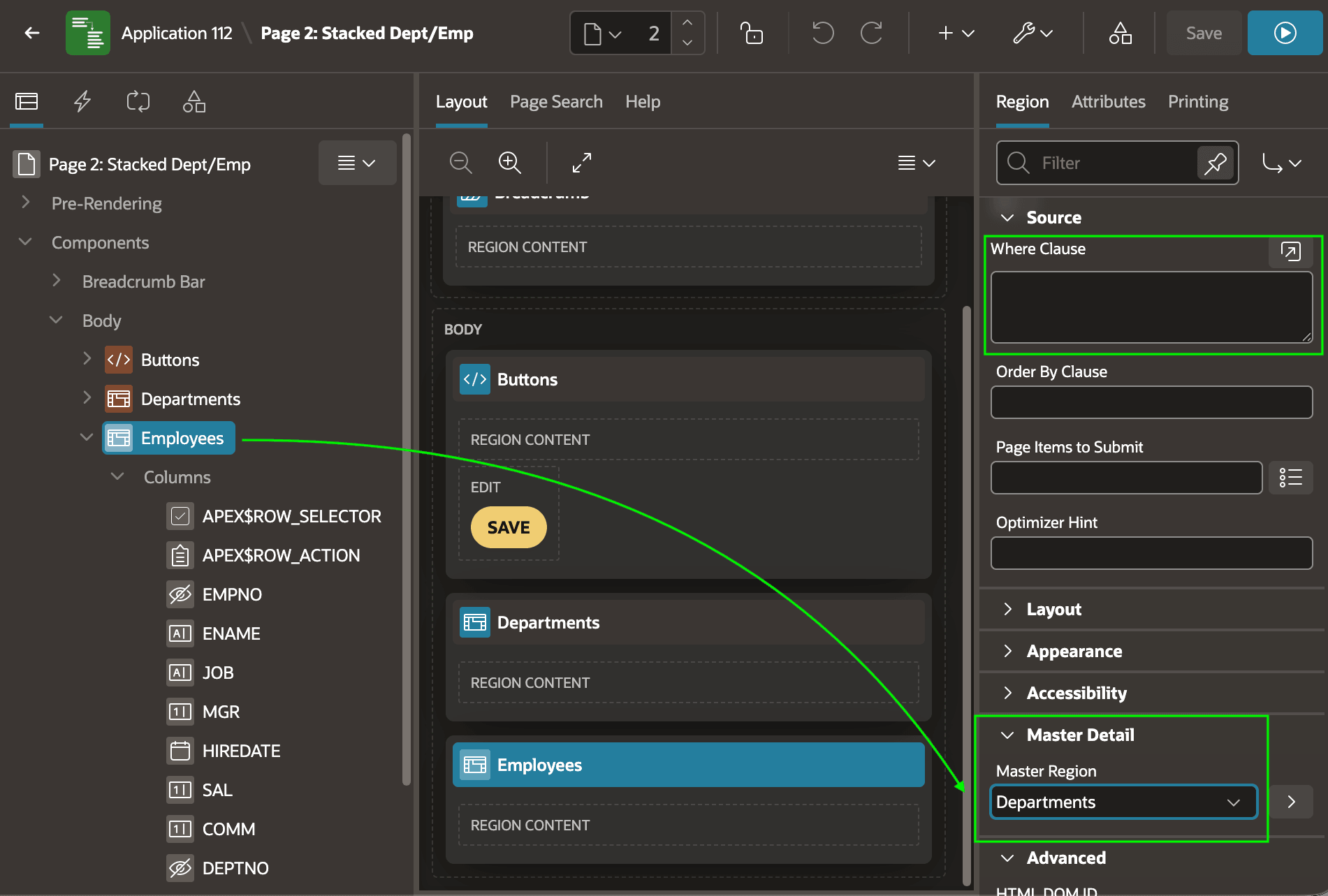
Two settings on the detail grid enable its Master/Detail coordination: Master Region and one or more columns with a Master Column assigned. First, as shown below, configure the Master Region property. Choose the name of the Interactive Grid whose row selection it should react to. Notice there is no need to include a Where Clause predicate related to master/detail coordination. The APEX runtime handles that automatically. If you require additional filtering, you can add those other criteria as needed.
Figure 10-4 Configuring the Master Region of a Detail Grid
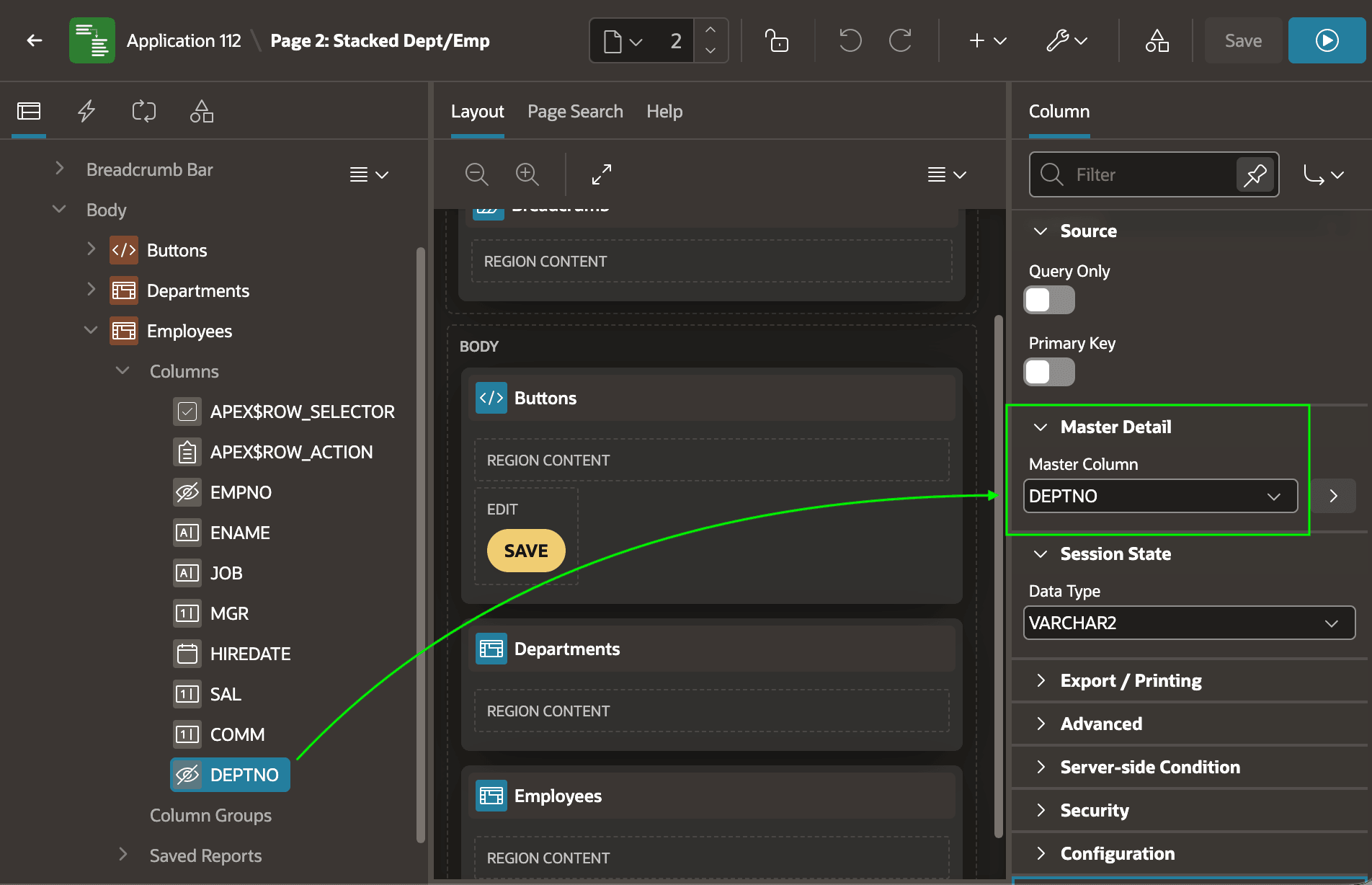
With the Master Region set on the detail grid, set the
Master Column property on one or more detail grid columns. As
shown below, after selecting the Employees grid's DEPTNO column,
set its Master Column to the name of the master region column it
relates to. In this case the master column is also named DEPTNO. The
relationship between the DEPT and EMP tables only
requires a single master column.
Tip:
After setting up this parent/child relationship between two grids, you can continue to add a "grandchild" grid by repeating the same configuration. The grids stay coordinated and the user can edit records across multiple relationship levels.
Parent topic: Working with Master/Detail Data