10.3 Showing Master/Detail Data Side by Side
Create a side-by-side page with a compact master list and selected details with related rows.
Understanding the Side by Side Master/Detail Page
A Side by Side Master/Detail page features a compact master-row search experience in the left column. In the wizard, you specify a Primary Display Column and Secondary Display Column for the master table. Users see both master column values and can search on them. They click any master row in the left column to see more information about it in the body of the page, along with related detail table rows for the selected master.
Figure 10-6 Side by Side Master/Detail Lets Users Search and See Details for Master Rows
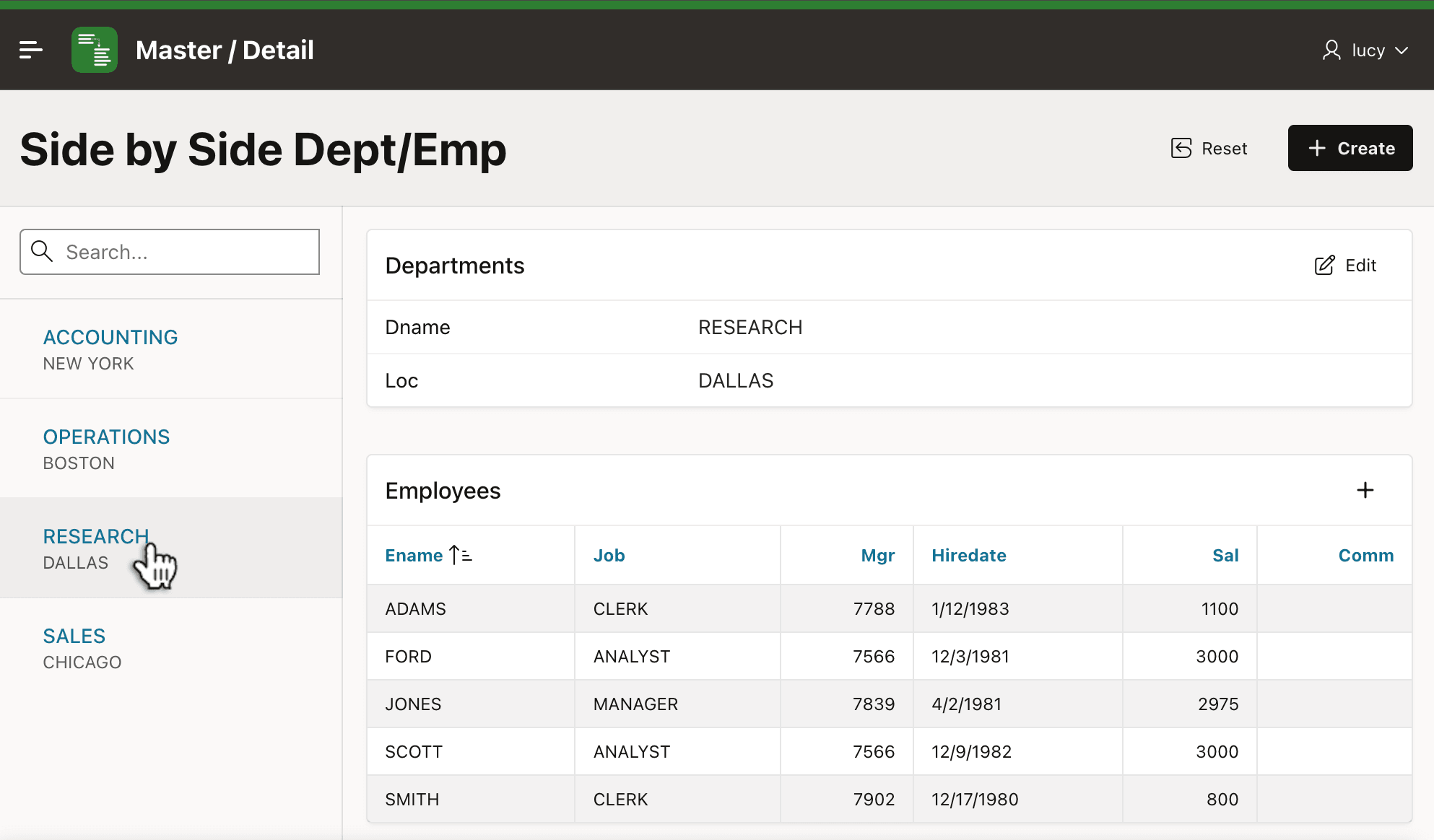
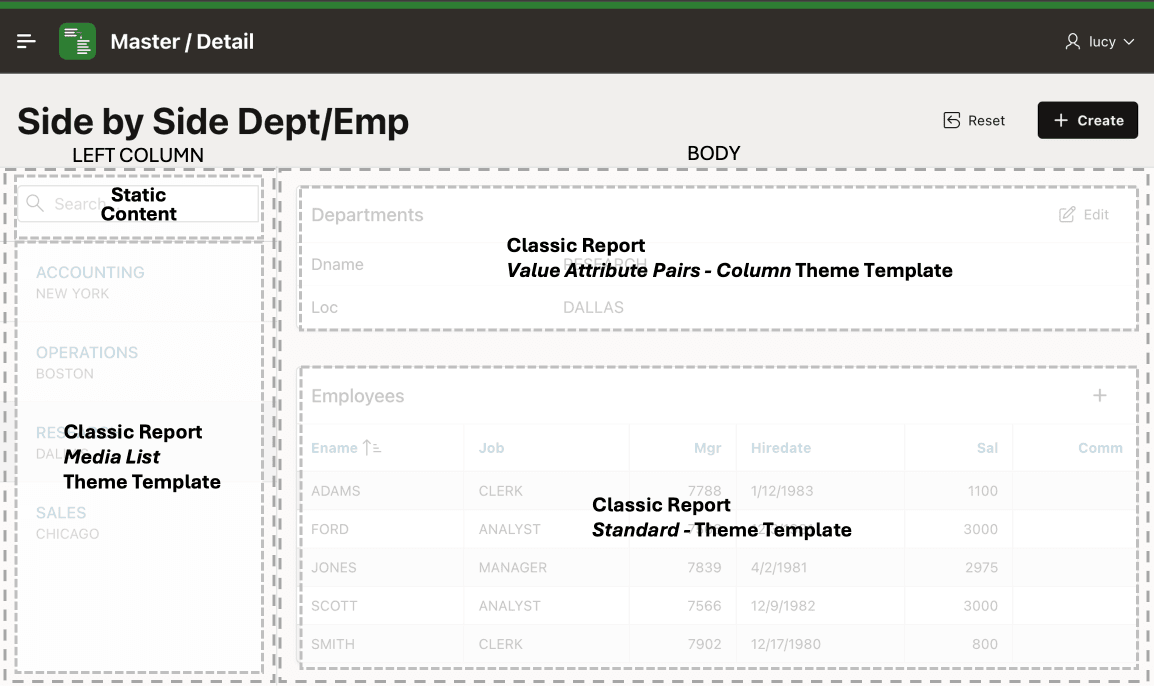
As shown in the figure below, the page uses the Left Side Column
template. Its Left Column slot has a Search Static Content region
containing a P4_SEARCH field and a Master Records Classic
Report below it. This report uses the Media List theme template to show the
primary and secondary display column values of the master rows as a formatted set of
links.
The Body slot has a master Departments Classic Report using the Value Attribute Pairs - Column theme template. This shows all of the columns of the master row in a label/value layout. Below it, an Employees Classic Report details region uses the Standard theme template for a tabular view of the selected department's employees.
Tip:
The Create Page wizard's Master/Detail flow lets you choose additional detail tables if needed. They become additional detail repoditrt regions in the body of the page and work similarly to the Employees region explained here.
The (+ Create) button redirects to a Departments modal drawer Form page to enter a new department, and the (+) button redirects to an Employees modal drawer form page to enter a new employee in the selected department.
Figure 10-7 Breakdown of Side by Side Page Template Slots and Regions in Them
Refreshing Master Records When User Enters a Search
The P4_SEARCH field lets users enter text to filter the
list of master rows. It uses a Perform Search Dynamic Action handler on the
Key Press event to react when the user presses the [Enter] key.
The handler only fires for this key by using the following JavaScript
expression for its Client-side Condition:
this.browserEvent.which === apex.jQuery.ui.keyCode.ENTERThe handler contains two Dynamic Action steps to:
- Refresh the Master Records region, then
- Cancel Event
Tip:
The Cancel Event action prevents a browser behavior dating back to early HTML forms: submitting the page when the user presses [Enter] in its only text field.
The query in the Master Records region uses
:P4_SEARCH in its WHERE clause below to match
on the DNAME and LOC columns if a search is
provided. The region mentions P4_SEARCH in its Page
Items to Submit property as well. This ensures APEX sends the latest value of the search field to the server when refreshing the
Master Records region.
select "DEPTNO",
    ⋮
from "DEPT" x
where (:P4_SEARCH is null
        or upper(x."DNAME") like '%'||upper(:P4_SEARCH)||'%'
        or upper(x."LOC") like '%'||upper(:P4_SEARCH)||'%'
    )
order by "DNAME"
Using a Media List Classic Report
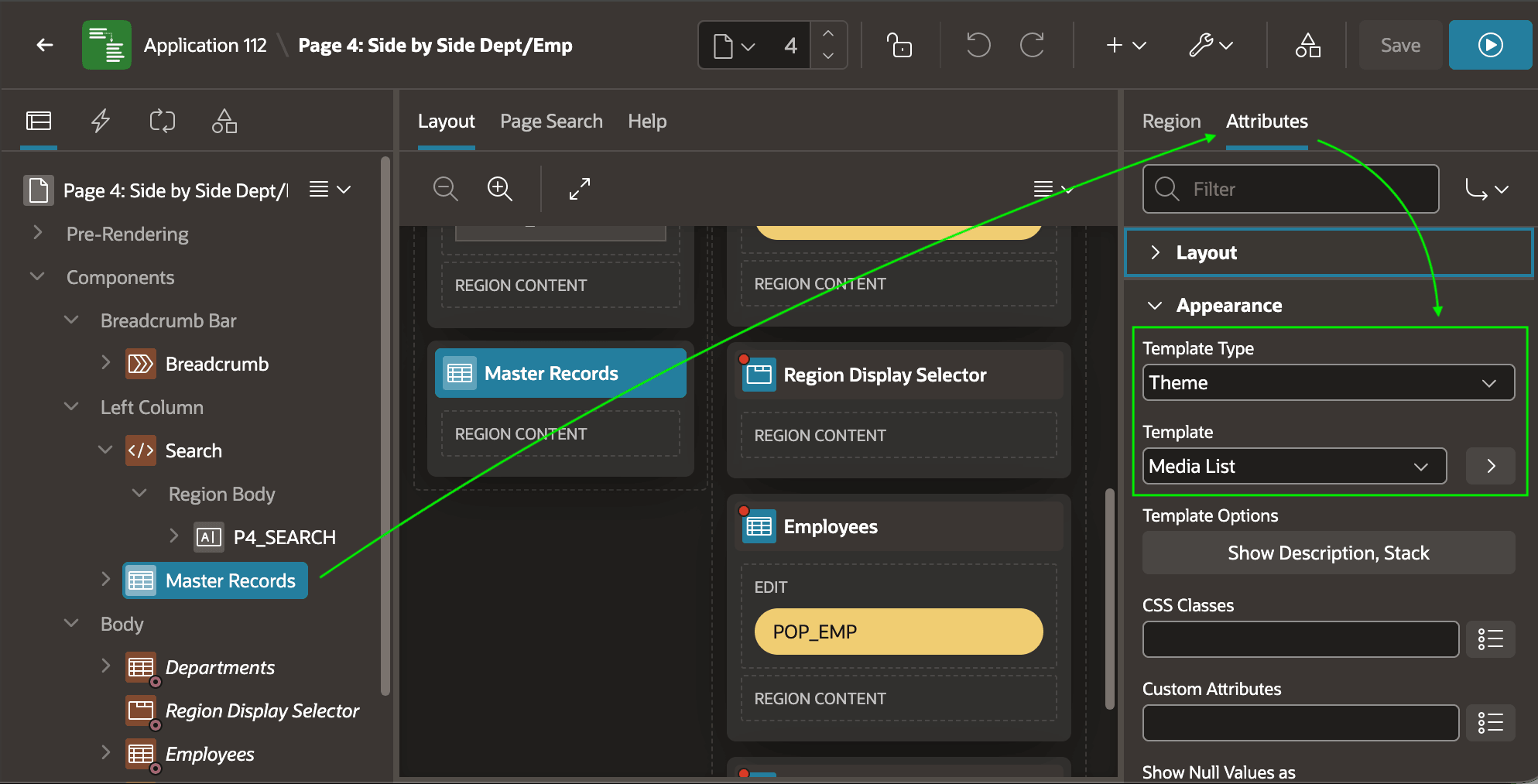
As shown below, the Master Records Classic Report region uses a Media List report template to format the master rows' primary and secondary display fields as links.
Figure 10-8 Configuring an Alternative Classic Report Template
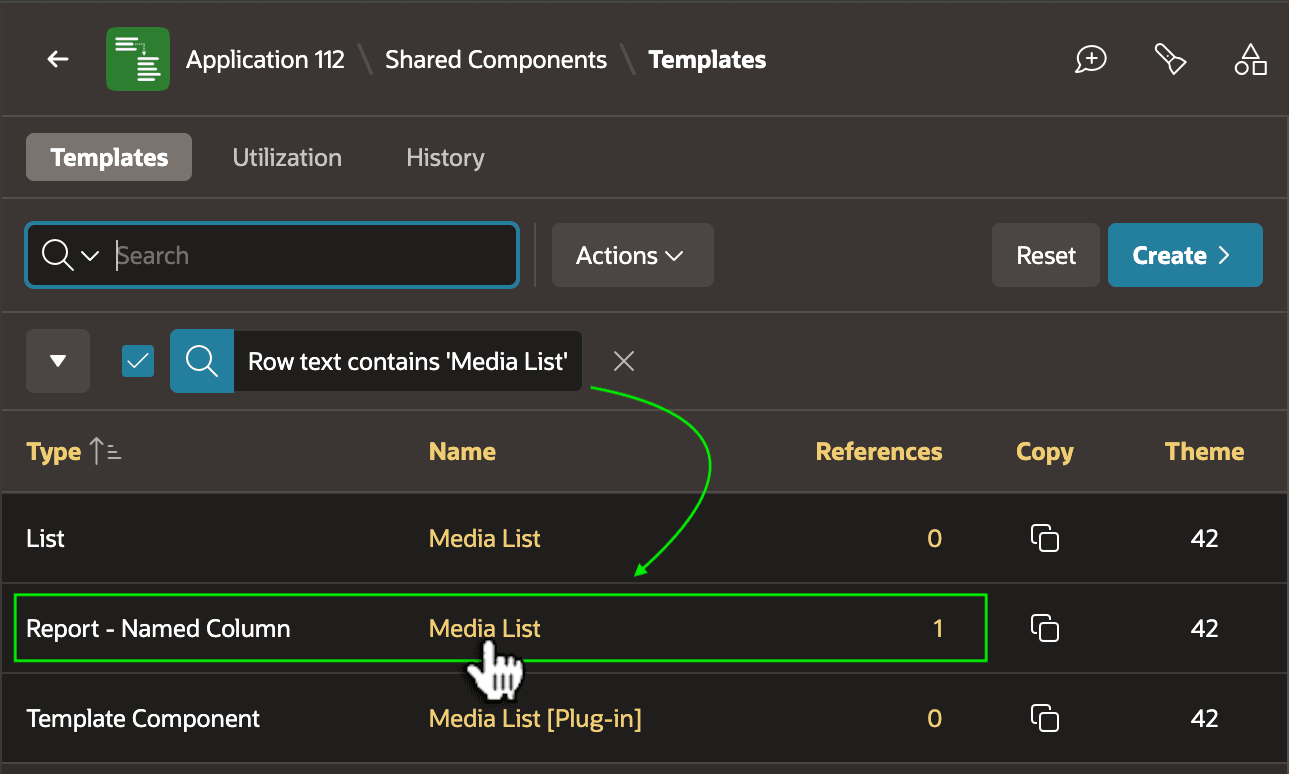
Whenever you're curious to learn more about what a particular template does, seek it out in App Builder's Shared Components > Templates page as shown below. Searching for Media List reveals it's a single Report template of Named Column type.
Figure 10-9 Find Media List Report Template
A Named Column report template specifies the HTML markup that
repeats for each row in the data source, referencing specific column names using
#NAME# substitutions. On the Row Templates
tab, you find the HTML Markup as shown below.
Figure 10-10 Study Row Template Substitutions
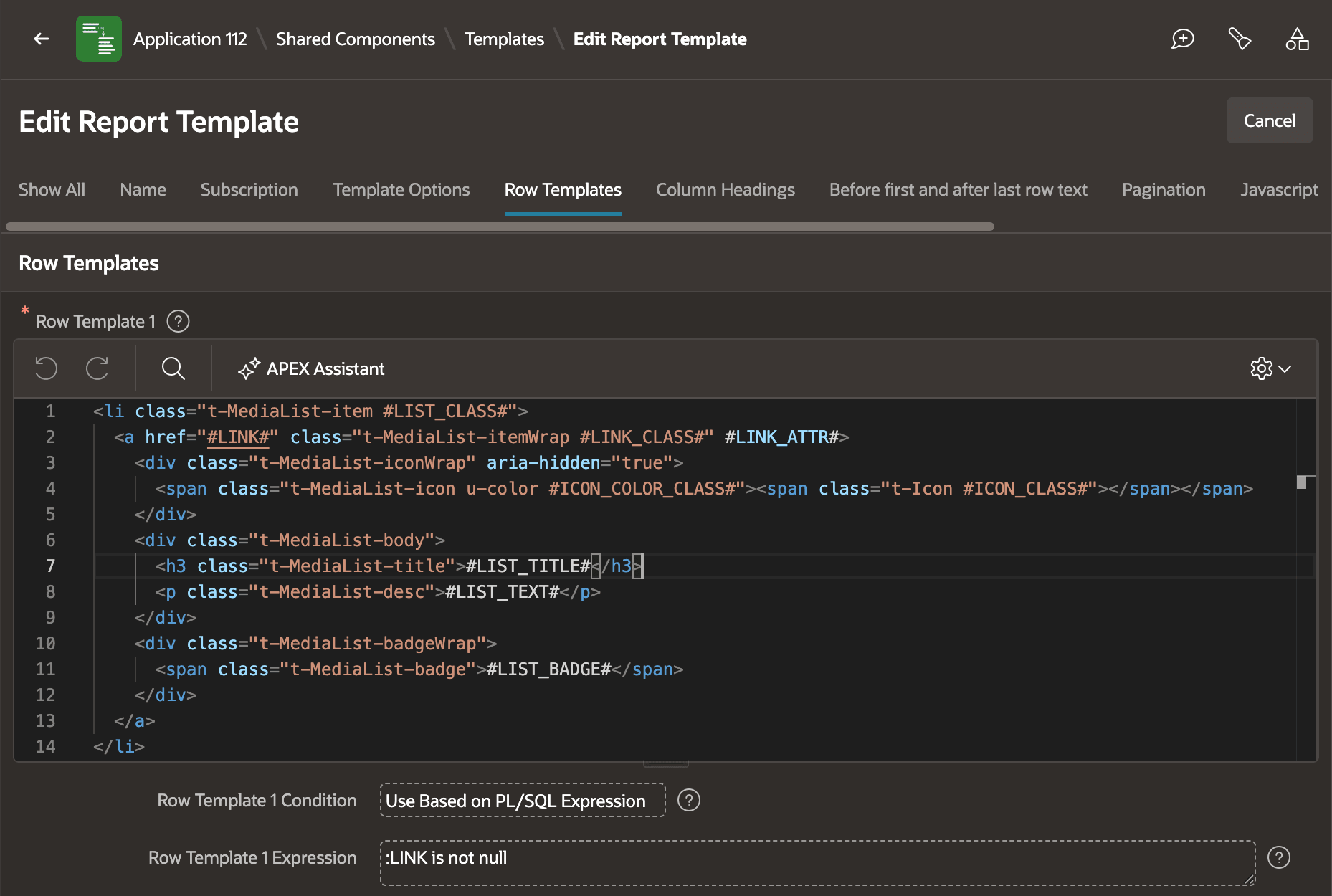
Notice the LIST_CLASS, LINK,
LIST_TITLE, and LIST_TEXT column substitutions
in the row template HTML markup below. The LIST_CLASS is used to
style each item in the list. The LINK provides the
href URL of the anchor (<a>) tag, to
define a link users can click on to select a particular master row. The
LIST_TITLE and LIST_TEXT provide the visible
text in the list of links.
<li class="t-MediaList-item #LIST_CLASS#">
  <a href="#LINK#" class="t-MediaList-itemWrap #LINK_CLASS#" #LINK_ATTR#>
    <div class="t-MediaList-iconWrap" aria-hidden="true">
      <span class="t-MediaList-icon u-color #ICON_COLOR_CLASS#"
      ><span class="t-Icon #ICON_CLASS#"></span></span>
    </div>
    <div class="t-MediaList-body">
      <h3 class="t-MediaList-title">#LIST_TITLE#</h3>
      <p class="t-MediaList-desc">#LIST_TEXT#</p>
    </div>
    <div class="t-MediaList-badgeWrap">
      <span class="t-MediaList-badge">#LIST_BADGE#</span>
    </div>
  </a>
</li>
When using a Named Column template in a Classic Report, the query
needs to contain columns whose names match the template's substitutions you want to
supply. The Master Records region's query appears below. Notice it selects
data from the master DEPT table, but aliases columns to
LINK, LIST_CLASS, LIST_TITLE,
and LIST_TEXT.
select "DEPTNO",
    ⋮
    apex_page.get_url(
        p_items  => 'P4_DEPTNO',
        p_values => "DEPTNO") LINK,
    ⋮
    case
      when coalesce(:P4_DEPTNO,'0') = "DEPTNO"
      then 'is-active'
      else ' '
    end                       LIST_CLASS,
    (substr("DNAME", 1, 50)||
       (case when length("DNAME") > 50
        then '...'
        else '' end ))        LIST_TITLE,
    (substr("LOC", 1, 50)||
       (case when length("LOC") > 50
        then '...'
        else '' end ))        LIST_TEXT,
    ⋮
from "DEPT" x
where (:P4_SEARCH is null
        or upper(x."DNAME") like '%'||upper(:P4_SEARCH)||'%'
        or upper(x."LOC")   like '%'||upper(:P4_SEARCH)||'%'
    )
order by "DNAME"
Tracking the Selected Master Row
The page contains a hidden P4_DEPTNO page item that
tracks the primary key of the selected master row. Its Session
State > Storage property is set to
Per Session (Persistent) so the selected master key value
remains available throughout the user's session. Notice the Master Records
classic report query above includes a CASE expression that returns
is-active for the LIST_CLASS column value when
the current DEPTNO equals the :P4_DEPTNO value of
the selected master row. Otherwise, the CASE statement returns
NULL. Including this LIST_CLASS value in the
Media List row template markup renders the currently selected master row
with a different style than the other rows.
Notice the LINK column in the query as well. It calls
apex_page.get_url to generate the URL to link to the
current page, by omitting a p_page parameter, passing
the current master row's DEPTNO value as the value of the
P4_DEPTNO page item. In this example, the Side by Side
Master/Detail page is page 4. So, when the user clicks one of the links in the
Master Records list, the link redirects to the current page passing the clicked
row's primary key. The page assigns the passed value to the hidden
P4_DEPTNO field and re-renders the current page to show the
newly selected master record, along with its detailed information.
Using a Value Attribute Pairs - Column Classic Report for Master Row
The Departments region in the Body slot displays the full
information about the selected master row. Its WHERE clause
references the hidden page item containing the primary key of the selected row:
DEPTNO = :P4_DEPTNO /* Filters on DEPT.DEPTNO */It's also configured with a Server-side Condition that hides the region if
:P4_DEPTNO is null.
To format the master row's column data in a Label/Value table, as shown in the figure below, the region uses the View Attribute Pairs - Column theme template and sets Pagination to No Pagination since this region will display a single row.
Figure 10-11 Configuring Value Attribute Pairs Classic Report Template
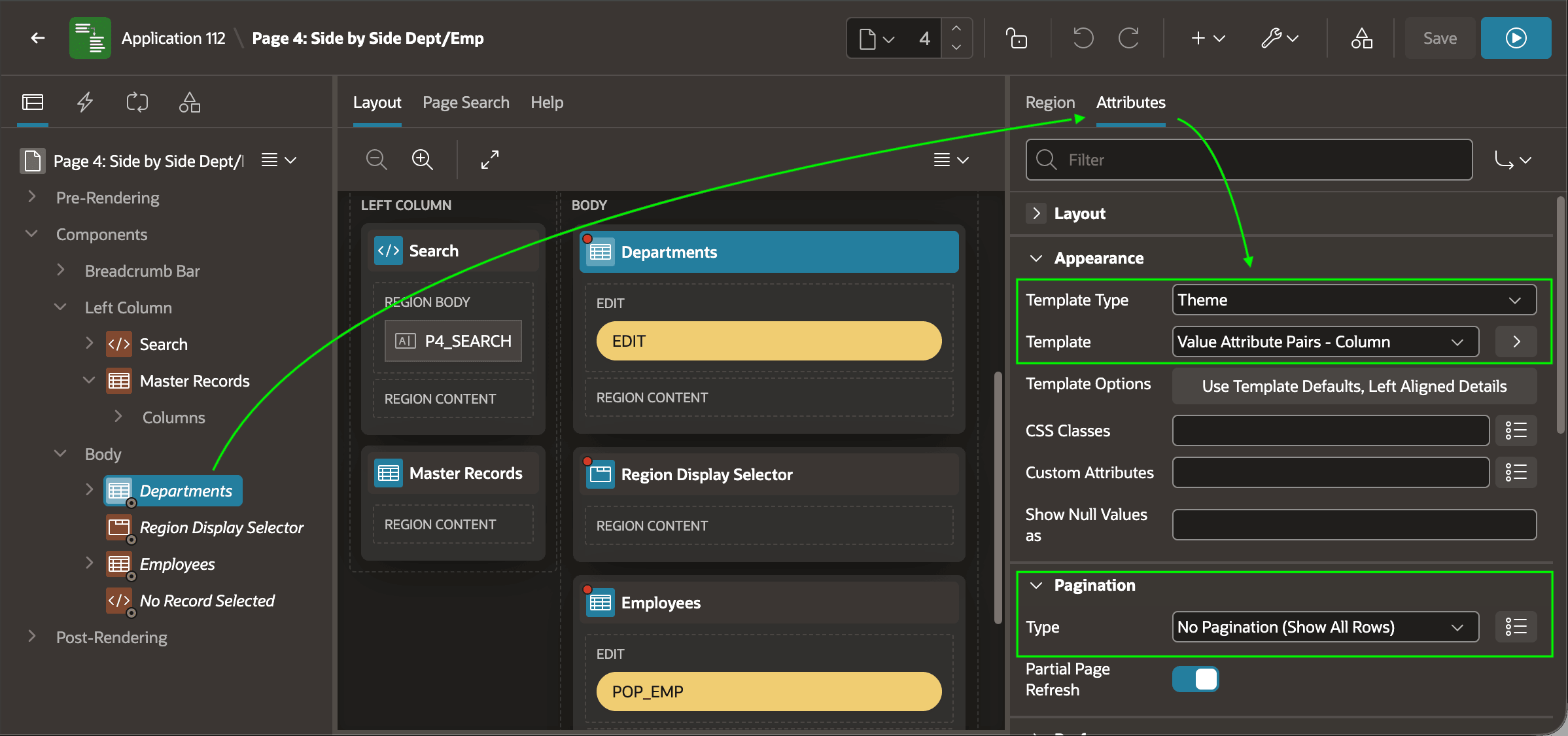
The Value Attribute Pairs - Column template is a Generic
Columns type template. For each row in the report, it repeats the Column
Template for each column in the row, with the ability to include
appropriate HTML markup before and after each row. The column template uses generic
substitutions #COLUMN_HEADER# and #COLUMN_VALUE#
to include the header and value at an appropriate place in the markup. The result is
a Label/Value row for each column in the report's data source.
Tip:
This one-row master report region shows all columns other than the primary key. For theDEPT table, this is only
DNAME and LOC.
Using a Standard Template Classic Report for Detail Rows
The Employees detail Classic Report uses the Standard
template for a tabular result. It also includes the hidden
:P4_DEPTNO in its WHERE clause. But in this
case, it's filtering on the foreign key
DEPTNO column of the detail region's EMP
table.
DEPTNO = :P4_DEPTNO /* Filters on EMP.DEPTNO */Creating and Editing a Master Row
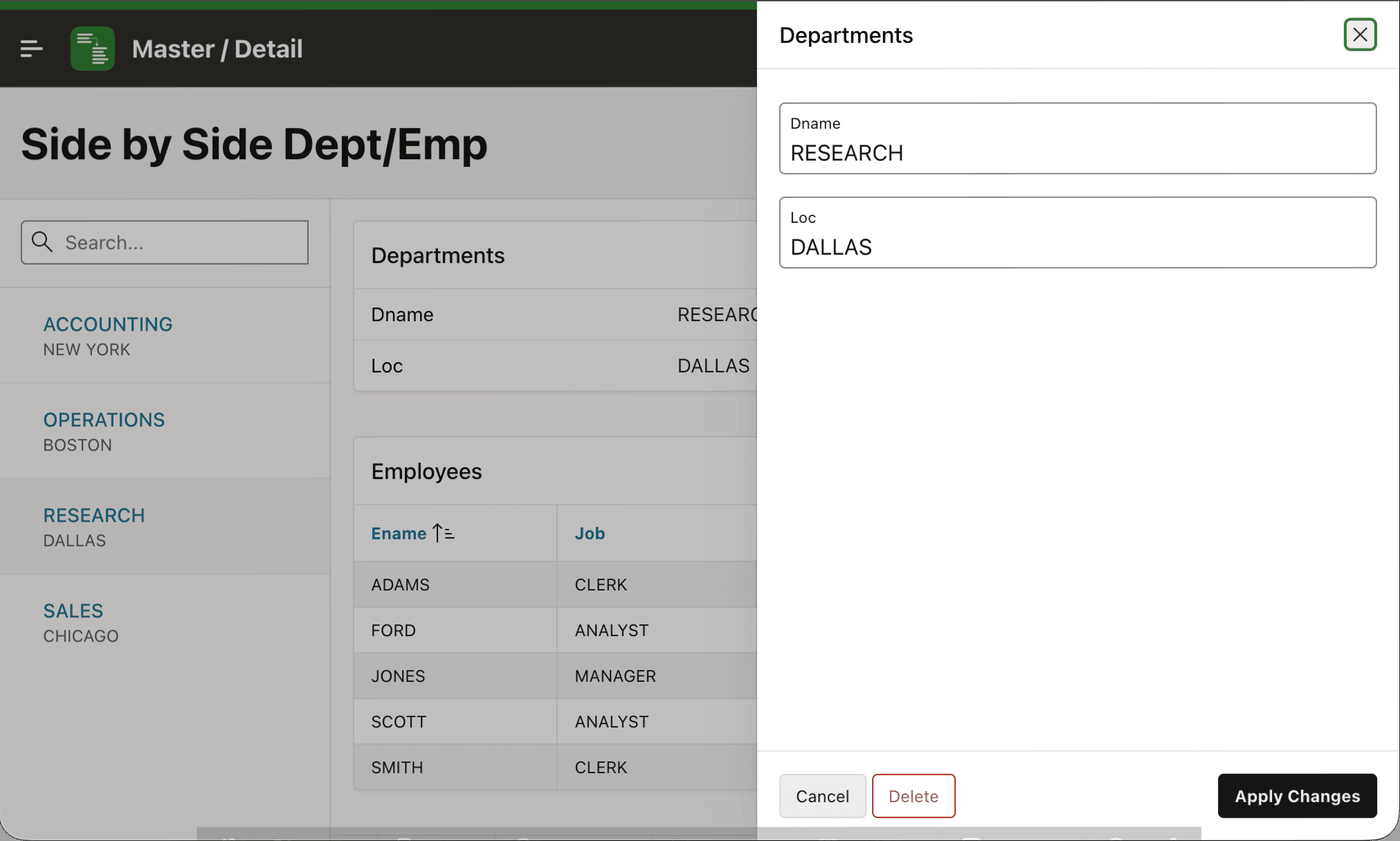
The (Create) button in the breadcrumb bar redirects to a Departments form page, passing no parameters so it functions as a "Create New Department" page. The (Edit) button in the Departments region redirects to the same modal drawer page, but passes the value of the selected master record for its primary key page item. This results in presenting the edit page shown below.
Figure 10-12 Editing the Selected Master Row in a Modal Drawer
Creating a Detail Row for the Selected Master
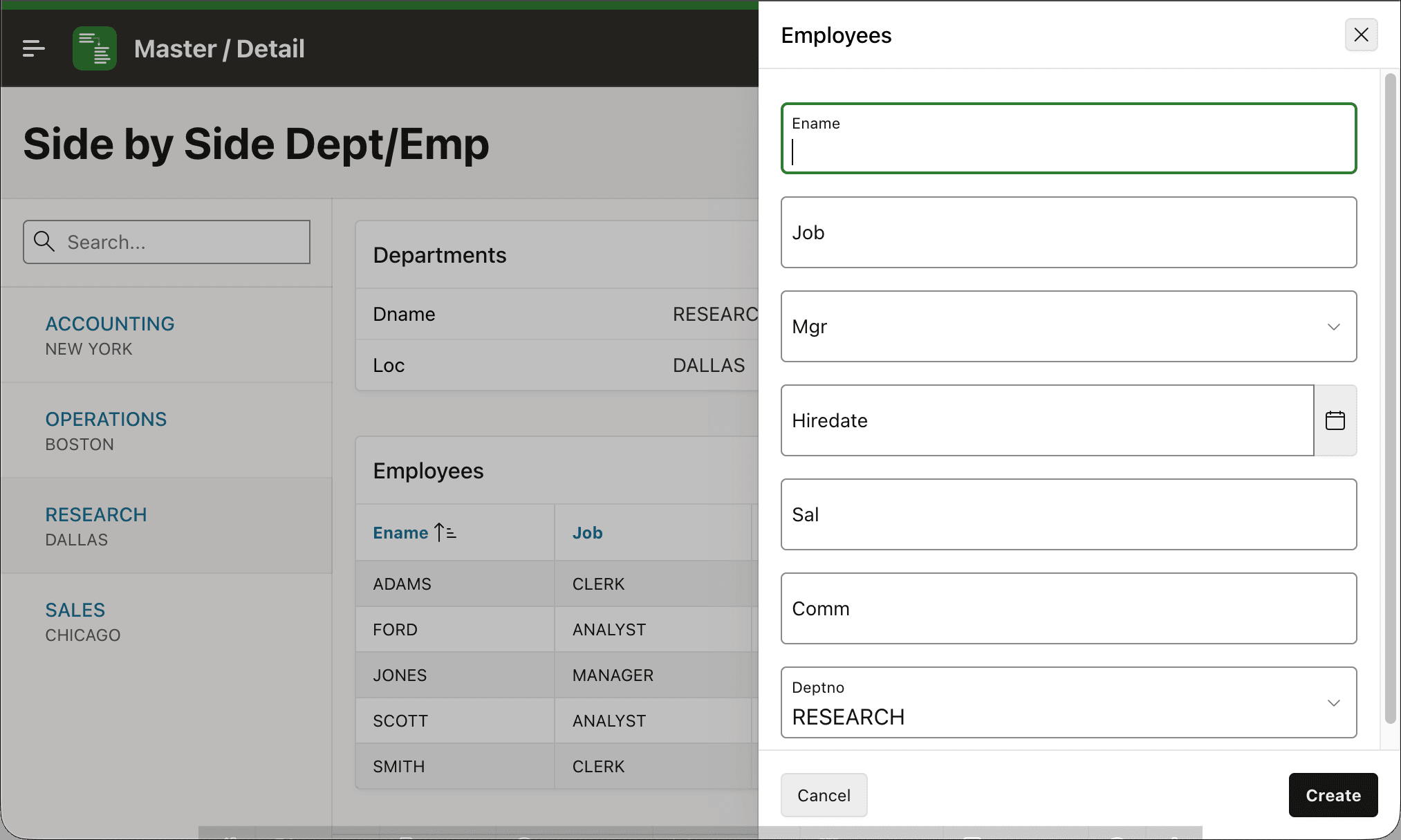
The (+) button in the details Employees
region redirects to an Employees modal drawer form page to create a new
employee, as shown below. Notice the create form opens with the Employees form's
Deptno field already set to the currently selected master
row. This happens because the (+) button's link target passes
the hidden P4_DEPTNO value to the foreign key page item
P7_DEPTNO in the target form page.
Figure 10-13 Creating a New Detail Row for the Currently Selected Master
Enabling Edit of a Detail Row
By default, the wizard does not configure the page to edit detail
rows, only to create them. However, doing so takes just a few clicks since you can
repurpose the detail form page for editing. For example, you can enable clicking the
Employees region's Ename column value to access
the Employees edit page for the selected employee row. First, study the
target of the existing create button for the detail region to identify the page
number of the wizard-generated modal detail form page. Then, change the
ENAME column type from Plain Text to Link
instead, and configure its Link >
Target to redirect to the same page. Pass the value of
the detail row's primary key column as the value of the modal page's primary key
page item. Now the page can also edit detail rows.
Parent topic: Working with Master/Detail Data