10.4 Drilling Down to Edit Master and Details
Open a selected master row on a page where users can edit both master and detail rows.
Reviewing the Drill Down Master/Detail Pattern Pages
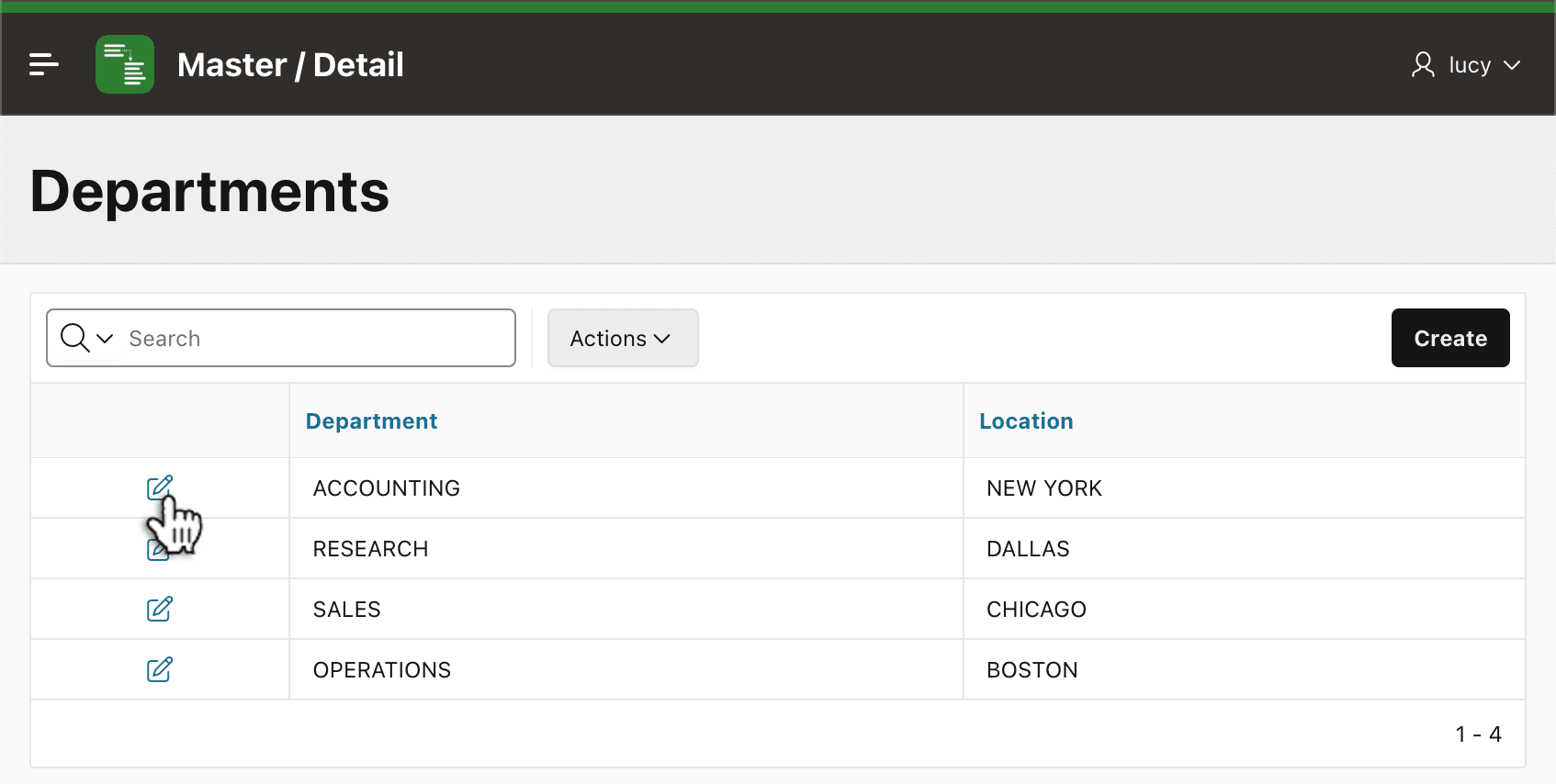
When choosing the Drill Down Master/Detail pattern, as shown below the wizard creates an Interactive Report page showing master rows, each of which has an edit icon the user can click to navigate to an edit page.
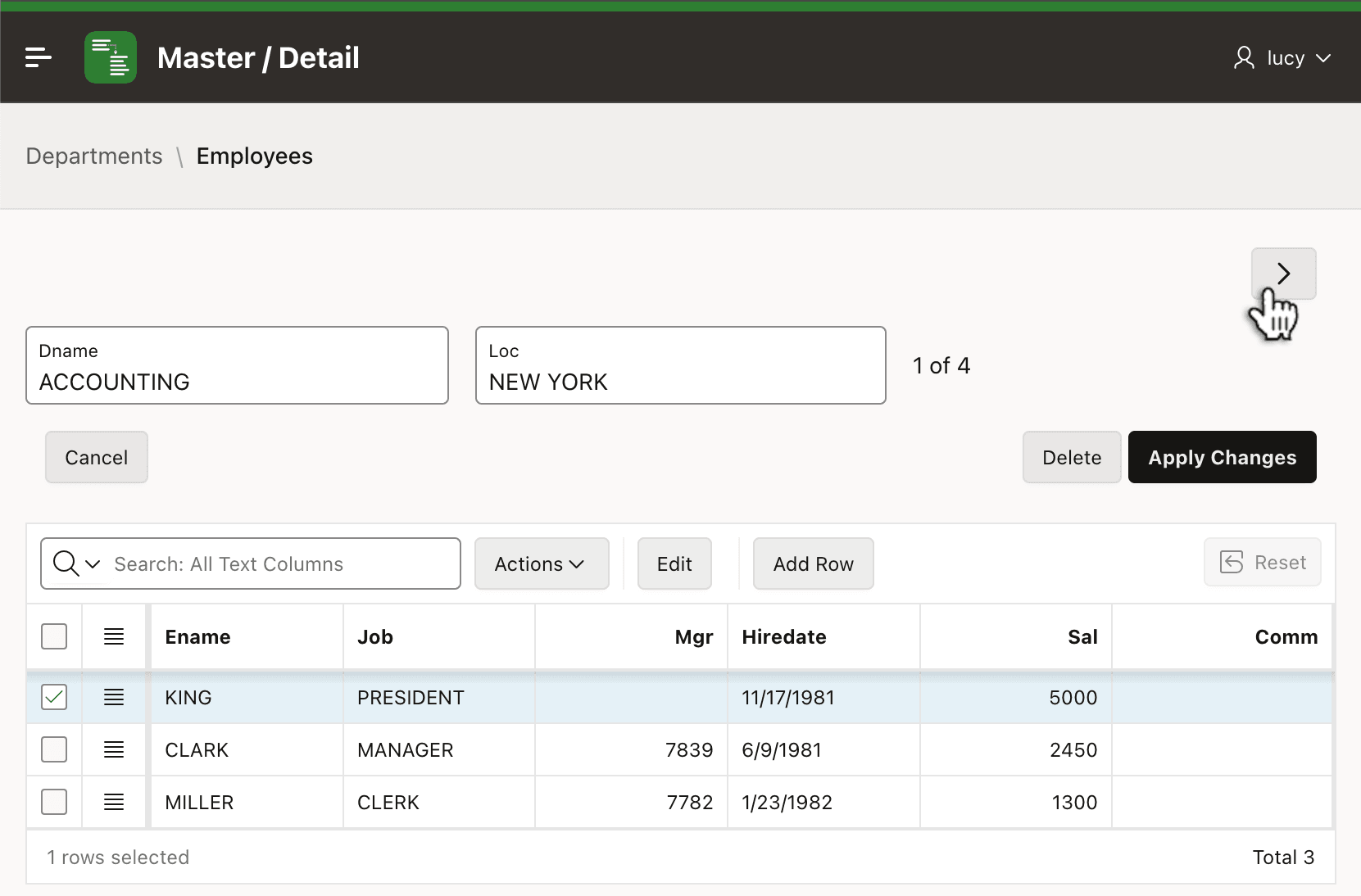
The edit page contains a Form region for the master row, and an editable Interactive Grid for the detail rows related to the current master row. From this page, the user can edit the current Department (ACCOUNTING) and all its employees in a single place. Notice the grid's (Save) toolbar button is turned off, so the (Apply Changes) button that submits that page saves master and details in a single transaction. As shown below, the page also contains next and previous navigation buttons to visit other master rows in department name order.
Tip:
To make the master/detail edit page more compact, consider changing the breadcrumb region's template options to enable Use Compact Style and the master Form region's template options to set Header = Hidden and Style = Remove UI Decoration. The Employees edit page screenshots in this section show the effect of these space-saving changes.
Figure 10-15 Master/Detail Edit Page Lets User Maintain Master and Details Together
Description of "Figure 10-15 Master/Detail Edit Page Lets User Maintain Master and Details Together"
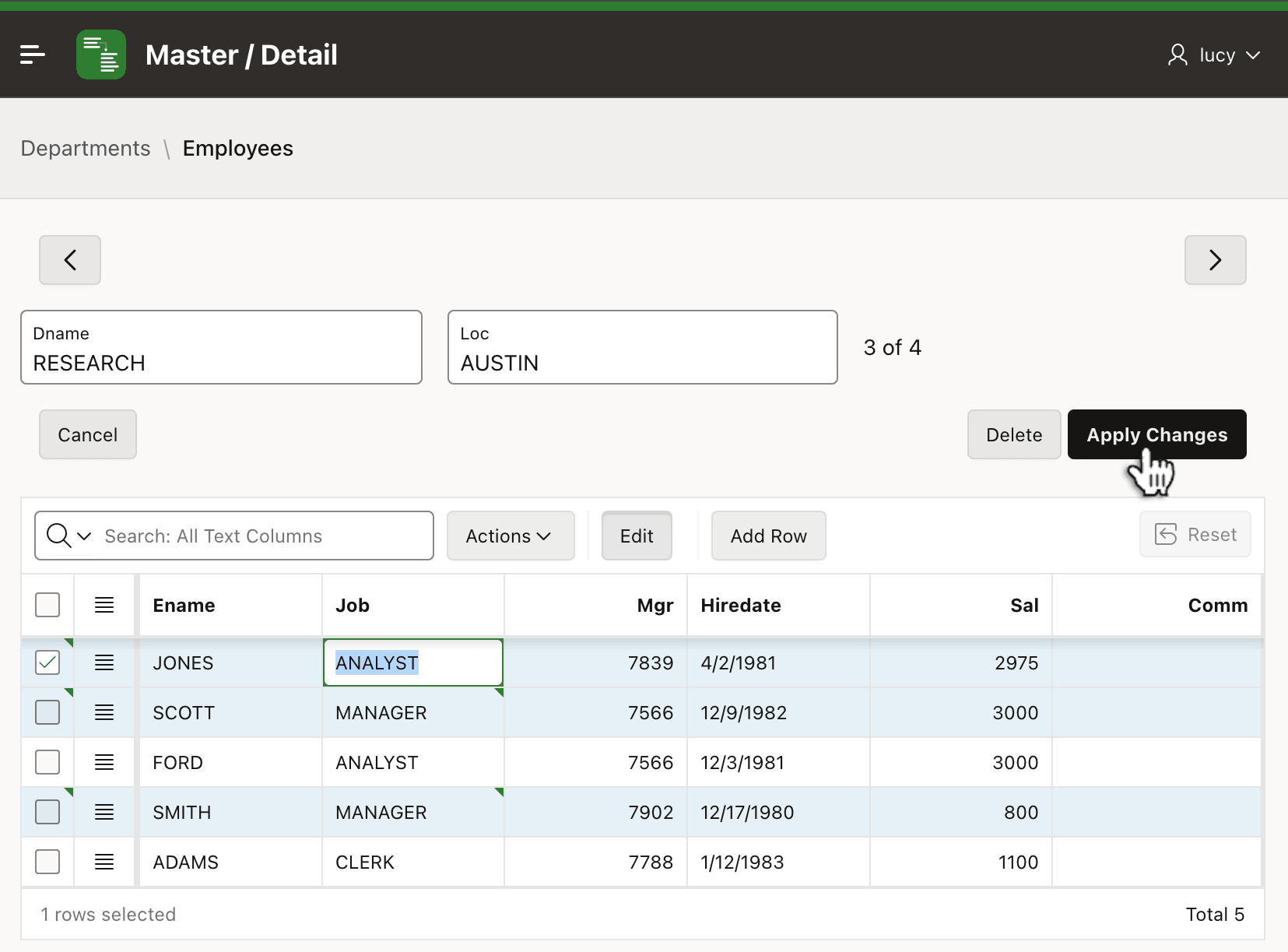
For any master row, edit any combination of master and detail data and click (Apply Changes) or one of the navigation buttons to save the changes.
Figure 10-16 Editing Master and Detail Before Saving or Navigating Previous or Next
Description of "Figure 10-16 Editing Master and Detail Before Saving or Navigating Previous or Next"
Studying the Minimal Detail Grid Configuration Required
The grid uses the detail EMP table as its
data source, and by default would display all EMP
rows. So, the first detail to notice is its WHERE
clause. It's configured to filter for only rows whose
DEPTNO foreign key matches the primary key
of the current master DEPT row.
DEPTNO = :P9_DEPTNOSince its WHERE clause references this master record
page item as a bind variable, it also lists
P9_EMPNO in its Page Items to
Submit property.
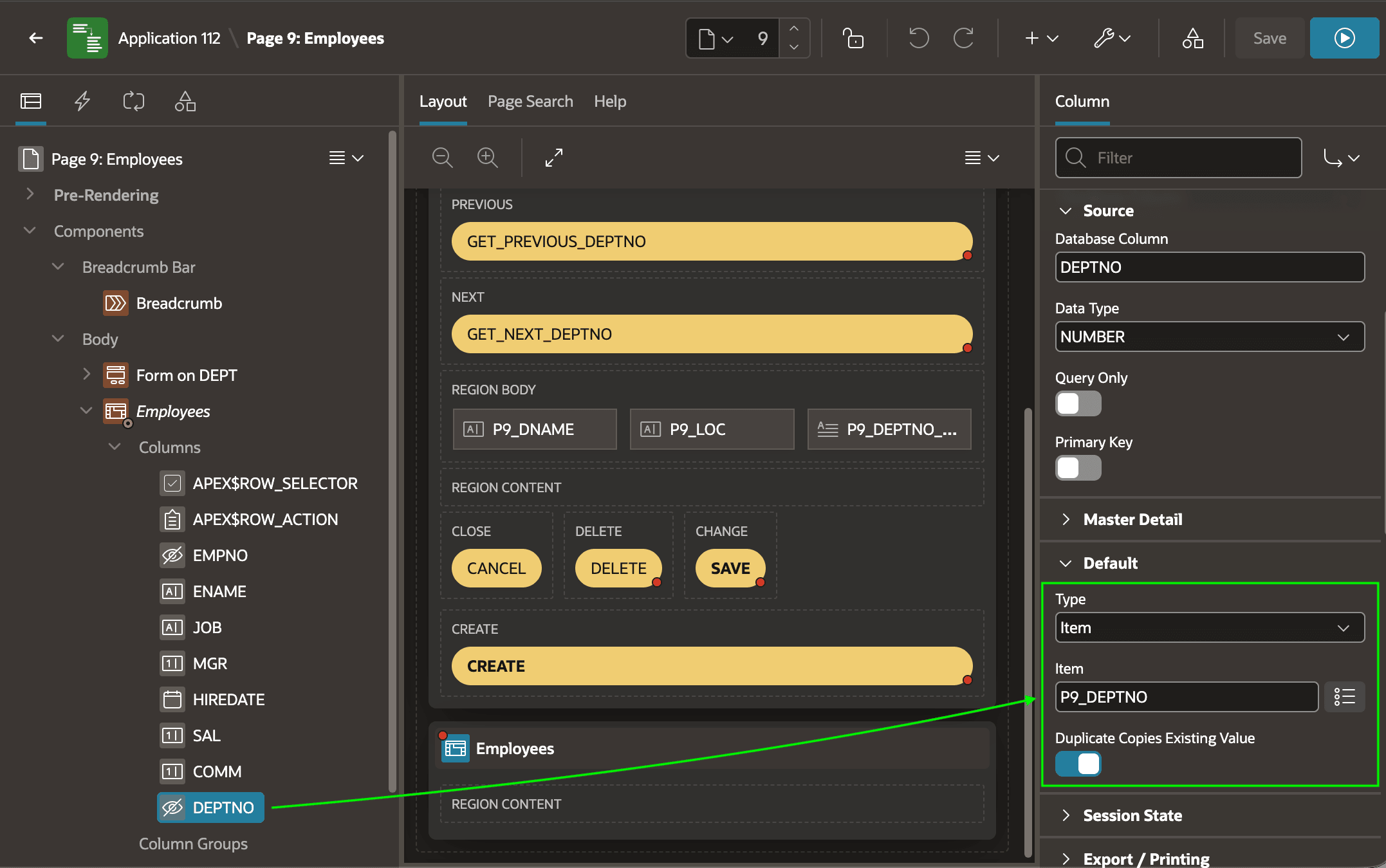
The second detail involves the Employees grid's
DEPTNO foreign key column. It is configured
to use the current master row's primary key page item
P9_DEPTNO as its default value as shown in
the figure. This ensures that any new employees added to the grid
while editing the ACCOUNTING department, are correctly
associated with its DEPTNO value
10.
Figure 10-17 Defaulting Employee Department Foreign Key to Current Department Value
Description of "Figure 10-17 Defaulting Employee Department Foreign Key to Current Department Value"
Understanding How to Configure Form Record Navigation
DEPT row by primary
key if a value for P9_DEPTNO is present when the
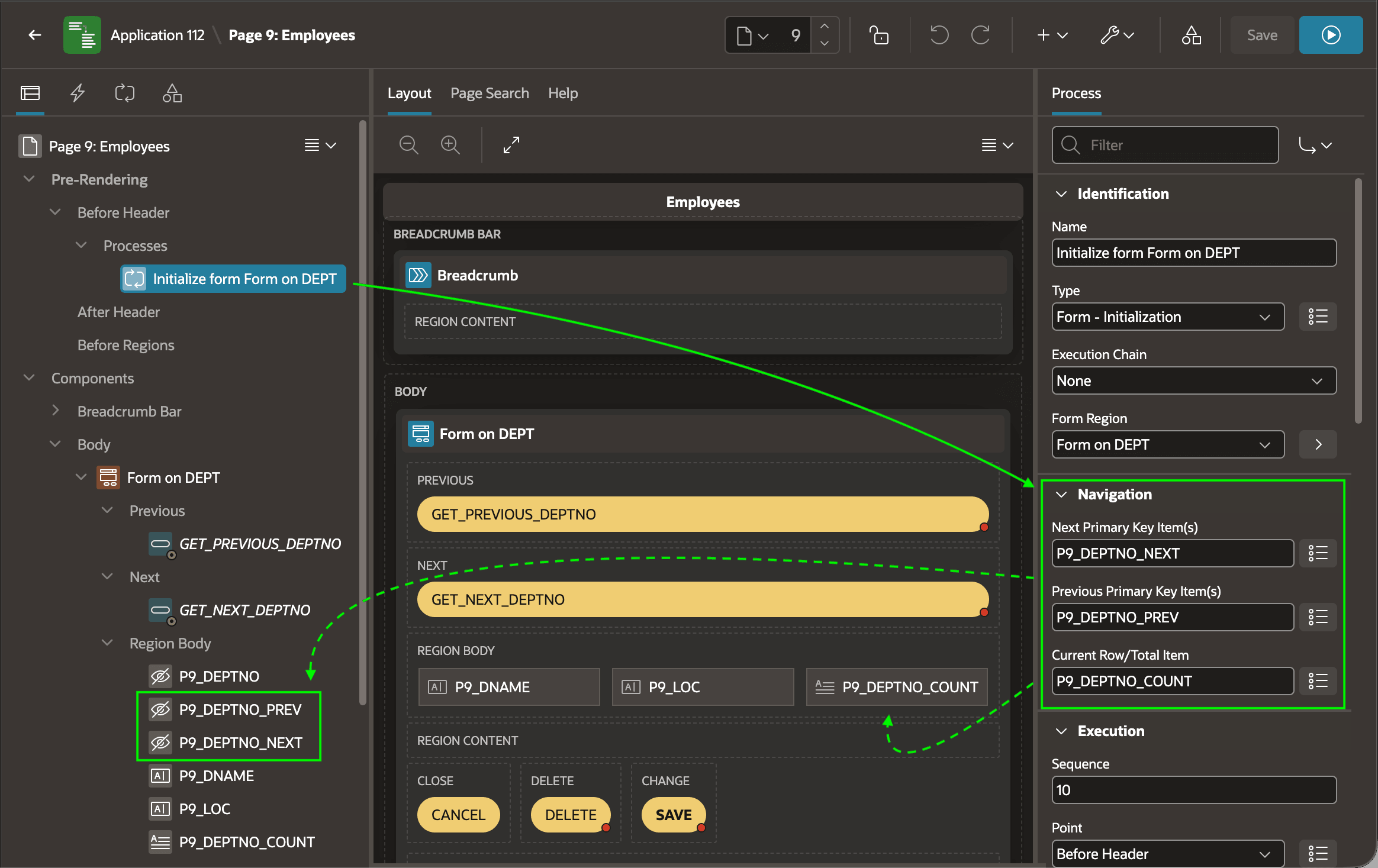
page renders. But, as shown in the figure, this Form region's
initialization page process has three additional properties
configured to name the page items to store
Navigation information:
- Next Primary Key
Item(s) →
P9_DEPTNO_NEXT - Previous Primary Key
Item(s) →
P9_DEPTNO_PREV - Current Row/Total
Item →
P9_DEPTNO_COUNT
Figure 10-18 Configuring Form Navigation Items on Initialization Page Process
In combination with configuring an Order By
Clause on the Form region itself, the Form -
Initialization page process computes these three
navigation-related values at page render time and assigns them to
the configured page items. The first two are the primary key of the
next and previous row to edit. Either or both of these might
evaluate to null, depending on the current row and
how many rows are in the data source. The third property is a value
like "3 of 4" representing the current row index and total row
count. As shown in the figure above, the previous and next row keys
go into hidden page items, while the Count/Total indicator
goes into a Display Only page item
P9_DEPTNO_COUNT.
The GET_NEXT_DEPTNO and
GET_PREVIOUS_DEPTNO buttons use a
Server-side Condition to show only when applicable, based on testing
whether the values of the P9_DEPTNO_PREV and
P9_DEPTNO_NEXT hidden page items are
not null. Similarly, the branches
associated to these buttons through When Button
Pressed conditions decide whether to pass
P9_DEPTNO_NEXT or
P9_DEPTNO_PREV as the value of
P9_DEPTNO when redirecting to the current
page to rerender with the correct next or previous department
number.
Creating New Master and Details at Once
The wizard configures the Employees edit page to hide the
details Employees grid when P9_DEPTNO is
null. So, by default, when the user clicks the
(Create) button from the master
Interactive Report page, the edit page shows only the Form
region to create a new department. The user returns to the master
page and has to edit the newly added department to add employees to
the department in a second step.
To enable the generated Employees page to accept both master and detail data when creating a new department, only two small changes are required. First, remove the Server-side Condition on the Employees grid so that it always displays.
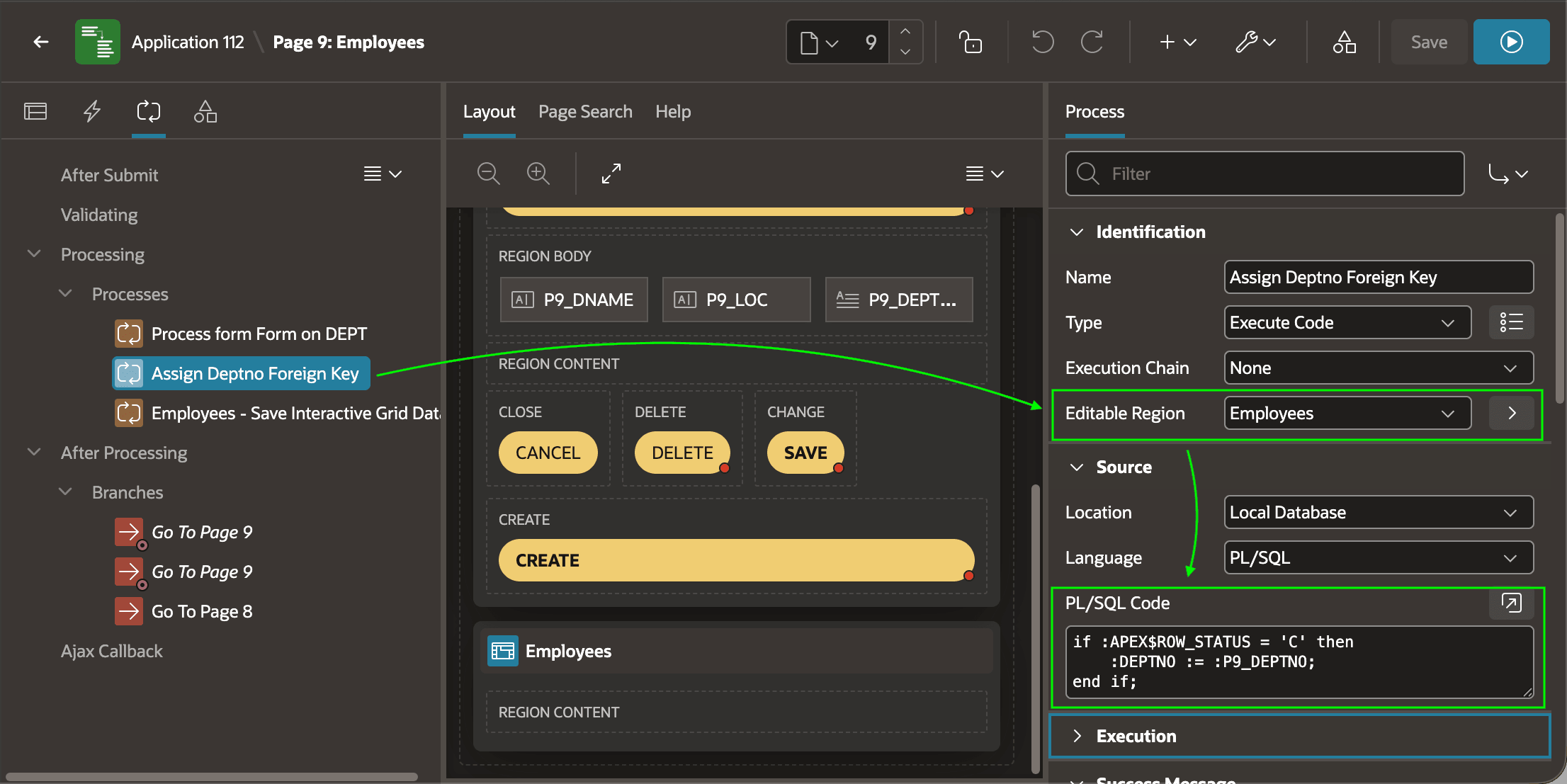
Then, add an Assign Deptno Foreign Key page process
in the Processing tab as shown below, sequenced after
the Process form Form on DEPT process and
before the Employees - Save Interactive
Grid Data process. This sequence is important so the
form process can insert the new department and return its new
system-assigned DEPTNO value into
P9_DEPTNO. Then, your new Execute
Code process can assign the DEPTNO
foreign key column of any new employees being created. The code is
very simple. It checks the value of APEX$ROW_STATUS
to see if an Employees row is being created
('C'), then assigns the
DEPTNO foreign key to the new master row's
primary key in P9_DEPTNO. If the row being
processed has row status of update ('U') or delete
('D'), then the assignment is skipped.
-- If Employee row being (C)reated, assign DEPTNO foreign key
if :APEX$ROW_STATUS = 'C' then
    :DEPTNO := :P9_DEPTNO;
end if;
Notice in the figure that the Editable
Region property of the new process is set to the
Employees grid. Since the region is a grid that can
save multiple rows at once, APEX runs your process once per row that the Employees
grid inserts, updates, or deletes. The
APEX$ROW_STATUS check ensures the
assignment is only performed for Employees grid rows being
created.
Figure 10-19 Execute Code Process with Editable Region Set Runs Once per Modified Grid Row
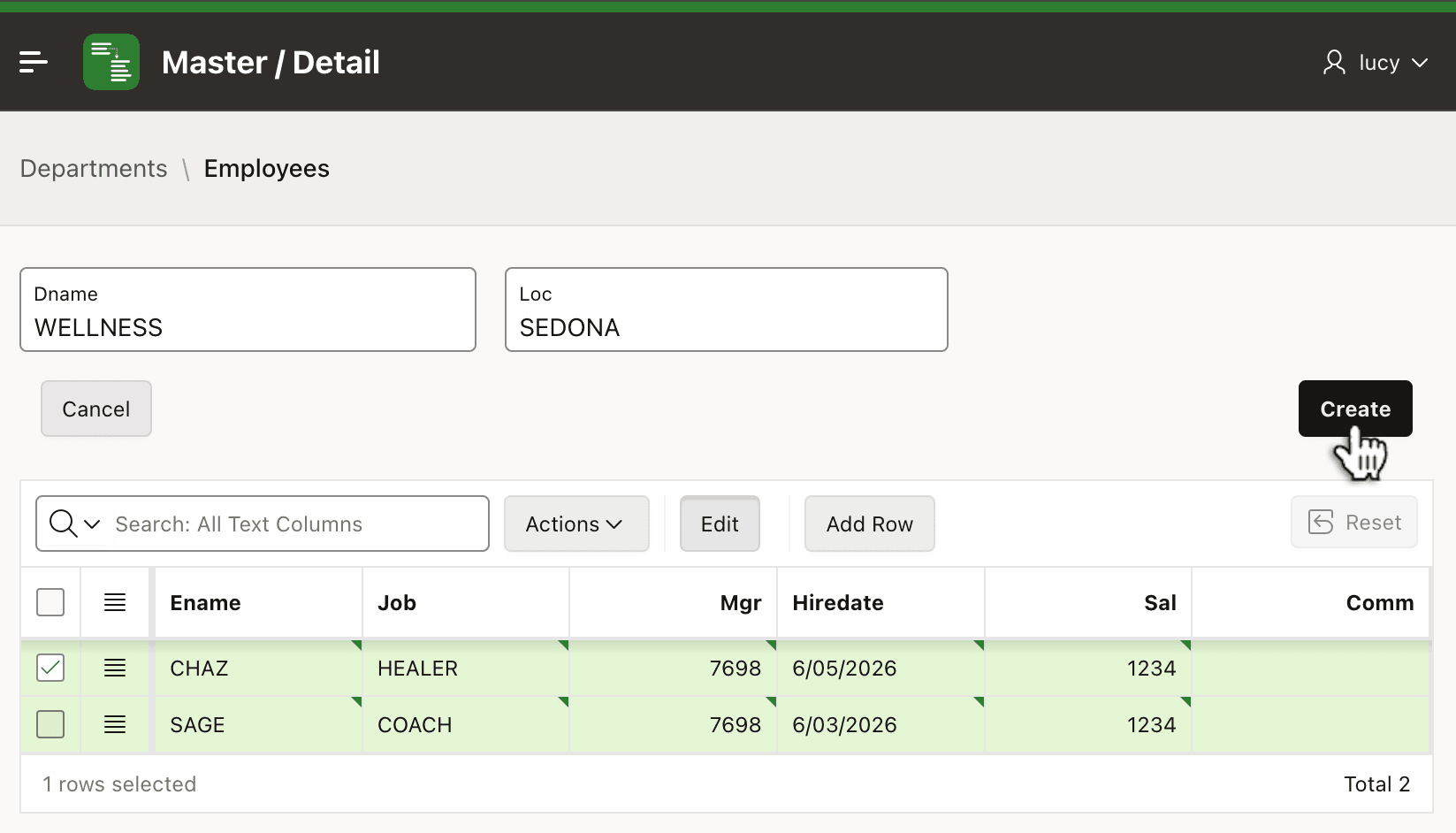
After making this change, clicking the (Create) button from the master Interactive Report page of Departments now shows the page below with both an empty department form and an empty Employees grid. You can enter a new department and multiple new employees and click (Create) to save them all in one transaction.
Figure 10-20 Creating a New Master Row and Multiple New Details at Once
Parent topic: Working with Master/Detail Data