15.1.4 Confirming an Address Interactively
Follow the user experience for entering or editing a geocoded address.
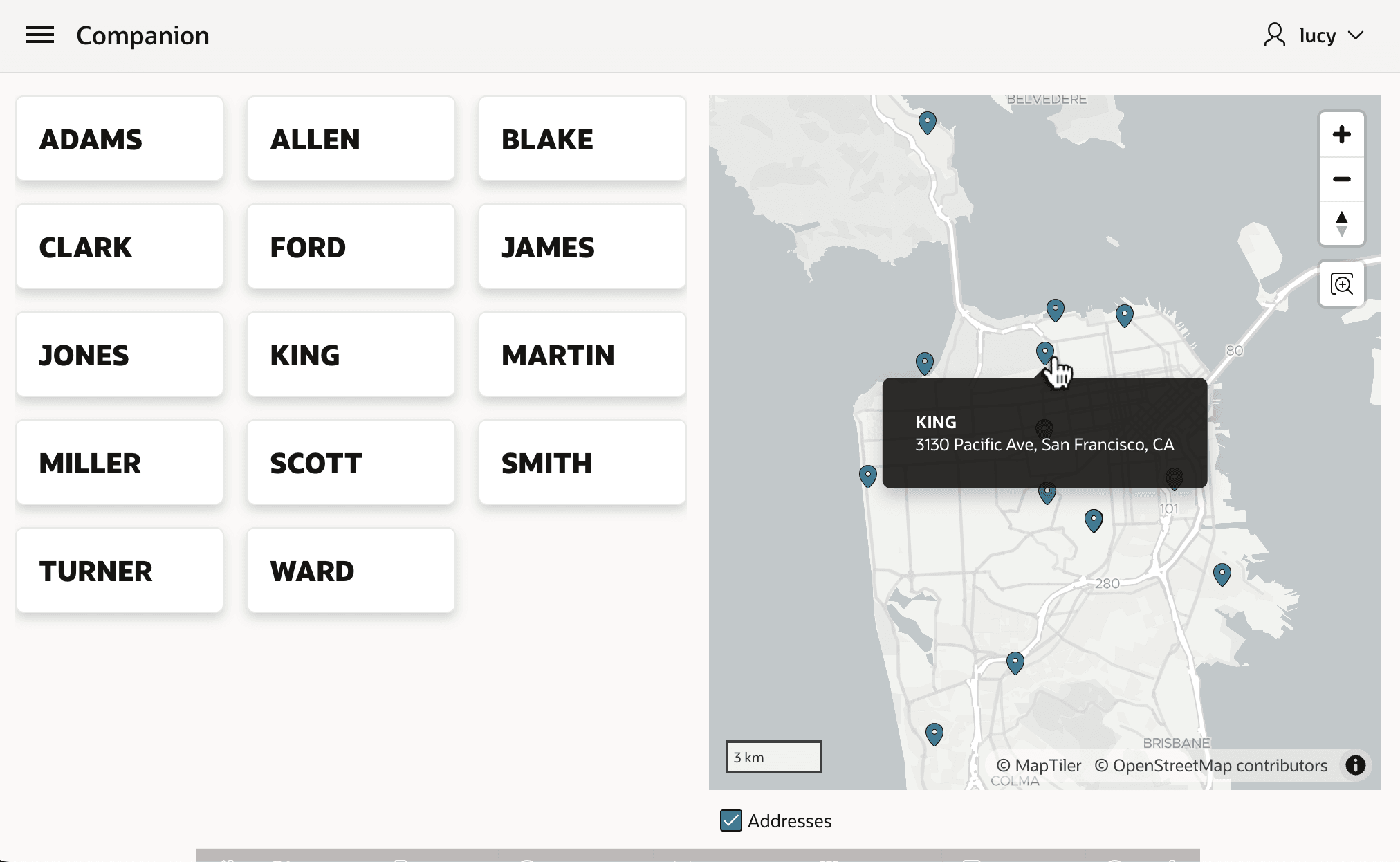
Assume employee KING has moved recently, and a user needs to change her address. As
shown below, your page can pair a Cards region on the
EMP_WITH_ADDRESS view with a map region showing all their addresses
using the technique explained in Using Filtered Data Primary Keys.The map tooltip uses the HTML expression below to include the address
information if available.
<strong>&ENAME.</strong>{if ADDRESS/}<br>&ADDRESS.{endif/}The figure shows a cards region on the left half of the page displaying employees
ENAME on small tiles. On the right side a map displays employee's
addresses as map markers. The user's mouse hovers over the map marker for employee KING,
to see that she currently lives at 3130 Pacific Avenue, San Francisco, California.
Figure 15-2 Viewing KING's Existing Address in a Map Tooltip
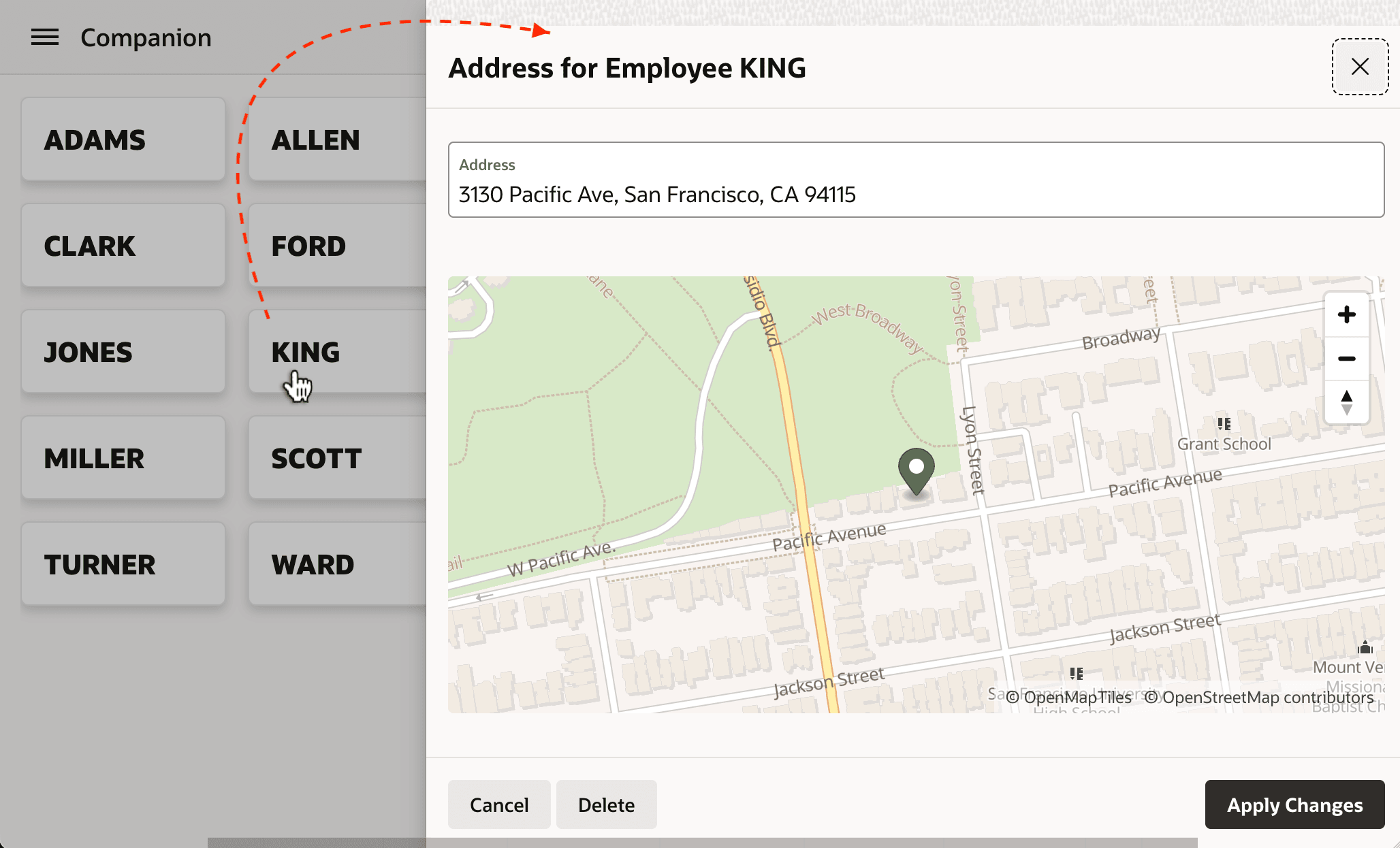
You create a Full Card action to open the modal drawer page shown below, passing in the value of the current employee's EMPNO as the primary key page item P60_EMPNO. So, as shown below, clicking on KING's card opens the modal drawer dialog. The P60_ADDRESS text field display the unstructured address. The Geocoded Address item P60_GEO_JSON_POINT shows the address coordinates your GeoJSON SQL expression produced for the point using the LONGITUDE and LATITUDE values in KING's row in the EMP_AND_ADDRESS view.
Figure 15-3 Geocoded Address Displays Existing Address On Page Load
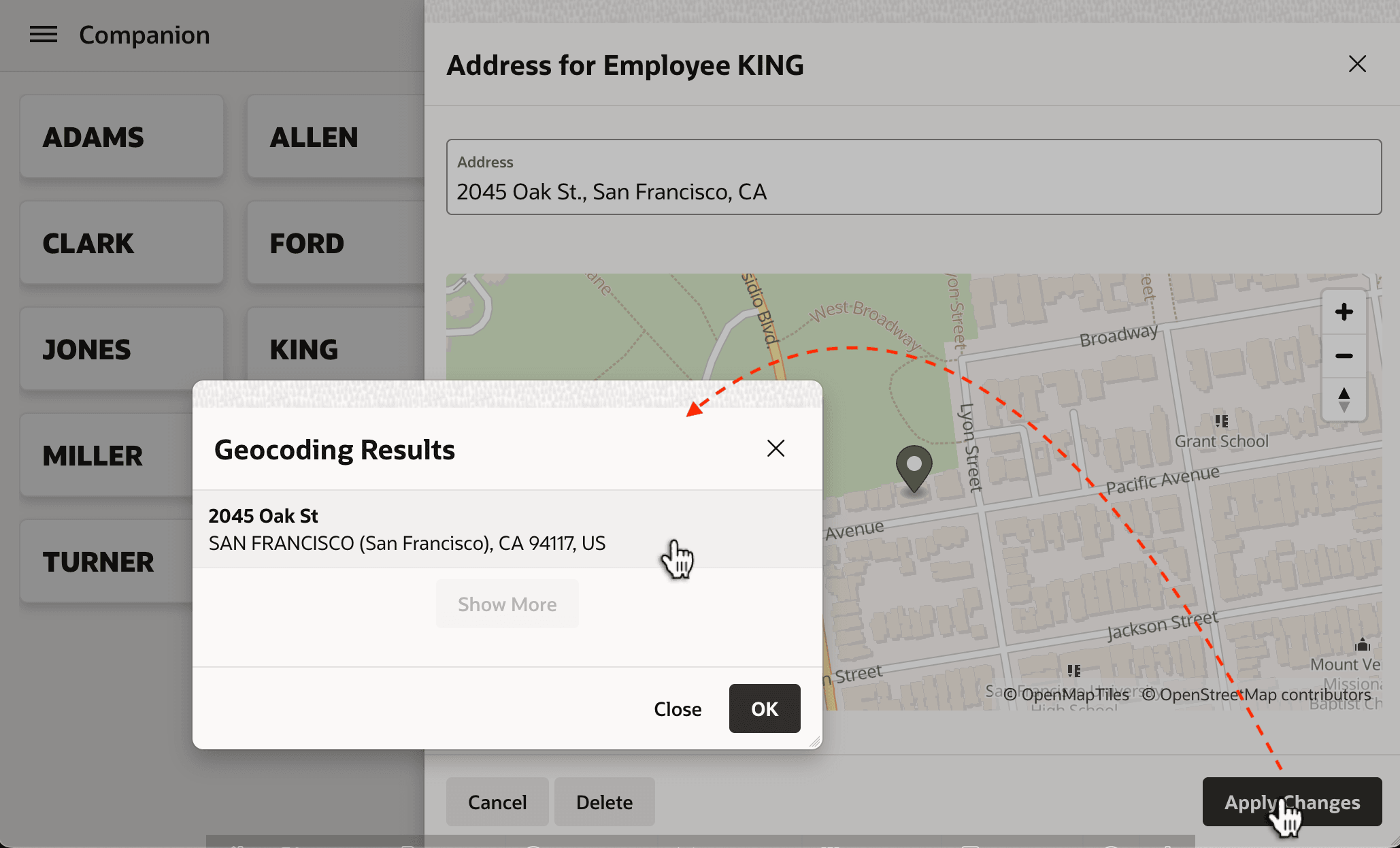
The user enters a new address and clicks the (Apply Changes) button to save. The Automatic setting of Trigger Geocoding on the P60_GEO_JSON_POINT Geocoded Address item causes it to preempt the page submit and validate the changed address. As shown below, matching addresses appear in a modal Geocoding Results dialog.
Tip:
You can customize the title of the Geocoding Results dialog by creating a shared component Text Message with name APEX.ITEM.GEOCODE.DIALOG_TITLE that enables the Used in JavaScript option.
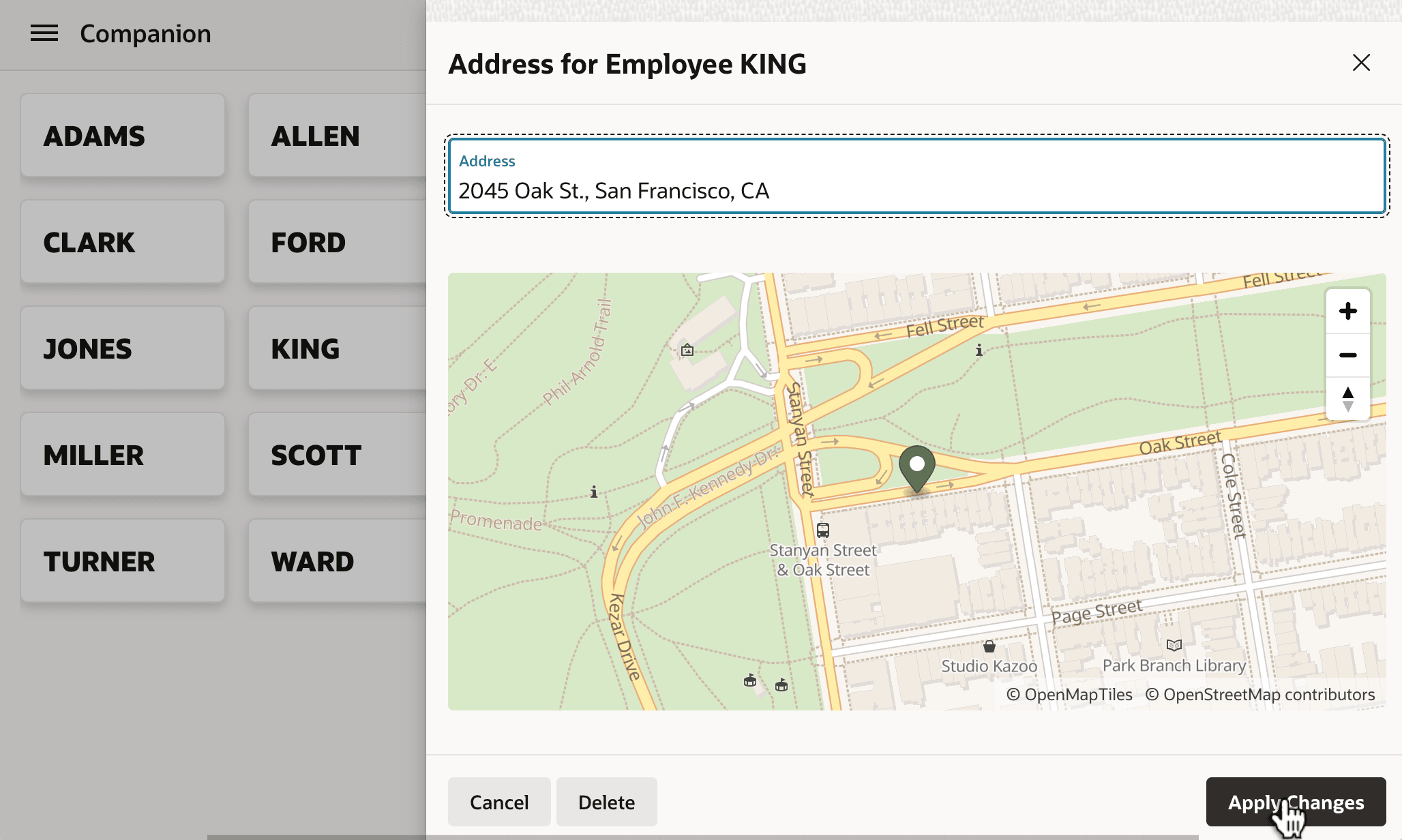
Once the user confirms the address, as shown below, she can click (Apply Changes) again to save the change.
Figure 15-5 Geocoded Address Map Updates to Show New Address
Parent topic: Geocoding with User Confirmation