2.5 Creating Data Models with Quick SQL
Create tables and relationships quickly by describing your data model in Quick SQL shorthand.
An application's data model is the set of tables and relationships that store the information it manages. When you are ready to create a new application, APEX Builder's Quick SQL editor is a productive way to iteratively design its tables. Using a shorthand syntax, you type in the business entities in your data model one per line, and indent the attributes and data types under each entity. You relate tables by identifying the foreign keys.
For example, imagine you need to build an application to manage a
conference. The Quick SQL syntax below defines tables for ROOMS,
PRESENTERS, SESSIONS, ATTENDEES,
and AGENDAS. Quick SQL automatically creates a primary key named
ID for each table, so you don't have to list it explicitly. The
NAME and TITLE columns store variable-length
character data with a maximum length of 100 characters (vc100), while
ROOMS has two number columns to store its map coordinates. Each
session has a STARTS date (with time) and a number
DURATION in minutes. Notice how the /fk or
/references annotation identifies a column as a foreign key along with the name of the table it references. In this example,
each row in the SESSIONS table has a ROOM_ID for the
room in which the session occurs, and a PRESENTER_ID for the person
presenting the session. Similarly, each row in the AGENDAS table has a
SESSION_ID for the session and a ATTENDEE_ID for
the conference-goer who wants to attend it.
rooms
    name vc100
    latitude num
    longitude num

presenters
    name vc100

sessions
    title vc100
    starts date
    duration num
    room_id /fk rooms
    presenter_id /fk presenters

attendees
    name vc100

agendas
    session_id /references sessions
    attendee_id /references attendees
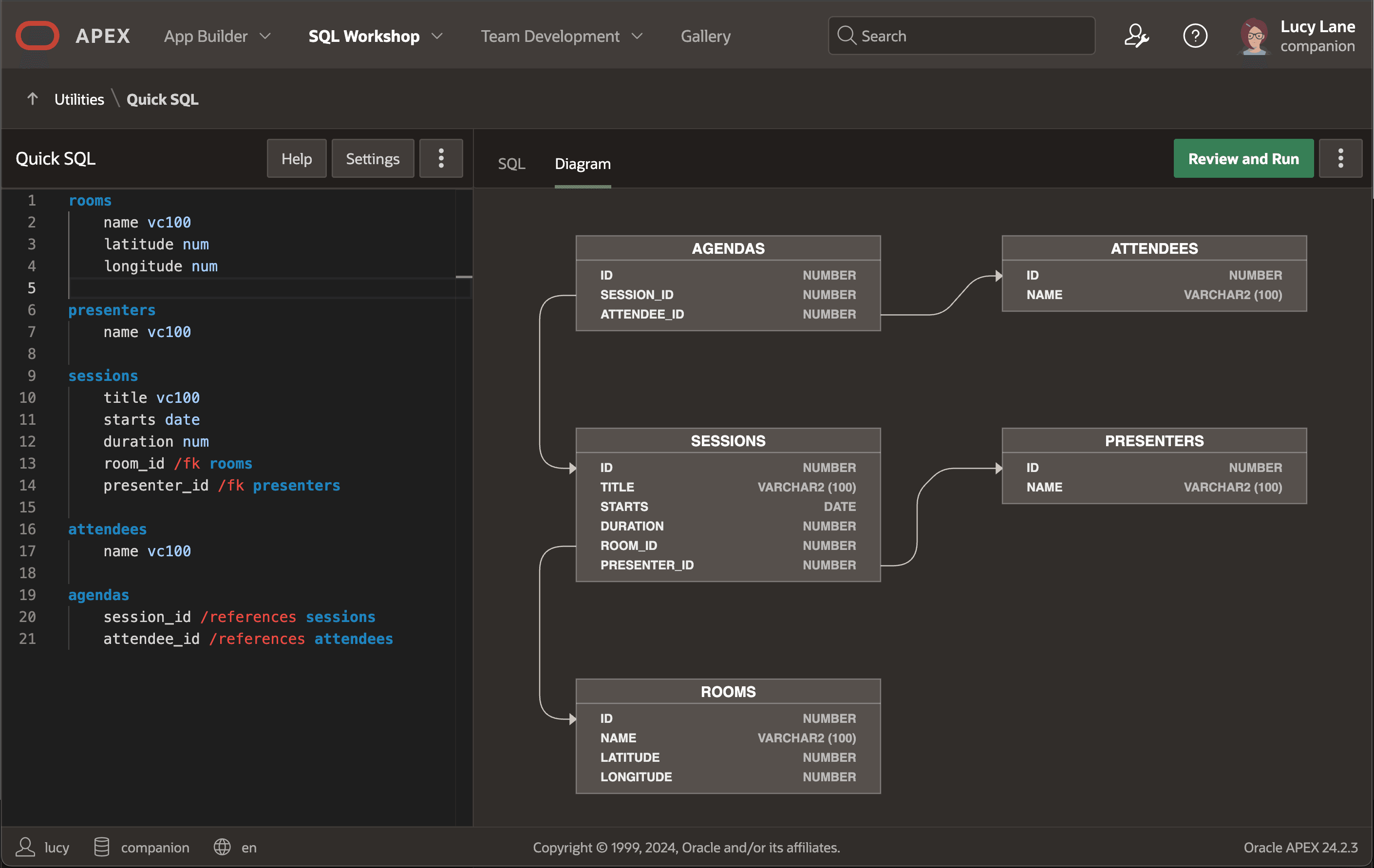
Whenever you pause your typing in the Quick SQL editor, as shown below, the Diagram tab immediately updates its visual representation of the tables, columns, and relationships. At any time you can peek at the SQL tab to see the statements needed to create the new tables. When you are happy with the data model, just click Review and Run to save the SQL script and create your tables.
Figure 2-8 Iteratively Designing a New Data Model with Quick SQL
Related Topics
Parent topic: Working with Local Data