8.3.1 Creating a Multi-Step Wizard
The Create Page wizard automates making your app's wizard. It generates the wizard's multiple pages linked by branches, with progress indicator list entries that define the wizard step titles.
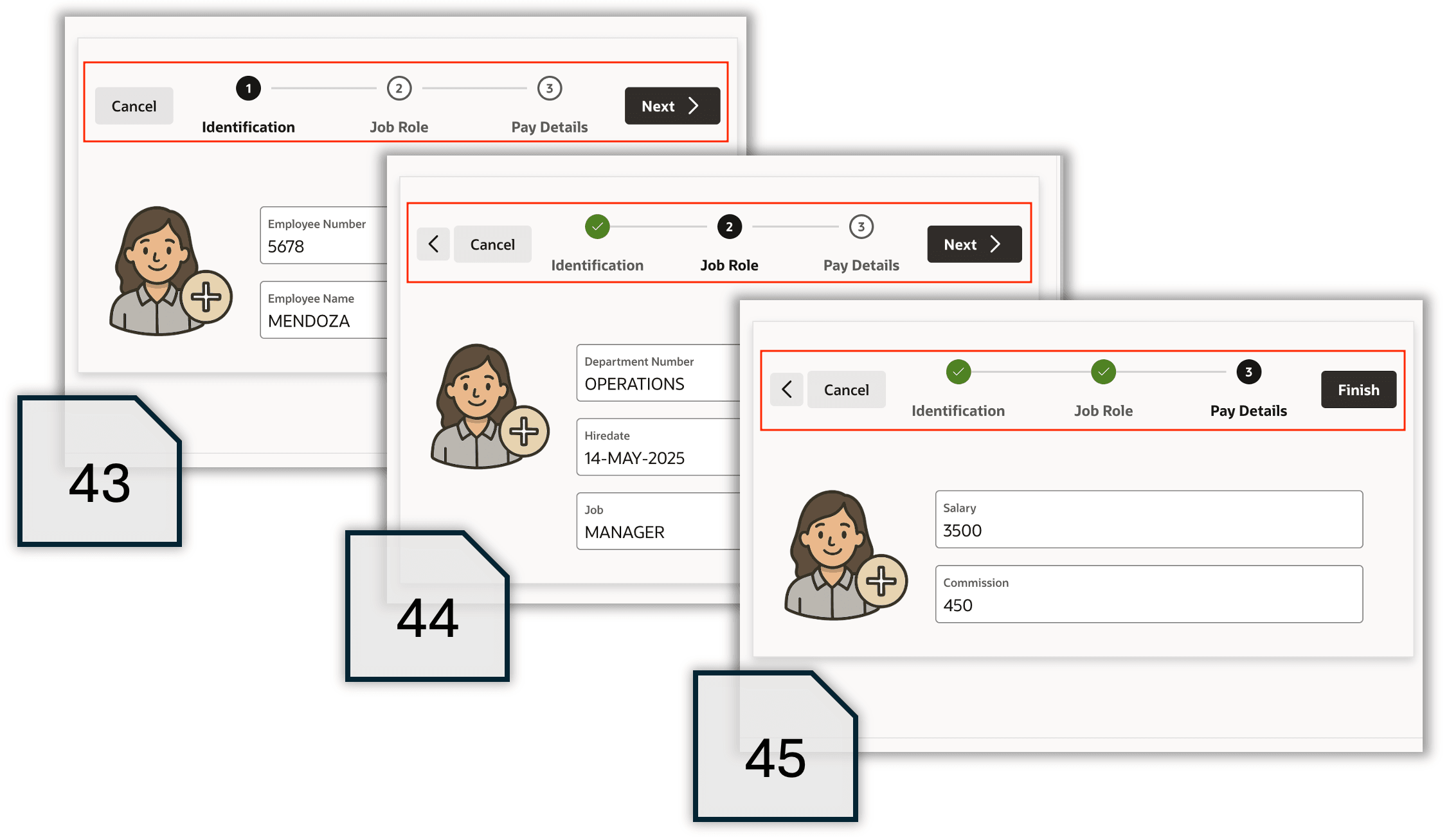
As shown below, you need to create three pages for this Onboard New Employee wizard. Here they are numbered 43, 44, and 45. Each page includes a wizard progress indicator at the top showing the steps involved and the current step. This area includes appropriate buttons to proceed to the next step, return to the previous step, finish the task, and cancel the flow. Each page also contains page items for entering data appropriate to the step at hand.
Figure 8-4 Wizard Container on Each Page Shows Steps in a Flow
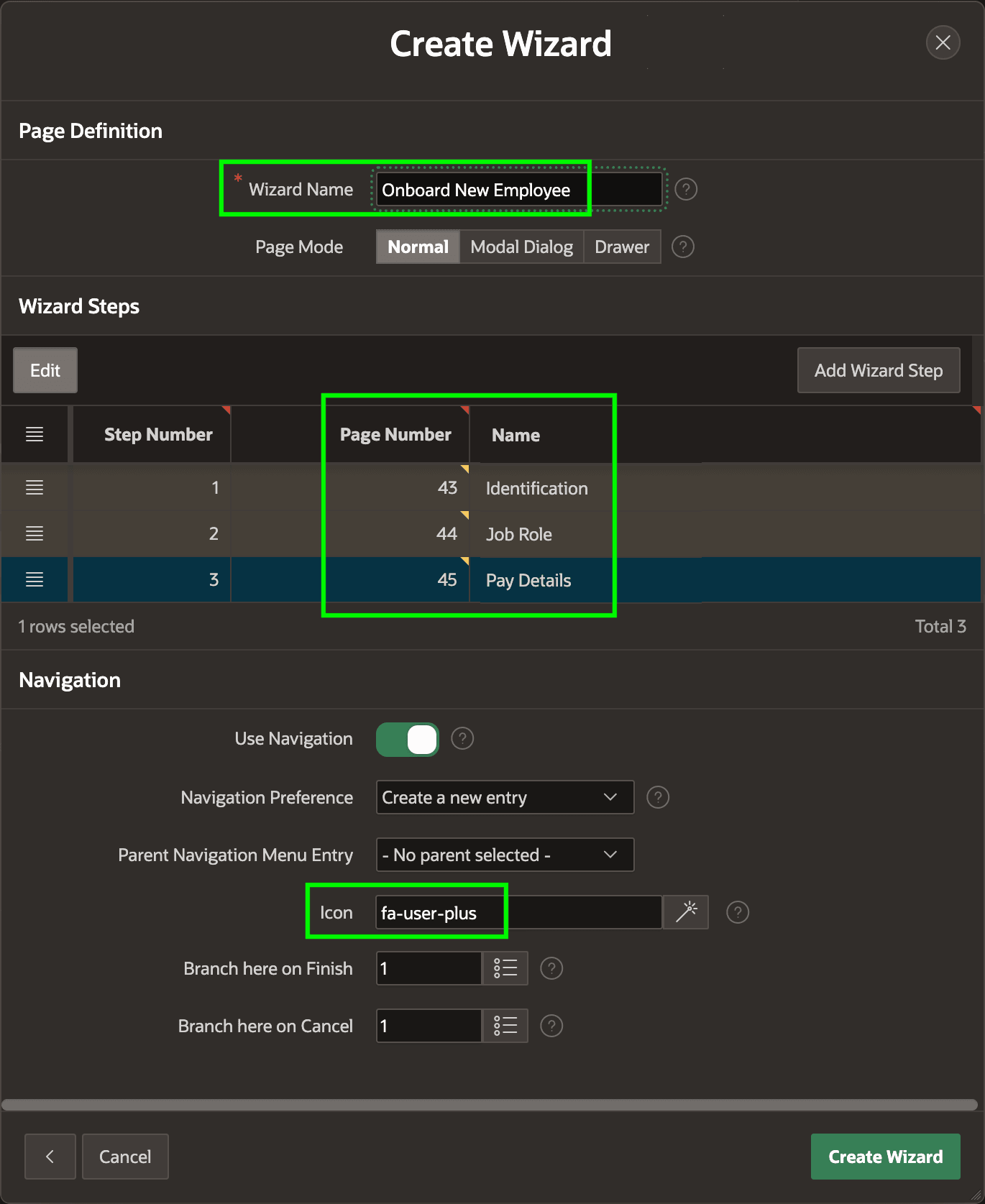
The Create Page wizard sets up this multi-step page flow. Choosing the Wizard tile in the Create Page dialog and clicking (Next >) shows the Create Wizard step shown below. There you define the name of the wizard, the step labels and page numbers, and pick a navigation menu icon. Clicking (Create Wizard) creates the pages and opens the first page in Page Designer.
Figure 8-5 Defining the Wizard Steps in the Create Wizard Dialog
Parent topic: Configuring a Wizard Page Flow