13.3.3 Data Profile Helps Turn JSON Into Rows
Each REST Data Source includes a Data Profile. Its details let APEX automatically convert a REST API's JSON response into rows like a database query returns.
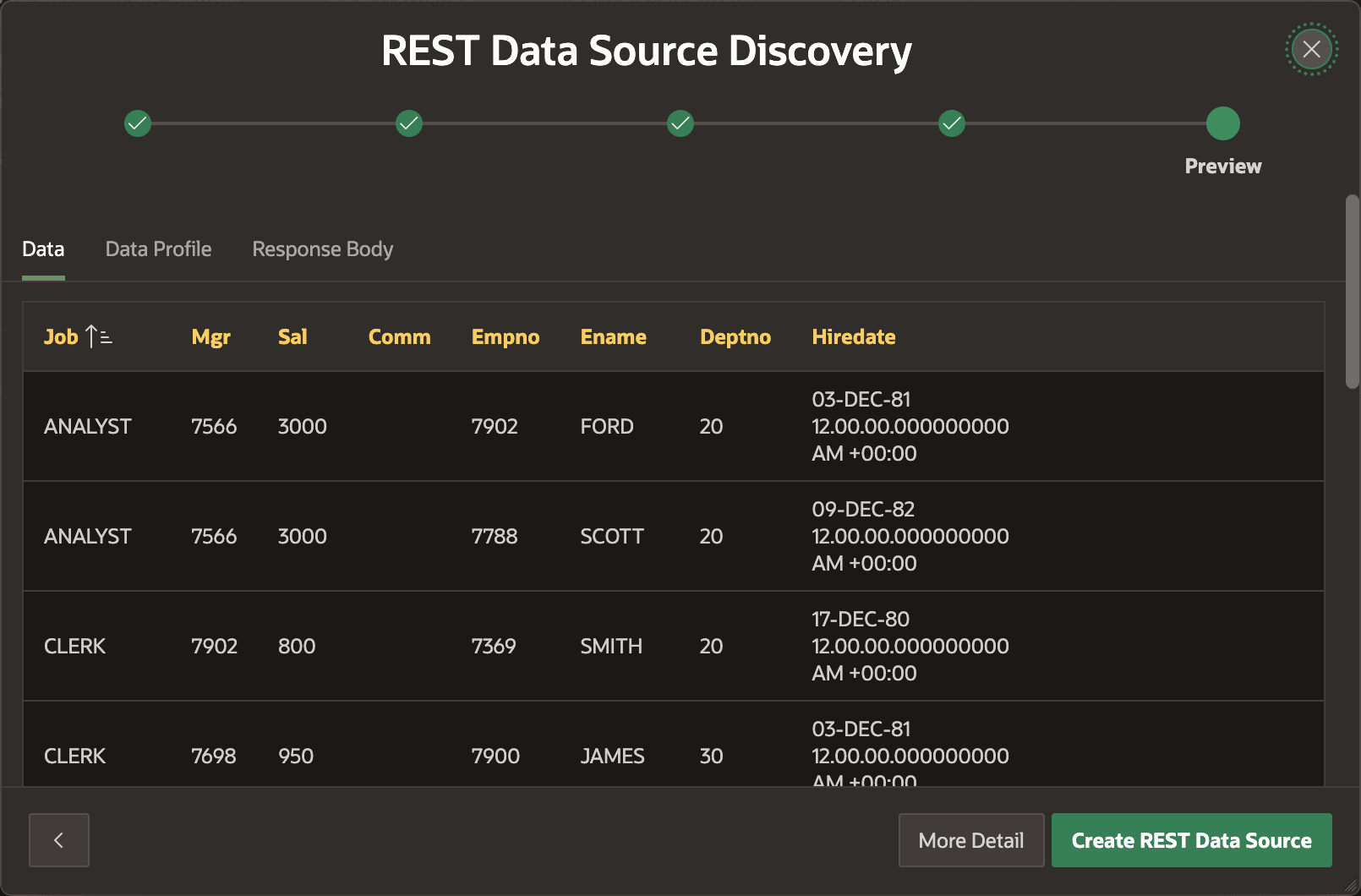
If your endpoint supports GET, APEX can analyze a response payload to discover a starting set of Data Profile columns. As shown below, after this discovery step, the wizard displays the data the service returns in rows and columns. It uses the suggested Data Profile column information in the process.
Figure 13-7 Preview of Data Rows Returned from REST Data Source
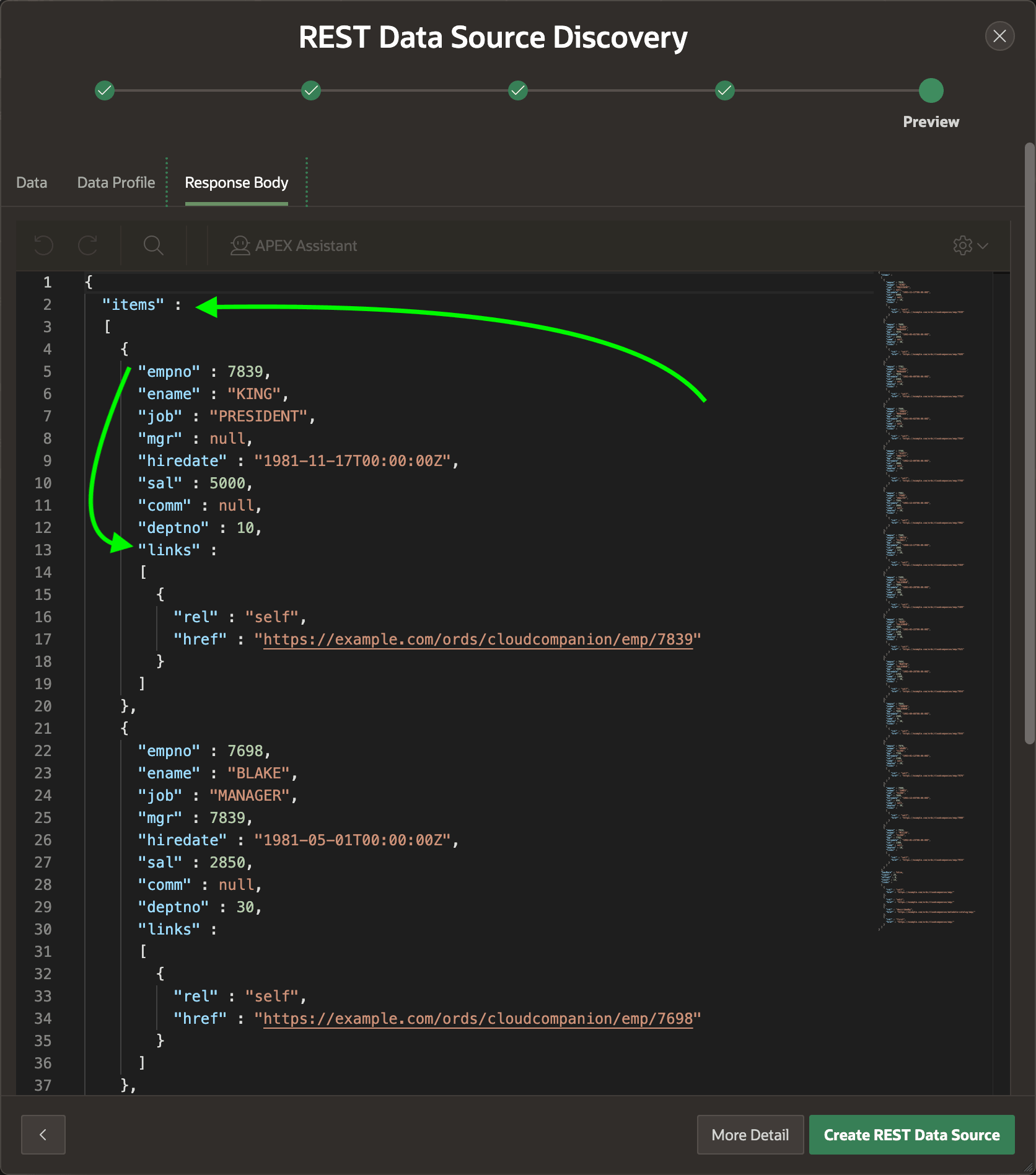
To peek at the JSON response APEX analyzed, click on the Response Body tab. As shown below, the Employees service returns a top-level items array of JSON objects containing employee information. Each employee JSON object contains a nested links array.
Figure 13-8 Inspecting REST API Response: items Array and Nested links Array
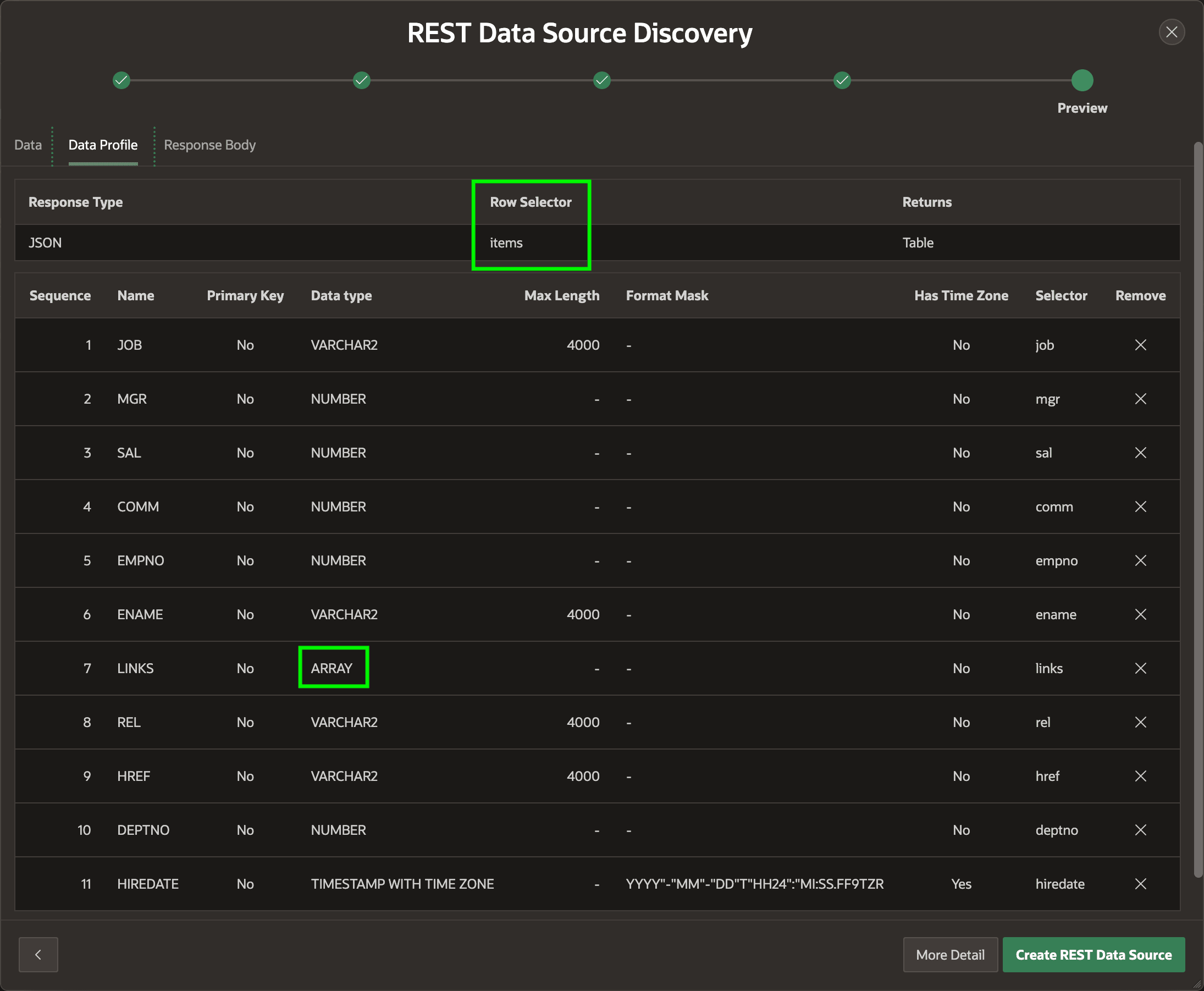
On the Data Profile tab, as shown below, you see APEX identified the items property as the Row Selector. This JSON path expression identifies the root JSON structure to convert into rows. The table below lists each discovered data profile column's name, data type, and JSON selector. APEX uses these details to extract each column's value from the JSON payload. Notice the LINKS column is of type ARRAY. The REL and HREF columns are part of this nested links array. You can click the "x" in the Remove column to omit any columns you don't want, or you can edit the Data Profile later in App Builder.
Figure 13-9 Data Profile Columns Discovered Automatically by the Wizard
Tip:
Many regions and all DML modification operations depend on identifying the primary key of the row being updated. Whenever relevant, make sure to update the data profile column that serves as the primary key to enable its Primary Key switch. This ensures any region columns will automatically recognize it as the primary key column so you don't have to remember to enable that switch each time you use the REST Data Source in a region.
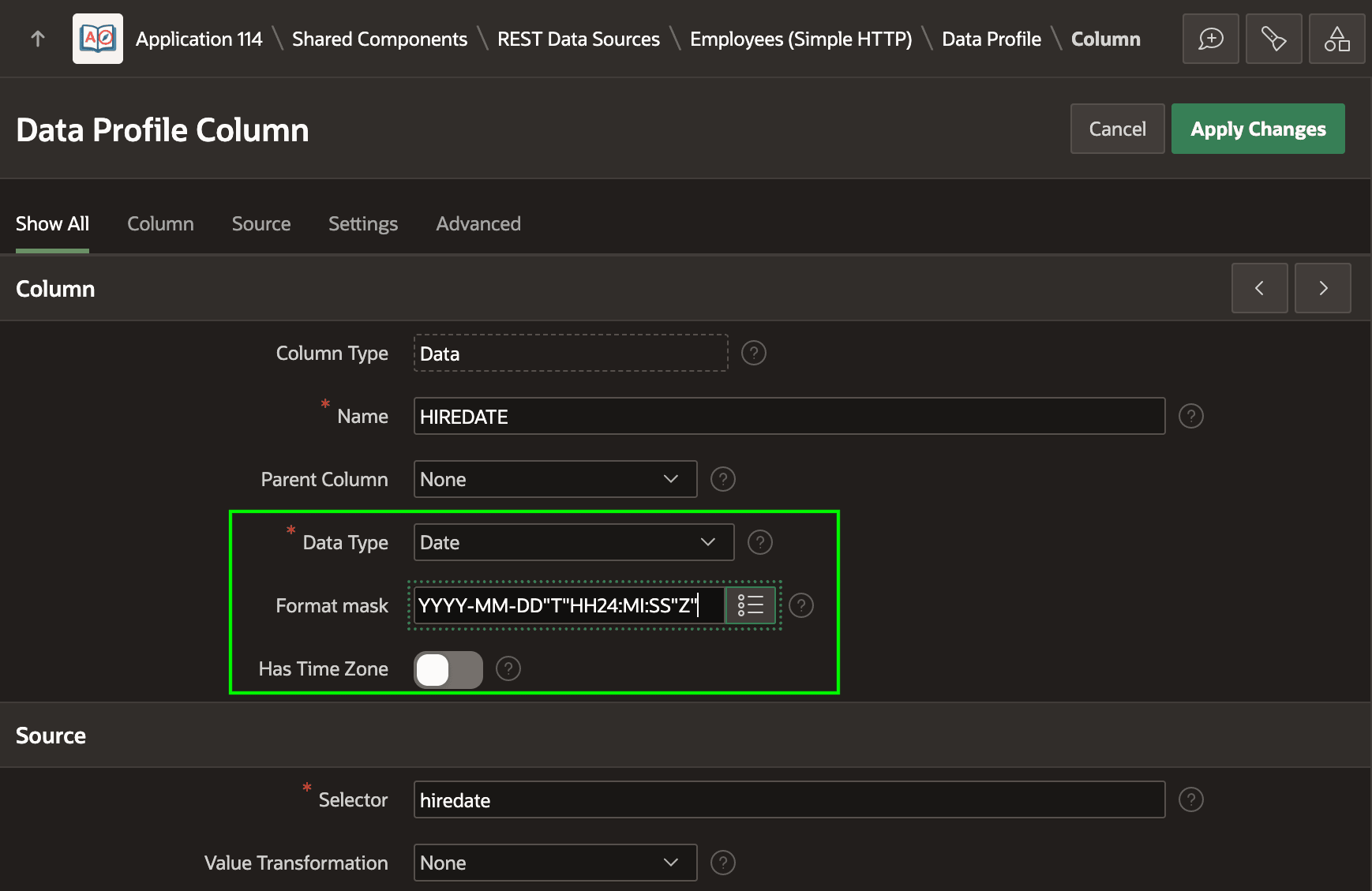
For a column like HIREDATE if automatic discovery picks the wrong
data type, you can adjust it later in the REST Data Source edit page. For example, say
the hiredate property in the remote REST service is a value with only
date and time information. If it does not include sub-second precision or a time zone,
as shown below you can first edit the Data Profile columns, then edit the specific
HIREDATE Data Profile column to adjust the data type to
DATE and change its format mask to the one for an ISO 8601 standard
date/time used by this REST API: YYYY-MM-DD"T"HH24:MI:SS"Z"
Figure 13-10 Adjusting the HIREDATE Data Profile Column's Data Type
Parent topic: Using REST APIs as Data Sources