22.2 Enabling the First Translation Language
Enable text message-based translation and add the first translated language for your app.
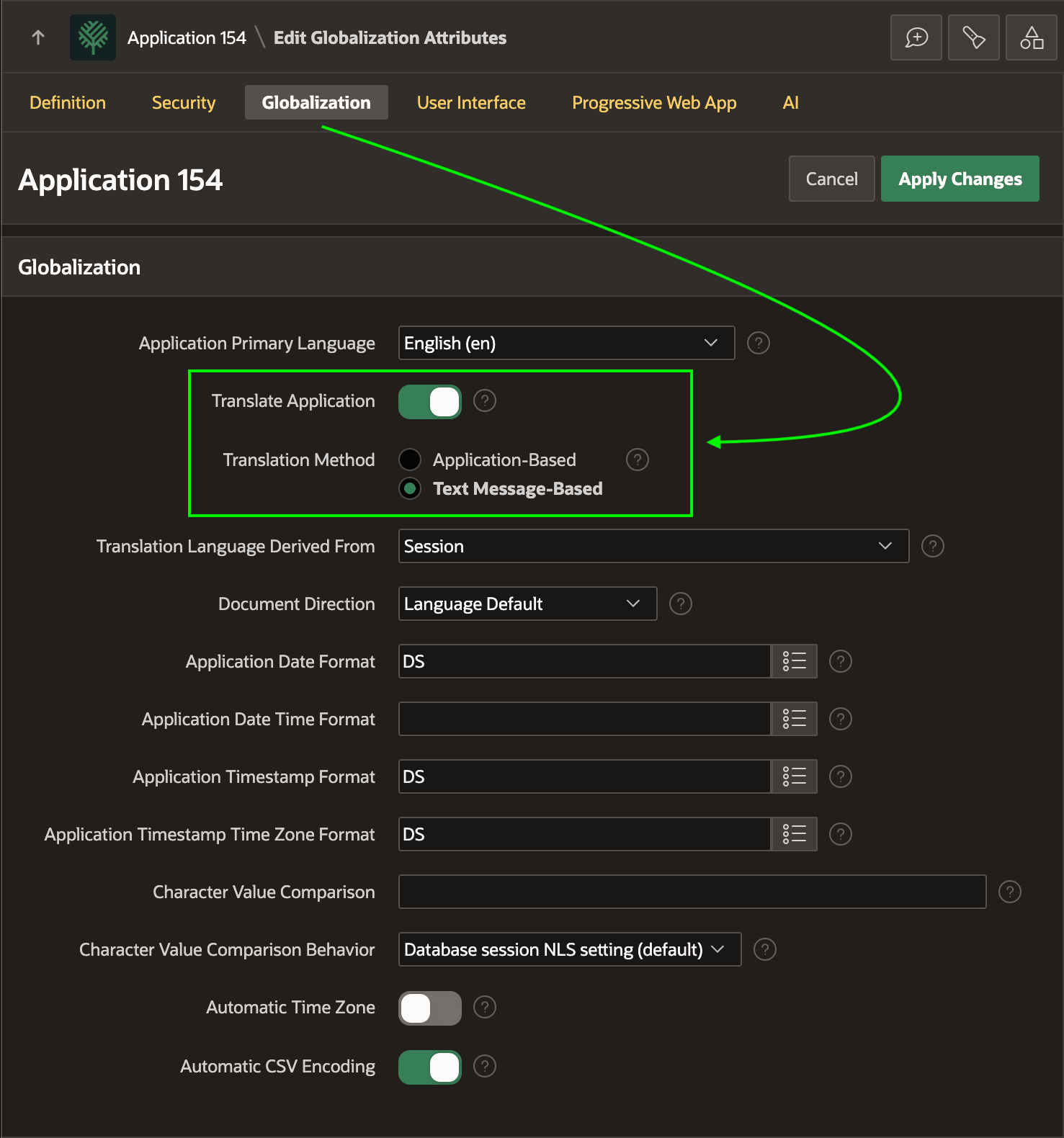
When you decide to add the first translated language, go to Shared Components > Globalization Attributes and enable the Translate Application switch as shown below. Use the Text Message-Based option. It's the simplest approach with best support in App Builder and Page Designer.
Figure 22-3 Enabling Application Translation in Globalization Settings
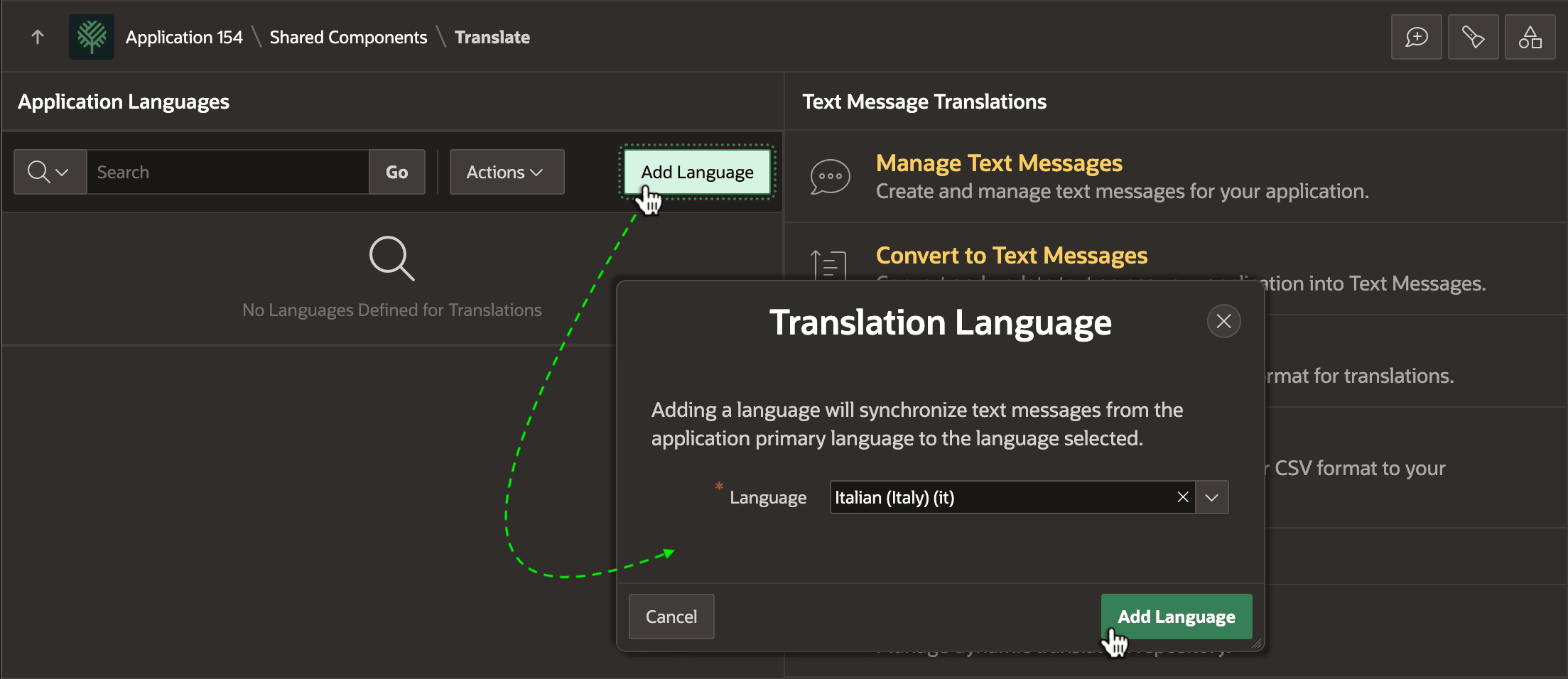
Next, go to Shared Components > Application Translations and click (Add Language). For example, if some of your end users need to use your app in Italian, you can add the Italian (Italy) (it) language as shown below.
Figure 22-4 Adding the First Translation Language
The new language appears along with your application's primary language in the list of language translations your app now supports.
Figure 22-5 Primary Language and First Translated Language Created and Synchronized
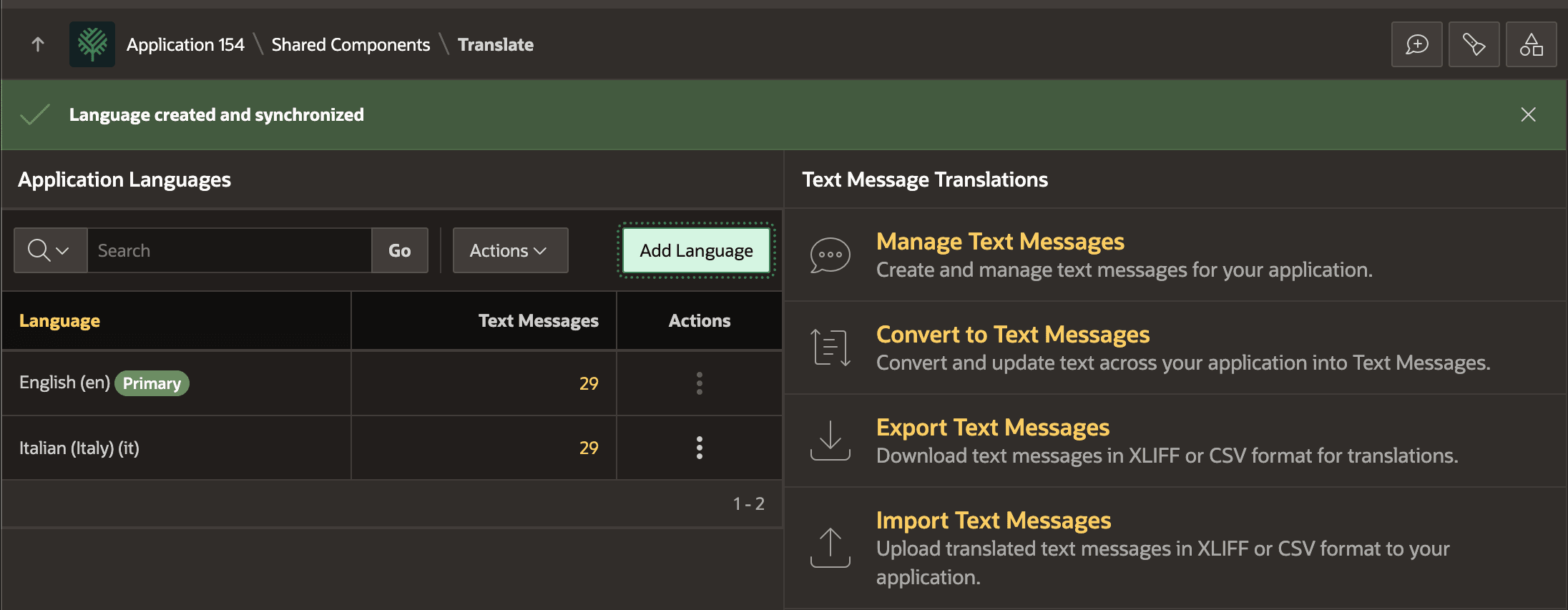
Description of "Figure 22-5 Primary Language and First Translated Language Created and Synchronized"
Parent topic: Translating Your Application