12.6 Finding by Meaning with Vector Search
Use Oracle AI Database 26ai Vector Search with a Search Configuration to find results by meaning, even when words differ.
Understanding the Potential for User Frustration When Searching
Users know what they are looking for, but might search for it using words that are different than the ones in your tables. When their search finds no results, that can be frustrating. For example, suppose Lucy brings her family to Las Vegas while she attends a conference during the day. She wants to find family-friendly activities to do with the kids in the evenings, so she uses your Vegas Family Nights app to search for ideas.
After reading Unified Search Results Across Sources, you created a page with a Search region to give user's like Lucy
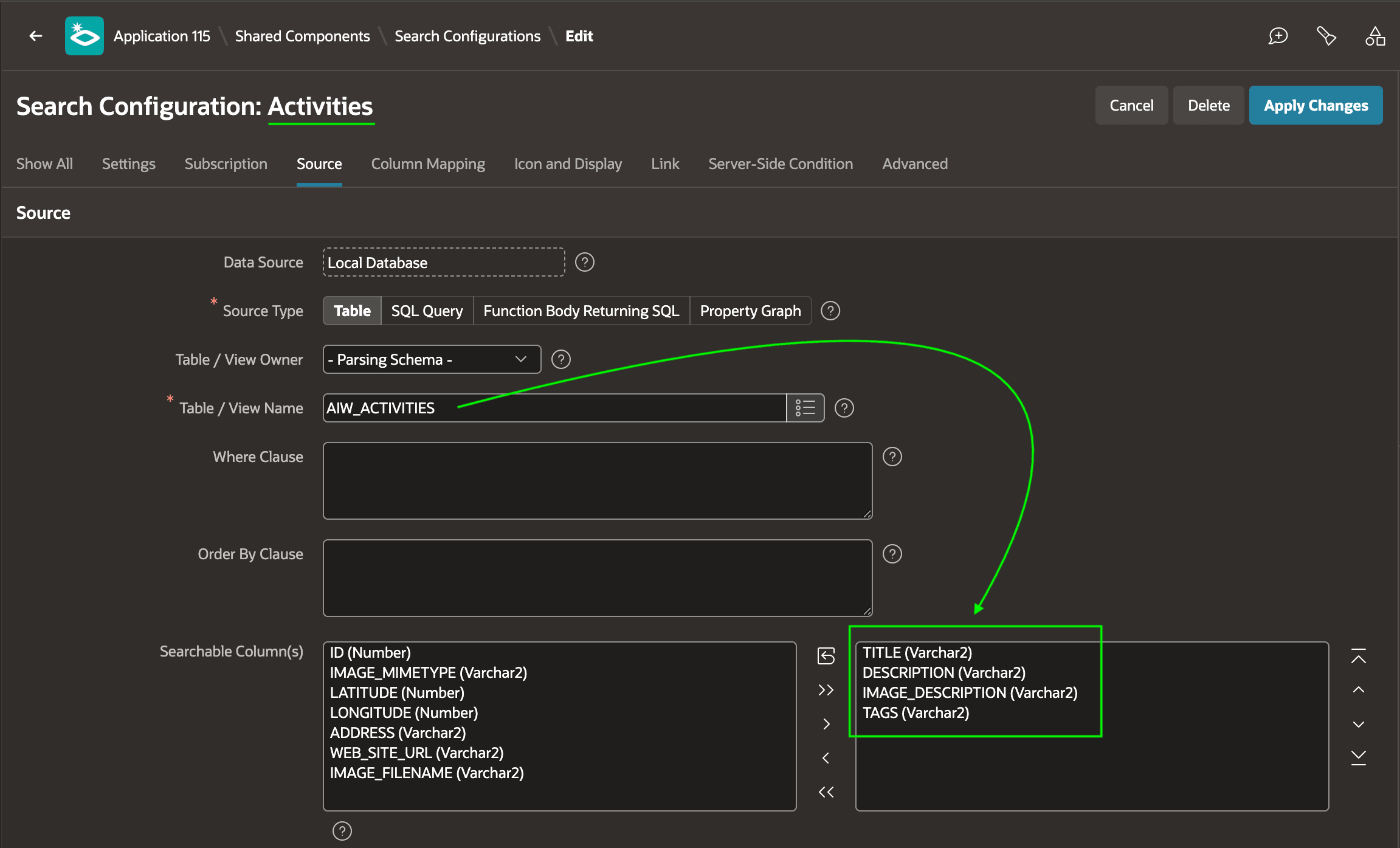
an internet-search experience to find fun things to do together. As shown below,
your Activities Search Configuration relates to your
AIW_ACTIVITIES table with all activities Las Vegas has to offer
that are appropriate for children. You identify TITLE,
DESCRIPTION, IMAGE_DESCRIPTION, and
TAGS as good columns to search over.
Figure 12-21 Activities Standard Search Configuration on Activities Table Columns
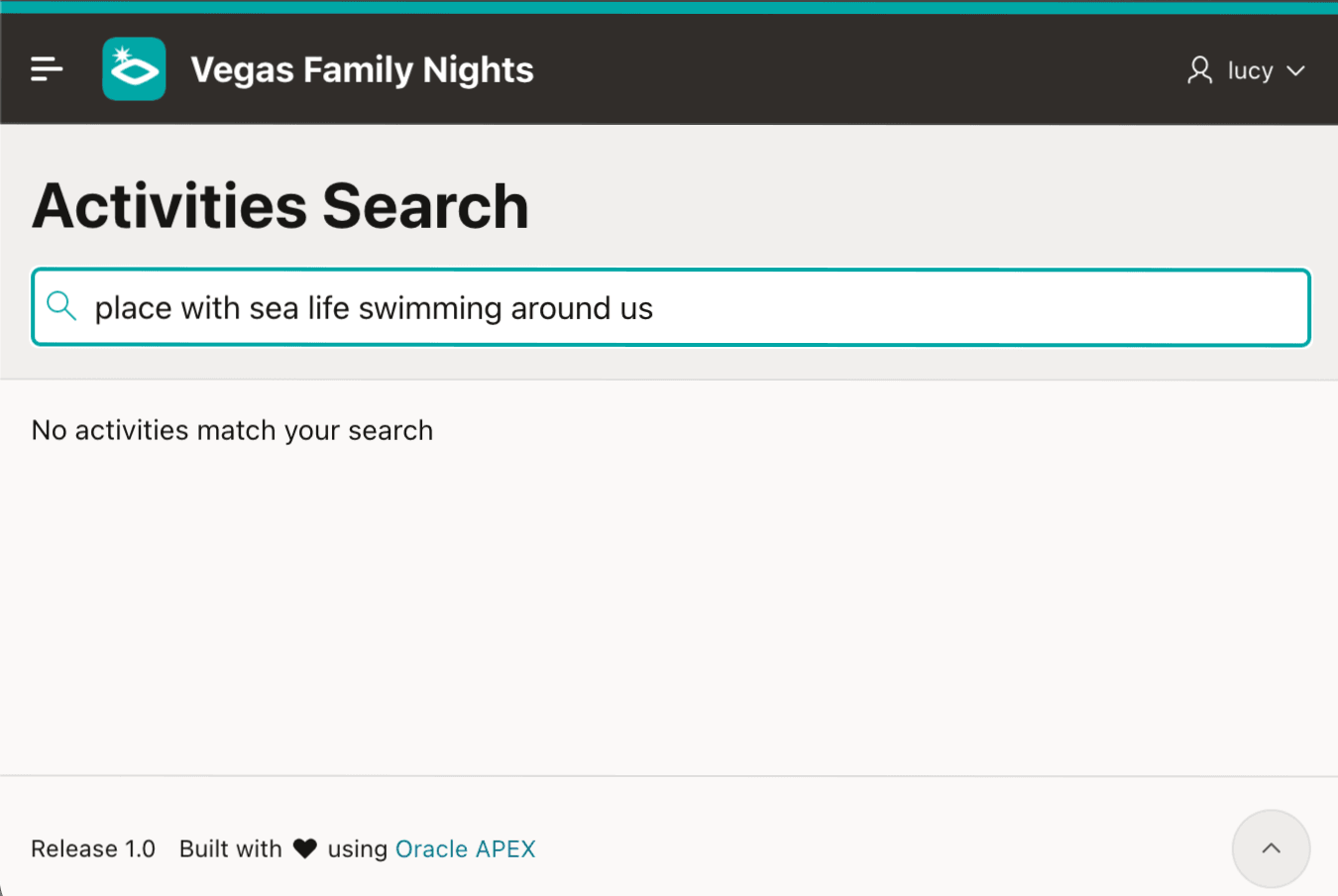
However, when Lucy types in her search for "place with sea life swimming around us", as shown below she sees that no activities match her search.
Figure 12-22 Lucy's Choice of Words Produces No Matching Activities
Lucy tries another search for "location where we can see illuminated old hotel signs", but again her search produces no activities. She leaves your application feeling frustrated.
Capturing the Meaning of Words Using Vectors
An AI service provider trains a large language model on an enormous set of text or image inputs. Then they fine-tune the model to excel at recognizing and classifying new inputs based on its training data. For some new input, the model applies its training to "understand" it. In the process, it evaluates potentially hundreds or thousands of different traits and assigns the input a "score" for each trait it has been trained to recognize.
For example, imagine training an AI model on millions of family friendly activities from around the world. Fine-tuning can incorporate professional activity planner expertise, helping the model suggest activities from natural language phrased the way an average parent might ask. For a family activity, traits might include what the experience is like and who it suits, such as activity type, age range, indoor or outdoor setting, energy level, educational value, time commitment, cost, distance from the Strip, accessibility, noise level, food availability, physical effort required, and weather sensitivity.
The model assigns a number between 0 and 1 for each of these traits,
capturing how strongly a particular activity expresses that quality. For instance, a
food availability score of 0 means no food available, while a score of 1 would
indicate the activity is absolutely food-centric. You can write down the sequence of
an activity's trait scores as an ordered list of numbers called a vector. The
Oracle AI Database
26ai database supports a VECTOR data type to store these "scorecards"
in a column. It also indexes vectors efficiently to quickly identify ones that are
closest in meaning to a vector representing the intent of a user's
search.
Incorporating a Vector into Your Existing Table
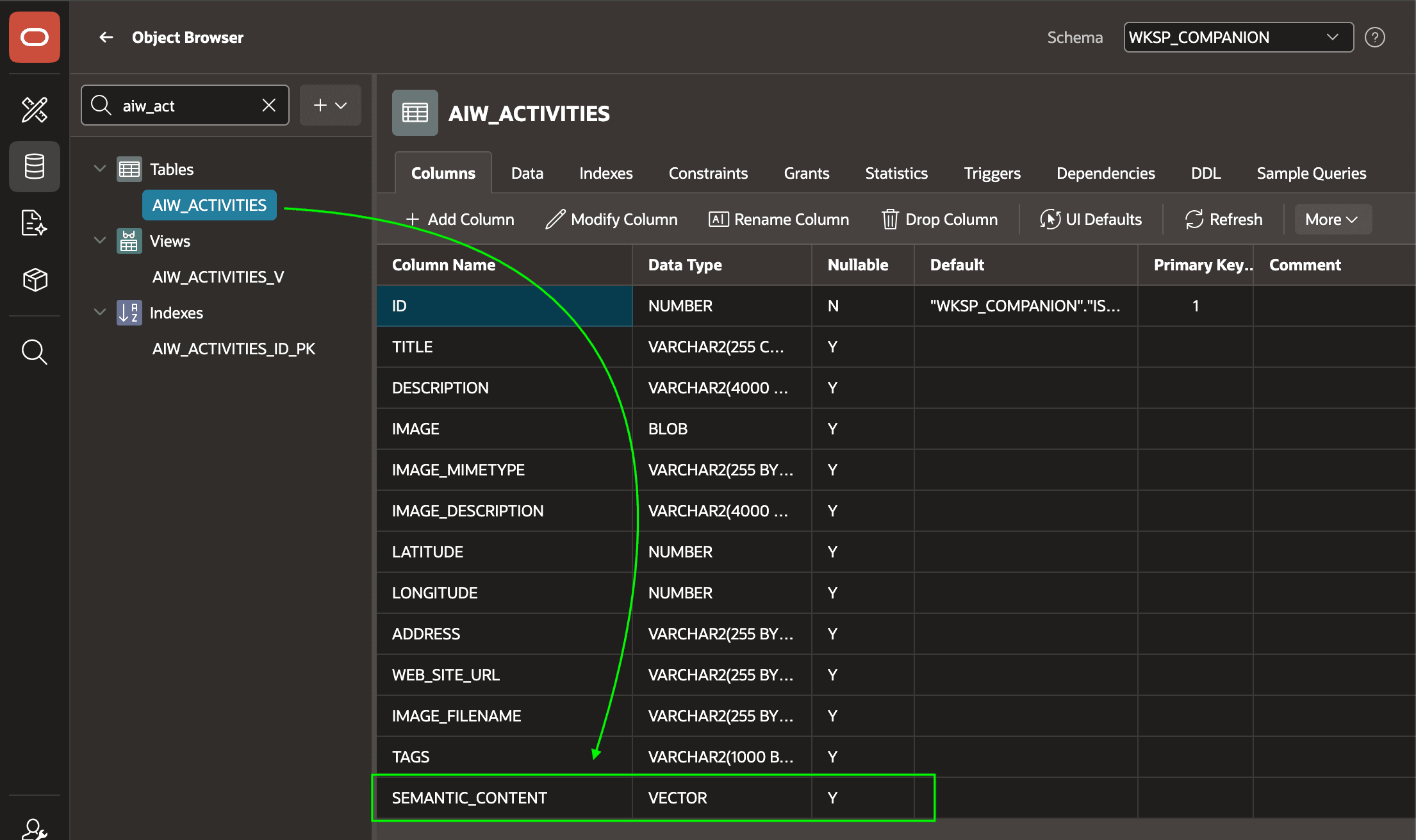
Your database contains an AIW_ACTIVITIES table. You can
alter the table to add a SEMANTIC_CONTENT column of type
VECTOR to store the list of trait scores the AI model infers
for each activity. That vector encodes the model’s understanding of each activity's
complete profile: a compact numeric summary of all the trait scores the AI
recognized about it.
Figure 12-23 Adding a VECTOR Column to an Existing Table in Object Browser
Installing a Model in Your Database
all-MiniLM-L12-v2 model you can try to get started. As a prerequisite to installing a model, the parsing schema of your APEX workspace requires the CREATE MINING MODEL privilege. Then use the following PL/SQL block to load the ONNX model after substituting TODO with the URL for the model file from the blog article:begin
dbms_vector.load_onnx_model(
model_name => 'DOC_MODEL',
model_data => apex_web_service.make_rest_request_b(
p_http_method => 'GET',
p_url => 'TODO')),
-- ^ URL from Blog Article Here
metadata => json(q'~
{
"function" : "embedding",
"embeddingOutput" : "embedding" ,
"input":{"input": ["DATA"]}
}~')));
end;Defining a Vector Provider
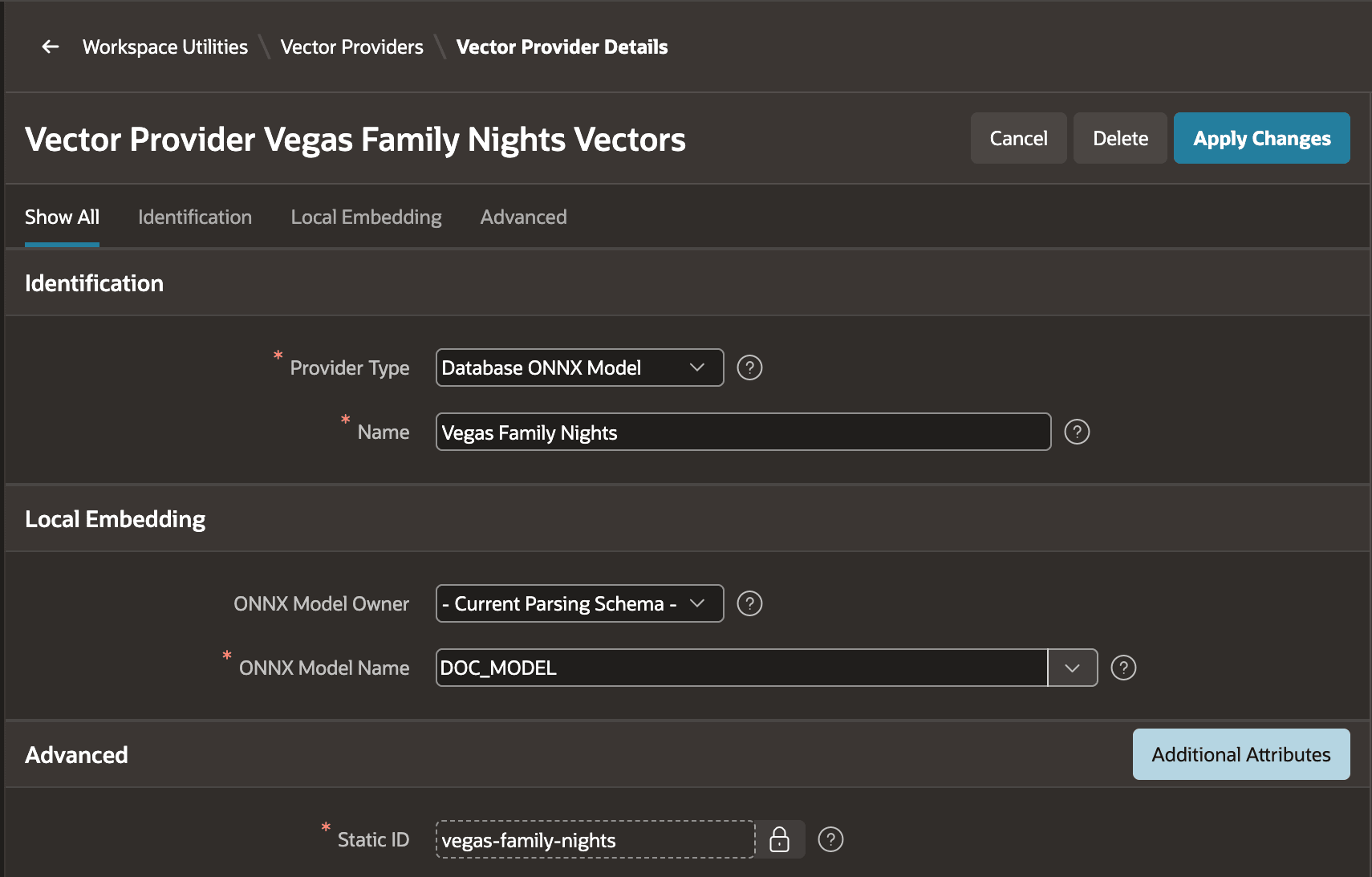
A vector embedding represents a model’s understanding of the input as
coordinates in a multi-dimensional space of traits. APEX simplifies working with an external or DB-resident model that provides vector
embeddings to capture data semantics. You supply the info it needs to use the
model by defining a vector provider in the APEX Builder under Workspace > All Workspace Utilities > Vector
Providers. After defining a vector provider, you reference it in calls to
the GET_VECTOR_EMBEDDINGS function in the APEX_AI
package, or when you define search configurations that power a Search region
in your page.
Figure 12-24 Creating a Vector Provider Based on a Database-Resident ONNX Model
Generating the Vector Embeddings for Your Data
To generate a vector for text input, use the GET_VECTOR_EMBEDDINGS
function in the APEX_AI package. Pass it the text to encode and the
static ID (e.g. vegas-family-nights) of the vector provider to use.
For example, to encode the meaning of the activity's title, description, image
description, and tags, use an UPDATE statement like the one below.
It uses the indicated vector provider to compute the
SEMANTIC_CONTENT vector for each row based on the contents of
each activity's TITLE, DESCRIPTION,
IMAGE_DESCRIPTION, and TAGS columns.
begin
   apex_util.set_workspace('COMPANION');
   update aiw_activities
      set semantic_content =
            apex_ai.get_vector_embeddings(
              p_value =>
                'Title: ' || title || chr(13) ||
                'Description: ' || description || chr(13) ||
                'Feature Image Description: ' || image_description ||
                'Tags: ' || tags,
              p_service_static_id =>'vegas-family-nights');
end;
Enabling Searching by Meaning in a Page
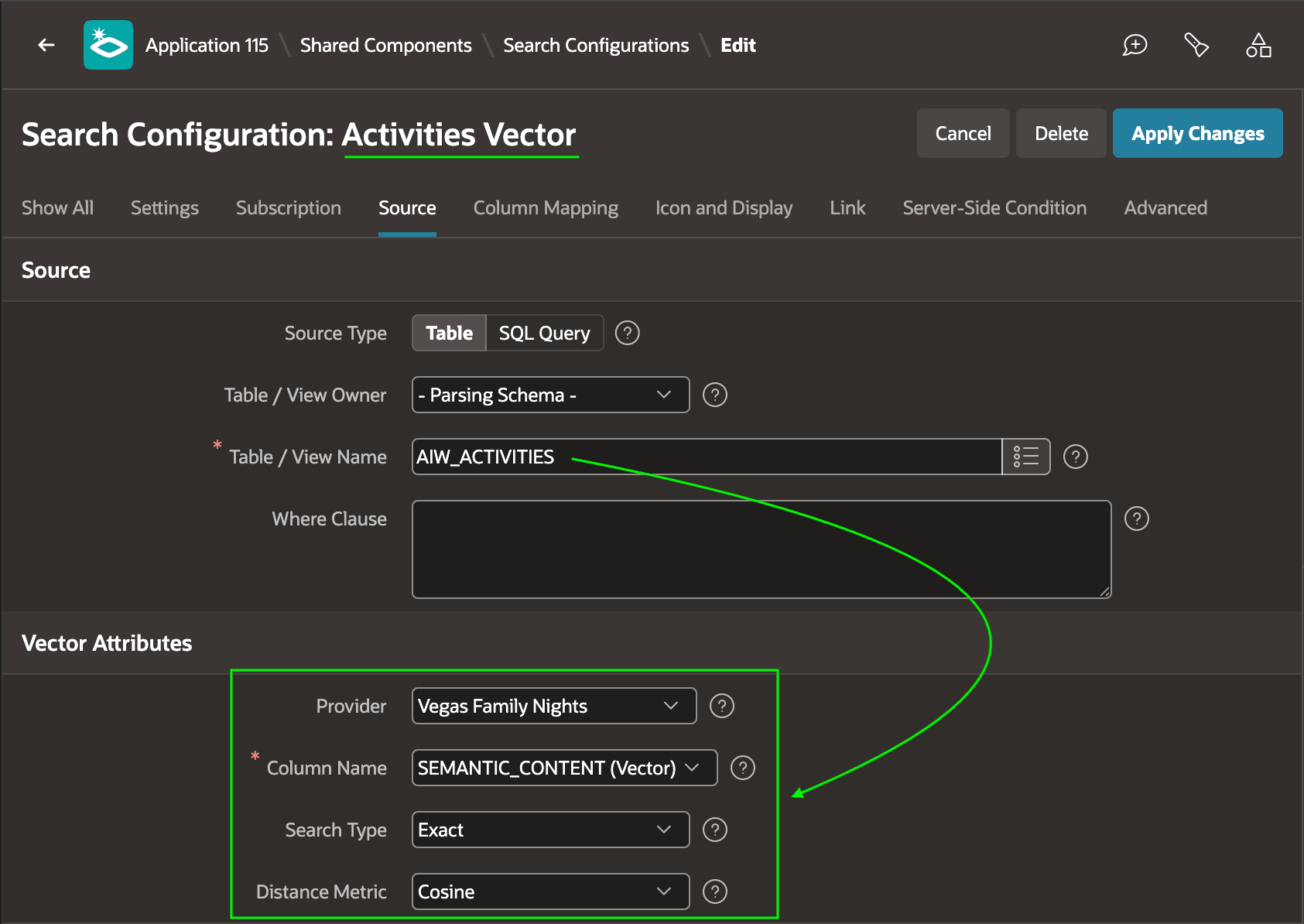
To let end users search by meaning using Vector Search, start by
defining an Activities Vector search configuration under Shared
Components. Choose the type: Oracle AI Vector Search. You configure the vector column as shown below. For
AIW_ACTIVITIES, it's the SEMANTIC_CONTENT
vector column you added and populated with vector embeddings for your existing
activity data.
Caution:
Choose the same vector provider you used to encode the semantic content in your existing data. This ensures the database can compare a user's search to your existing data's vector.
Figure 12-25 Defining a Vector Search Type Search Configuration on the Activities Table
Then, reference the Activities Vector search configuration as the source of a Search region. Your existing search page already has one, but it currently uses a standard search configuration that searches over regular column data. As shown below, just switch the Search Source to use the Activities Vector search configuration instead.
Figure 12-26 Configuring a Search Region to Use a Vector-Aware Search Configuration
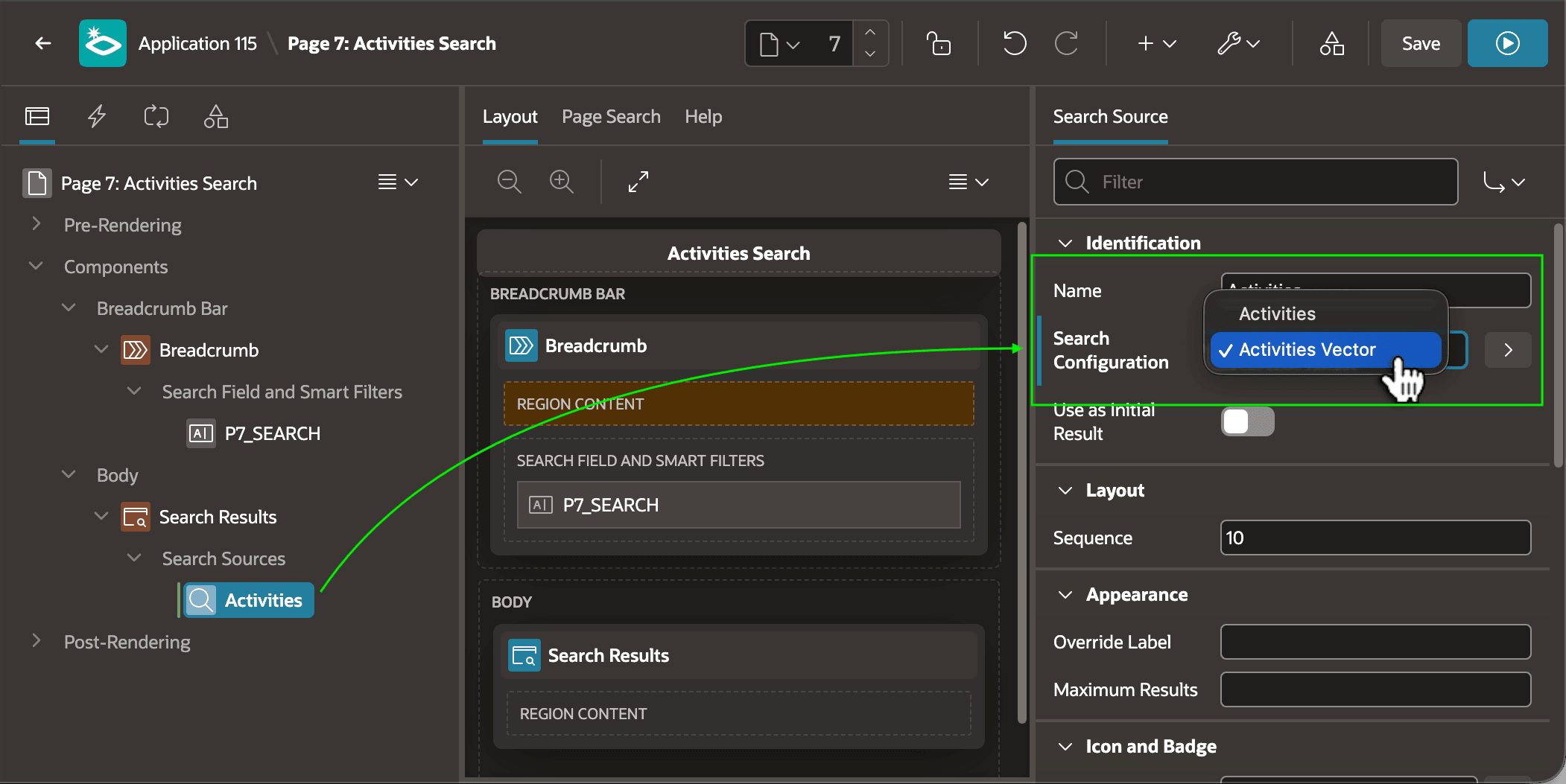
Description of "Figure 12-26 Configuring a Search Region to Use a Vector-Aware Search Configuration"
With this minimal effort, your page now offers Vegas visitors an
internet-style "search by meaning" experience over family-friendly activities. At
runtime, APEX uses the GET_VECTOR_EMBEDDINGS function in the
APEX_AI package to convert the user's search text into a vector
that encodes the meaning of their search. Then it runs a query to find the
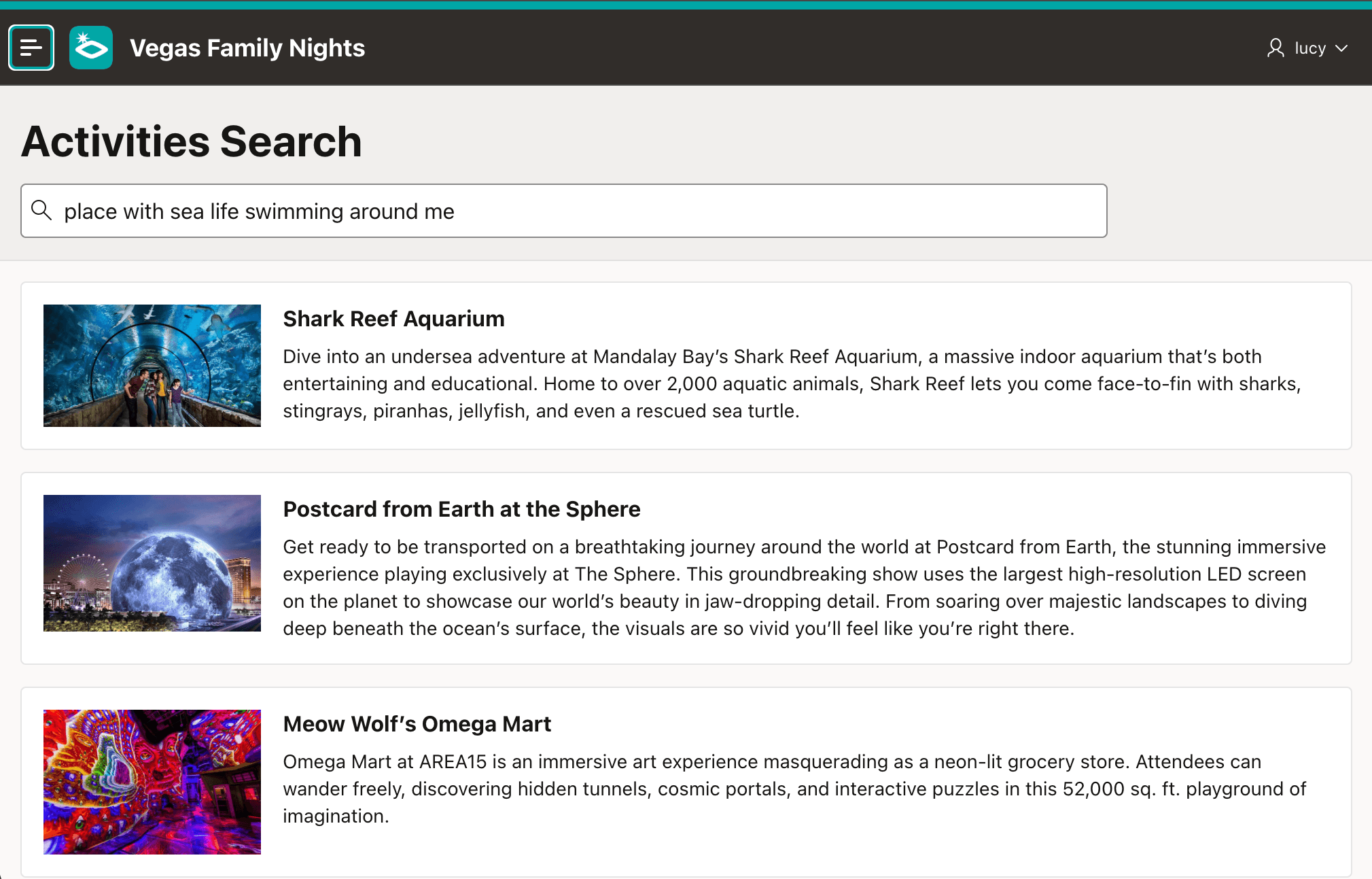
activities whose vector is closest in meaning to the user's search. As shown
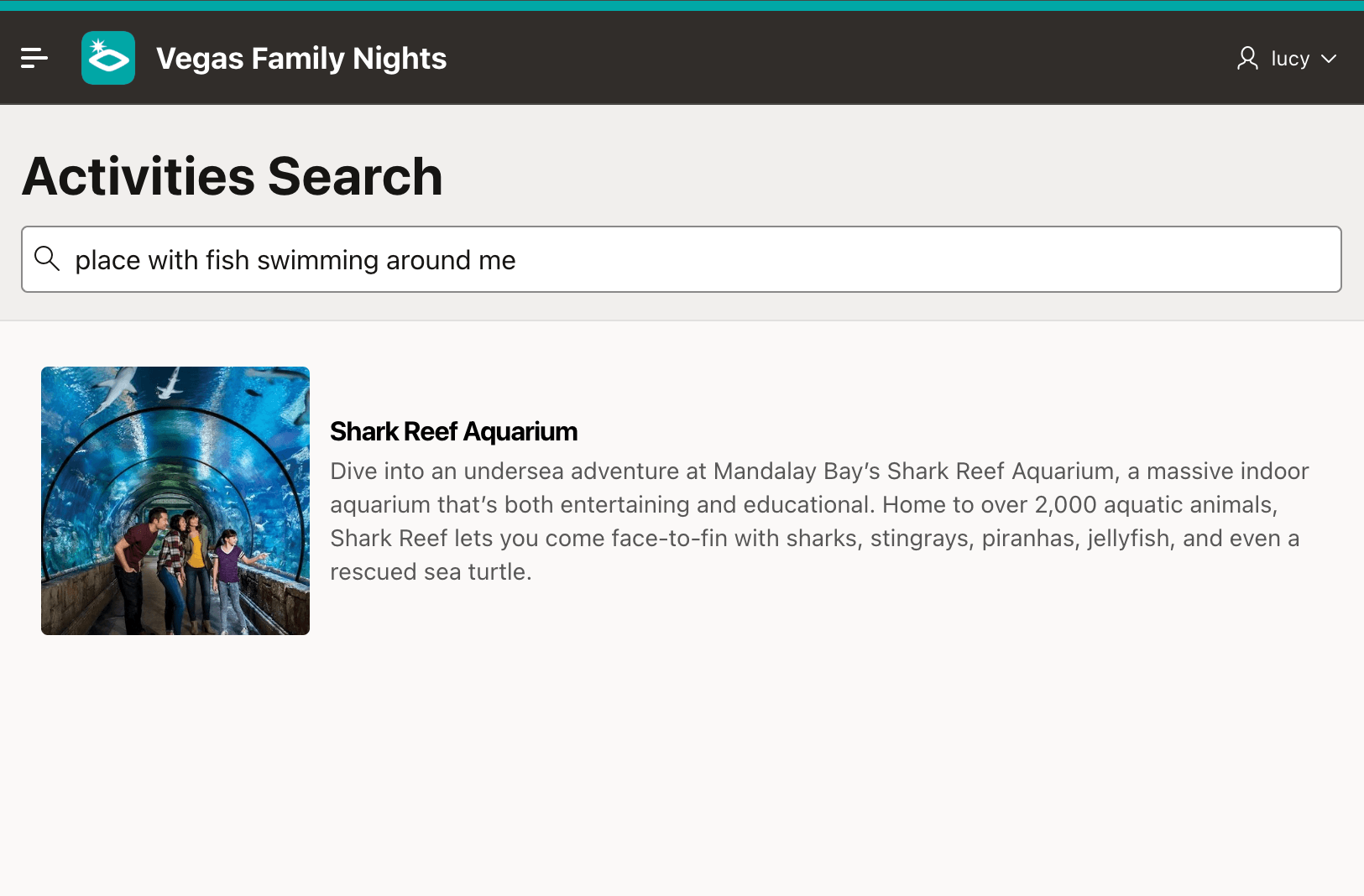
below, now Lucy finds what she's looking for. The Shark Reef
Aquarium activity is the first hit.
Figure 12-27 Lucy Now Finds Meaningful Results, Even When Words Differ
Understanding Vector Distance
When a user enters a search, APEX first computes the vector that encodes the meaning of their search terms. Then it
queries the AIW_ACTIVITIES table, with an ORDER BY
clause to sort results by the vector distance between the user's search
vector and the activity vectors in your table. Oracle
26ai's VECTOR_DISTANCE() function computes how close in meaning an
activity is to the search vector. By also using FETCH FIRST N ROWS
ONLY in the query, APEX finds only the "top N" results most similar in meaning to the user's search.
By temporarily enabling the Custom Layout switch
in the Appearance section of the Search region's
Attributes tab, you can add a reference to
&DISTANCE. to display the vector distance computation for
the results shown. Trying Lucy's other search, the results with distance displaying
next to the title appear below. Notice the first result is spot on. When Lucy's
searches for "location where we can see illuminated old hotel
signs", the Neon Museum comes up first with a
semantic distance of 0.464.
Figure 12-28 Trying Another Search, Temporarily Studying Vector Distance of Results
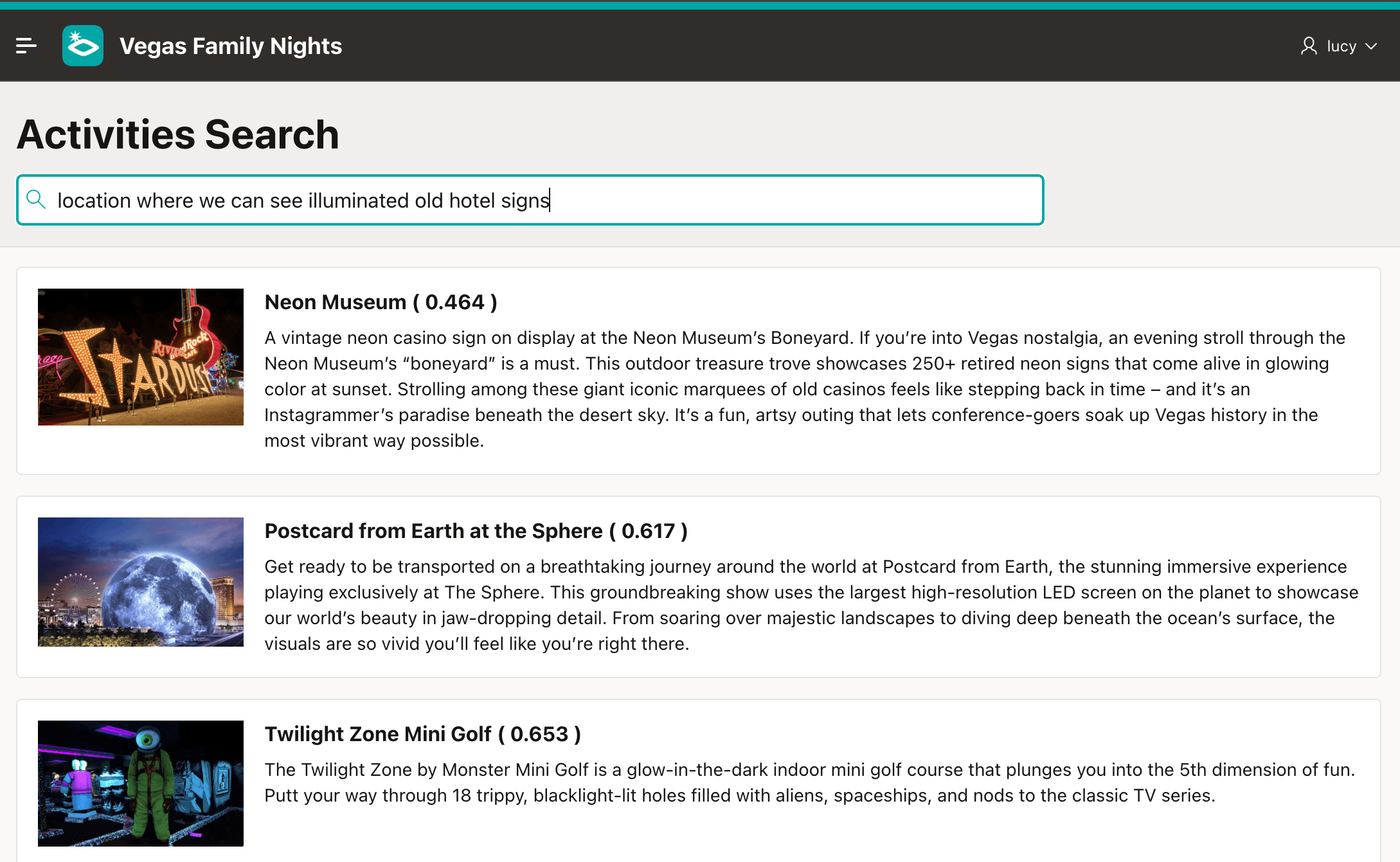
Description of "Figure 12-28 Trying Another Search, Temporarily Studying Vector Distance of Results"
The results also show two other activities that are semantically father away from the meaning of her search. The Sphere is a giant spherical projection screen inside and out, so it technically is a kind of illuminated sign. And the Twilight Zone Mini Golf description mentions "glow-in-the-dark" and "backlight-lit", so it also seems somewhat illumination-related. Sometimes the semantic relevance of a result may be less obvious to the end user, to the point of possibly being confusing: Hmmmm. Why mini golf?
To find only the most relevant results with the strongest semantic connection, you can refine your vector search strategy. First, find the result closest in meaning to the user's search. Then, only include other results whose semantic distance from the search vector falls within a reasonable threshold around the best result. Think of this approach as a "best-score proximity cutoff".
Applying a Best-Score Proximity Cutoff Approach
To implement a best-score proximity cutoff, you first need to find the best score:
the closest result's distance from the search vector. This is the
minimum vector distance between the user's search vector and the activity
rows' SEMANTIC_CONTENT vectors. Assuming a 10% cutoff from the best
result and that p_search_text contains the user's search text, the
query looks like this. It computes 10% more than the minimum vector distance between
the user's search vector and activities' SEMANTIC_CONTENT vector.
Notice doc_model is the name of the ONNX model installed in the
database, used to produce the
select min(
        vector_distance(
          apex_ai.get_vector_embeddings(
            p_value             => p_search_text,
            p_service_static_id => 'vegas-family-nights'),
          a.semantic_content)) * 1.10 /* 10% more than minimum */
  from aiw_activities a
To make this best activity distance calculation more maintainable, you
can create a scalar SQL macro like the BEST_ACTIVITY_DISTANCE one
below. It lets you define a reusable fragment of SQL syntax that produces a scalar
result.
Like a PL/SQL function, a macro can accept parameters with default
values. The macro returns text the database includes into a SQL statement at
runtime, wherever a scalar value is allowed. For example, in a
WHERE clause predicate. The macro text result can include
verbatim references to the macro parameter names, which the database handles as bind
variables at query execution time.
create or replace function best_activity_distance(
    p_search_text in varchar2,
    p_factor      in number default 1.10
) return varchar2
    sql_macro(scalar)
is
begin
    return q'[
        (select min(
                  vector_distance(
                    apex_ai.get_vector_embeddings(
                      p_value             => p_search_text,
                      p_service_static_id => 'vegas-family-nights'),
                    a.semantic_content)) * p_factor
            from aiw_activities a)
    ]';
end;
Tip:
Although the scalar macro returns SQL text, it does not copy the
user’s search text or factor value into that SQL. The returned expression
references the macro parameters p_search_text and
p_factor. Oracle expands those references using the
argument expressions from the calling SQL statement. A bind argument remains a
bind variable in the expanded expression. A literal or SQL expression remains a
literal or expression. In each case, the argument supplies a value to the
expression; it does not become executable SQL text. The database still parses,
type-checks, and executes the expanded expression as normal.
With the BEST_ACTIVITY_DISTANCE macro defined, you can
apply it to vector search results. The APEX_SEARCH package contains
a SEARCH function that returns the results of a Search
Configuration for a given user's search text. To limit the results to those within
10% of the "most similar in meaning" one, use a query like the one below.
Notice it includes the search configuration's vector
DISTANCE score column, then limits results with a
WHERE clause to rows whose semantic distance falls within the
best-score proximity cutoff. Since it omits the second parameter to
best_activity_distance, that defaults to a 10% range. A
Content Row region's Order By Clause gets
configured as a separate property highlighted below.
select primary_key_1, title, description, icon_blob, icon_mimetype, distance
  from table(
         apex_search.search(
             p_search_expression => :P5_SEARCH,
             p_search_static_ids => apex_t_varchar2('activities-vector')))
 where distance <= best_activity_distance(:P5_SEARCH)
The figure shows this query in use in a Results
Content Row region. Users type their search into a P5_SEARCH
field in the Search Field slot of the Breadcrumb bar. A When Enter
Pressed dynamic action refreshs the Results region when the user
pressed the [Enter] key. The page uses the technique explained in Including BLOB Images in Content Row to size the avatar images in the results.
Notice that in addition to configuring the query, Page Items
to Submit is set to P5_SEARCH because the query
references it as bind variable. Also observe the Order By
Clause is the static distance column to sort on
vector search distance, closest results first.
Figure 12-29 Applying Best Score Proximity Cutoff to Search Configuration Results in a Content Row

The result shows how Lucy now sees only the most relevant results for her search.
Figure 12-30 Lucy Now Sees Only the Most Relevant Results
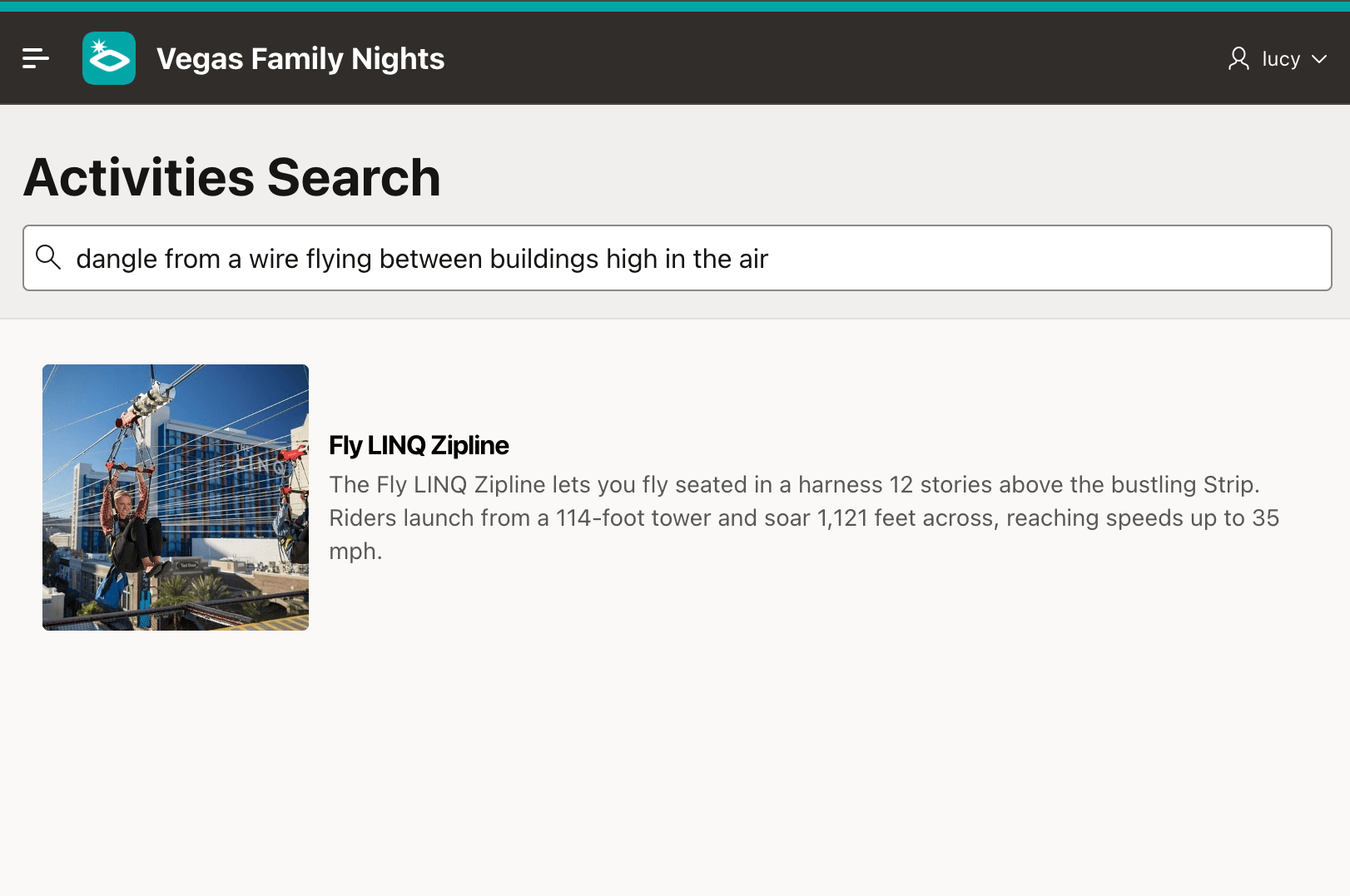
When she searches for any activities where she would "dangle from a wire flying between buildings high in the air", your app now presents the obvious winner for the family activity on Saturday: Fly LINQ Zipline.
Figure 12-31 Searching by Meaning, Lucy Finds Exactly What She's Looking For
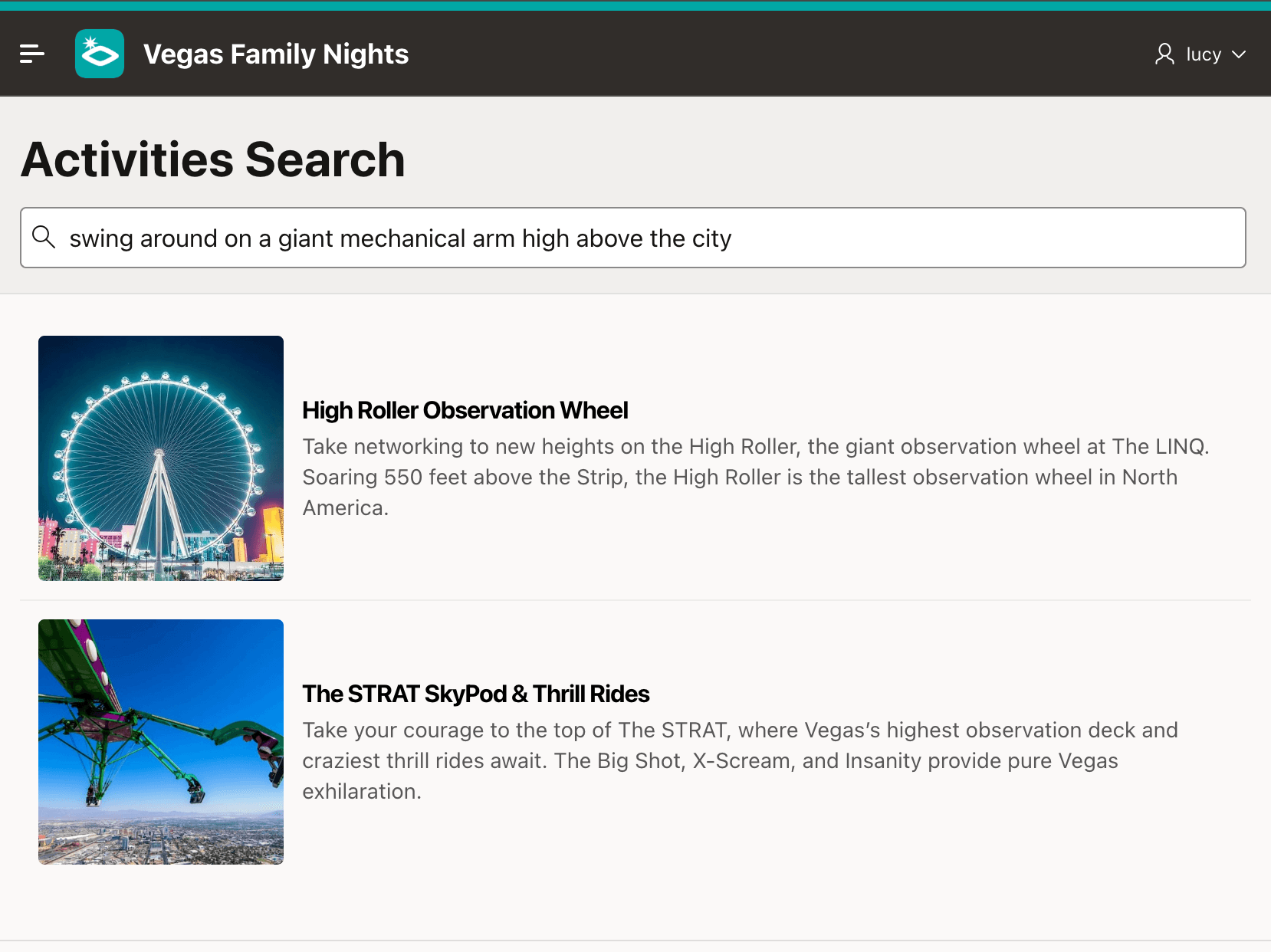
The result is not necessarily just a single activity. If Lucy wants to "swing around on a giant mechanical arm high above the city" two very relevant results appear. The kids decide to start slow with the view from atop the Observation Wheel, then graduate to something even more thrilling.
Figure 12-32 Multiple Activities Land Inside the Best Score Proximity Cutoff
For more information about using the Search region and search configurations, see Unified Search Results Across Sources.
Parent topic: Applying Artificial Intelligence