16.4.5 Including BLOB Images in Content Row
In a Content Row Template Component region, choose a table or view that includes the BLOB image column.
Alternatively, select the BLOB image column in the query as shown below.
select id,
       title,
       image, /* BLOB image */
       file_name,
       posted,
       posted_by,
       mime_type,
       updated
from eba_demo_emp_breakroom_photo_v
Start by verifying that the primary key column has its Primary Key switch enabled.
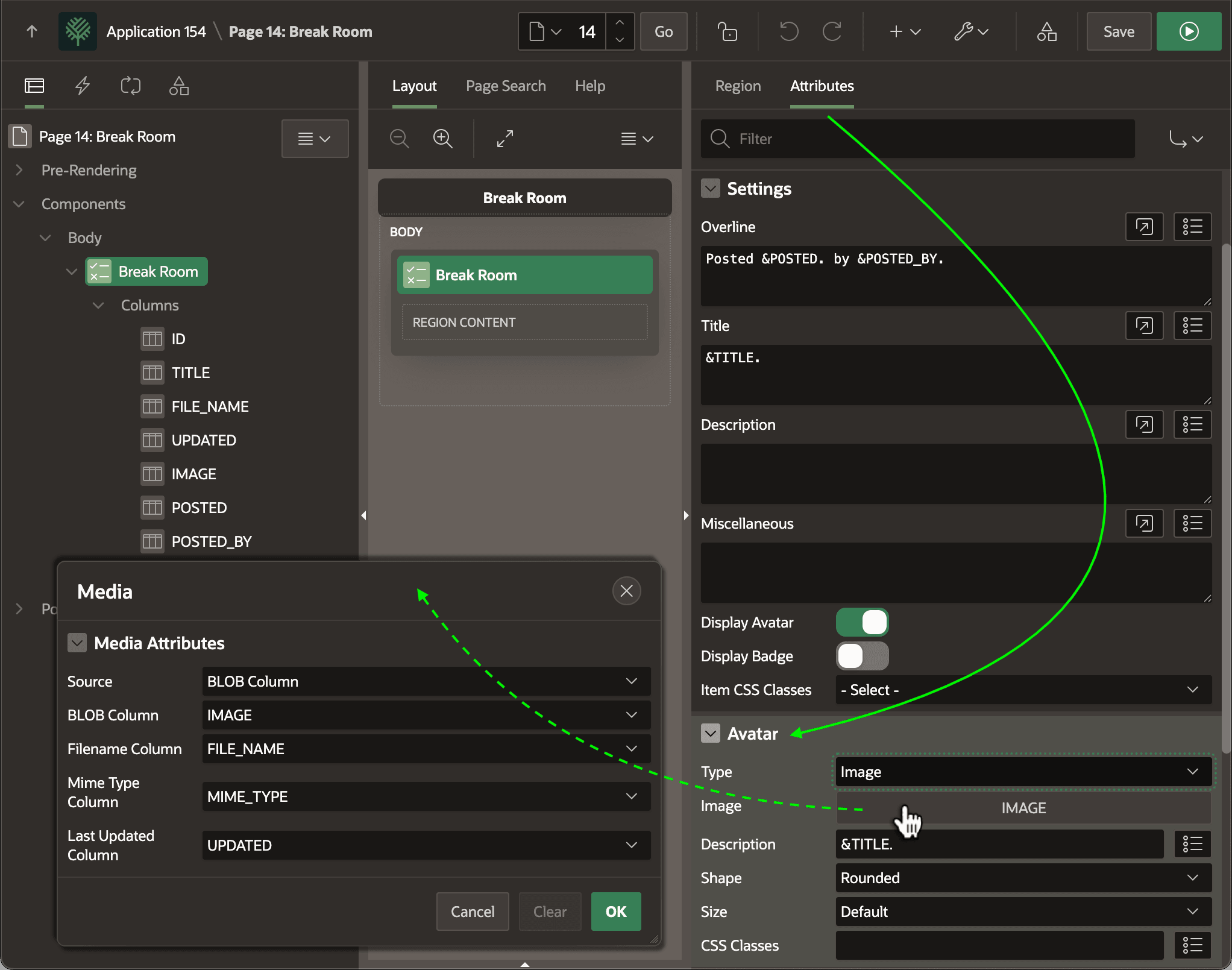
On the region's Attributes tab, set the Avatar > Type to Image. Then, click the Image display button to open the Media dialog where you configure the BLOB image related column names.
Figure 16-25 Configuring BLOB Image in a Content Row
.t-Avatar--image {
   --ut-avatar-size: 10rem;
}
This combination produces the result shown below. The figure shows a Content Row region showing three break room photos per page.
Figure 16-26 Content Row with BLOB Image in the Avatar Image Slot

Parent topic: Displaying BLOB Column Images