16.4.4 Using BLOB Images in Interactive Reports
In an Interactive Report region, include the size of the BLOB in your query instead of the BLOB column itself.
Use the GETLENGTH function in the DBMS_LOB package to compute it.
select id,
       title,
       sys.dbms_lob.getlength(image) image, /* Size of BLOB Image */
       file_name,
       posted,
       posted_by,
       updated
from eba_demo_emp_breakroom_photo_v
order by updated desc
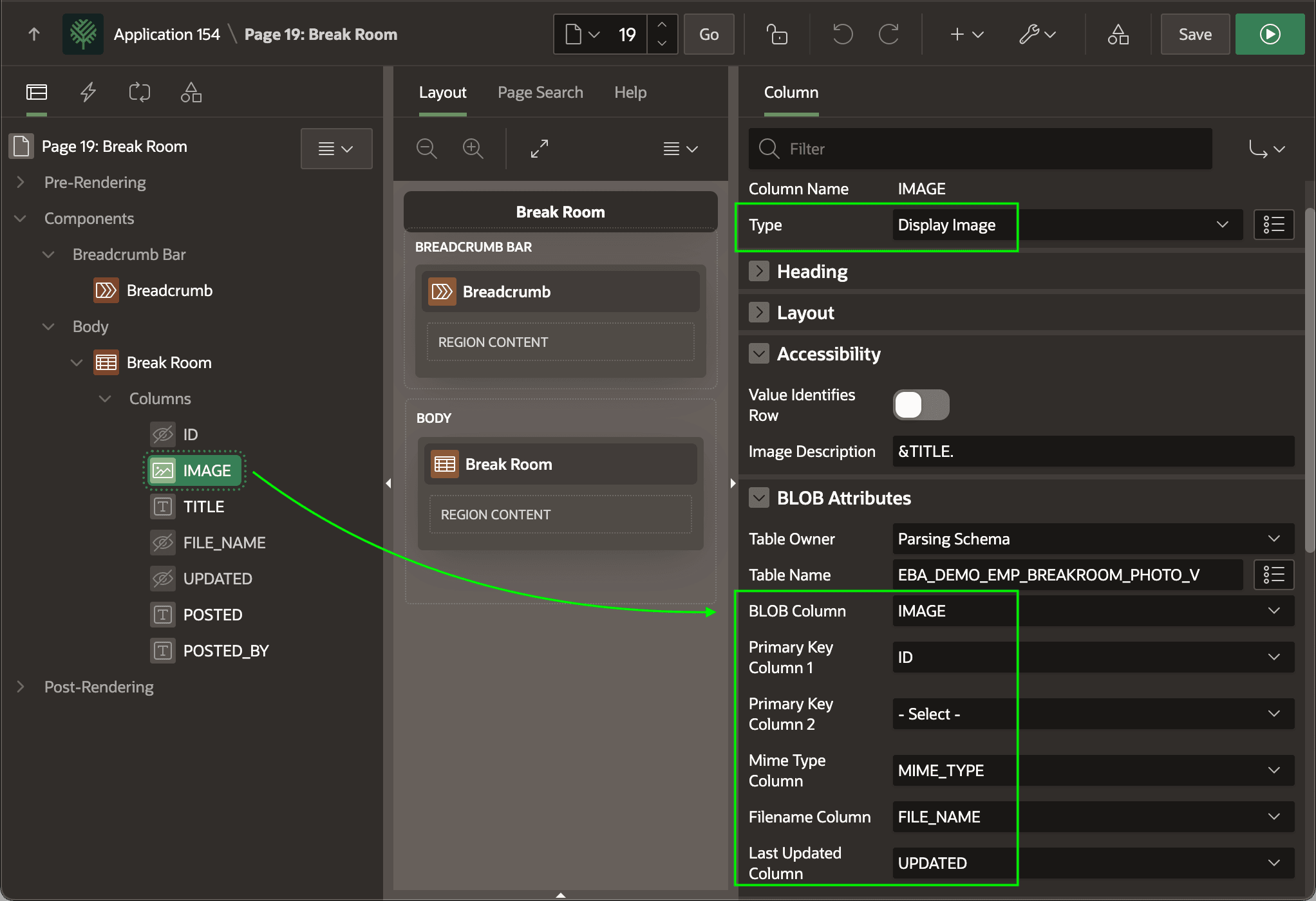
As shown below, set the Type of the IMAGE (size) column to Display Image and provide the additional image-related column names in the BLOB Attributes section. This includes column names for the BLOB image, Primary Key, Mime Type, Filename, and Last Updated date.
Figure 16-23 Configuring BLOB Image Column in an Interactive Report
To control the size of the image preview in each row, add the following rule to the
page's CSS > Inline section. It constrains the height and keeps the
image's aspect ratio. You can also just constrain the width by
specifying that property instead of height.
.a-IRR-table img {
    height: 90px;
    object-fit: contain;
}

.a-IRR {
   --a-gv-cell-padding-y: 0px;
}
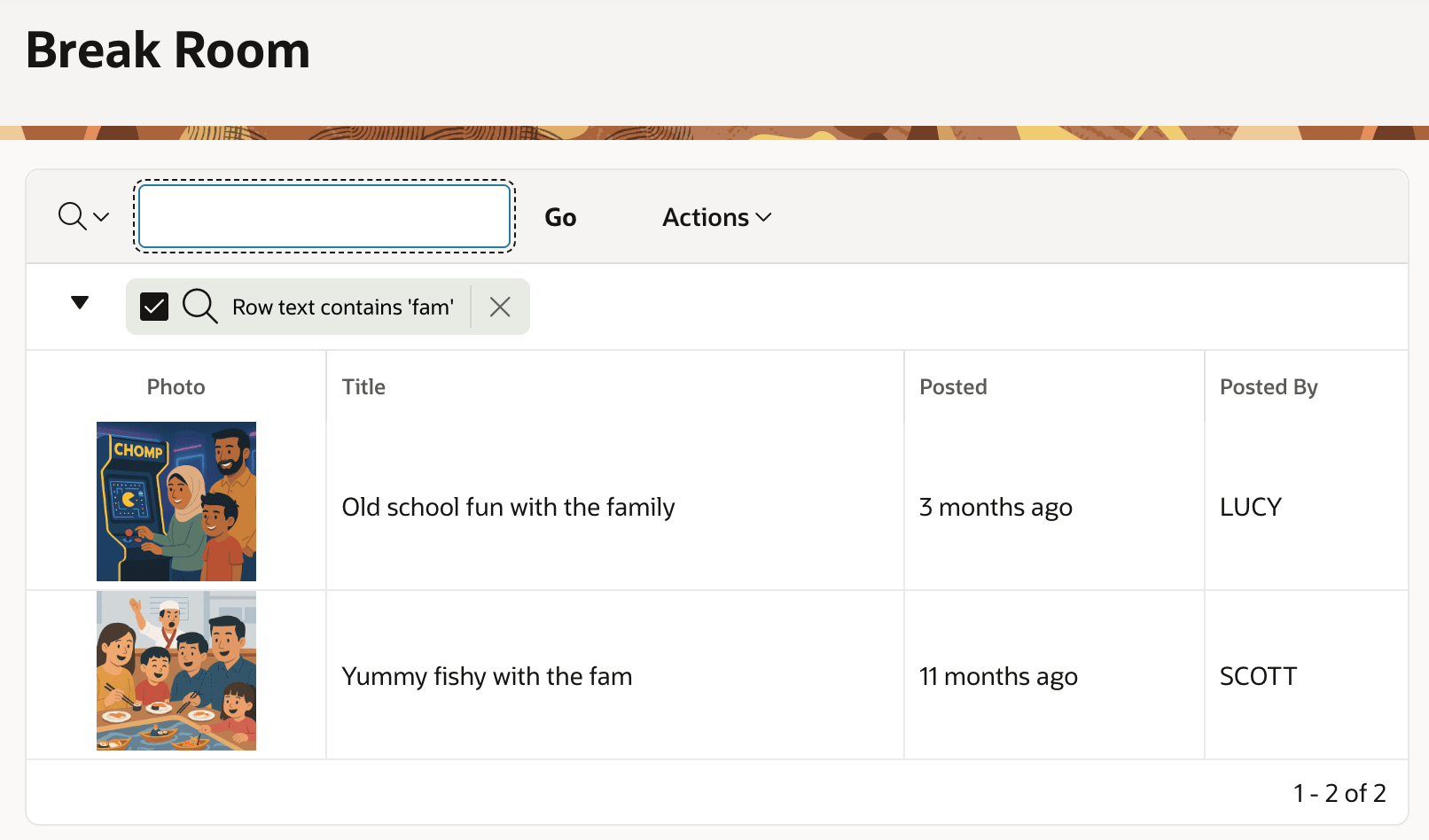
This combination produces the interactive report with image preview shown below.
Figure 16-24 BLOB Images in an Interactive Report
Parent topic: Displaying BLOB Column Images