3.9.2.3 Item Template Controls the Label
The item template controls how a page item renders its label.
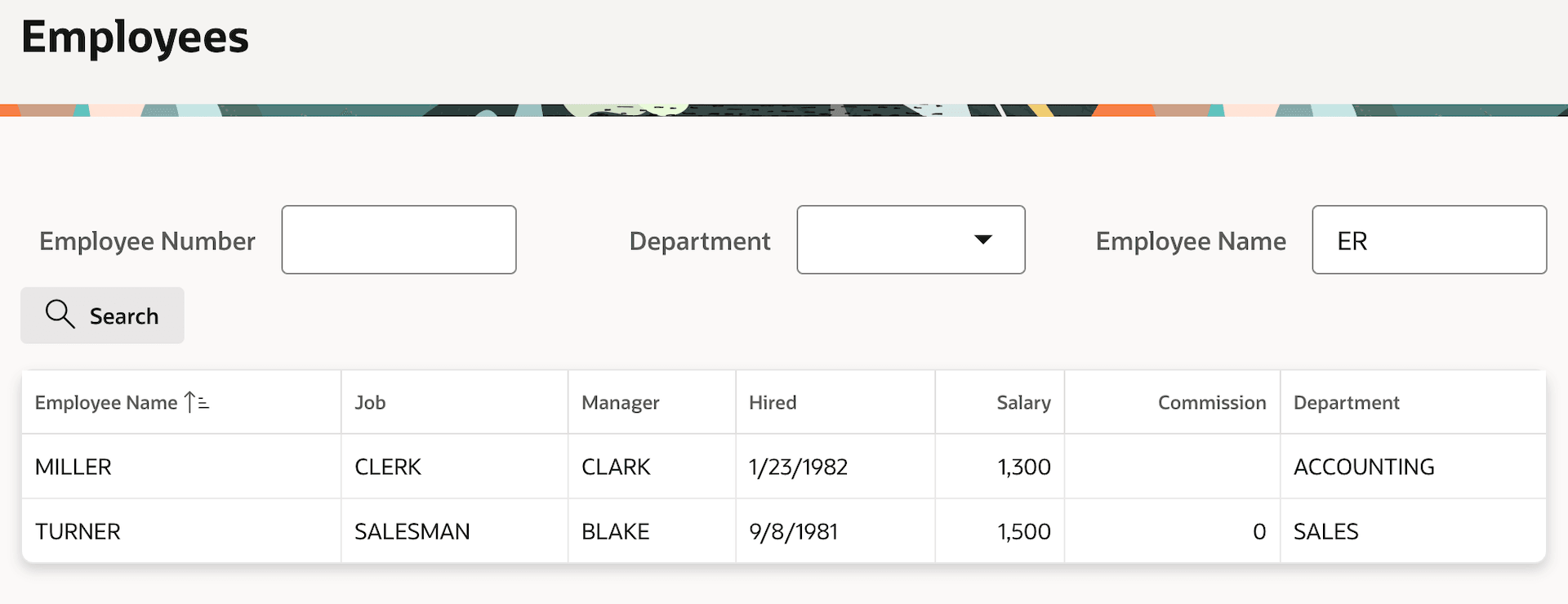
You use an item template to configure how the user sees a page item's label and required indicator. Set the item template to Hidden to have no label. To have the label appear before the item, use the Optional or Required template. In these three cases, the Label Column Span indicates the number of grid columns the label occupies. Within their respective column spans, the label is aligned to the end and the page item to the start. Notice that by default, the field is not stretched to fill its column span, although there is an option to enable that. In the figure below, the three query by example fields above the employees search results use the Optional item template.
Figure 3-58 Three Query by Example Page Items Using Optional Item Template
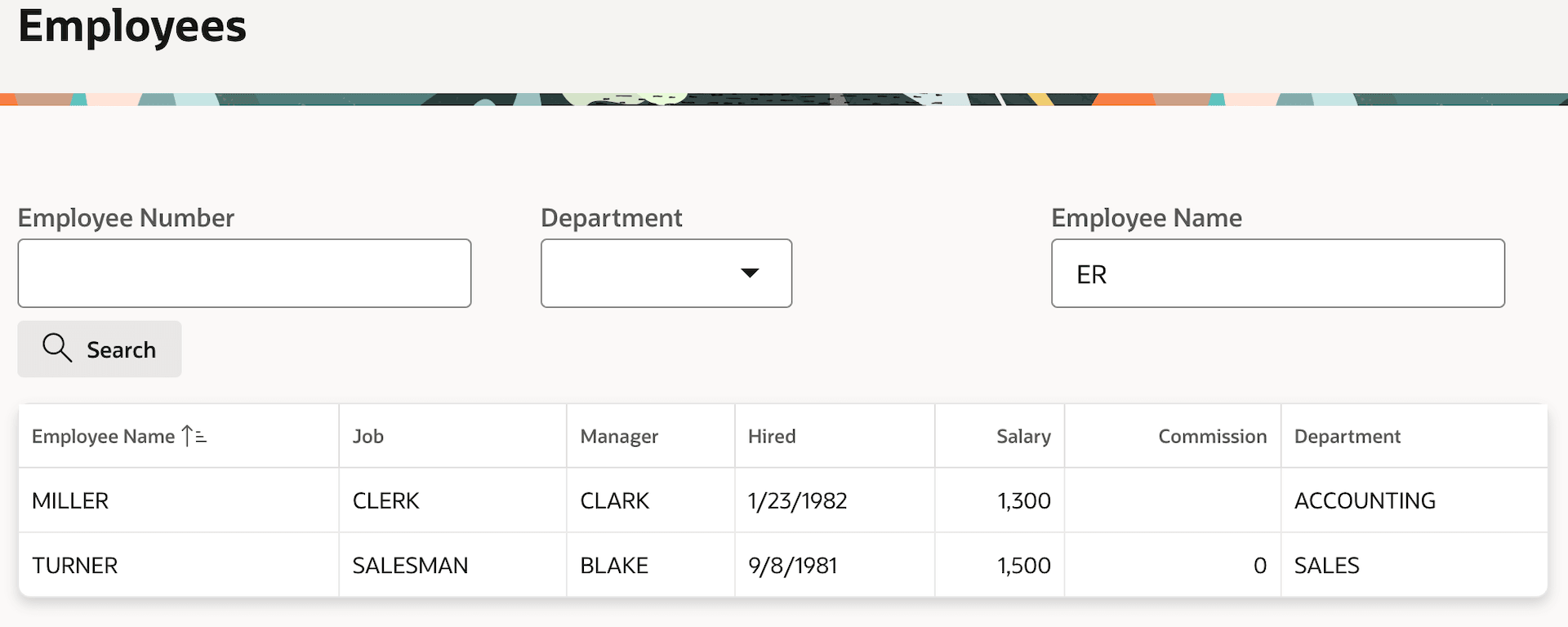
Using the Optional - Above or Required - Above item template, the labels show above the page item and there is no Label Column Span to set. As above, the fields do not stretch. The figure below shows the same page with its query by example fields using this template. All the page items use the Automatic column span setting, so the three items in the same row occupy four columns each.
Figure 3-59 Same Page Using Optional - Above Item Template
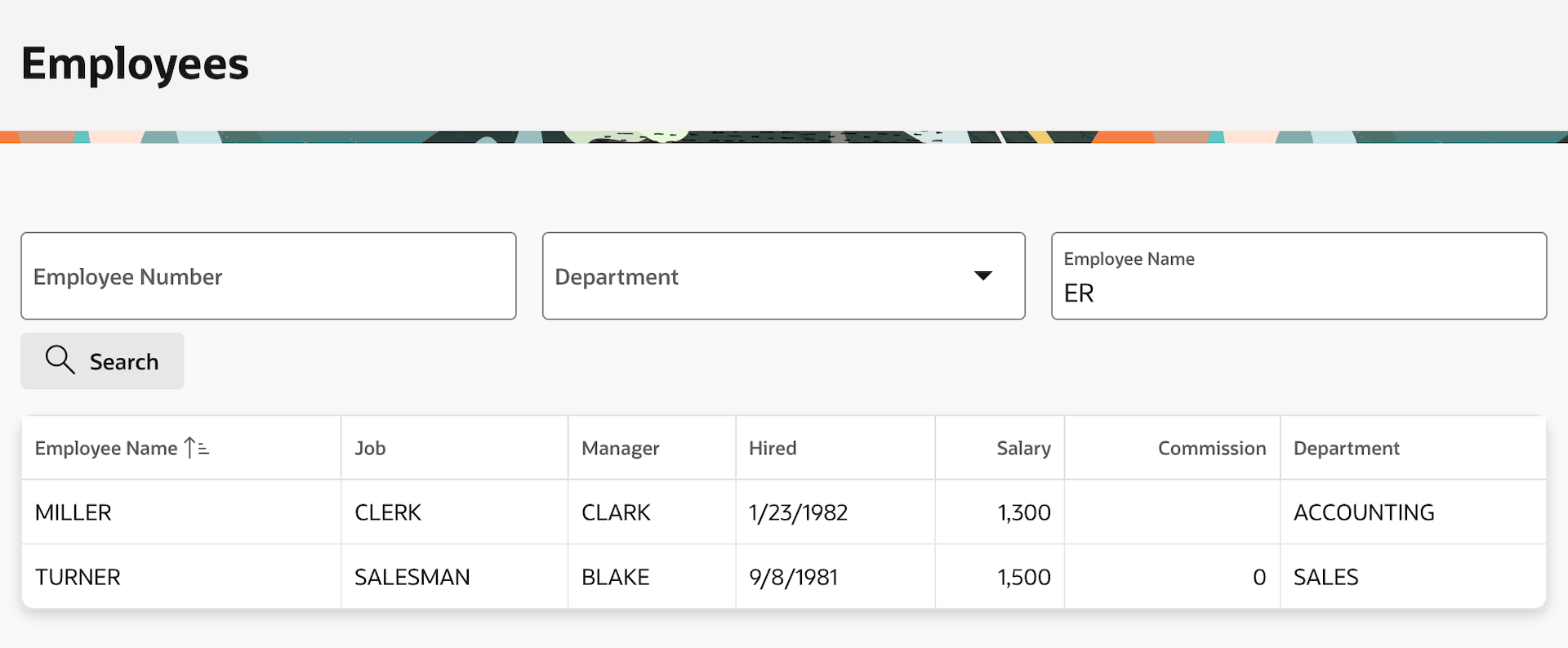
The label on items using the Optional - Floating or Required - Floating template appears inside the item. The label shrinks slightly and moves up when the field has a value. This item template stretches the item to fill its column span as shown below.
Figure 3-60 Items With Floating Item Template Stretch to Fill Column Span
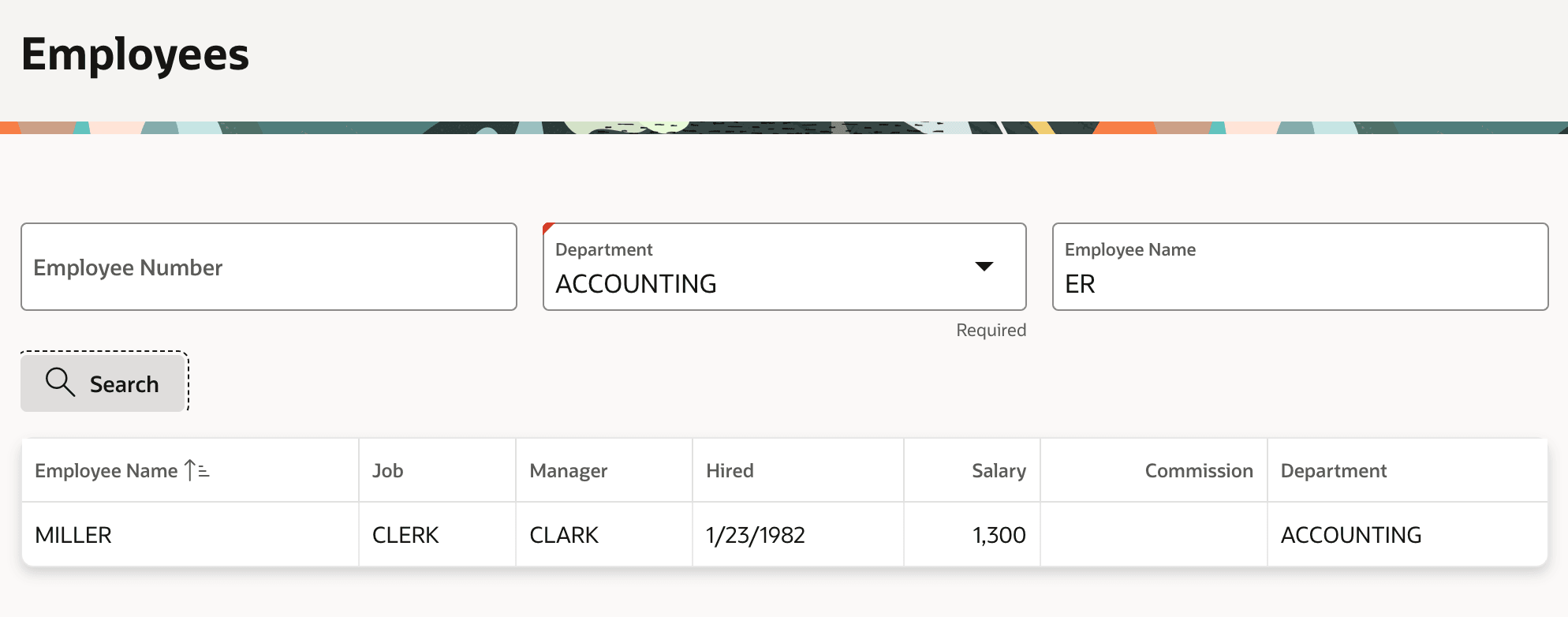
The Department query by example field in the figure below uses a Required - Floating item template. Items with a required template display a visual marker, and if desired a template option lets you show an inline Required label as shown below.
Figure 3-61 Department's Required Item Template Displays Visual Marker and Inline Text
Parent topic: Templates and Options Set Look and Feel