25.1.3.11 Moving a Group of Activities
Move selected activities as a group while their connections follow.
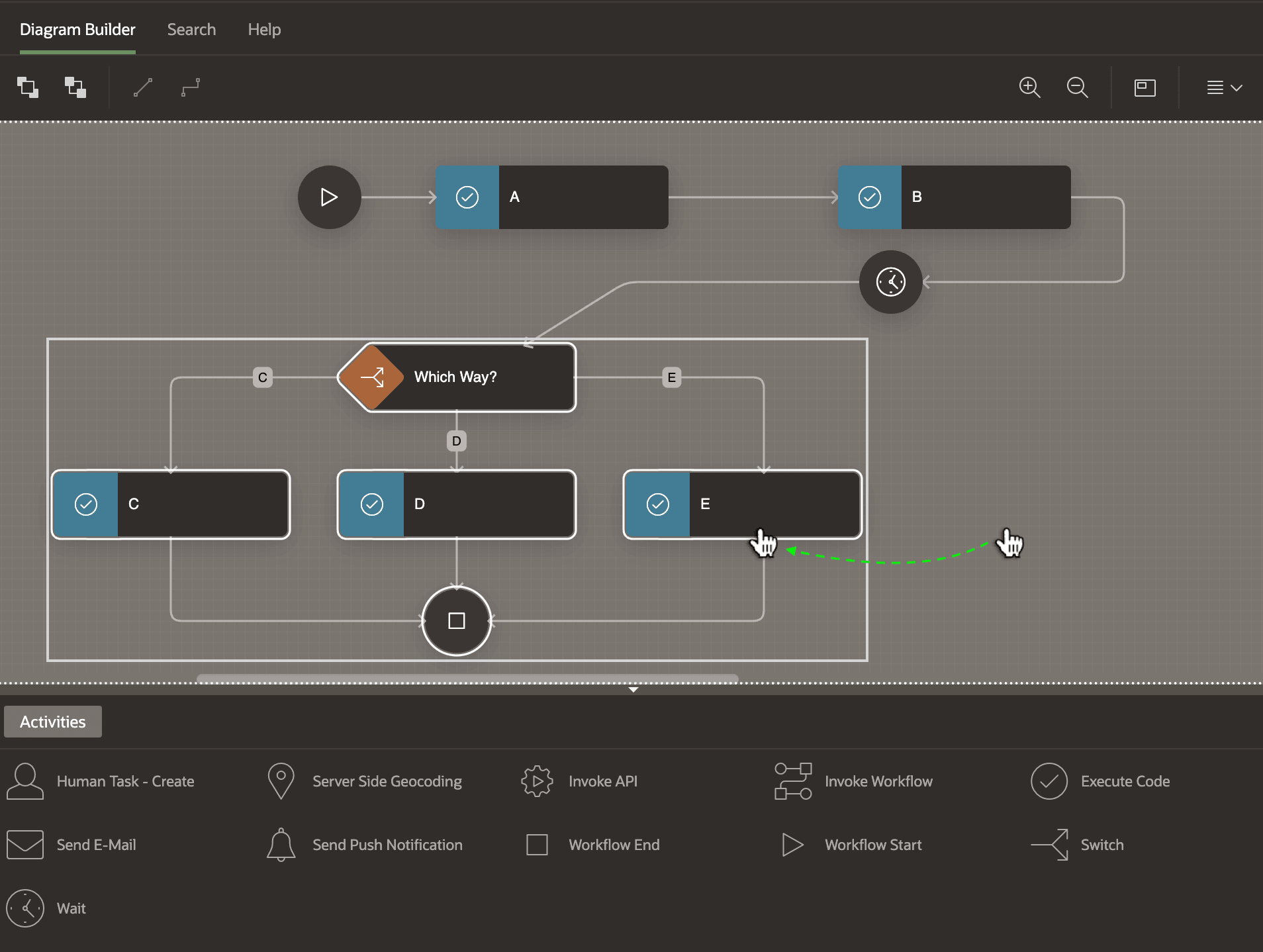
If you've already positioned a set of activities and connections but need to make space, you can select and move a group. Use [Control]-Click on Windows or [Command]-click on the Mac to select multiple activities as shown below. Then you can drag the group as a unit by clicking on a shape inside the selected area. This action maintains relative positions and alignment of the group elements. You only need to select activities, the connection lines move accordingly.
Figure 25-17 Selecting and Moving a Group of Activities
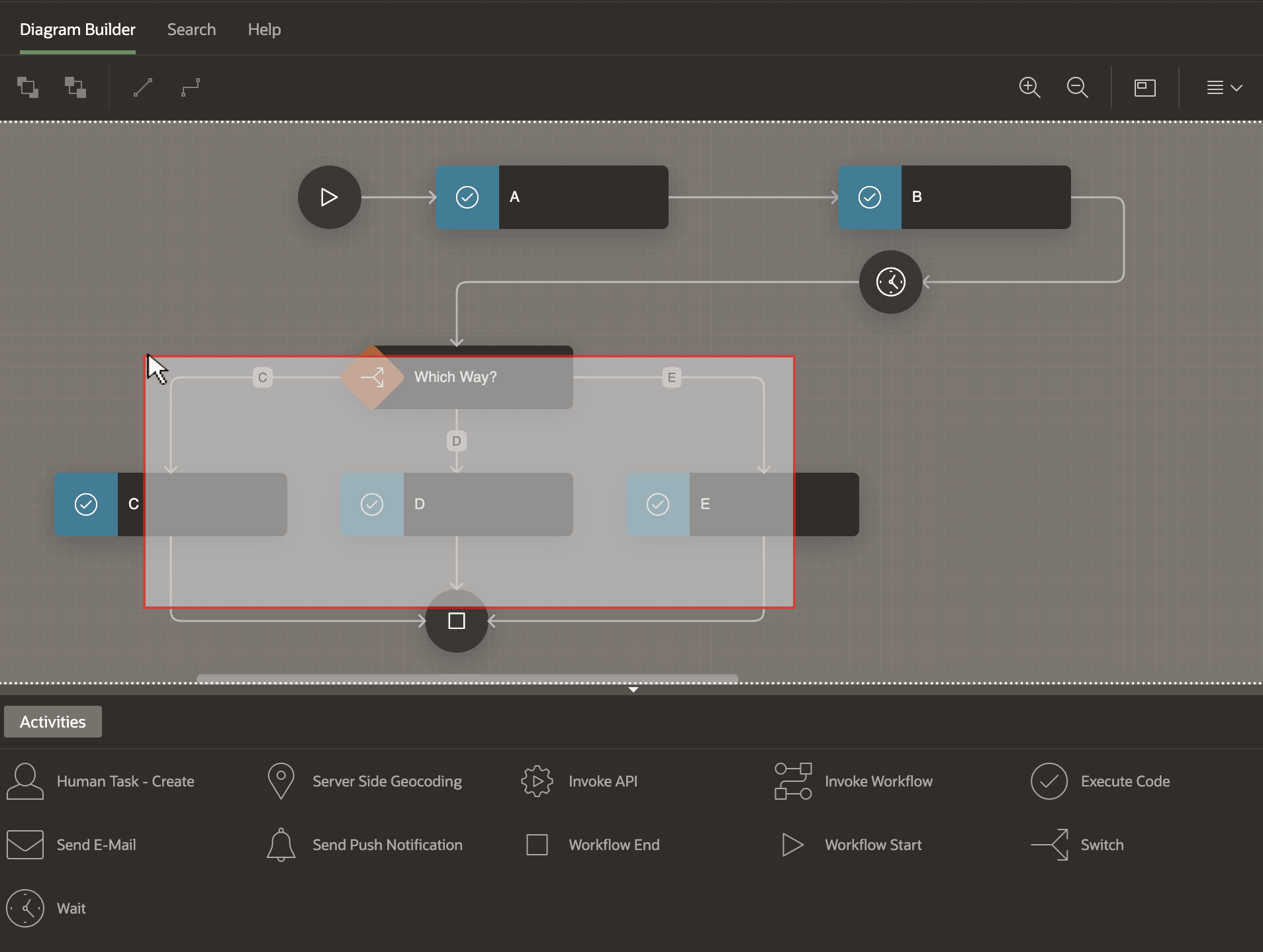
An even faster way to select multiple activities is to hold down the [Shift] key and drag out a rectangle as shown below. This gesture selects any activities the rectangular selection touches. Once selected, as before, you can move them as a group by clicking on a shape inside the selected area.
Figure 25-18 Selecting a Set of Activities with a Shift+Drag Rectangle
Parent topic: Connecting and Routing Activities