5.2 Personalizable Interactive Reports
The Interactive Report region is a tabular display that lets users filter, sort, highlight, format, compute, aggregate, group, pivot, chart, download, and email the data you configure it to work with.
For each interactive report, you control the features end users can access. You can also pass dynamic filters when linking to a target page to proactively show the user only the rows they need to see.
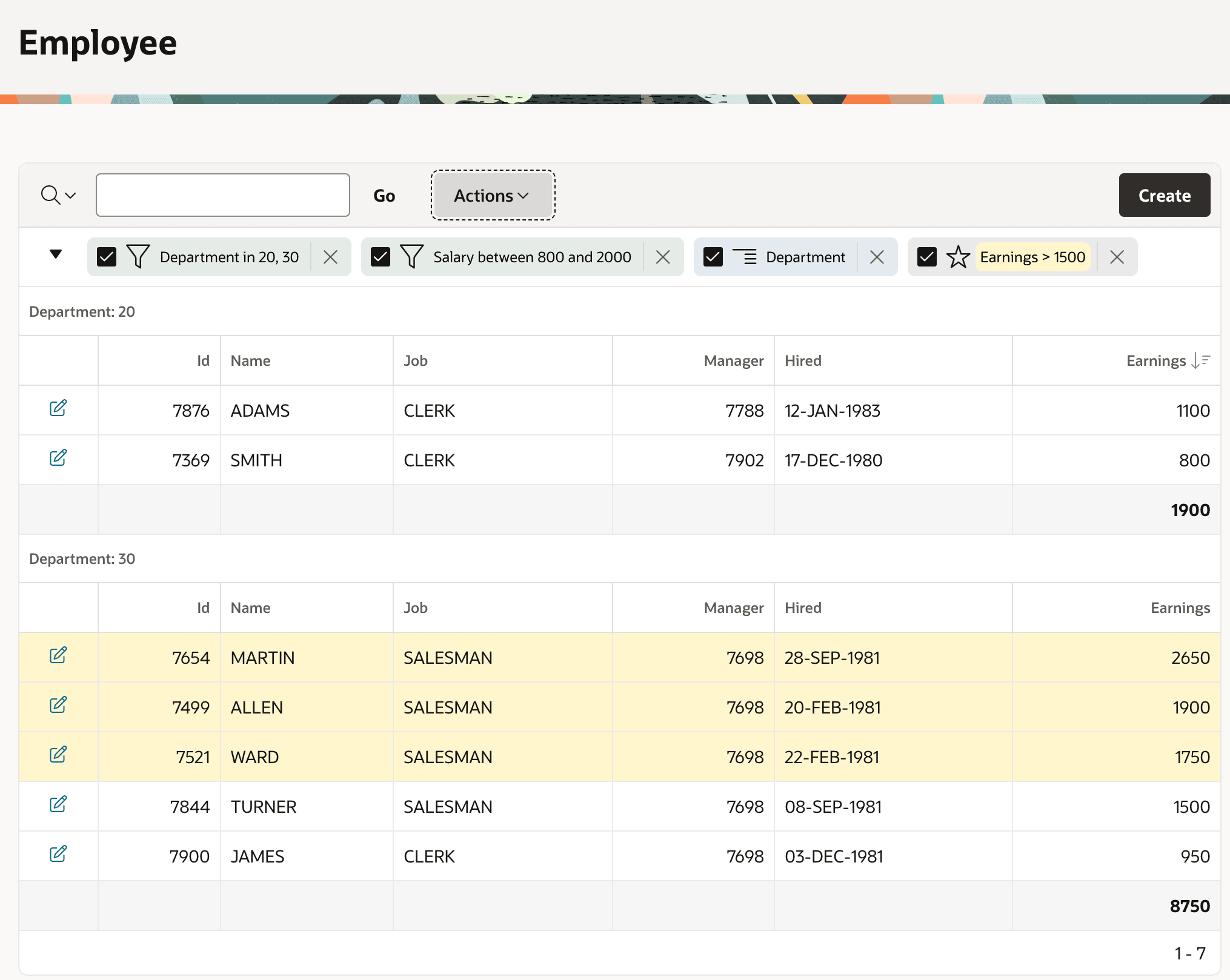
The figure below shows an Employees interactive report region where the user has:
- added a computed Earnings column whose formula is Salary plus Commission
- hidden the Salary and Department columns
- defined an aggregate to show the sum of Earnings
- sorted the data by Earnings from highest to lowest
- filtered the results to show only departments 20 and 30 with salaries between 800 and 2000
- highlighted rows with Earnings greater than 1500, and
- formatted the results to list employees in each department in a separate section.
Figure 5-2 Filtered, Highlighted, Grouped Employees with Computed and Aggregate Fields
When the type of an interactive report column is Plain Text, you can use an HTML Expression to customize how it renders. You can mix HTML tags, conditional formatting directives, and column values, referencing even hidden ones using #SOME_COLUMN_NAME#.
By default, your interactive report region has a primary default report configuration. Running your page from App Builder, you can set up all aspects of the primary report and save it as the primary default report for all users. This includes which columns should display by default, the order of the columns, the default sort order, and all other features available to configure.
You can also define and save one or more alternative default reports with a name that users can select from a list in the toolbar when multiple options exist. Any alternative default reports show in Page Designer under the Saved Reports heading in the component tree.
End users can also configure and save private reports for any number of reports they run frequently. The private reports show up in the same list as the public default reports, but each user only sees the ones they have created. They can also email any report on demand or subscribe to periodically receive an email containing a selected report.
For more information, see Managing Interactive Reports and Linking to Interactive Reports in Oracle APEX App Builder User’s Guide.
Parent topic: Visualizing and Analyzing Data