25.3.5.5.2 Retrieving Invoice Data
Define a Report Query that supplies invoice data as JSON for the report layout.
Your Invoice Report Query shared component shown below defines the data the invoice needs. You provide one or more Source Queries whose results the APEX engine includes in a single JSON document sent to the remote printing service. For the invoice, a single query suffices.
Using the Set Bind Values dialog, you can set example values for any bind variables your source queries reference. Then, clicking the (Download) button produces a JSON file containing example data. You use it to learn the names to reference to inject data values in appropriate places in your report layout. You use the Static ID invoice_query to identify the Report Query definition at document generation time.
Figure 25-128 Report Query Provides JSON Data for Pixel-Perfect PDF Report Layout
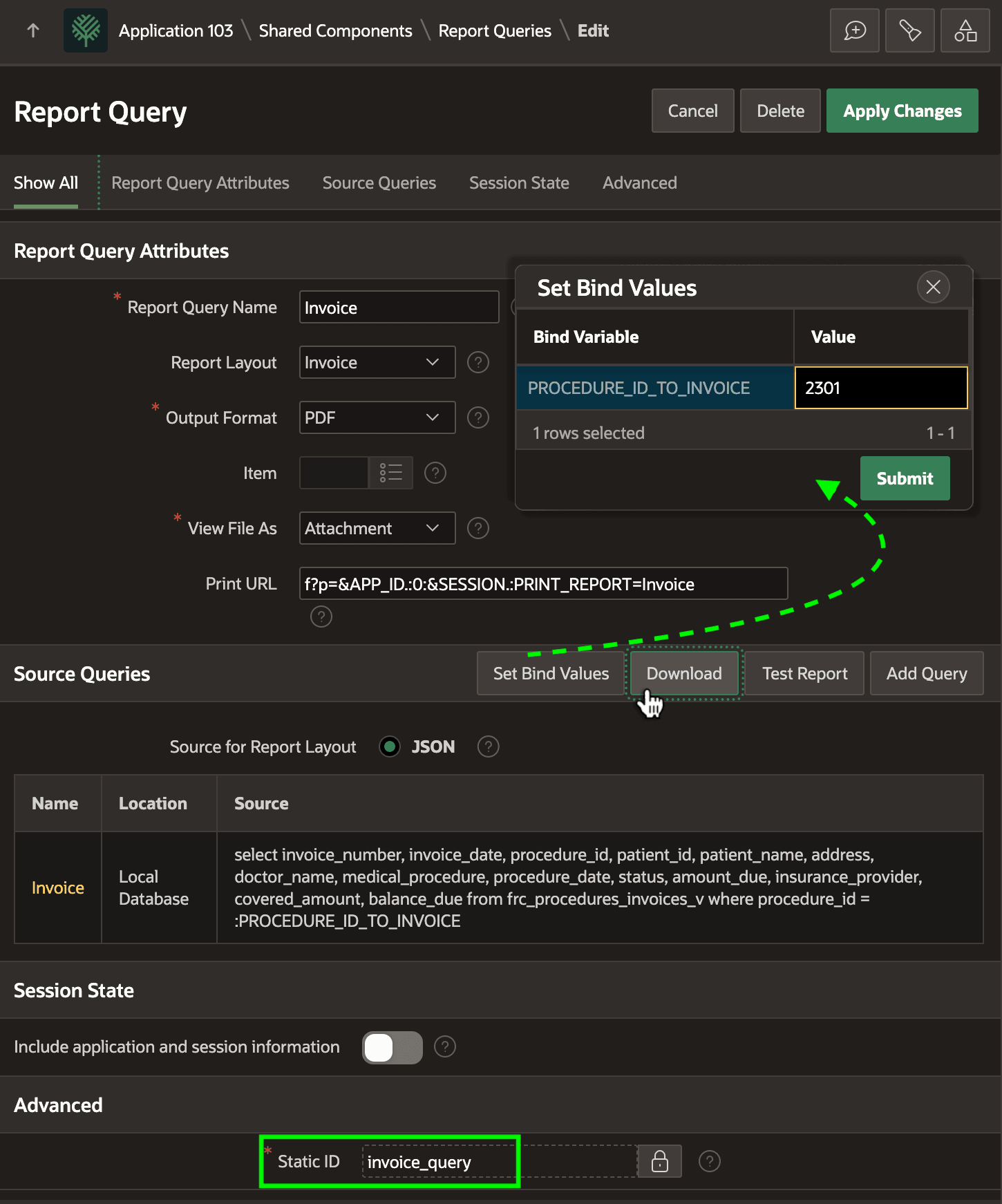
The Invoice source query appears below. It uses a PROCEDURE_ID_TO_INVOICE application item as a bind variable for the medical procedure whose ID needs an invoice printed.
  select  invoice_number,
          invoice_date,
          procedure_id,
          patient_id,
          patient_name,
          address,
          doctor_name,
          medical_procedure,
          procedure_date,
          status,
          amount_due,
          insurance_provider,
          covered_amount,
          balance_due
 from frc_procedures_invoices_v
 where procedure_id = :PROCEDURE_ID_TO_INVOICE
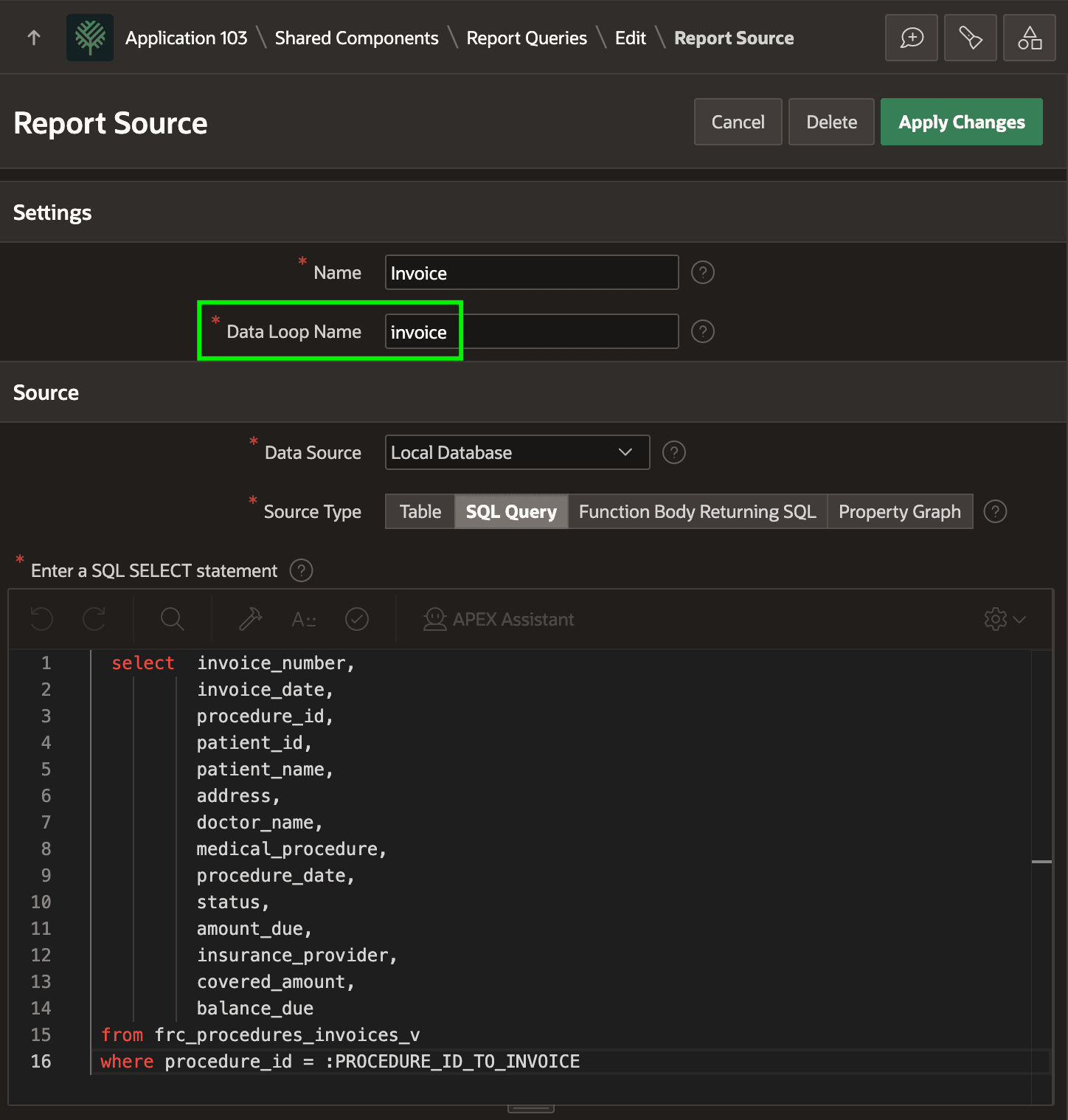
Notice this query in the Report Source edit page below, as well as the Data Loop Name. This name identifies the array containing this source query's result rows in the JSON data document.
Figure 25-129 Report Source Configures SQL Query and Data Loop Name
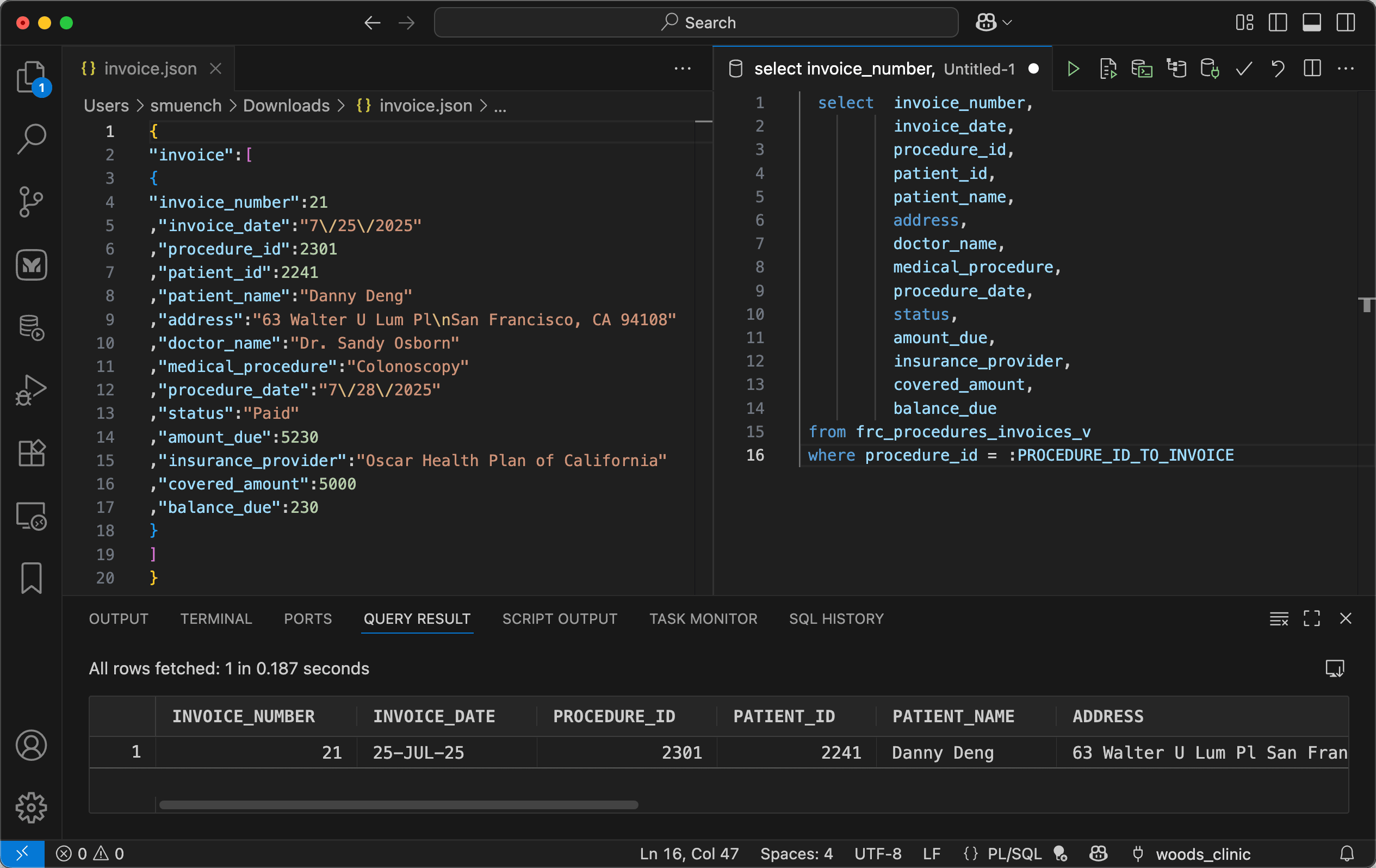
After downloading an example JSON data document for medical procedure 2301, you can open it in an editor like Visual Studio Code shown below. Notice the "invoice" Data Loop Name and its corresponding array of a single row of JSON medical procedure query results. The property names in this document are vital when creating your report layout.
Tip:
If you use VS Code, you will find the SQL Developer extension productive. As shown below, it lets you easily experiment with queries from the same code editor environment.
The figure shows Visual Studio Code with the SQL Developer Extension installed. On the left, the downloaded JSON appears containing the data that will drive the report layout. On the left, a SQL Developer worksheet tab where you can run SQL queries and observe the results.
Figure 25-130 Studying Report Query JSON and Testing Query in VS Code
Parent topic: Preparing Pixel-Perfect PDF Invoice