8.6.2 Running the List and Edit Pages
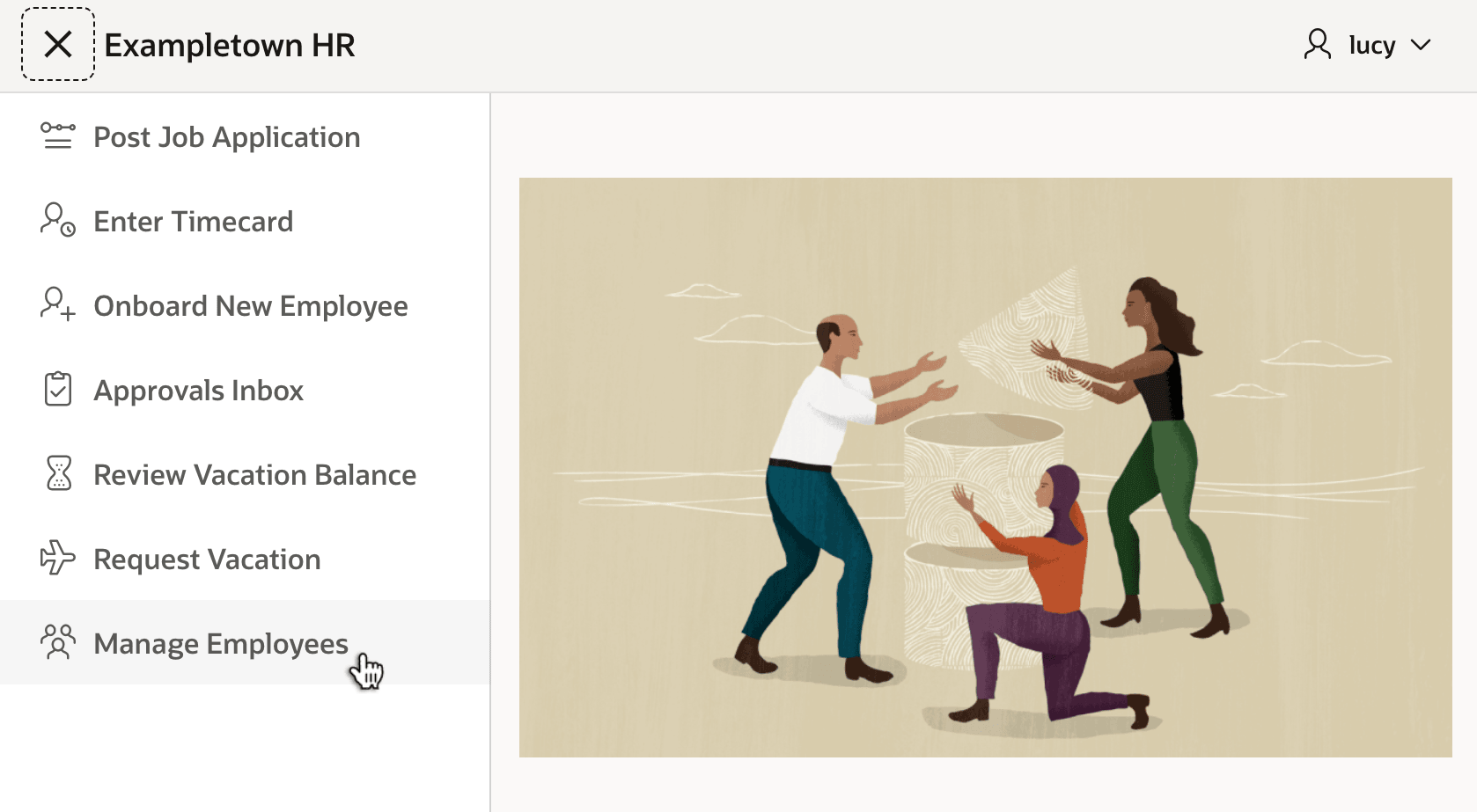
Running your app, as shown below, the new navigation menu entry appears with
the fa-users-alt icon you chose.
The figure shows the new Manage Employees entry in the Exampletown HR app's menu.
Figure 8-32 Navigation Menu Entry for Newly Created List Page
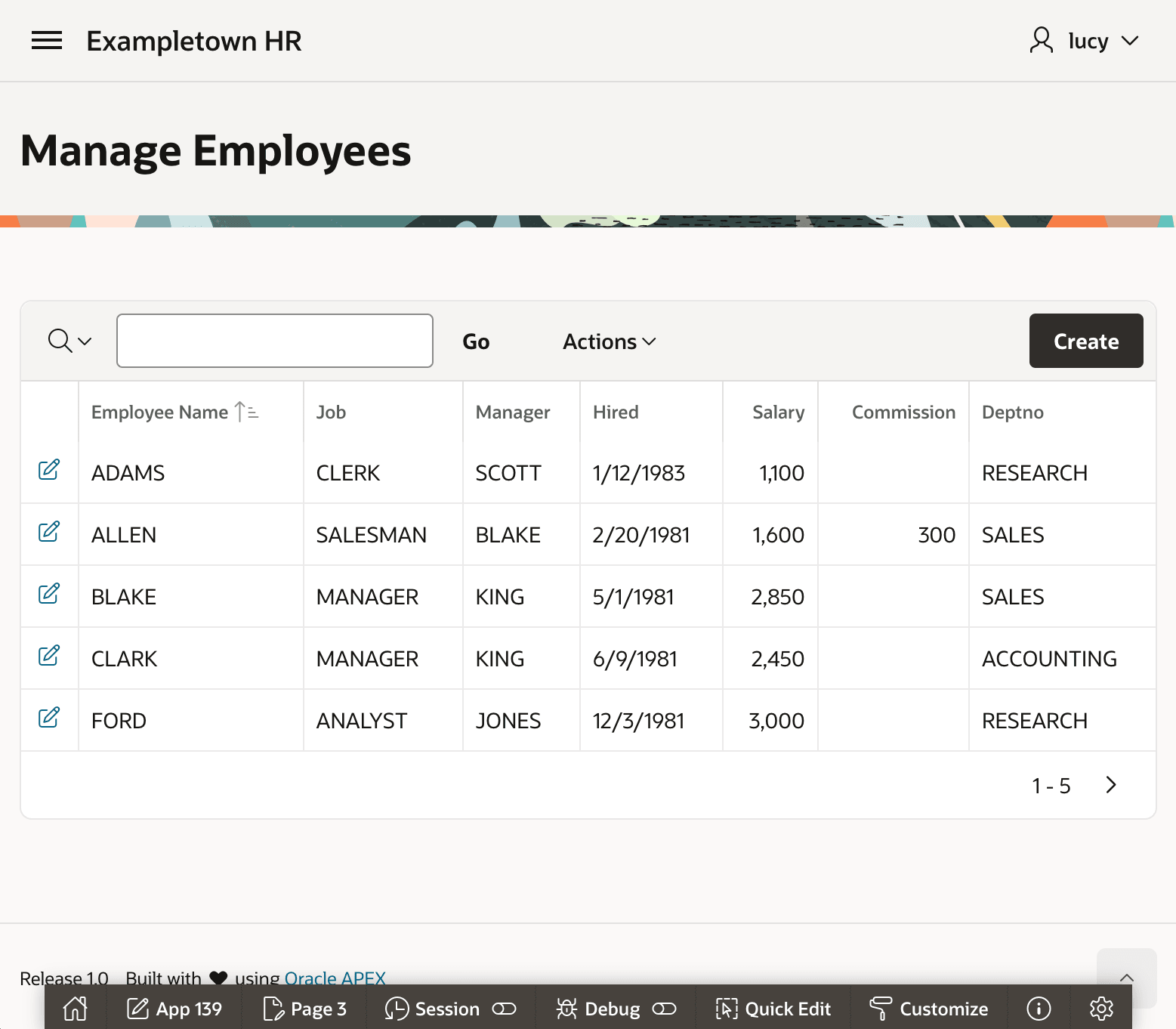
Clicking on Manage Employees in the navigation menu, you see the new list page you created shown below. It has a (Create) button to add a new employee. You can immediately see, search, and filter the employees. Since you are running the page from App Builder, notice the developer toolbar also appears at the bottom to provide quick access for iterative page development, inspecting session state, enabling debug tracing and viewing debug logs, as well as interactively customizing theme style settings.
Figure 8-33 New Interactive Report Page Showing Employees
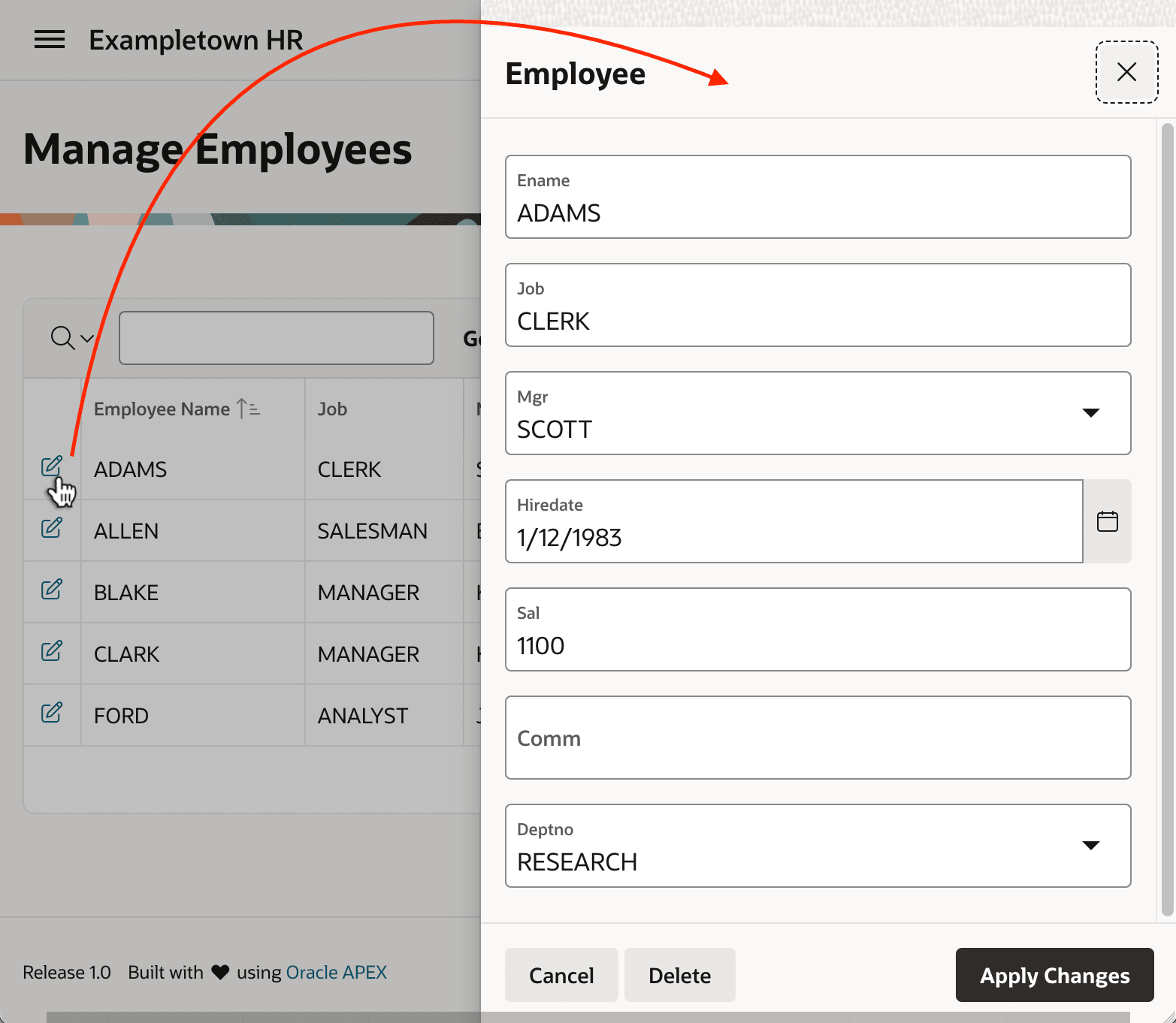
If you click the edit icon in the link column next to one of the employees, as shown below, the modal drawer page slides in from the right on top of the employees list to let you edit or delete the selected employee. If you prefer to have the developer toolbar stay mostly hidden until you need it, you can enable its Auto Hide setting from the "gear" settings icon in the toolbar. As shown below, in that mode it stays largely offscreen until you click on it to "pop" it up.
Figure 8-34 Interactive Report and Form Modal Drawer Pages in Action
Parent topic: Studying a List and Edit Flow