25.3.5.2 Scheduling a Medical Procedure
Schedule a medical procedure and let the workflow notify the patient.
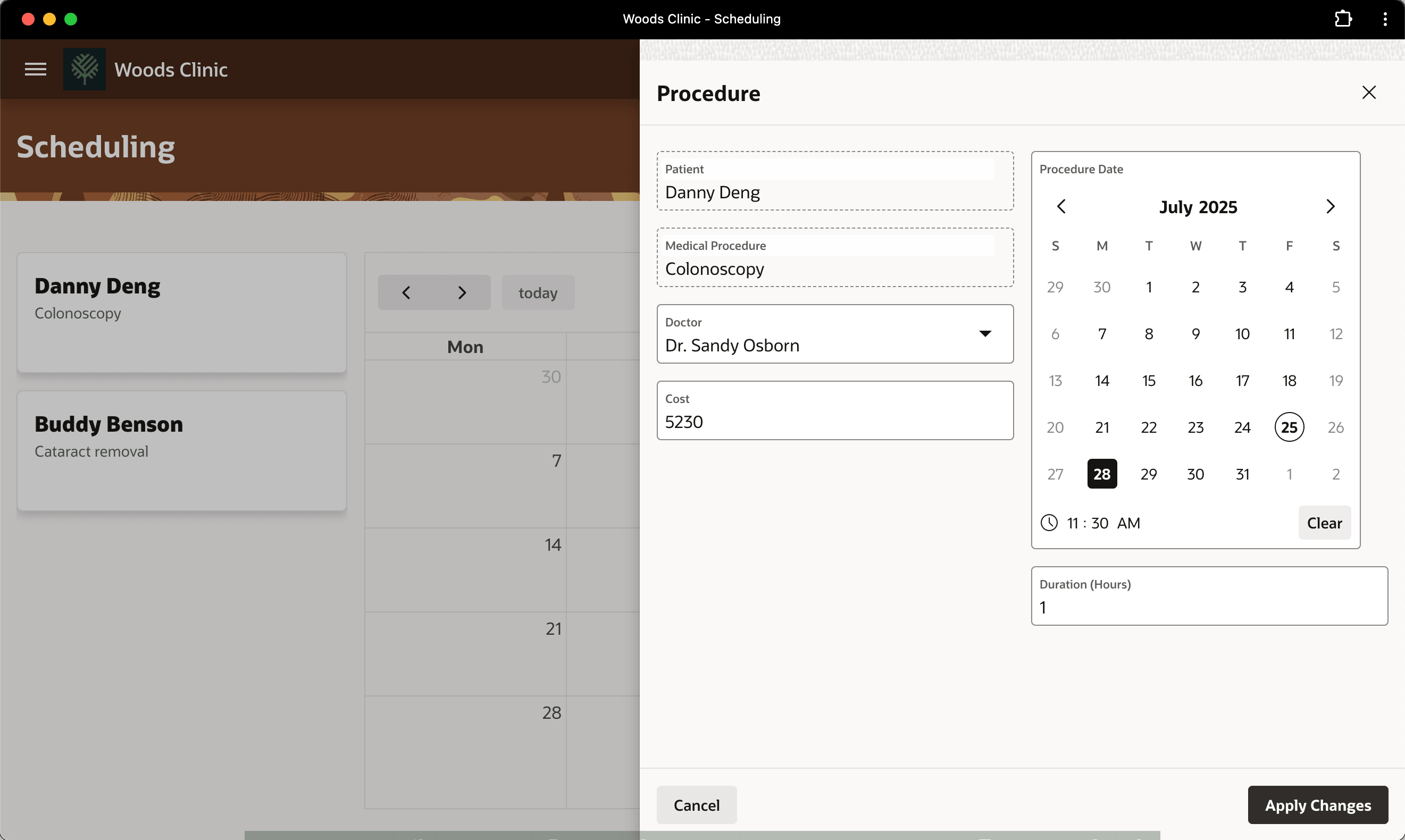
David visits the Scheduling screen and sees that Danny Deng's medical procedure needs a date and doctor assigned. As shown below, he clicks on Danny's card to open his procedure details and schedules the exam for July 28th at 11:30am with Dr. Sandy Osborn.
Figure 25-118 David Schedules Danny Deng's Procedure
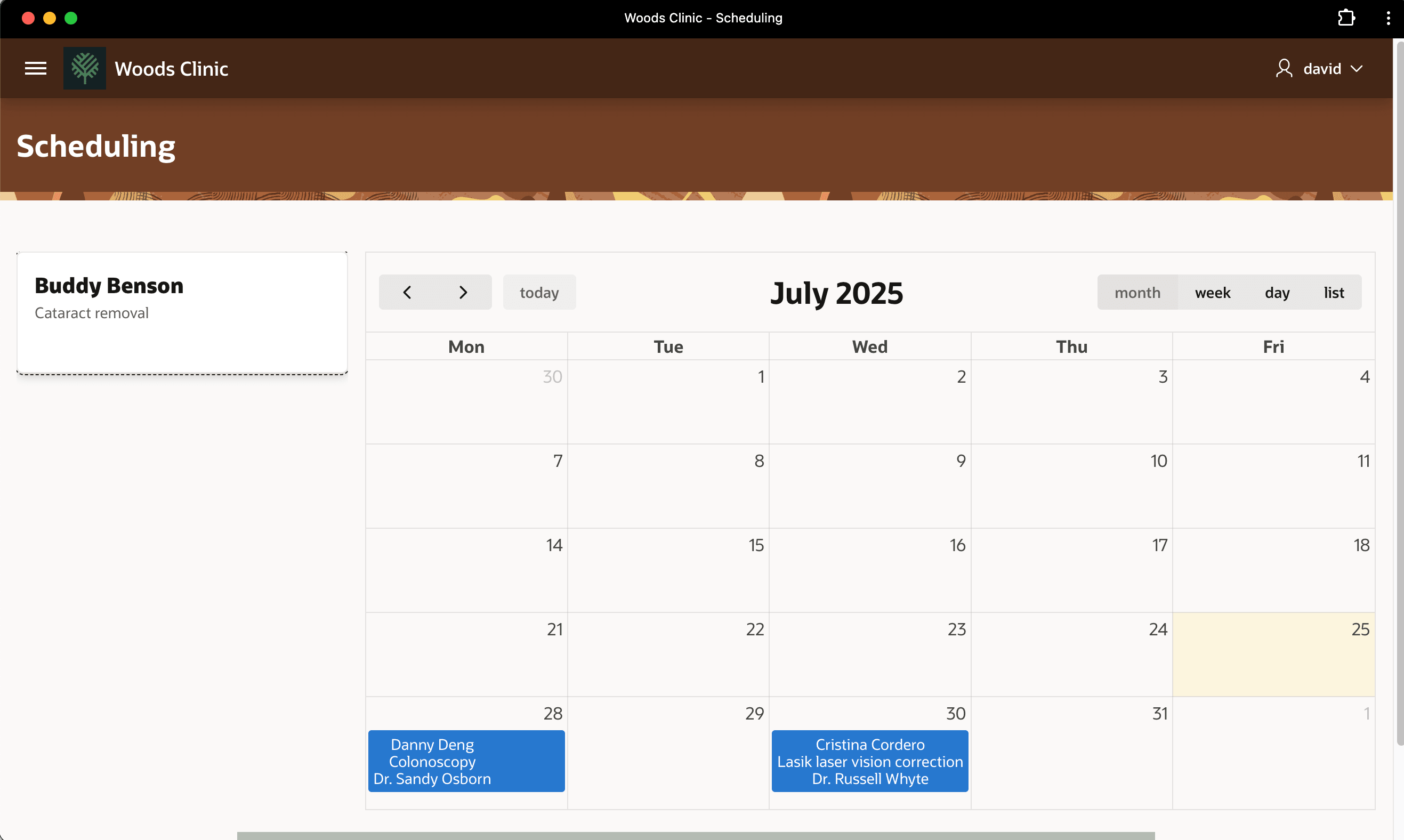
When David confirms the scheduling details, as shown below, Danny's procedure appears on the calendar and no longer shows in the pending list.
Figure 25-119 Scheduled Medical Procedures Appear on the Calendar
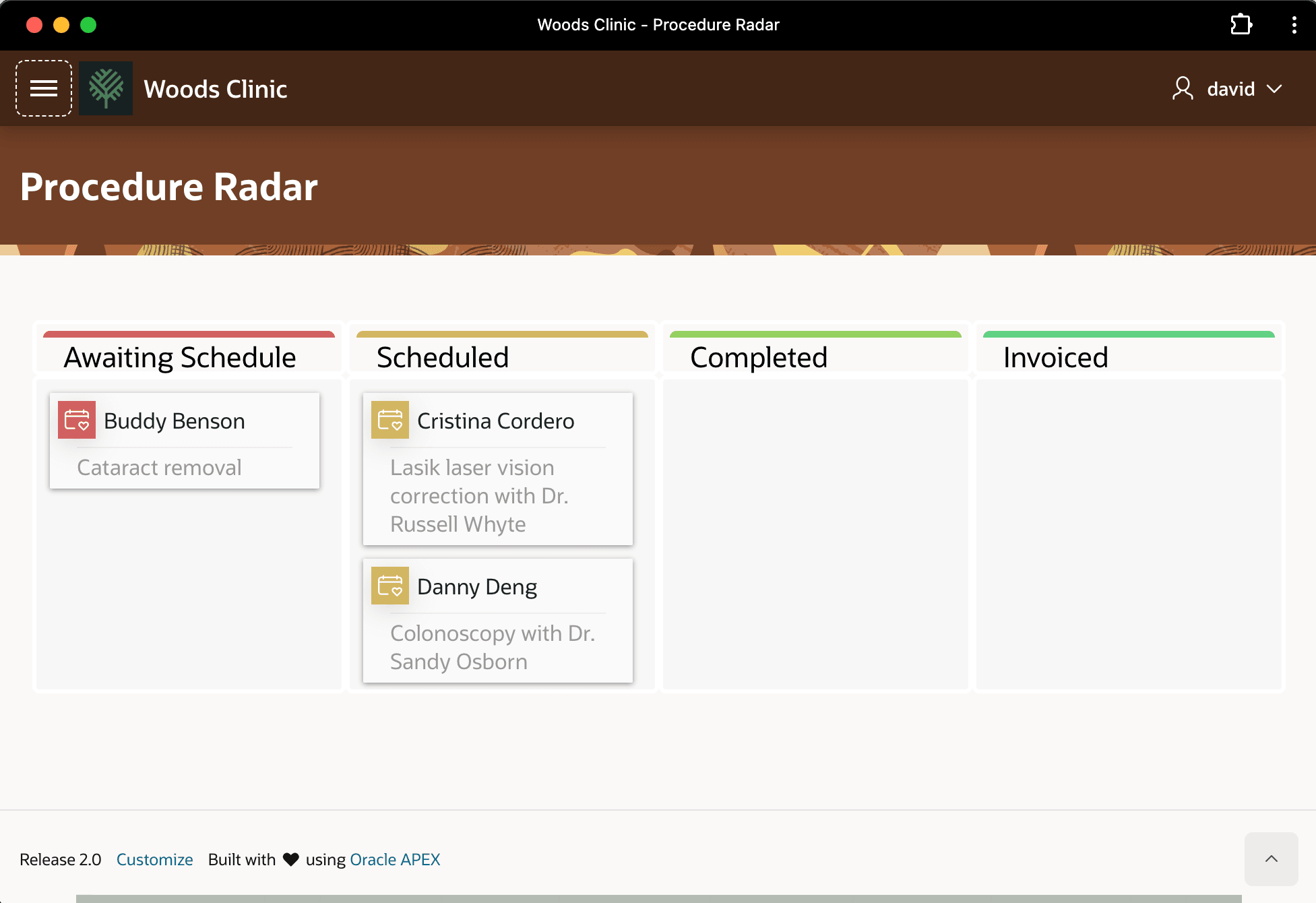
Checking the Procedure Radar page, as shown below, David now sees Danny Deng's procedure in the Scheduled column on the Kanban board.
Figure 25-120 Office Staff See Danny Deng's Procedure Scheduled on Kanban Board
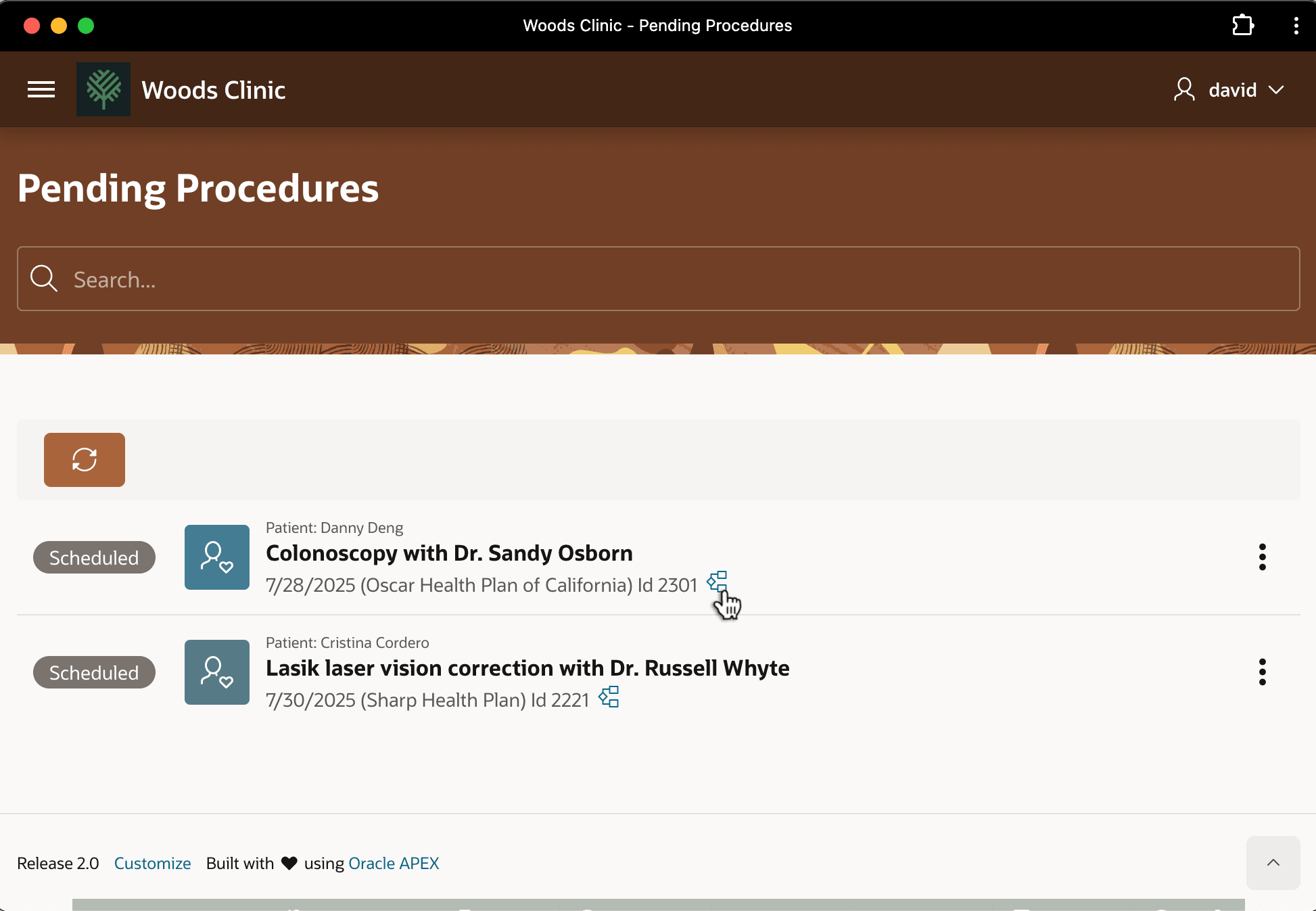
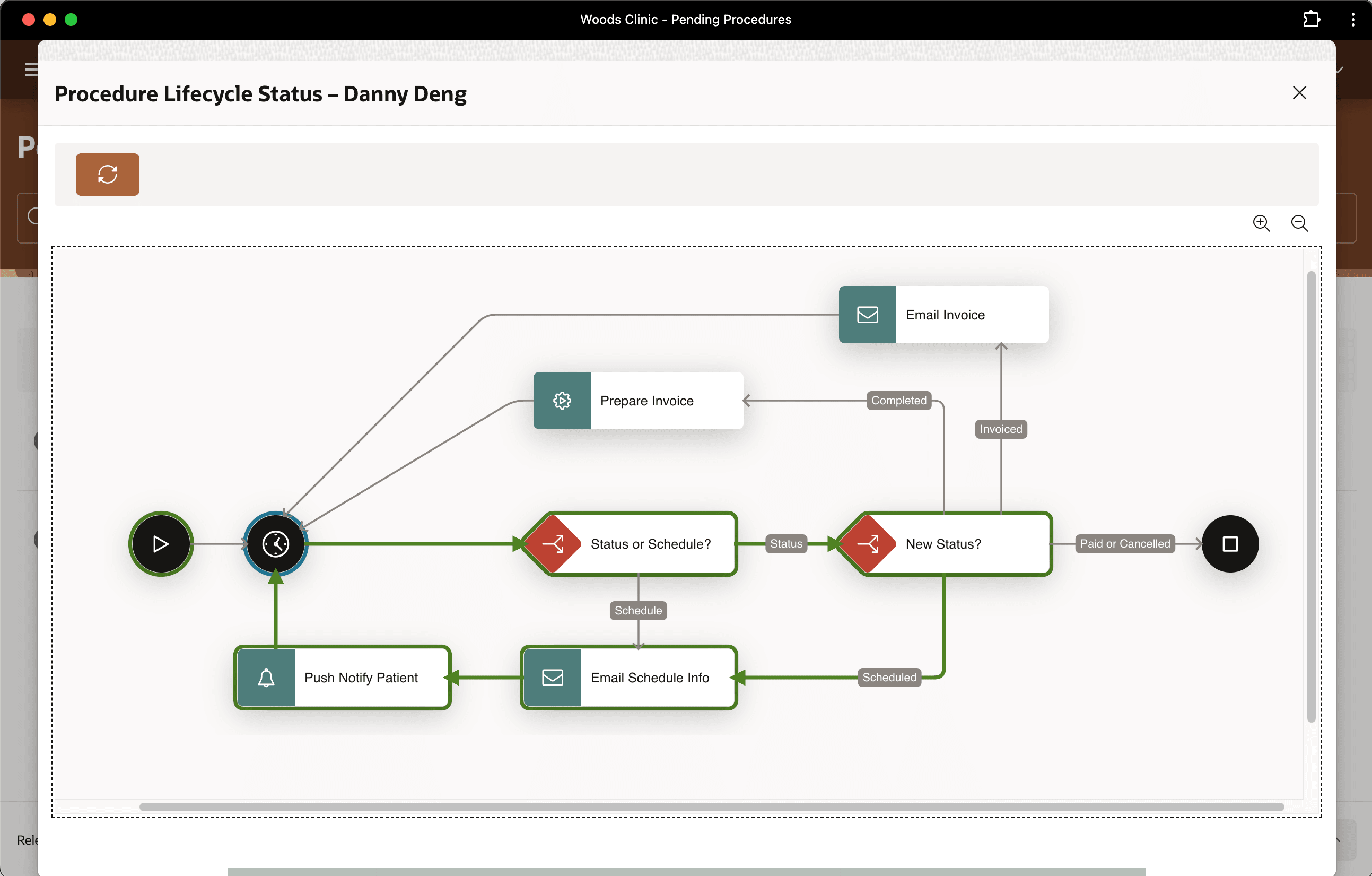
In the background, your Procedure Lifecycle workflow reacts to the change in status to "Scheduled". It automates notifying Danny Deng of the details. Later in the morning, when David visits the Pending Procedures page, as shown below, he clicks on the workflow icon next to Danny's procedure in the list.
Figure 25-121 Checking a Workflow from Pending Procedures List
The Procedure Lifecycle Status page for Danny Deng appears. It gives David a progress report at a glance. As shown below, he observes colored highlights on the workflow diagram that confirm it sent the patient email and push notifications.
Tip:
APEX only sends the push notification if Danny Deng opted-in to receiving these mobile notifications after installing the Woods Clinic app on his smartphone, tablet, or desktop computer. If he hasn't explicitly allowed them, APEX silently skips your workflow's attempt to deliver the message.
Figure 25-122 Confirming Danny Deng Was Notified of Appointment
Parent topic: Following a Medical Procedure Lifecycle