6.1.8 Showing Filter Chips and Total Row Count
Offer users additional filtering feedback with "chips" showing applied filters and a total row count.
Since there can be many inline facets and more in the Add Filter dialog, users find it useful to see what filter criteria from which facets are applied without scrolling or opening dialogs. Use the Show Current Facets property of the Faceted Search region to show "filter chips" that display this information.
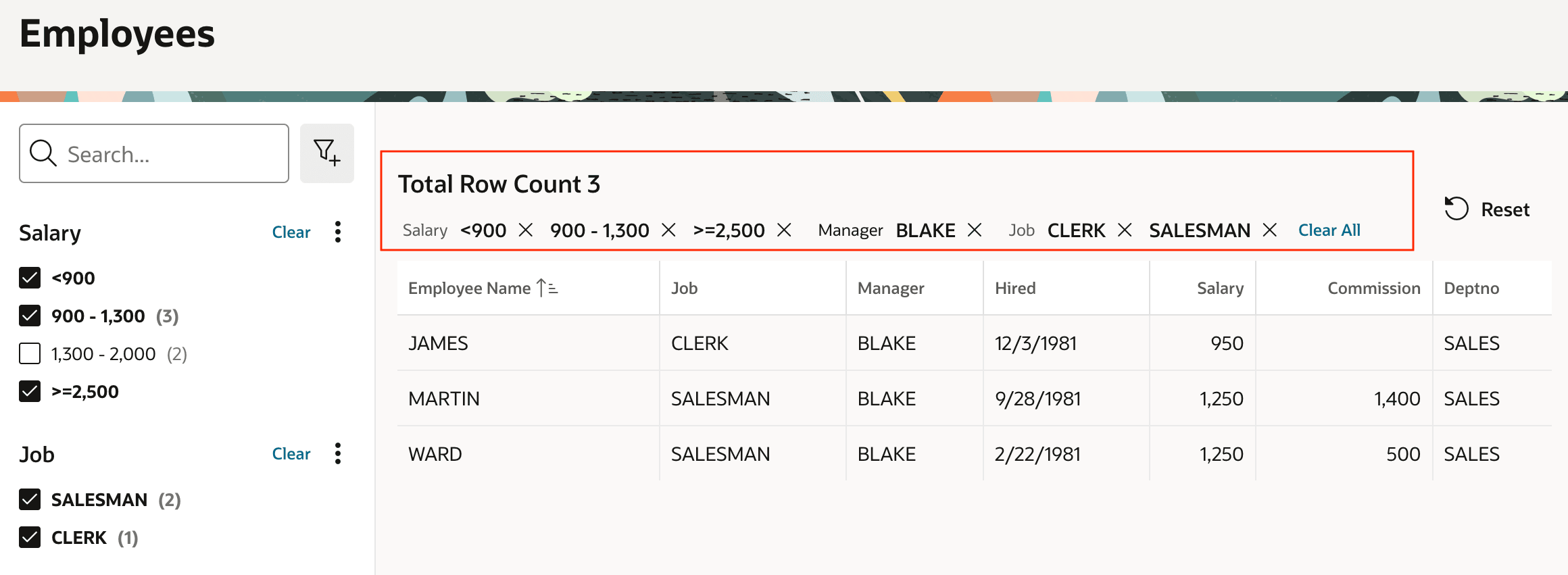
The chips display the facet label and applied filter criteria display value, along with an "x" icon users can click to remove a particular filter. A "Clear All" link lets them remove all filters in a single click as well.
Set Show Current Facets to Yes to show the chips at the top of
the faceted search region itself. However, it's usually in the Left Column slot
that is narrow by design. Instead, set the HTML DOM ID of a static content region
in the Body slot to a unique name like active_facets and then
set Show Current Facets to Selector. This setting causes the
additional Current Facets Selector to appear in the Property Editor. After
setting this to #active_facets, referencing the HTML DOM ID of the
static content region, the filter chips will display wherever on the page this static
content region is positioned.
Set the Show Total Row Count property of the faceted search region to
Yes to have the total row count appear at the top of the current facets area.
For more flexibility, you can set this property to Selector and provide a CSS
selector like #total_count_area to show the count with no label in the
static content region having the HTML DOM ID of total_count_area. The
figure below shows a faceted search page with both options enabled.
Figure 6-8 Row Count and Filter "Chips" Over Classic Report
Parent topic: Narrowing a Search Using Facet Filters