22.7.2 Using the Text Messages Picker
Pick a Text Message reference for translatable page properties.
You can use the INCREASE_SALARY text message as a new button's label
in the Employee page. Start by ensuring the Text Messages Picker is
enabled. It's a button with a globe icon that appears next to every property containing
translatable text. If you don't see the globe buttons, as shown below, enable
them using the wrench toolbar dropdown menu option Show > Text Messages
Picker.
Figure 22-16 Enabling Text Messages Picker
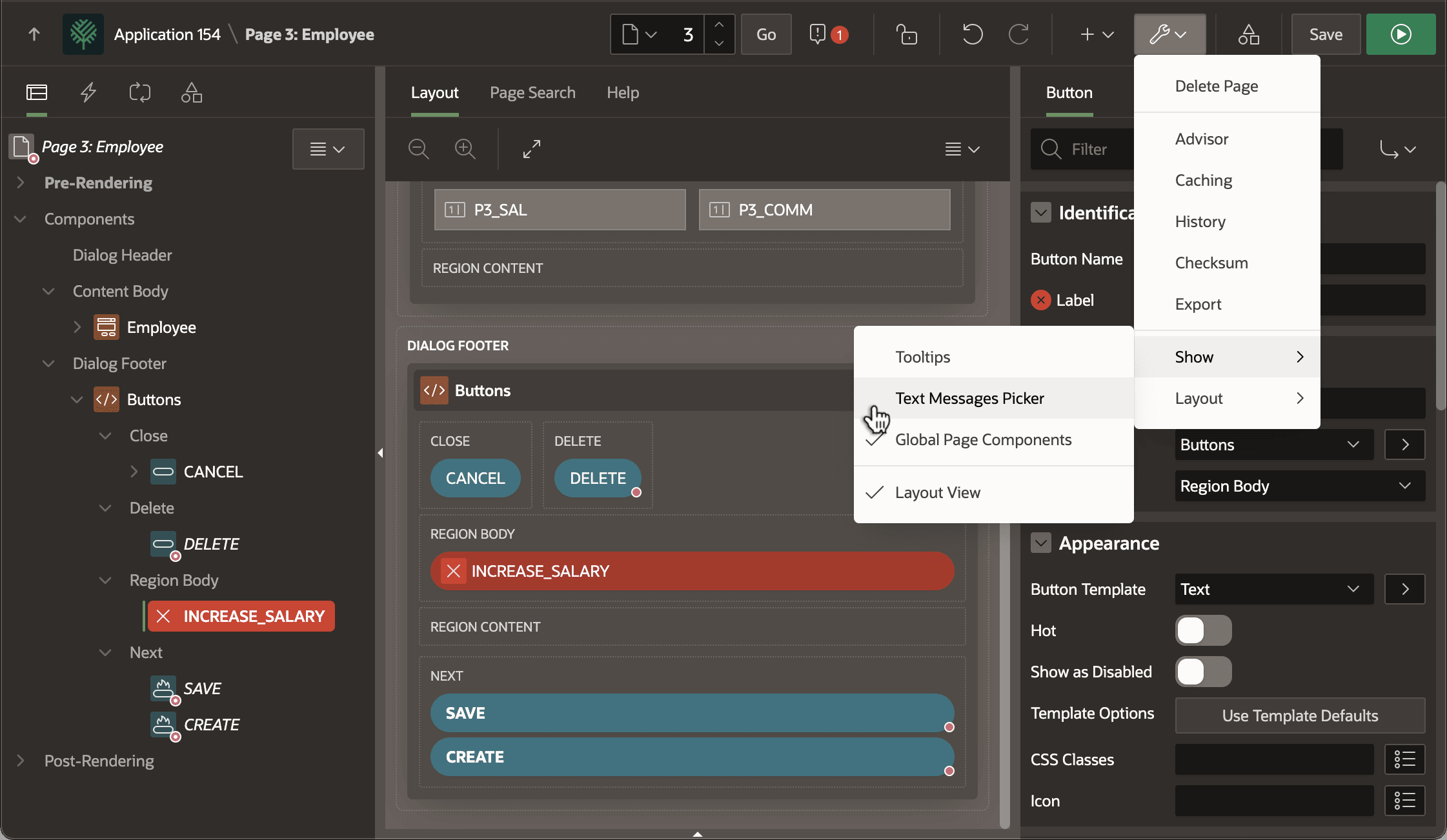
Once enabled, you can click the globe icon as shown below to search for and select the text message you want to use.
Figure 22-17 Choosing Message in Text Message Picker Opened with the Globe Button
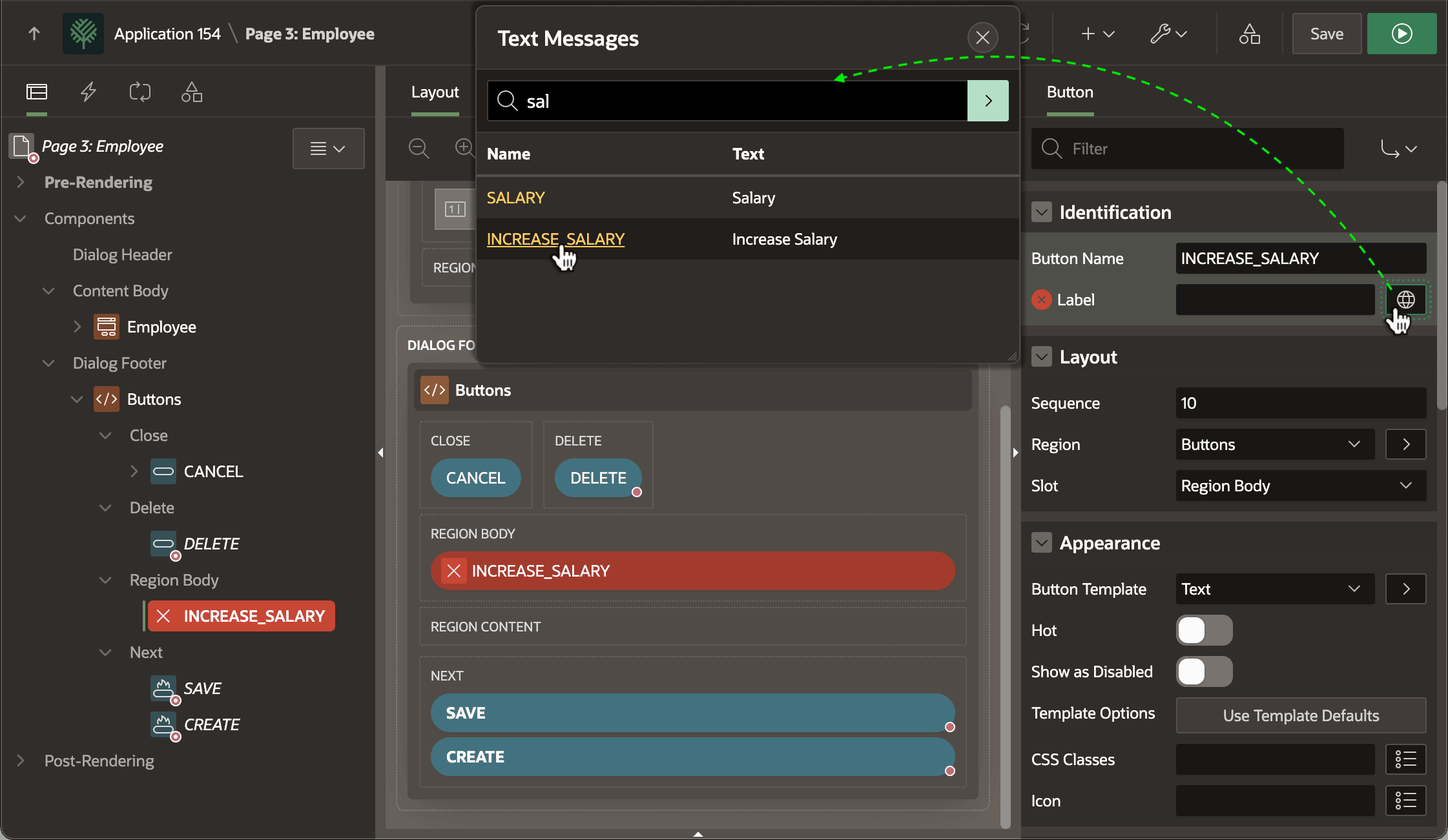
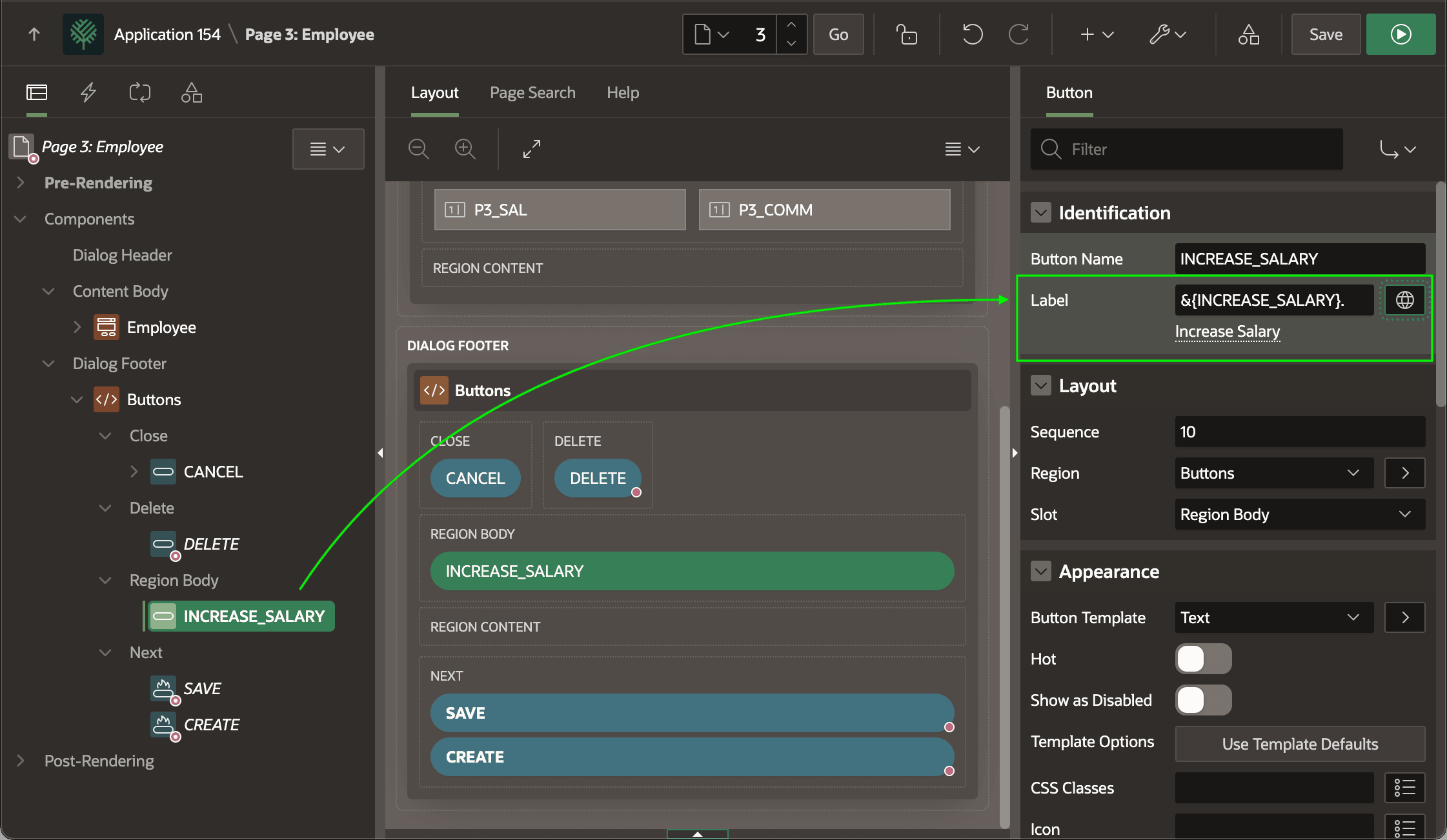
The Text Messages Picker automatically includes the selected message using the appropriate substitution syntax as shown below and the translated string appears just below: Increase Salary.
Figure 22-18 Picked Text Message Included with Proper Substitution Syntax
Tip:
INCREASE_SALARY text message had included placeholders like %percent and %starting:Your salary increase is %pct percent, and starts %date!RAW, it goes between the closing curly brace and the final dot:
&{INCREASE_SALARY}.&{INCREASE_SALARY pct="5" date="&P3_SOME_ITEM."}.&{INCREASE_SALARY pct="5" date="&P3_SOME_ITEM."}!RAW.
Parent topic: Translating Text as Your App Evolves