5 Managing Reports
Manage the reports in your reporting application by creating, editing, and linking reports based on the associated datasets.
- About Supported Reports
Create reports on datasets associated with the reporting application. - Report Examples
View example reports. - About the Data Reporter Developer Toolbar
Learn about the Data Reporter Developer toolbar. - Creating and Editing Reports
Administrators or editors can create and edit reports on the Data Reporter Application home page. - Understanding Report Publishing
Reports must be published to be visible to Data Reporter users. - Copying a Report
Copy a report from the report detail page. - Deleting a Report
Delete a report from the report detail page.
5.1 About Supported Reports
Create reports on datasets associated with the reporting application.
- Interactive Report
- Faceted Search with List
- Faceted Search with Table
When an administrator creates a report, the report is unpublished and can only be viewed by administrators and editors. When administrator or editor creates a report, the report is unpublished and cannot be viewed by viewers. Once the report is ready, the administrator or editor publishes the report. The report is then available to reporting application users.
Parent topic: Managing Reports
5.2 Report Examples
View example reports.
The following examples are based on the Project Data sample dataset. For information on installing sample datasets, see Using Sample Datasets in Oracle APEX SQL Workshop Guide.
- Example Interactive Report
View an interactive report based on theEBA_PROJECTStable. - Example Faceted Search with Table
View a faceted search with table based on theEBA_PROJECT_TASKStable. - Example Faceted Search with List
View a faceted search with list based on theEBA_PROJECT_TASKStable. - Example Drill Down
View a faceted search with list from an interactive report using a Drill Down.
Parent topic: Managing Reports
5.2.1 Example Interactive Report
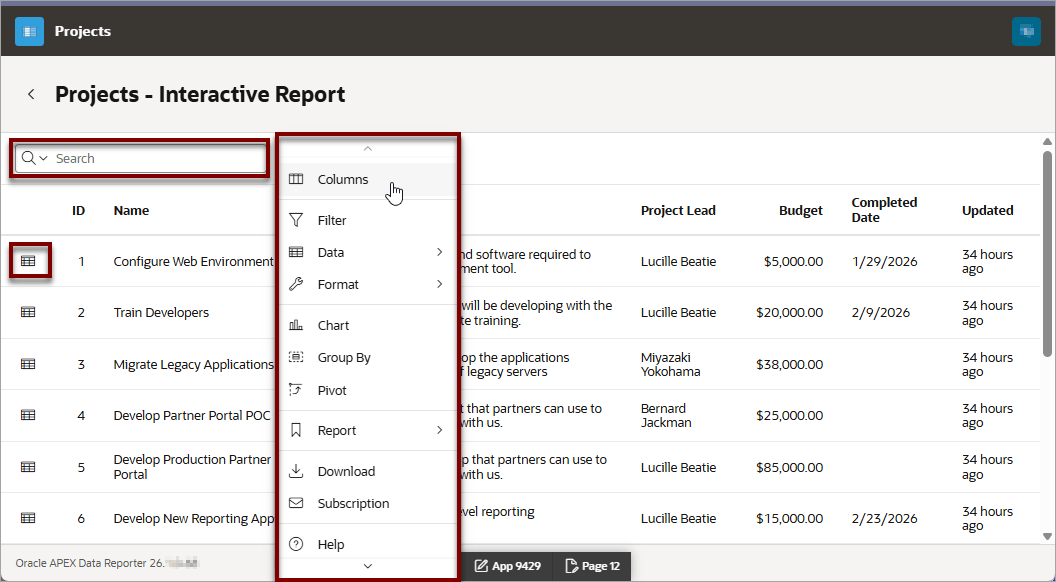
View an interactive report based on the EBA_PROJECTS
table.
Users can customize how and what data displays. By default, interactive
reports include a search bar, an Actions menu ( ), column heading menus, and a View Row Detail icon in the first column of
each row. Using options on the Actions menu, users can alter the report layout by
hiding or exposing specific columns and applying filters and alter the format by
creating control breaks, adding highlighting, and determing the number of rows that
display on each page. They can also create aggregations, charts, group bys, and add
their own computations. Once customized, the report can be saved as either a private
or public report.
), column heading menus, and a View Row Detail icon in the first column of
each row. Using options on the Actions menu, users can alter the report layout by
hiding or exposing specific columns and applying filters and alter the format by
creating control breaks, adding highlighting, and determing the number of rows that
display on each page. They can also create aggregations, charts, group bys, and add
their own computations. Once customized, the report can be saved as either a private
or public report.
Parent topic: Report Examples
5.2.2 Example Faceted Search with Table
View a faceted search with table based on the
EBA_PROJECT_TASKS table.
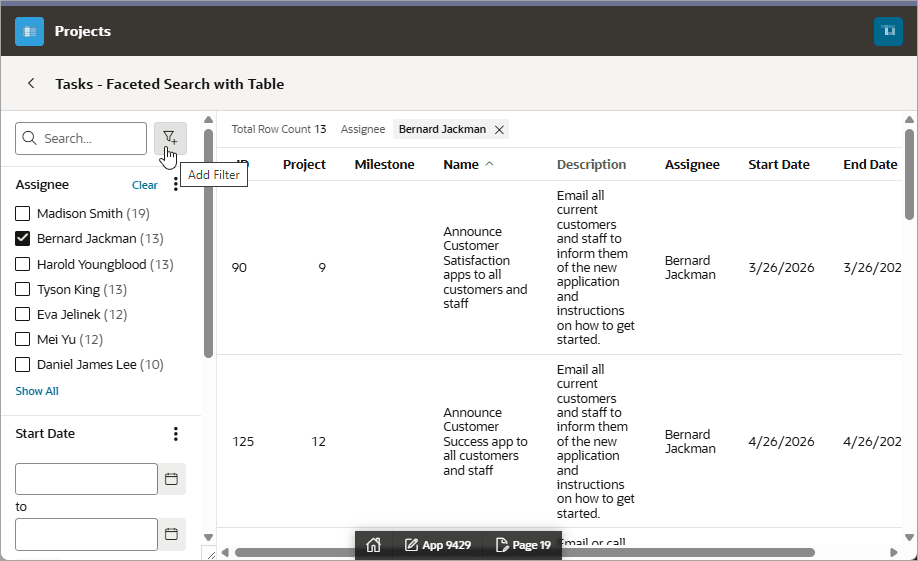
The following example features a faceted Search region and report. The Search region displays on the left side of the page and enables users to narrow down the search result by selecting facet values. Narrowing the search result, makes it easier for users to find the data they want. The right side of the page features a Search Results region which can display as a classic report.
This example is built on the EBA_PROJECT_TASKS table. In this
example the Assignee, Bernard Jackman, is selected and the report displays 13 rows.
The cursor is positioned over the Add Filter. Selecting Add
Filter displays Add Filter dialog.
Parent topic: Report Examples
5.2.3 Example Faceted Search with List
View a faceted search with list based on the
EBA_PROJECT_TASKS table.
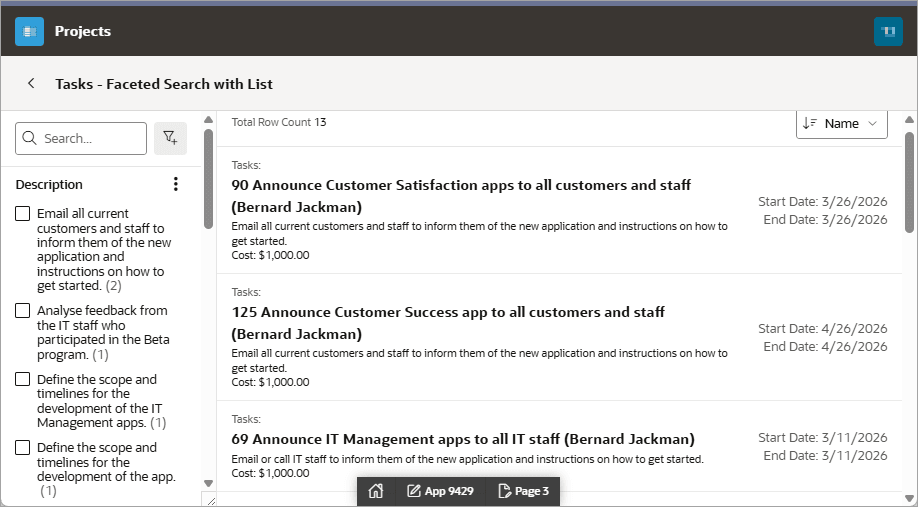
The following example features a faceted Search region and list. The Search region displays on the left side of the page and enables users to narrow down the search result by selecting facet values. Narrowing the search result, makes it easier for users to find the data they want. The right side of the page features a Search Results region displayed as a list.
This example is built on the EBA_PROJECT_TASKS table. In this
example, the total row count is 13.
Parent topic: Report Examples
5.2.4 Example Drill Down
View a faceted search with list from an interactive report using a Drill Down.
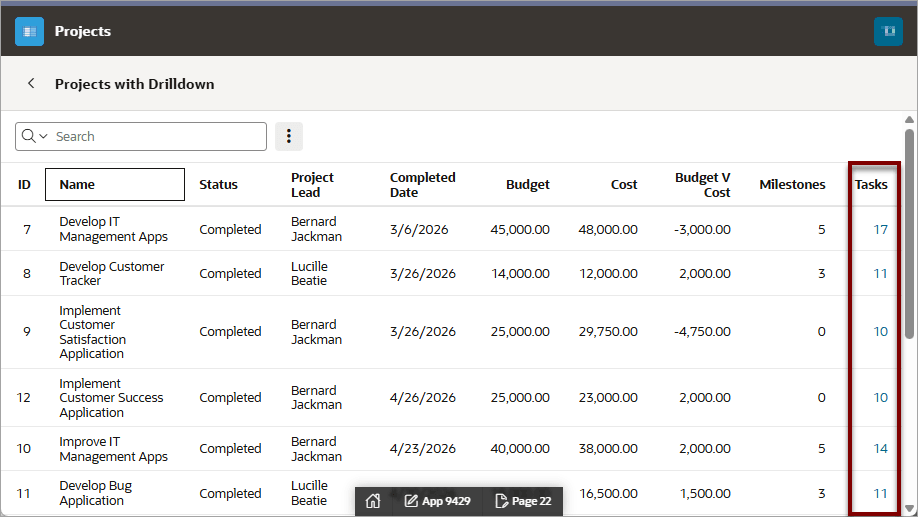
You can use Drill Down functionality to connect two reports
together. The following example shows an interactive report built on
EBA_PROJECTS_V. The Tasks column features a drilldown links to
another report.
Parent topic: Report Examples
5.3 About the Data Reporter Developer Toolbar
Learn about the Data Reporter Developer toolbar.
When you run a reporting application and preview a report, the Data Reporter Developer toolbar appears. The Data Reporter Developer toolbar contains tools for editing the reporting application or the current report page.
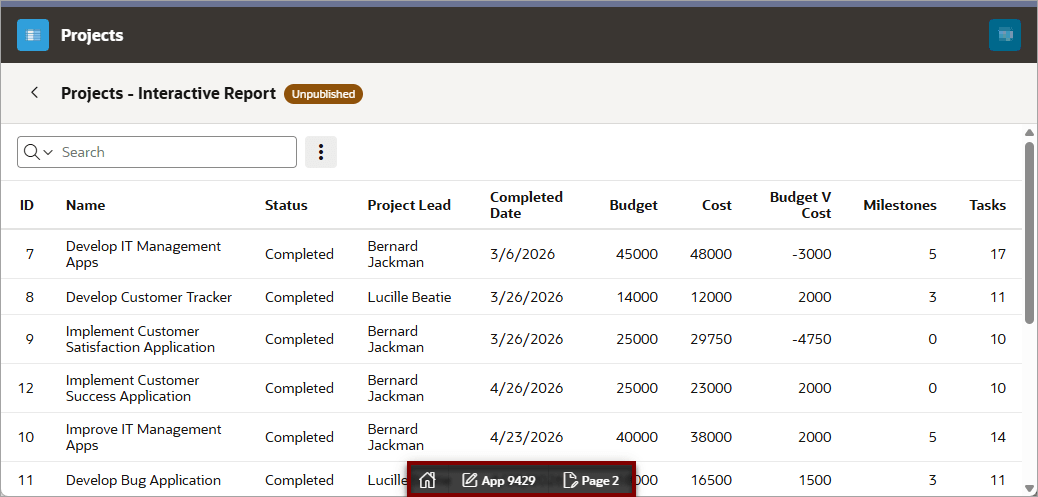
-
Home - Links to the home page. The home page that displays depends upon the user's Account Privileges.
-
App XX (where XX is the app ID) - Links to the Data Reporter Application home page.
-
Page XX (where XX is the page number) - Links to the Report Details page when previewing a report, or the Reporting Application Home page if you are previewing the Reporting Application home. Click the page ID.
Parent topic: Managing Reports
5.4 Creating and Editing Reports
Administrators or editors can create and edit reports on the Data Reporter Application home page.
- About Creating and Editing Reports
Learn about creating reports from datasets. - Creating an Interactive Report
Create an interactive report from the Data Reporter home page. - Editing an Interactive Report
Edit an interactive report from the Report Details page. - Creating a Faceted Search with Table
Create a faceted search with table from the Data Reporter home page. - Editing a Faceted Search with Table
Edit a faceted search with table from the Report Details page. - Creating a Faceted Search with List
Create a faceted search with list from the Data Reporter home page. - Editing a Faceted Search with List
Edit a faceted search with list from the Report Details page. - Adding a Drilldown
Add a drilldown by editing a report to link to another report.
Parent topic: Managing Reports
5.4.1 About Creating and Editing Reports
Learn about creating reports from datasets.
You must be a Data Reporter administrator or editor to create reports. By default, reports are unpublished. You must publish a report so that it is visible to Data Reporter viewers.
- Interactive Report
- Faceted Search with Table
- Faceted Search with List
Only a Data Reporter administrator or editor can edit reports. If the report is unpublished, you can edit the report directly. If the report is published, you create a draft and edit that draft without affecting users accessing the published version of the report.
When you publish the edited report, the changes overwrite the currently published report.
Parent topic: Creating and Editing Reports
5.4.2 Creating an Interactive Report
Create an interactive report from the Data Reporter home page.
Parent topic: Creating and Editing Reports
5.4.3 Editing an Interactive Report
Edit an interactive report from the Report Details page.
Parent topic: Creating and Editing Reports
5.4.4 Creating a Faceted Search with Table
Create a faceted search with table from the Data Reporter home page.
Parent topic: Creating and Editing Reports
5.4.5 Editing a Faceted Search with Table
Edit a faceted search with table from the Report Details page.
Parent topic: Creating and Editing Reports
5.4.6 Creating a Faceted Search with List
Create a faceted search with list from the Data Reporter home page.
Parent topic: Creating and Editing Reports
5.4.7 Editing a Faceted Search with List
Edit a faceted search with list from the Report Details page.
Parent topic: Creating and Editing Reports
5.4.8 Adding a Drilldown
Add a drilldown by editing a report to link to another report.
- From the Data Reporter Home page, select the reporting application.
- Select a report to contain a drilldown.
- Under Facets and Columns, select Edit:
- Enable Drill Down - Select to use the column values to drill down into another report. The drilldown report is filtered by the selected column value.
- Target Report - The target report the column navigates to.
- Target Column - The column from the target report to filter by.
- Source Column - The column in this report to pass as the filter value.
- Select Apply Changes.
- To view the report, select Run.
Parent topic: Creating and Editing Reports
5.5 Understanding Report Publishing
Reports must be published to be visible to Data Reporter users.
- About Publishing
Learn about report publishing. - Publishing a Report
Publish a report from the Report Details page. - Unpublishing a Report
Unpublish a report from the report details page. - Creating and Publishing a Draft
Create a draft by editing a published report.
Parent topic: Managing Reports
5.5.1 About Publishing
Learn about report publishing.
In order to publish or unpublish specific reports, you must be a Data Reporter Editor or a Data Reporter Administrator. When reports are unpublished, they cannot be viewed by Data Reporter Viewers.
Only one version of a published report may be published at any given time. When you edit an existing report, the changes are not visible to viewers until you publish the changes, and the viewers continue to see the last published version of the report. When you unpublish a report, the report is no longer available to viewers at all.
You can see whether a report is published or unpublished by viewing the reporting application home page. The status of each report is listed under the status column as either Published or Unpublished.
Parent topic: Understanding Report Publishing
5.5.2 Publishing a Report
Publish a report from the Report Details page.
To publish a report:
Tip:
You can also publish reports from the reporting application home page by using the Actions menu.Parent topic: Understanding Report Publishing
5.5.3 Unpublishing a Report
Unpublish a report from the report details page.
To unpublish a report:
- From the Data Reporter Home page, select the reporting application.
- Select the desired report.
- From the Actions menu, select Unpublish.
Tip:
You can also publish reports from the reporting application home page by using the Actions menu.Parent topic: Understanding Report Publishing
5.5.4 Creating and Publishing a Draft
Create a draft by editing a published report.
To create a report draft:
To discard the draft:
To publish the draft:
Parent topic: Understanding Report Publishing
5.6 Copying a Report
Copy a report from the report detail page.
To copy a report:
- From the Data Reporter home page, select the reporting application.
- Select the desired report.
- From the Actions menu, select Copy.
- Specify the New Report Name.
- Select Copy Report.
Parent topic: Managing Reports
5.7 Deleting a Report
Delete a report from the report detail page.
To delete a report:
- From the Data Reporter home page, select the reporting application.
- Select the desired report.
- From the Actions menu, select Delete.
- Select Delete Report to confirm.
Parent topic: Managing Reports