8.8.7.9 Enabling Detail View in an Interactive Grid
Learn how to enable Detail View in an interactive grid.
Interactive grids support different views of data. By default, interactive grids display data in a Grid view. Developers can optionally display data as in a Detail view. Enabling Detail view adds an Detail button to the select view button group.
- About Detail View in an Interactive Grid
Learn about interactive grid Detail View. - Adding a Detail View to an Interactive Grid
Learn how to enable Detail View in an interactive grid.
Parent topic: Managing Interactive Grid Attributes
8.8.7.9.1 About Detail View in an Interactive Grid
Learn about interactive grid Detail View.
Interactive grids support different views of data. Users can switch between these views by clicking the buttons in the select view button group. The following illustration shows an interactive grid with Detail view enabled and the Detail button selected. Detail view displays column values using developer defined HTML markup as shown in the following illustration.
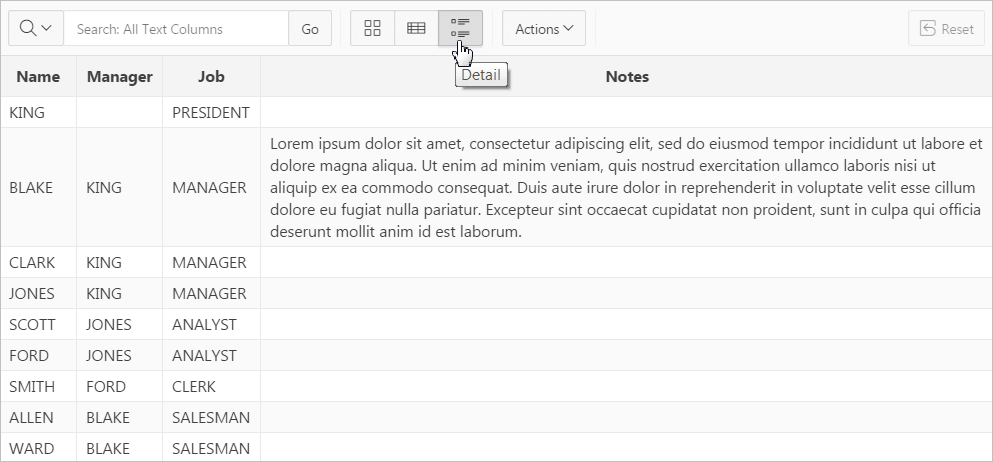
Description of the illustration ig_detail_view.png
Parent topic: Enabling Detail View in an Interactive Grid
8.8.7.9.2 Adding a Detail View to an Interactive Grid
Learn how to enable Detail View in an interactive grid.
To add a Detail view to an interactive grid:
Parent topic: Enabling Detail View in an Interactive Grid