8.8.7.8 Enabling Icon View in an Interactive Grid

Learn how to enable Icon View in an interactive grid.

Interactive grids support different views of data. By default, interactive grids display data in a Grid view. Developers can optionally display data as icons. Enabling Icon view adds an Icon button to the select view button group.

8.8.7.8.1 About Icon View in an Interactive Grid

Learn about interactive grid Icon View.

Interactive grids support different views of data. Users can switch between these views by clicking the buttons in the select view button group. The following illustration shows an interactive grid with Icon view enabled and the Icon button selected. To enable Icon view, you must identify the columns used to identify the icon, the label, and the target (that is, the link).
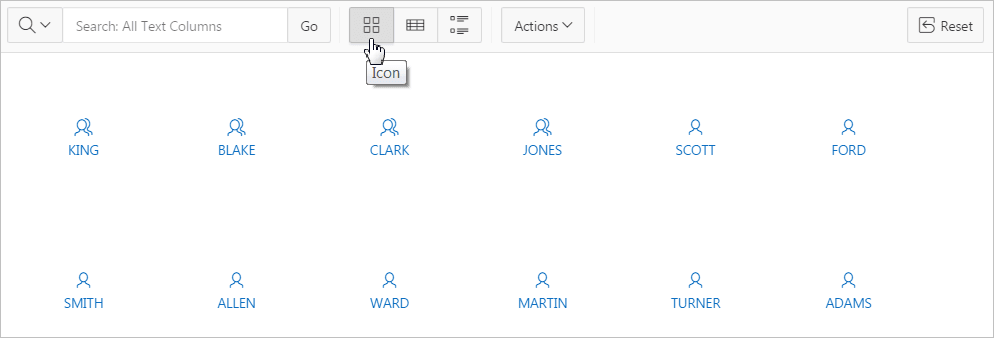
Description of ig_icon_view.png follows
Description of the illustration ig_icon_view.png

Viewing a Working Example of Icon View

To see a working example of this Icon view, install the sample application, Sample Interactive Grids and review Reporting, Icon and Detail Views .

8.8.7.8.2 Enabling Icon View in an Interactive Grid

Learn how to enable Icon View in an interactive grid.

An important requirement of icon view is that each item in the view must have the same width and height and the item content must not overflow. The width and height are set with CSS rules on elements with a class of a-IconList-item.

To add an Icon view to an interactive grid:

  1. View the page in Page Designer:
    Page Designer appears.
  2. In the Rendering tab, select the region containing the interactive grid.
  3. In the Property Editor, select the Attributes tab.
    The Property Editor displays the attributes. Attributes are organized in groups
  4. In the Property Editor Attributes tab, find the Icon View group and edit the following:
    1. Show - Specify whether the Icon View is enabled. Select On.
    2. Custom - Select On. Selecting On provides full control over the icon view item markup but also requires a full understanding of HTML markup.
    3. Icon Type - Select the column type that holds the icon image source. Select Icon CSS Classes. You must also add a column to your SQL statement that has a value that is a CSS class for an icon (for example, a Font APEX icon class name). As an alternative, you can also select Image in URL and then specify the column that contains the URL and Icon Attributes.
    4. Icon - Select the interactive grid column that returns the CSS classes for the icon image source.
    5. Link Target - Click No Link Defined to display the Link Builder - Link Target dialog. The link target defined is followed when the user activates the icon link with mouse or keyboard.
    6. Link Attributes - Enter HTML attributes that are associated with the display of each Link Target.
    7. Label Column - Select the report column that returns the image label.
  5. To save your changes click Save. To save and run the page, click Save and Run Page.

8.8.7.8.3 Adding a Custom Icon View Link to an Interactive Grid

Learn how to add custom Icon View link in an interactive grid.

A custom Icon View link provides greater flexibility in defining the content of the Icon View, including the ability to utilize more than one column.

To add custom Icon View link to an interactive grid:

  1. View the page in Page Designer:
    Page Designer appears.
  2. In the Rendering tab, select the region containing the interactive grid.
  3. In the Property Editor, select the Attributes tab.
    The Property Editor displays the attributes. Attributes are organized in groups
  4. In the Property Editor Attributes tab, find the Icon View group and edit the following:
    1. Show - Select On.
    2. Custom - Select Off. Selecting On provides full control over the icon view item markup but also requires a full understanding of HTML markup..
    3. Icon Type - Select the column type that holds the icon image source. Select Icon CSS Classes. You must also add a column to your SQL statement that has a value that is a CSS class for an icon (for example, a Font APEX icon class name). As an alternative, you can also select Image in URL and then specify the column that contains the URL and Icon Attributes.
    4. Icon - Select the interactive grid column that returns the CSS classes for the icon image source.
    5. Link Target - Click No Link Defined to display the Link Builder - Link Target dialog. The link target defined is followed when the user activates the icon link with mouse or keyboard.
    6. Link Attributes - Enter HTML attributes that are associated with the display of each Link Target.
    7. Label Column - Select the report column that returns the image label.
  5. To save your changes click Save. To save and run the page, click Save and Run Page.