5.23 Locking and Unlocking an Application
A developer may lock an application giving the developer exclusive access while preventing others from making changes through the App Builder.
Locking an application prevents other developers from making changes through App Builder. In addition, you can also lock an application to prevent changes to a Main version when a Working Copy is created.
- Understanding Application Locks
Learn about application locks. - Locking an Application
Learn how to lock an application. - Unlocking an Application
Learn how to unlock an application.
Parent topic: Creating Applications
5.23.1 Understanding Application Locks
Learn about application locks.
Determining If an Application Is Locked
You can identify locked applications on the App Builder home page by a lock icon.
The lock icon appears in both Report View and Icon View. In Icon View, the lock indicator displays on the application icon. In Report View, a lock icon displays in the Actions column as shown in the following example.
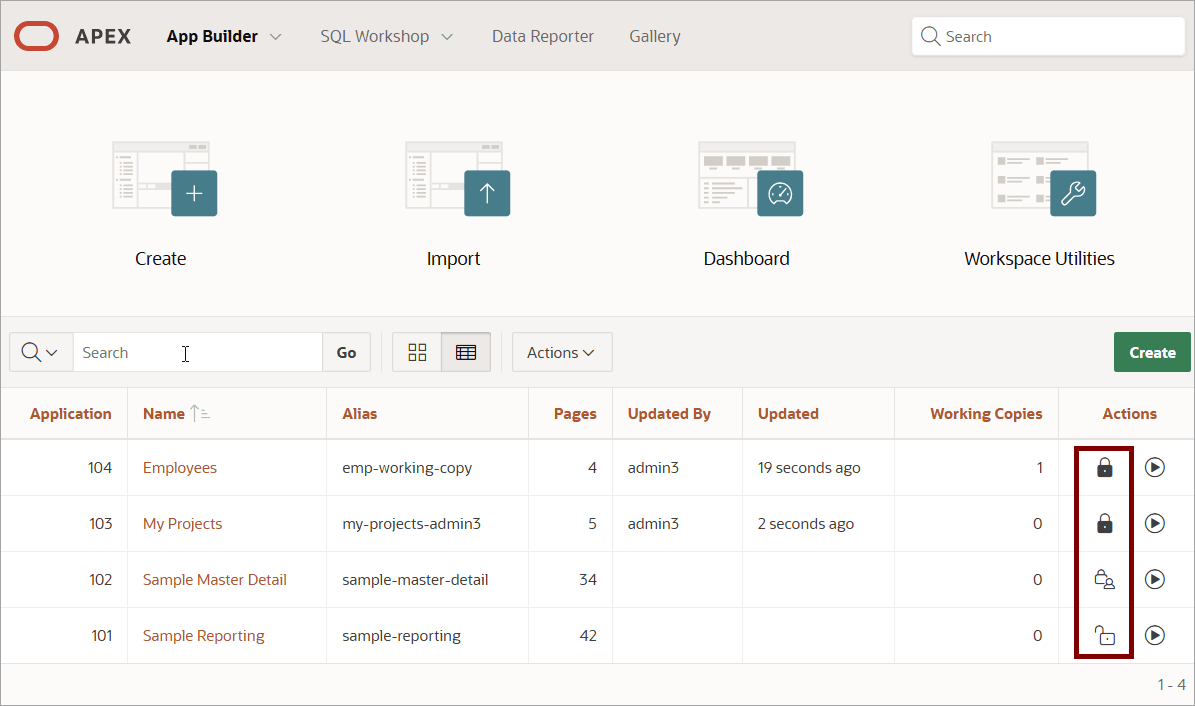
Different lock icons display depending upon the lock status and who locked the application:
-
Unlocked - Displays as an open paddock (
 ).
).
-
Locked (current user) - If locked by the current user,
the lock indicator displays as a closed padlock (
 ).
).
-
Locked (another user) - If locked by the another user,
the lock inductor displays a closed padlock with the outline of a person (
 ).
).
Application Lock Behavior
Only the developer who locked an application can edit it or unlock it. Attempting to edit or unlock an application locked by another developer, redirects to a message indicating the application is locked. If the locked application has a Working Copy, the Application Locked window includes links to any Working Copies.
Related Topics
Parent topic: Locking and Unlocking an Application
5.23.2 Locking an Application
Learn how to lock an application.
Developers can lock an application from the App Builder home page or the Application home page.
- Locking an App from the App Builder Home Page
Lock an application on the App Builder home page. - Locking an App from the Application Home Page
Lock an application from the Application home page.
Parent topic: Locking and Unlocking an Application
5.23.2.1 Locking an App from the App Builder Home Page
Lock an application on the App Builder home page.
To lock an applilcation on the App Builder home page:
- Under Actions, click the Unlocked
( icon.
Parent topic: Locking an Application
5.23.2.2 Locking an App from the Application Home Page
Lock an application from the Application home page.
To lock an applilcation from the Application home page:
Parent topic: Locking an Application
5.23.3 Unlocking an Application
Learn how to unlock an application.
- Unlocking an App from the App Builder Home Page
Unlock an application in Report View on the App Builder home page. - Unlocking an App from the Application Home Page
Unlock an application from the Application home page.
Parent topic: Locking and Unlocking an Application
5.23.3.1 Unlocking an App from the App Builder Home Page
Unlock an application in Report View on the App Builder home page.
Note:
Only the developer who locked an application can edit it or unlock it. All other developers and administrators will be redirected to the Lock Status page.To unlock an applilcation:
- Under Actions, click the
Locked() icon.
Parent topic: Unlocking an Application
5.23.3.2 Unlocking an App from the Application Home Page
Unlock an application from the Application home page.
Note:
Only the developer who locked an application can edit it or unlock it. All other developers and administrators will be redirected to the Lock Status page.To unlock an applilcation:
Parent topic: Unlocking an Application