6.10 Locking and Unlocking a Page
Prevent conflicts during application development by locking pages in your application. By locking a page, you prevent other developers from editing it.
- Determining If a Page Is Locked
Learn how to determine if a page is locked. - Locking a Page
Learn how to lock a page. - Unlocking a Page
Learn how to unlock a page.
Related Topics
Parent topic: Managing Pages in an Application
6.10.1 Determining If a Page Is Locked
Learn how to determine if a page is locked.
You can identify locked pages on the Application home page by a lock indicator icon. The lock indicator icon appears in Report View under the Actions column.
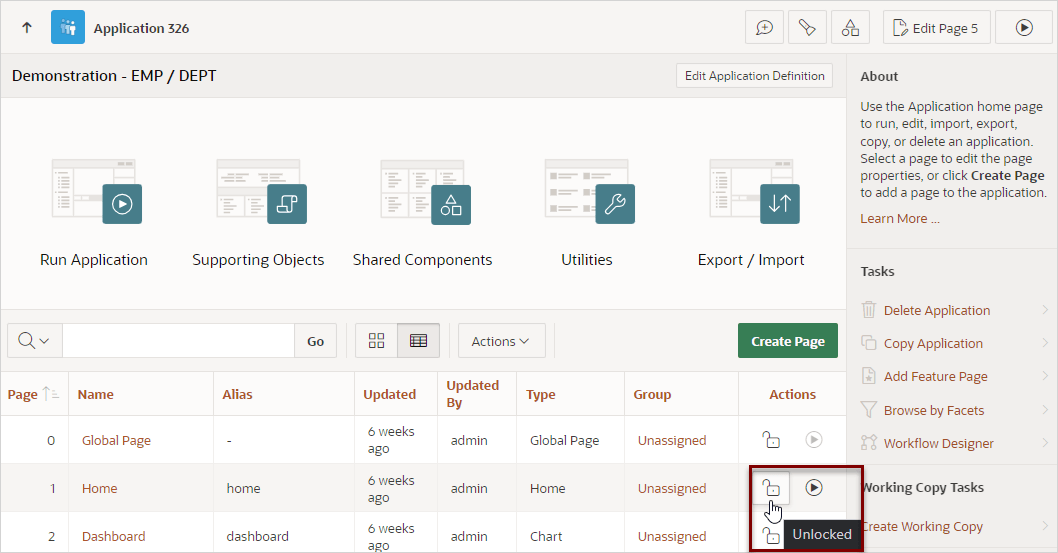
Different lock indicator icons display depending upon the lock status and who locked the page:
-
Unlocked - Displays as an open paddock (
 ).
).
-
Locked (current user) - If locked by the current user,
the lock indicator displays as a closed padlock (
 ).
).
-
Locked (another user) - If locked by the another user,
the lock indicator displays a closed padlock with the outline of a person
(
 ).
).
Parent topic: Locking and Unlocking a Page
6.10.2 Locking a Page
Learn how to lock a page.
Developers can lock a page on the Application home page, in Page Designer, and on the Page Locks page.
- Locking a Page from the Application Home Page
Lock a page from the Application Home page. - Locking a Page in Page Designer
Lock a page in Page Designer. - Locking a Page from Utilities
Lock a page from the Cross Page Utilities, Page Locks page.
Parent topic: Locking and Unlocking a Page
6.10.2.1 Locking a Page from the Application Home Page
Lock a page from the Application Home page.
To lock a page:
Parent topic: Locking a Page
6.10.2.2 Locking a Page in Page Designer
Lock a page in Page Designer.
The Page Lock button on the Page Designer toolbar indicates whether a page is locked. If the page is unlocked, the Page Lock button displays as an unlocked padlock.
To lock a page in Page Designer:
- Navigate to the appropriate page in Page Designer.
- On the Page Designer toolbar, click Page unlocked.
- In Lock Page:
Related Topics
Parent topic: Locking a Page
6.10.2.3 Locking a Page from Utilities
Lock a page from the Cross Page Utilities, Page Locks page.
To lock a page from the Page Locks page:
- On the Workspace home page, click the App Builder icon.
- Select an application.
- Click the Utilities icon.
- Under Page Specific Utilities, select Cross Page Utilities.
- Click Page Locks.
- Select the appropriate pages and click Lock Checked.
- In Lock Page:
- Enter a comment in the Comment field.
- Click Lock Page(s).
Parent topic: Locking a Page
6.10.3 Unlocking a Page
Learn how to unlock a page.
Only the developer who locks a page can unlock it. However, a developer with administrative privileges can unlock pages locked by other developers.
Tip:
To view information about an existing page lock, navigate to the Lock Details page and expand the Lock History region.
- Unlocking Pages from the Application Home Page
Unlock a page from the Application Home page. - Unlocking a Page in Page Designer
Unlock a page in Page Designer. - Unlocking Pages from Utilities
Unlock a page from the Cross Page Utilities, Page Locks page. - Unlocking Pages As a Workspace Administrator
Unlock pages as a Workspace Administrator.
Parent topic: Locking and Unlocking a Page
6.10.3.1 Unlocking Pages from the Application Home Page
Unlock a page from the Application Home page.
To unlock a page from the Application Home page:
Parent topic: Unlocking a Page
6.10.3.2 Unlocking a Page in Page Designer
Unlock a page in Page Designer.
The Page Lock button on the Page Designer toolbar indicates whether a page is locked.
To unlock a page in Page Designer:
Related Topics
Parent topic: Unlocking a Page
6.10.3.3 Unlocking Pages from Utilities
Unlock a page from the Cross Page Utilities, Page Locks page.
To unlock a page from the Page Locks page:
- On the Workspace home page, click the App Builder icon.
- Select an application.
- Click the Utilities icon.
- Under Page Specific Utilities, select Cross Page Utilities.
- Click Page Locks.
- Select the appropriate pages.
- Click Unlock Checked.
Parent topic: Unlocking a Page
6.10.3.4 Unlocking Pages As a Workspace Administrator
Unlock pages as a Workspace Administrator.
To unlock pages as a Workspace Administrator:
- On the Workspace home page, click the App Builder icon.
- Select an application.
- Click the Utilities icon.
- Under Page Specific Utilities, select Cross Page Utilities.
- Click Page Locks.
- Click Lock Administration.
- Select the appropriate pages.
- Click Unlock Page(s).
Parent topic: Unlocking a Page