3 Installing and Configuring Oracle Backend with Firebase APIs
This chapter walks through the setup required to open the Oracle Backend with Firebase APIs Console, create a project, and connect the
fusabase CLI to your environment.
- What You Will Do
- Prerequisites
- Prepare the Database
- Enable Oracle Backend with Firebase APIs in ORDS
- Prepare and Enable the Project Schema
- Open the Console
- Create Your First Project
- Configure the CLI
- Verify the Installation
- Troubleshooting
Parent topic: Setting Up Oracle Backend with Firebase APIs
3.1 What You Will Do
In this chapter, you will:
- Verify the database prerequisites required by Oracle Backend with Firebase APIs.
- Enable Oracle Backend with Firebase APIs in ORDS.
- Create and enable a schema that can own a project.
- Open the Console and create your first project.
- Configure the
fusabaseCLI and confirm that it can reach your service.
3.2 Prerequisites
Before you start, make sure you have:
-
Oracle AI Database 23.9 or later. If you require a database, see the Install Oracle AI Database documentation.
-
ORDS 26.1 or later. If you require ORDS, see the Oracle REST Data Services Installation and Configuration Guide
-
Credentials for the ORDS installation account appropriate to your environment:
-
Use
SYS AS SYSDBAif you are installing ORDS inCDB$ROOT. -
Prefer a dedicated ORDS installer user if you are installing for a PDB and have granted that user the required ORDS installer privileges.
-
-
A database account with the
DBArole to prepare and enable the project-owning schema -
The ORDS configuration directory
-
The ORDS host name, port, and target PDB service name
You should also be able to connect to the database and run show parameter
compatible before continuing.
3.3 Prepare the Database
Oracle Backend with Firebase APIs requires a compatible database, extended string support, and Transparent Data Encryption (TDE).
3.3.1 Check the Database Version and Compatibility Setting
Connect as SYS AS SYSDBA or another privileged user and run:
show parameter compatible;
SELECT banner_full FROM v$version;If COMPATIBLE is lower than 23.9.0, connect to
CDB$ROOT, update the parameter, and restart the instance according
to your environment's restart procedure:
ALTER SYSTEM SET COMPATIBLE='23.9.0' SCOPE=SPFILE;Parent topic: Prepare the Database
3.3.2 Enable Extended String Support
Open the target PDB in upgrade mode, enable extended strings, run the Oracle script, and return the PDB to normal service:
ALTER PLUGGABLE DATABASE <YOUR-PDB> CLOSE;
ALTER PLUGGABLE DATABASE <YOUR-PDB> OPEN UPGRADE;
ALTER SESSION SET CONTAINER=<YOUR-PDB>;
ALTER SYSTEM SET max_string_size = extended;
@?/rdbms/admin/utl32k.sql
ALTER PLUGGABLE DATABASE <YOUR-PDB> CLOSE;
ALTER PLUGGABLE DATABASE <YOUR-PDB> OPEN;
After the PDB reopens, confirm that MAX_STRING_SIZE is now
EXTENDED.
Parent topic: Prepare the Database
3.3.3 Configure the TDE Wallet and Master Key
If a wallet is not already configured, choose a secure wallet location that matches your organization's standards for database storage, backup, and access control. Then, create the wallet directory and set the wallet parameters before restarting the database. The following path is only an example:
mkdir -p /opt/oracle/oradata/FREE/tde
chown -R oracle:oinstall /opt/oracle/oradata/FREE
chmod 700 /opt/oracle/oradata/FREE/tde
ALTER SYSTEM SET wallet_root='<wallet_root_path>' SCOPE=SPFILE;Replace <wallet_root_path> with the directory you selected for your
environment. Restart the database, verify wallet_root, and then set
tde_configuration before you create and open the keystore.
Replace every placeholder password in this chapter with your own value. Do not reuse example passwords in shared, long-lived, or production environments.
ALTER SYSTEM SET tde_configuration='KEYSTORE_CONFIGURATION=FILE' SCOPE=BOTH;
ADMINISTER KEY MANAGEMENT CREATE KEYSTORE IDENTIFIED BY "<strong_keystore_password>";
ADMINISTER KEY MANAGEMENT SET KEYSTORE OPEN IDENTIFIED BY "<strong_keystore_password>" CONTAINER=ALL;
ADMINISTER KEY MANAGEMENT SET KEY IDENTIFIED BY "<strong_keystore_password>" WITH BACKUP CONTAINER=ALL;
SELECT WRL_TYPE, WRL_PARAMETER, STATUS FROM V$ENCRYPTION_WALLET;
Continue only after the wallet status is OPEN.
Parent topic: Prepare the Database
3.4 Enable Oracle Backend with Firebase APIs in ORDS
The examples in this section use a simple standalone ORDS deployment:
- ORDS software directory:
/opt/ords - ORDS configuration directory:
/opt/ords-config - ORDS URL:
http://localhost:8080/ords
This is only a simple example for this chapter. For the full ORDS installation and configuration workflow, use the Oracle REST Data Services Installation and Configuration Guide.
Oracle recommends adding the ORDS bin directory to your
PATH, so the examples in this chapter use the ords
command directly. If you want to avoid repeating --config, you can also
set the ORDS_CONFIG environment variable to your configuration
directory.
Replace these example paths and URLs with the values for your environment. Keep the ORDS configuration directory outside the ORDS product directory.
3.4.1 Verify the ORDS Version
Run:
ords --version
Continue only if the reported version is 26.1 or later.
Parent topic: Enable Oracle Backend with Firebase APIs in ORDS
3.4.2 Run the Oracle Backend with Firebase APIs Installer
If you have installed ORDS in standalone mode, a basic layout looks like the following after configuration:
/opt/ords
  bin/ords

/opt/ords-config
  global/
    settings.xml
    standalone/
  databases/
    default/
      pool.xml
Run the installer with the ORDS command-line interface and point it to your standalone configuration directory.
ords --config /opt/ords-config fusabase installDuring the prompts, provide the values that match your environment. The
example in this chapter assumes the Basic connection type with host
name, port, and service name:
-
If you use the
Basicconnection type, enter the database host name, listener port, and PDB service name. -
The listener port is usually
1521. -
Enter your PDB service name.
-
Set
[1] Enable Feature fusabasetoYes. -
Set
[2] Encryption passphraseto a value you manage yourself or let ORDS generate one. -
Select
[A] Accept and Continue. -
Provide the administrative ORDS installation account required by your topology:
-
Use
SYS AS SYSDBAwhen installing ORDS inCDB$ROOT. -
Prefer the dedicated installer user if you prepared one with ORDS installer privileges for a PDB installation.
-
When the installer finishes, ORDS should report that the Oracle Backend with Firebase APIs feature is enabled.
For simplicity, this chapter continues with an HTTP localhost example. For shared or production standalone deployments, configure HTTPS rather than HTTP.
If you want to avoid using SYS AS SYSDBA for a PDB installation, Oracle
provides the scripts/installer/ords_installer_privileges.sql script to
grant a designated database user the privileges needed to install, upgrade, repair, and
uninstall ORDS. Use that same designated user for the ORDS installation.
The ORDS installation account is only for the installation step. Schema enablement is a
separate action later in this chapter and is performed with a user that has the
DBA role.
Parent topic: Enable Oracle Backend with Firebase APIs in ORDS
3.5 Prepare and Enable the Project Schema
Each Oracle Backend with Firebase APIs project is owned by one schema.
That schema becomes the project owner and receives BAAS_ROLE when the
enablement procedure succeeds.
3.5.1 Create the Schema
The following is an example of creating a dedicated tablespace and schema for your project:
CREATE TABLESPACE fusabase_tbs
  DATAFILE 'fusabase_tbs01.dbf' SIZE 50M AUTOEXTEND ON
  EXTENT MANAGEMENT LOCAL SEGMENT SPACE MANAGEMENT AUTO;

CREATE USER fusabase_user IDENTIFIED BY <your_secure_password>
  DEFAULT TABLESPACE fusabase_tbs
  QUOTA UNLIMITED ON fusabase_tbs;
Parent topic: Prepare and Enable the Project Schema
3.5.2 Grant the Required Database Privileges
Grant the minimum privileges required before schema enablement:
GRANT CREATE SESSION TO fusabase_user;
GRANT RESOURCE TO fusabase_user;
If your project will use DBFS-backed storage, also grant:
GRANT DBFS_ROLE TO fusabase_user;Parent topic: Prepare and Enable the Project Schema
3.5.3 Enable the Schema for Oracle Backend with Firebase APIs
Connect as a user with the DBA role in the target PDB. Do not run this
procedure as SYS or SYSTEM; use another DBA
user or create a DBA user for this step. Then run:
BEGIN
  OBAAS_ADMIN.OBAAS_ENABLE_SCHEMA(
    'FUSABASE_USER',
    'BASE_PATH',
    'fusabase_user',
    FALSE
  );
END;
/
COMMIT;
In this example, BASE_PATH is the ORDS URL mapping type, and
fusabase_user is the ORDS path mapping pattern exposed in the schema URL.
These parameters follow the same behavior as p_url_mapping_type and
p_url_mapping_pattern in ORDS.ENABLE_SCHEMA.
Note:
You must either create a new user with the DBA role, or use a user with the DBA role in the target PDB and enable the schema to be used for Oracle Backend with Firebase APIs.
Upon successful completion of this procedure, the schema is enabled for Oracle Backend with Firebase APIs and assigned the BAAS_ROLE.
Parent topic: Prepare and Enable the Project Schema
3.6 Open the Console
Start ORDS:
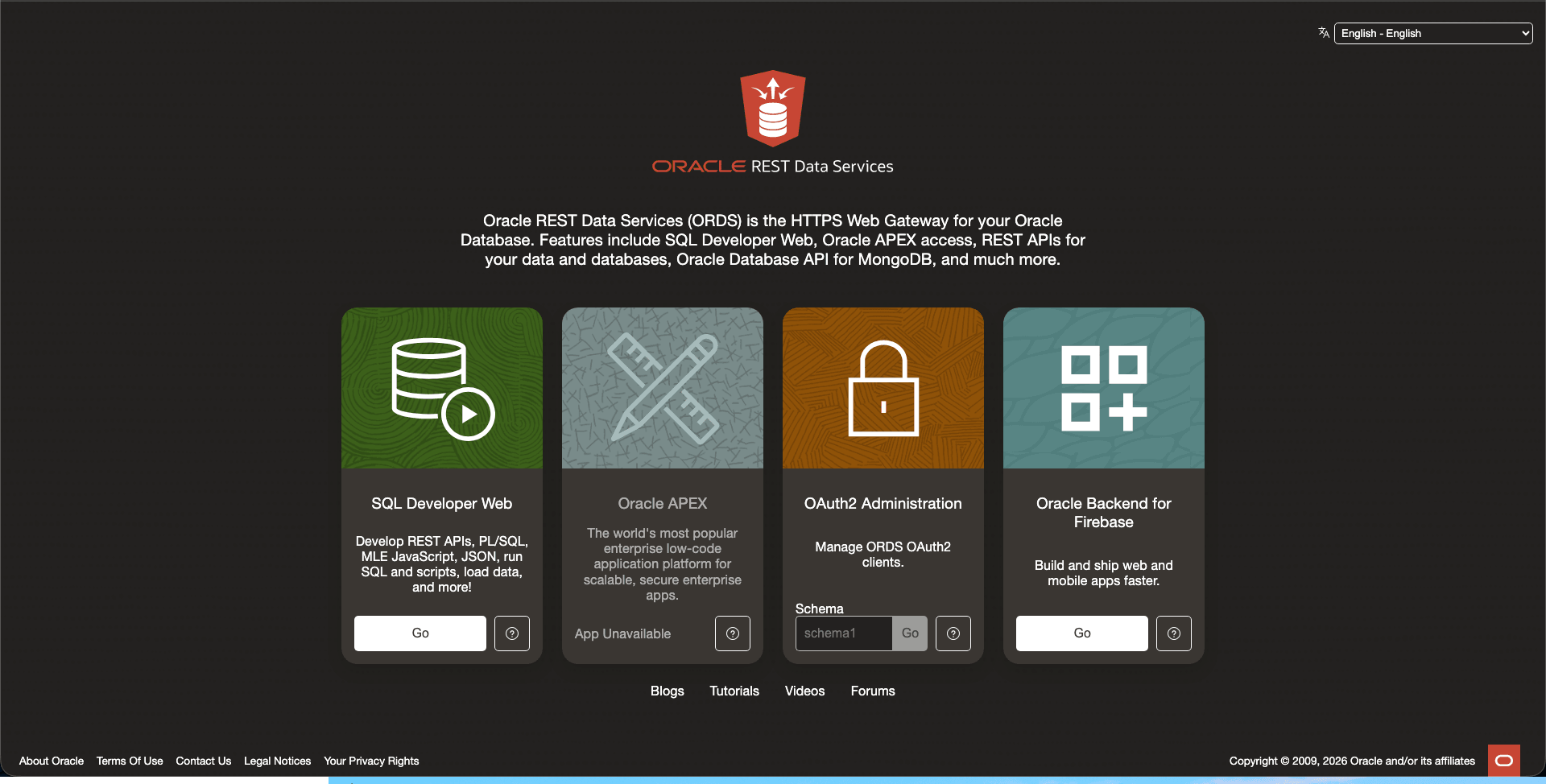
ords --config /opt/ords-config serveThen, open http://localhost:8080/ords/_/landing in your
browser. Replace the host and port if ORDS is running elsewhere. On the landing page,
open the Oracle Backend with Firebase APIs tile and sign in with the
fusabase_user credentials.
Figure 3-1 ORDS Landing Page
3.7 Create Your First Project
After you sign in, choose Create Project in the Console and follow the prompts. Use the schema you enabled in the previous section as the project owner schema.
To learn more about creating projects, see Creating a Project.
When project creation completes, the Console should show the new project and its project ID.
3.8 Configure the CLI
The CLI needs an ORDS OAuth client before it can sign in. This section shows one way to install the CLI from a local GitHub checkout and configure the OAuth client in Database Actions.
3.8.1 Install the CLI from GitHub
Before you begin, make sure node and npm are
available on your machine.
From npm:
npm i -g fusabase-clinpm link makes the fusabase command
available globally from your local copy of the project so you can test it.
Parent topic: Configure the CLI
3.8.2 Create an OAuth Client for the CLI
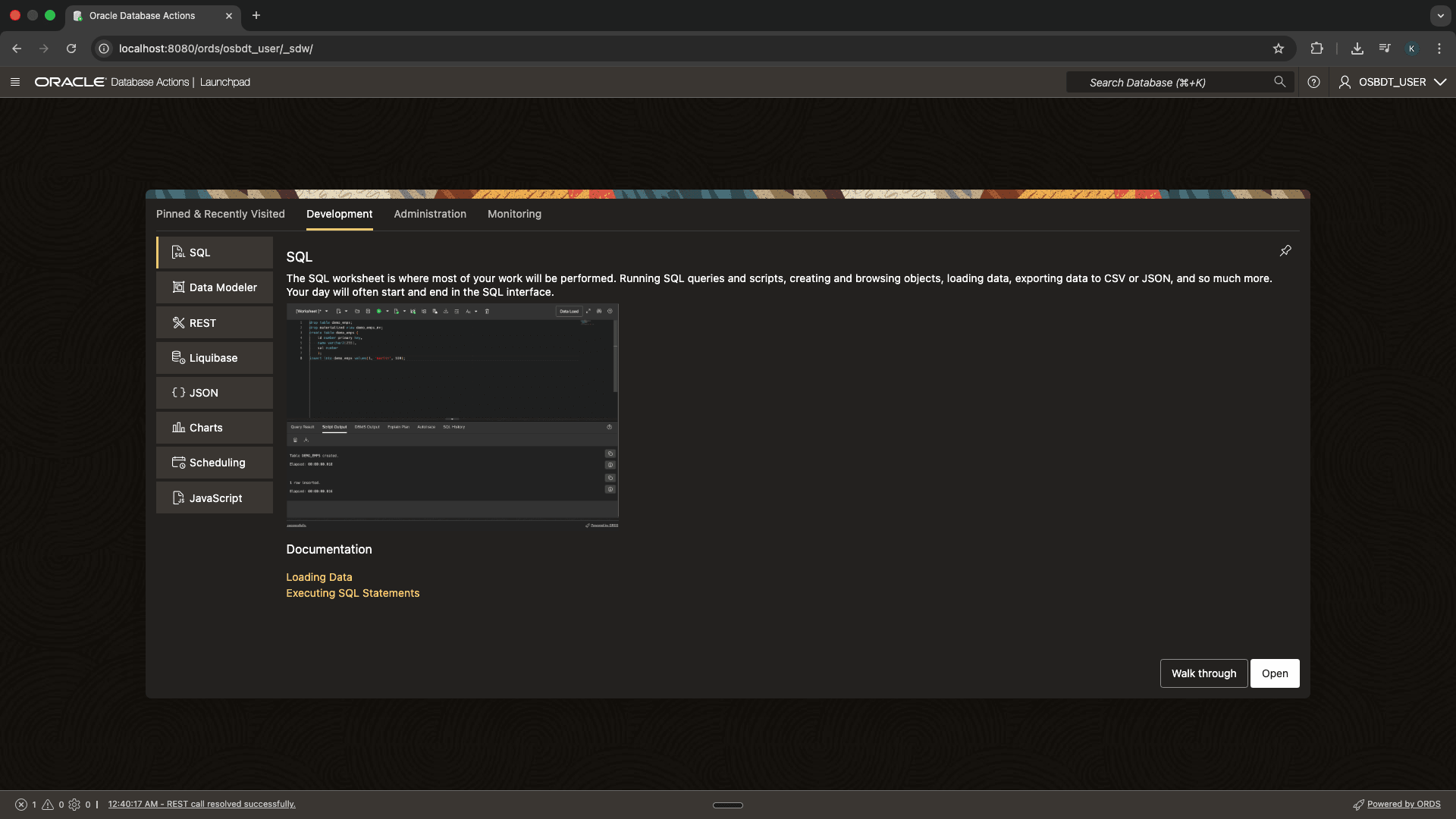
-
Open Database Actions for the schema you enabled for Oracle Backend with Firebase APIs.
Figure 3-2 Database Actions Launchpad
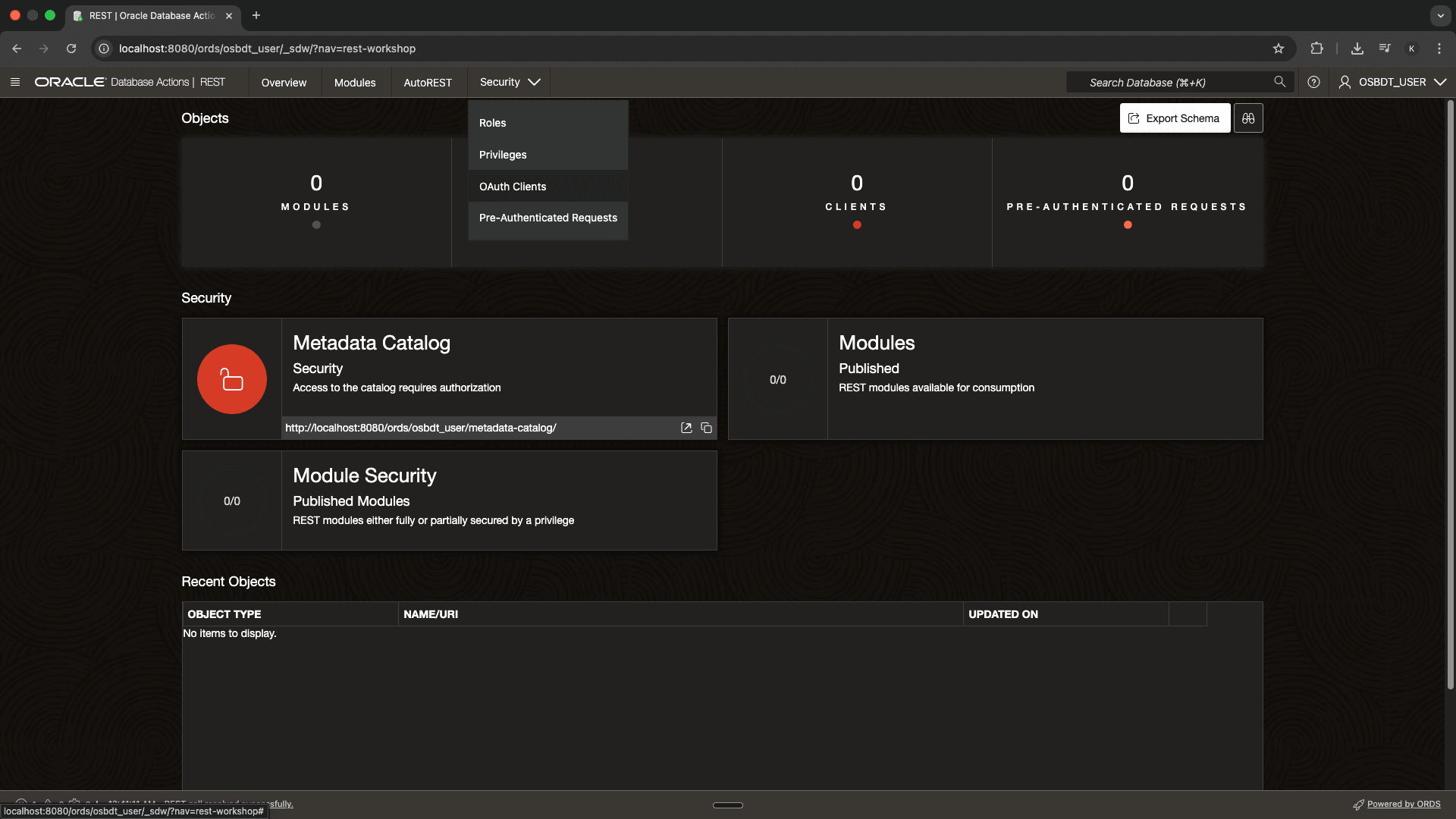
-
Open REST, then open Security and select OAuth Clients.
Figure 3-3 REST Security Options
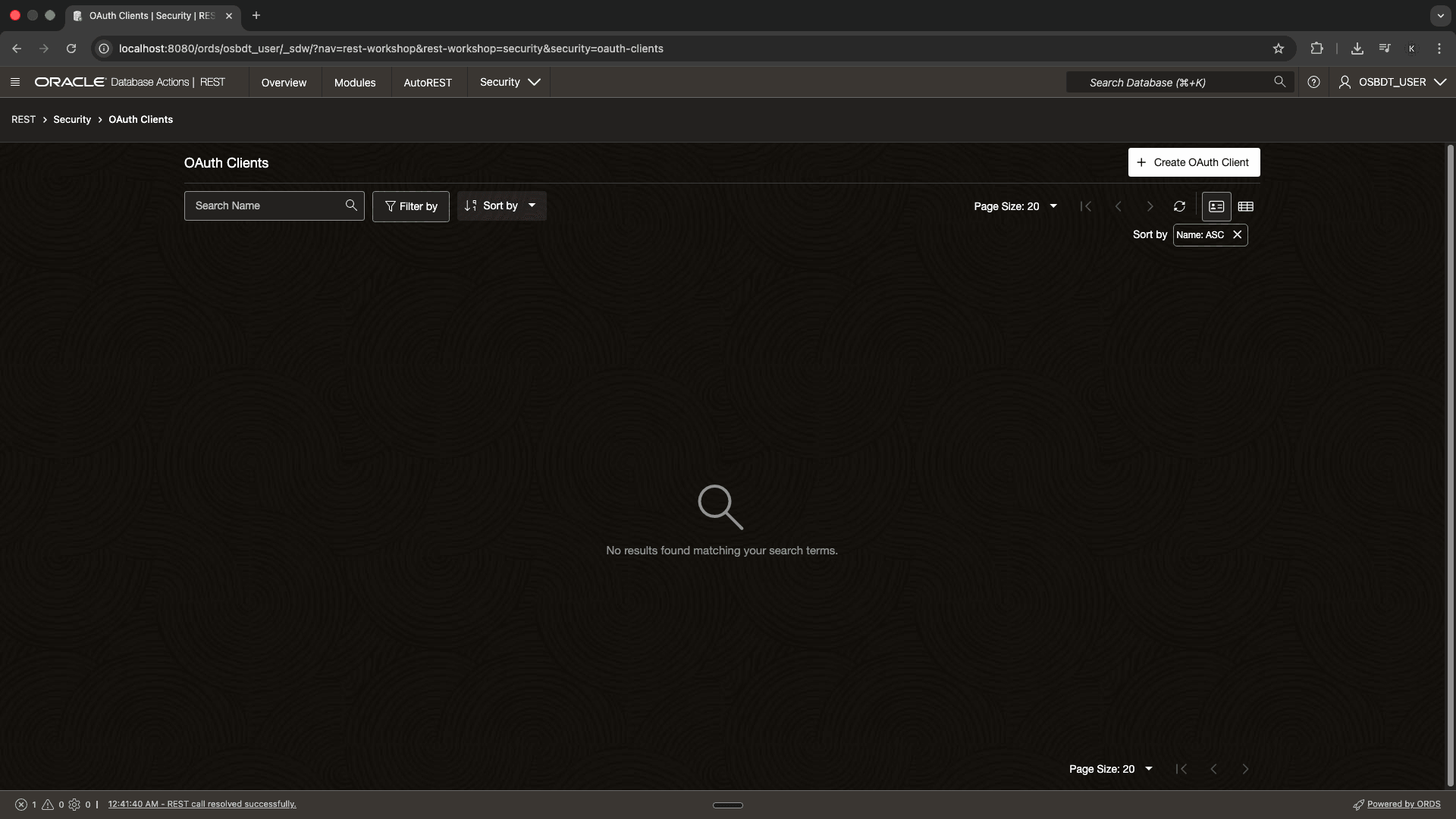
-
Select Create OAuth Client.
Figure 3-4 Create OAuth Client
-
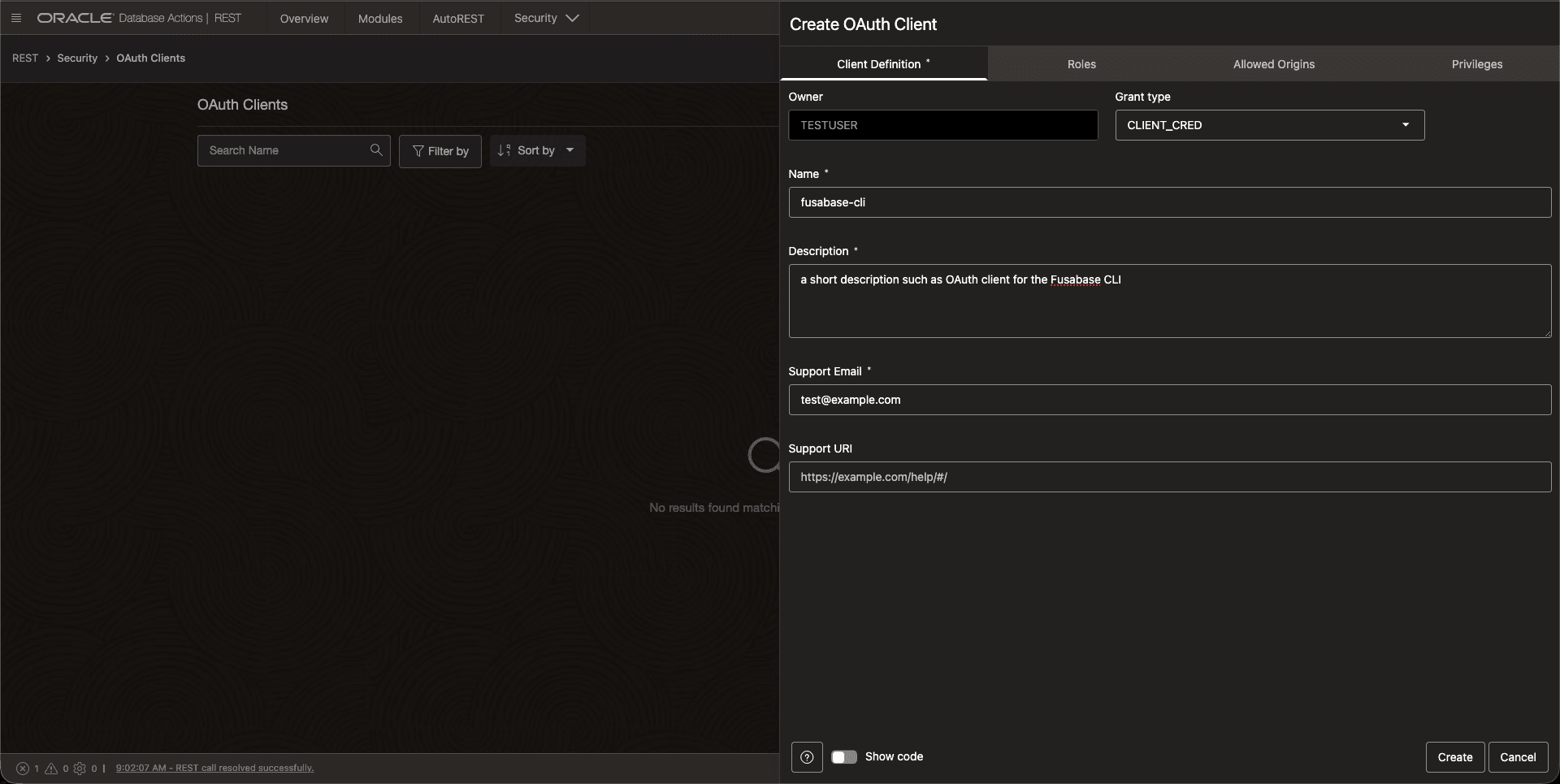
Create the OAuth client with values for your environment. The example shown here uses:
- Grant type:
CLIENT\_CRED - Name:
fusabase-cli - Description: a short description such as
OAuth client for the fusabase CLI - Support Email and Support URI: values appropriate for your environment
- Grant type:
-
On the Roles tab, grant the SQL Developer role to the client to enable the required administrative API calls through the CLI.
Figure 3-5 Grant SQL Developer Role
-
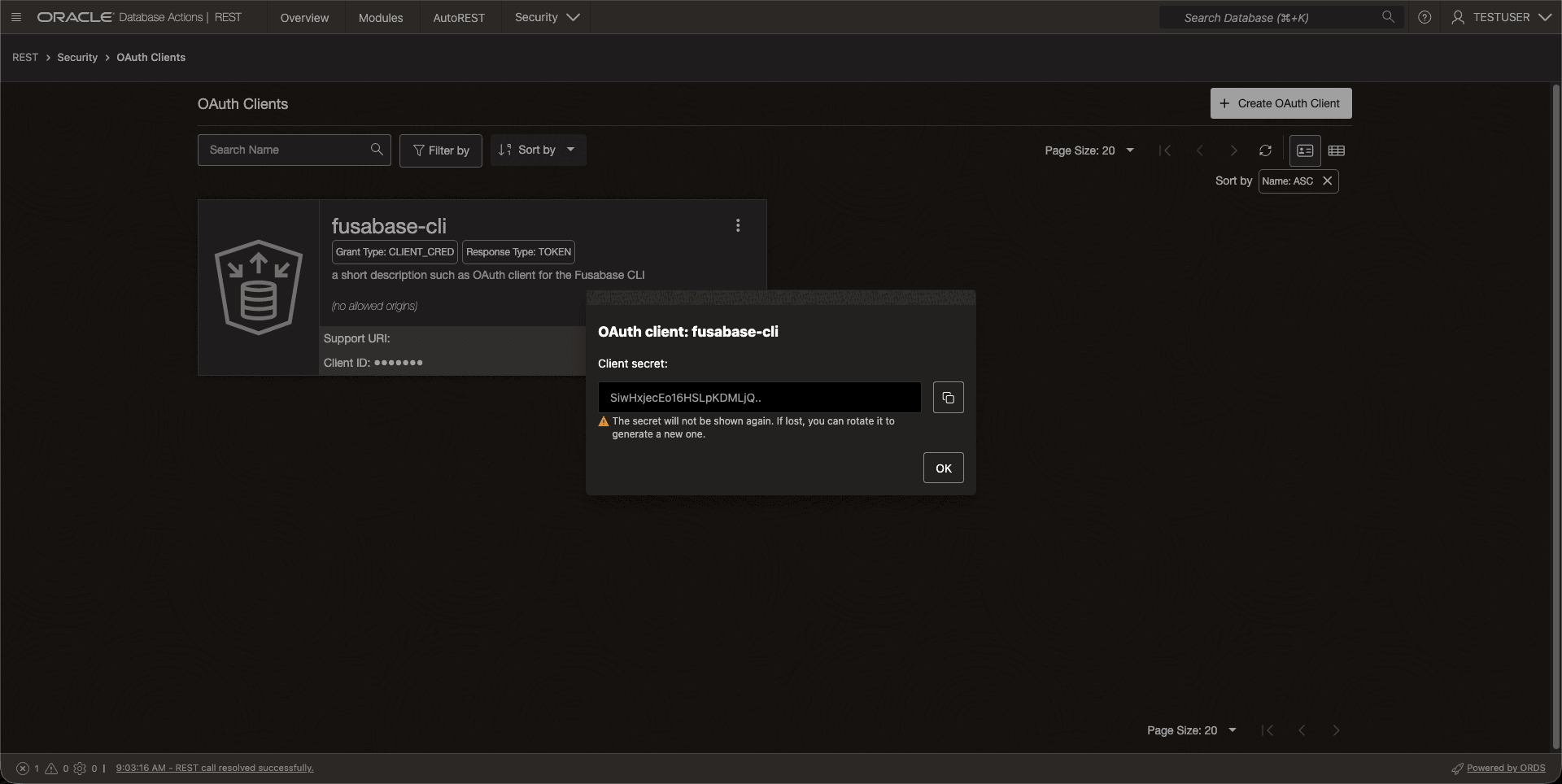
After you create the client, copy and save the Client ID and Client Secret.
Note:
The Client Secret is only shown once. Copy the Client Secret when it first shown.Figure 3-6 Client Secret
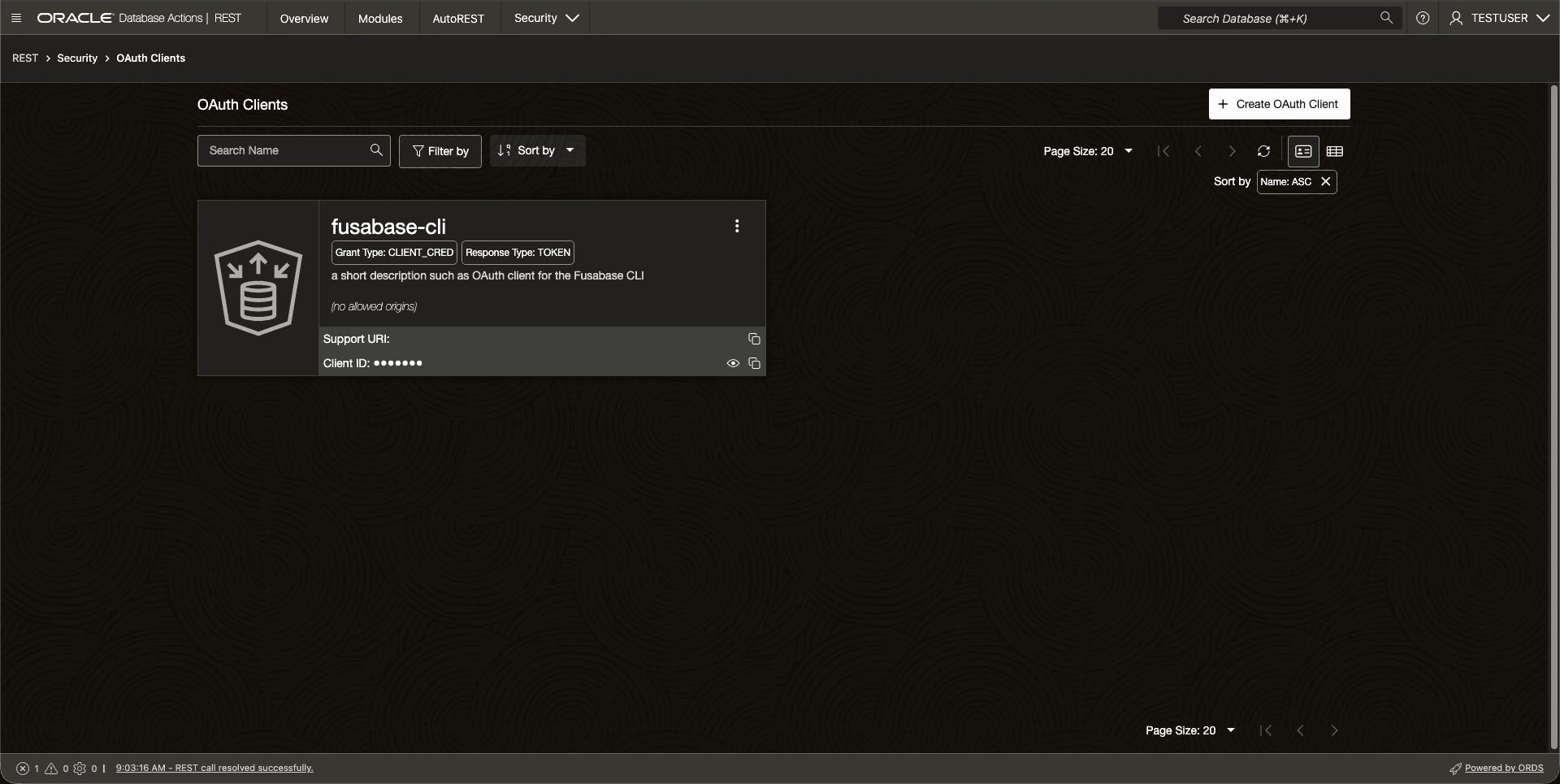
You can return to the OAuth client card later to copy the Client ID again, if required.
Figure 3-7 OAuth Client Card
Parent topic: Configure the CLI
3.8.3 Create the CLI Configuration File
Create a fusabase.config.js file in the same directory where you
will run the CLI:
module.exports = {
  host: 'http://your-ords-host:port/ords/your-schema/'
}
Replace the example URL with your actual ORDS host, port, and schema base path. Keep the
trailing /.
Parent topic: Configure the CLI
3.8.4 Sign In to the CLI
From that same directory, run:
fusabase initWhen prompted, enter the OAuth Client ID and Client Secret for the ORDS
OAuth client you created in Database Actions. The CLI uses these credentials to request
an access token and sign in to ORDS. If the host value in
fusabase.config.js is correct and the OAuth client credentials are
valid, the CLI reports a successful login.
Parent topic: Configure the CLI
3.8.5 Confirm the CLI Can Reach Your Schema
After you sign in, run:
fusabase list-projects
If the configuration is correct, the command lists the projects available through that schema. If you have not created any projects yet, the command may return an empty result instead.
Parent topic: Configure the CLI
3.9 Verify the Installation
Your setup is ready when all of the following are true:
- The database reports a compatible version and
MAX\_STRING\_SIZE=EXTENDED. - The TDE wallet is open.
- ORDS has Oracle Backend with Firebase APIs enabled.
- The schema was enabled successfully through
OBAAS\_ADMIN.OBAAS\_ENABLE\_SCHEMA. - The Console opens and lets you sign in as
fusabase\_user. - The Console shows your project.
fusabase --helpruns successfully.fusabase initcompletes successfully with your OAuth client credentials.fusabase list-projectsconnects without configuration or authentication errors.
3.10 Troubleshooting
-
Database compatibility warnings: Run
show parameter
                        compatible
again, updateCOMPATIBLEinCDB$ROOT, and restart the database. -
MAX\_STRING\_SIZEis stillSTANDARD: Repeat the PDB upgrade-mode sequence and make sure@?/rdbms/admin/utl32k.sqlcompletes without errors. -
Wallet or TDE errors: Verify
wallet\_rootandtde\_configuration, reopen the keystore, and confirmV$ENCRYPTION\_WALLETshowsOPEN. -
ORDS does not expose Oracle Backend with Firebase APIs: Rerun
ords --config /opt/ords-config fusabase installand confirm that\[1] Enable Feature fusabaseis set toYes. -
The Console opens, but the schema cannot create a project: Reconnect as a
DBAuser, rerunOBAAS\_ADMIN.OBAAS\_ENABLE\_SCHEMA, and confirm that the schema receivedBAAS\_ROLE. -
ORA-06598duringOBAAS\_ADMIN.OBAAS\_ENABLE\_SCHEMA: If schema enablement fails withinsufficient INHERIT PRIVILEGES privilegewhen you invoke the procedure asSYS, retry with a non-SYSuser that has theDBArole. -
fusabaseis not found after installation: Return to the CLI project directory, rerunnpm link, and then verify withfusabase --help. -
CLI authentication fails: Verify that you copied the correct OAuth Client ID and Client secret, and confirm that the OAuth client has the SQL Developer role.
-
fusabase initfails to fetch a token: Check thehostvalue infusabase.config.js, make sure the URL ends with/, verify that ORDS is reachable from your machine, and confirm that you entered the correct OAuth Client ID and Client secret. -
fusabase list-projectsfails after login: Confirm that the schema URL infusabase.config.jsis correct and that you are connecting to the same schema where Oracle Backend with Firebase APIs is enabled. -
ORDS connects to the wrong database service: Re-run the ORDS installer and use the correct PDB service name for your environment.