4 Adding Oracle Backend for Firebase to Your Apps
This chapter shows you how to add Oracle Backend for Firebase to a web, Android, iOS, or Flutter app.
In Oracle Backend for Firebase, backend services are configured at the project level. To connect an app, you register the app in the Oracle Backend for Firebase Console, get the app configuration generated for that app, add the platform SDK, and initialize the SDK in your code.
- Before You Begin
- Introduction
- Choose Your Platform
- Add Oracle Backend for Firebase to a Web App
- Add Oracle Backend for Firebase to an iOS App
- Add Oracle Backend for Firebase to an Android App
- Add Oracle Backend for Firebase to a Flutter App
- Troubleshooting
- Next Steps
Parent topic: Setting Up Oracle Backend for Firebase
4.1 Before You Begin
Before you add Oracle Backend for Firebase to an app, make sure that:
-
Oracle Backend for Firebase is installed and enabled in ORDS.
-
A schema has been enabled for Oracle Backend for Firebase.
-
You have already created a project in the Oracle Backend for Firebase Console.
-
The project already has the services your app needs, such as authentication or object storage.
-
You can sign in to the Oracle Backend for Firebase Console and open your project.
See Also:
For background and environment setup instructions, see:
Parent topic: Adding Oracle Backend for Firebase to Your Apps
4.2 Introduction
Oracle Backend for Firebase services are shared by the project, not by individual apps. When you register an app in a project, the Console generates app-specific configuration that identifies the:
-
ORDS host the app should connect to
-
Schema and project the app belongs to
-
App type and app identifier
-
Currently enabled authentication and storage settings for that project
The platform SDK reads that configuration during initialization and uses it to connect your app to the correct backend in Oracle Backend for Firebase.
If you later change the project's enabled services, request the app configuration again from the Console so the app reflects the updated project state.
Parent topic: Adding Oracle Backend for Firebase to Your Apps
4.3 Choose Your Platform
- For a JavaScript web app, go to Add Oracle Backend for Firebase to a Web App.
- For an Android app, go to Add Oracle Backend for Firebase to an Android App.
- For an iOS app, go to Add Oracle Backend for Firebase to an iOS App.
- For a Flutter app, go to Add Oracle Backend for Firebase to a Flutter App.
Parent topic: Adding Oracle Backend for Firebase to Your Apps
4.4 Add Oracle Backend for Firebase to a Web App
This section shows how to register a web app, install the JavaScript SDK, paste in the generated configuration, and initialize Oracle Backend for Firebase.
- Prerequisites
- Register Your Web App
- Install the JavaScript SDK
- Initialize the JavaScript SDK
- Next Steps
Parent topic: Adding Oracle Backend for Firebase to Your Apps
4.4.1 Prerequisites
Before you begin, ensure that:
- Node.js and npm are installed.
- You have a JavaScript project, or you are ready to create one before adding Oracle Backend for Firebase.
- Your project uses a JavaScript module workflow or framework tooling if you plan to use the modular SDK.
For new web apps, Oracle recommends the modular JavaScript SDK.
Parent topic: Add Oracle Backend for Firebase to a Web App
4.4.2 Register Your Web App
-
Open the Oracle Backend for Firebase Console, and then open your project.
-
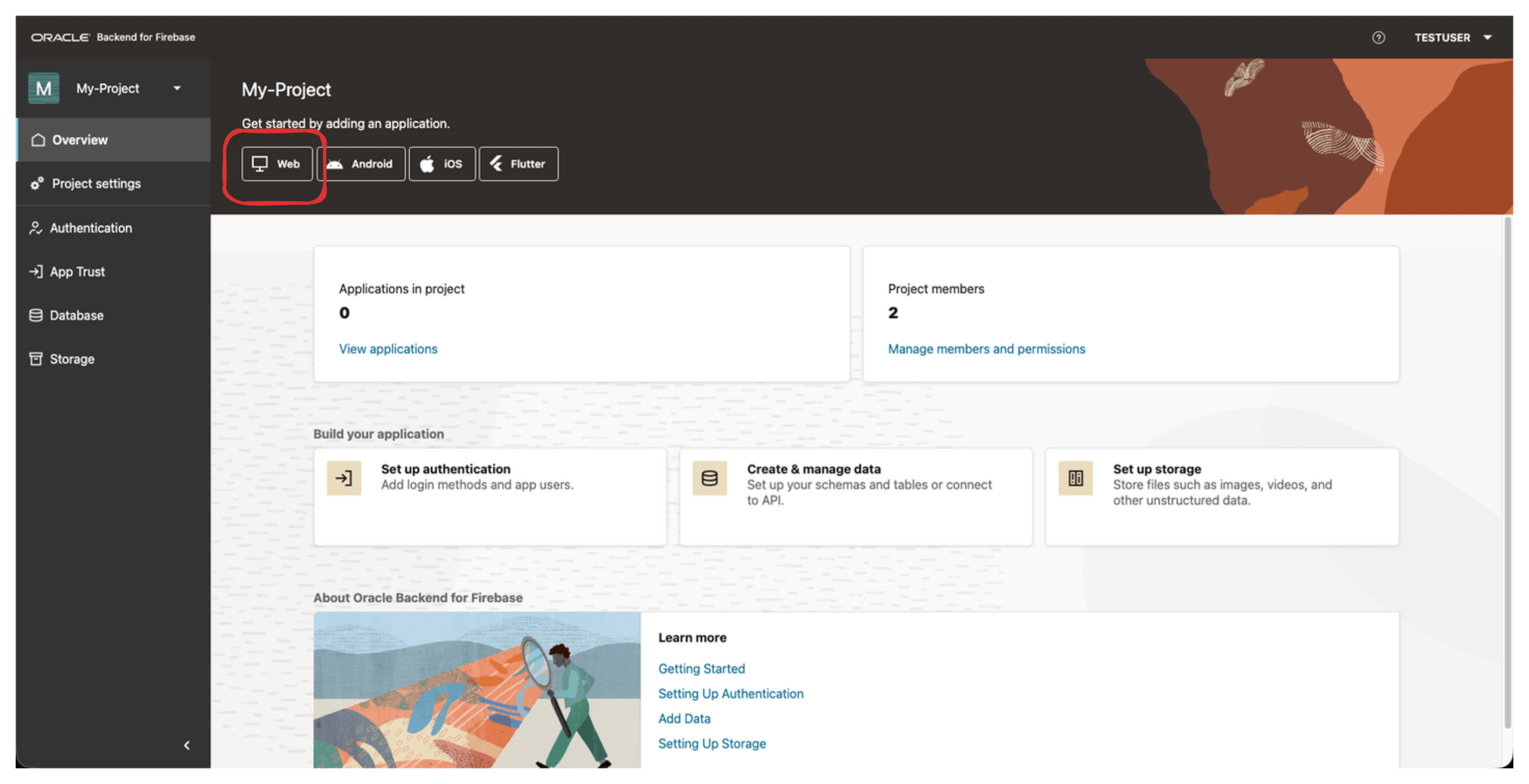
Start the app registration flow and select Web app.
Figure 4-1 Add Web App Using Console
-
Enter a nickname for the app and complete registration.
-
Copy the generated web app configuration from the Console.
For web apps, Oracle Backend for Firebase uses a JavaScript configuration object that you paste into your application code.
Parent topic: Add Oracle Backend for Firebase to a Web App
4.4.3 Install the JavaScript SDK
For new web apps, install the modular SDK from your project root:
npm install fusabaseThis installation approach works well with modern JavaScript build tools and frameworks, including module-based workflows that bundle only the SDK modules your app uses.
If your app uses the older namespace-style SDK, install:
npm install fusabase-nsOther Installation Options
If you do not want to install from npm, you
can also install either JavaScript SDK from a package archive such
as a .tgz file: Available on the GitHub link https://github.com/oracle/fusabase-js-sdk.
Parent topic: Add Oracle Backend for Firebase to a Web App
4.4.4 Initialize the JavaScript SDK
Initialize the Modular JavaScript SDK
Paste the configuration you copied from the Console into your application and initialize the SDK:
import { initializeApp } from "fusabase/app";
import { getOracledb } from "fusabase/oracledb";
import { getStorage } from "fusabase/storage";
import { getAuth } from "fusabase/auth";
import { authUI } from "fusabase/ui";

 const fusabaseConfig = {
    "schema": "your-schema",
    "app_name": "your-app-name",
    "app_type": "WEB",
    "app_id": "your-app-id",
    "objs_type": "dbfs",
    "project_id": "your-project-id",
    "storage_bucket": "your-bucket",
    "auth_type": "base",
    "auth_id": "your-auth-id",
    "ords_host": "https://your-ords-host/ords/your-schema/"
}
// intitalize app
const fusabase_app = initializeApp(fusabaseConfig);

// get database instance
const fusabase_db = getOracledb(fusabase_app);

// get object store instance
const fusabase_storage = getStorage(fusabase_app);

// get auth instance
const fusabase_auth = getAuth(fusabase_app);
When you call initializeApp(), the SDK builds the internal configuration
it needs for later service calls and returns an app instance you use to access
authentication, database, and storage services.
Parent topic: Add Oracle Backend for Firebase to a Web App
4.4.5 Next Steps
After your web app is connected to Oracle Backend for Firebase, you can start using the services enabled for your project, such as authentication, database access, and object storage.
Parent topic: Add Oracle Backend for Firebase to a Web App
4.5 Add Oracle Backend for Firebase to an iOS App
This section shows how to register an iOS app, add the Swift SDK, include the generated configuration file, and initialize Oracle Backend for Firebase.
Adding Oracle Backend for Firebase to an iOS app includes work in both the Oracle Backend for Firebase Console and Xcode. You register the app in the Console to generate the app configuration, then add the Swift package and include the generated configuration file in your app bundle.
- Prerequisites
- Register Your iOS App
- Add the App Configuration
- Add the iOS SDK
- Configure the URL Scheme for Social Login
- Initialize the iOS SDK
- Other Installation Options
- Next Steps
Parent topic: Adding Oracle Backend for Firebase to Your Apps
4.5.1 Prerequisites
Before you begin, make sure that:
- Xcode is installed.
- Your app targets iOS 15.0 or later.
- Your project uses Swift 5.10 or later.
- You have an iOS app project open in Xcode.
- You have a simulator or physical device available for testing.
- Your iOS project builds successfully before you add Oracle Backend for Firebase.
Parent topic: Add Oracle Backend for Firebase to an iOS App
4.5.2 Register Your iOS App
-
Open the Oracle Backend for Firebase Console and open your project.
-
Start the app registration flow and choose iOS.
-
Enter the app details and complete registration.
-
Download the generated
fusabase-config.jsonfile from the Console.
For iOS, add fusabase-config.json to your project and
include it in Copy Bundle Resources.
To find Copy Bundle Resources in Xcode:
-
Select your project in the Xcode Project Navigator.
-
In the main editor area, select your specific target from the list of targets.
-
Navigate to the Build Phases tab.
-
Scroll down the list of build phases and expand Copy Bundle Resources.
-
Confirm that
fusabase-config.jsonis listed there.
Parent topic: Add Oracle Backend for Firebase to an iOS App
4.5.3 Add the App Configuration
Place fusabase-config.json in your project root or module
directory, then make sure it is copied into the app bundle through Copy Bundle
Resources.
If fusabase-config.json is not included in the main app
bundle, fusabaseApp.configure() cannot load the default app
configuration.
Use the file generated for your iOS app in the Console. A typical file contains values, such as:
{
    "schema": "your-schema",
    "app_name": "your-app",
    "app_type": "IOS",
    "app_id": "your-app-id",
    "objs_type": "dbfs",
    "project_id": "your-proj-id",
    "storage_bucket": "your-bucket",
    "auth_type": "base",
    "auth_id": "your-auth-id",
    "ords_host": "https://your-ords.example.com/ords/"
}
Parent topic: Add Oracle Backend for Firebase to an iOS App
4.5.4 Add the iOS SDK
Use Swift Package Manager to add the Oracle Backend for Firebase iOS SDK.
In Xcode:
-
Select File > Add Packages.
-
Enter the Oracle Backend for Firebase iOS SDK repository URL:
https://github.com/oracle/fusabase-ios-sdk.git. -
Choose the version you want to use.
-
Add the package to your app target.
If you are adding dependencies in Package.swift, the package and target
dependencies follow this pattern:
dependencies: [
    .package(url: "https://github.com/oracle/fusabase-ios-sdk", from: "26.1.1")
]
.target(
    name: "YourTarget",
    dependencies: [
        "FusabaseAuth",
        "FusabaseCore",
        "FusabaseOracledb",
        "FusabaseStorage"
    ]
)
Parent topic: Add Oracle Backend for Firebase to an iOS App
4.5.5 Configure the URL Scheme for Social Login
Set the Role as "Editor" for the URL Type. If your app uses social login, configure the callback URL scheme in Xcode:
-
Open your target settings.
-
Go to Info > URL Types.
-
Add a new URL type.
-
Set the identifier to your app's bundle ID.
-
Set the URL scheme to
baasmobilefollowed by the Oracle Backend for Firebase application ID in lowercase.The iOS SDK builds the social login callback scheme from the Oracle Backend for Firebase application ID in that format.
If your ORDS host uses HTTP instead of HTTPS, update
Info.plist to allow that connection before you run the app.
Parent topic: Add Oracle Backend for Firebase to an iOS App
4.5.6 Initialize the iOS SDK
If fusabase-config.json is present in the app bundle, the
SDK can initialize directly from that file:
import FusabaseCore
import FusabaseOracledb
import FusabaseAuth
import FusabaseStorage

FusabaseApp.configure()
let db = FusabaseOracledb.oracledb()
let auth = FusabaseAuth.auth()
let storage = Storage.storage()
When the default configuration is set up correctly, you can initialize once near app startup and then access the shared Oracle Backend for Firebase services anywhere in your app.
Example 4-1
import SwiftUI
import FusabaseCore
import FusabaseAuth
import FusabaseOracledb
import FusabaseStorage

@main
struct ExampleApp: App {
    init() {
        FusabaseApp.configure()
    }

    var body: some Scene {
        WindowGroup {
            ContentView()
        }
    }
}
Parent topic: Add Oracle Backend for Firebase to an iOS App
4.5.7 Other Installation Options
If you are not adding the SDK from a remote package repository, you can also:
-
Unzip the Oracle Backend for Firebase iOS SDK locally.
-
In Xcode, select File > Add Packages.
-
Select Add Local.
-
Choose the unzipped SDK directory.
-
Add the package to your target.
Parent topic: Add Oracle Backend for Firebase to an iOS App
4.5.8 Next Steps
After your iOS app is connected to Oracle Backend for Firebase, you can start using the services enabled for your project, such as authentication, database access, and object storage.
Parent topic: Add Oracle Backend for Firebase to an iOS App
4.6 Add Oracle Backend for Firebase to an Android App
This section shows how to register an Android app, add the Android SDK, place the generated configuration file, and access Oracle Backend for Firebase services.
Adding Oracle Backend for Firebase to an Android app includes work in both the Oracle Backend for Firebase Console and Android Studio. You register the app in the Console to generate the app configuration, then add the Android SDK and plugin to your project so the app can initialize correctly.
- Prerequisites
- Java Android SDK Installation
- Add the App Configurations
- Add the Android SDK
- Configure Android for Network Access and Social Login
- Initialize the Android SDK
- Other Installation Options
- Next Steps
Parent topic: Adding Oracle Backend for Firebase to Your Apps
4.6.1 Prerequisites
Before you begin, make sure that:
- Android Studio is installed.
- You have an Android app project open in Android Studio.
- Your app uses a standard Android app module with its own
build.gradle.ktsorbuild.gradlefile. - You have a physical device or an Android emulator set up in Android Studio for testing.
- Your project builds successfully before you add Oracle Backend for Firebase.
Parent topic: Add Oracle Backend for Firebase to an Android App
4.6.2 Java Android SDK Installation
-
Open the Oracle Backend for Firebase Console and open your project.
-
Start the app registration flow and choose Android.
-
Enter the app details and complete registration.
-
Download the generated
fusabase-config.jsonfile from the Console.
For Android, place fusabase-config.json in your app module
root, at the same level as the module's build.gradle.kts.
Make sure that the generated configuration file and any social login callback configuration match your Android project exactly. Do not mix values from a different app, project, or platform.
Parent topic: Add Oracle Backend for Firebase to an Android App
4.6.3 Add the App Configurations
Copy the generated fusabase-config.json file into your app
module root.
The file is generated by the Console and contains the values the SDK needs to initialize the app, such as the ORDS host, schema, app ID, project ID, enabled authentication provider, and enabled storage configuration.
Keep the generated file in the app module root and use the file generated for that Android app only. Do not reuse a configuration file from another app or platform.
If fusabase-config.json is not in the app module root, the
Android SDK cannot read the generated app configuration during initialization.
A typical file looks like this:
{
    "schema": "your-schema",
    "app_name": "your-app-name",
    "app_type": "ANDROID",
    "app_id": "your-app-id",
    "objs_type": "dbfs",
    "project_id": "your-proj-id",
    "storage_bucket": "your-storage-bucket",
    "auth_type": "base",
    "auth_id": "your-auth-di",
    "ords_host": "https://your-ords.example.com/ords/"
}
Use the file generated for your app from the Console. Do not manually copy values from another platform.
Parent topic: Add Oracle Backend for Firebase to an Android App
4.6.4 Add the Android SDK
Add the Oracle Backend for Firebase Gradle plugin dependency to
your project-level build.gradle.kts:
 buildscript {
    repositories {
        google()
        mavenCentral()

    }
    dependencies {
        classpath("com.oracle.mobile:fusabase-gradle-plugin:26.1.1")
    }
}
Then add the plugin and SDK dependency to your app module's
build.gradle.kts:
plugins {
    id("com.oracle.mobile:fusabase-gradle-plugin")
}

dependencies {
    implementation("com.oracle.mobile:fusabase:26.1.1")
}
After you update the Gradle files, sync the project.
The Gradle plugin makes the generated app configuration available to the Android SDK at build time. If the plugin or dependency is missing, the app might build without initializing Oracle Backend for Firebase correctly.
During Gradle sync, confirm that the Oracle Backend for Firebase plugin and SDK dependency resolve without errors before you continue.
Parent topic: Add Oracle Backend for Firebase to an Android App
4.6.5 Configure Android for Network Access and Social Login
Make sure your AndroidManifest.xml includes the
INTERNET permission and the callback activity required for social
login redirects:
<uses-permission android:name="android.permission.INTERNET" />
...
<application ...>
    <activity android:name="com.oracle.mobile.fusabase.auth.SocialLoginActivity"
        android:exported="true">
        <intent-filter>
            <action android:name="android.intent.action.VIEW"/>
            <category android:name="android.intent.category.DEFAULT"/>
            <category android:name="android.intent.category.BROWSABLE"/>
            <data android:scheme="baasmobile{applicationID in lowercase from the console UI}" />
        </intent-filter>
    </activity>
</application ...>
Use the application ID value generated for your Android app in the Console.
If your app uses social login, test the redirect flow after you run the app. If the callback does not return to the app, verify that the callback scheme uses the generated application ID in lowercase.
Parent topic: Add Oracle Backend for Firebase to an Android App
4.6.6 Initialize the Android SDK
If fusabase-config.json is present, and your Android
project is configured for default Oracle Backend for Firebase initialization, the SDK
can create the default app instance automatically from that file.
When default initialization is configured correctly, your app can access the shared Oracle Backend for Firebase app and service instances after start-up.
After initialization, access the shared app and service instances like this:
import com.oracle.mobile.fusabase.FusabaseApp;
import com.oracle.mobile.fusabase.auth.FusabaseAuth;
import com.oracle.mobile.fusabase.oracledb.FusabaseOracledb;

FusabaseApp app = FusabaseApp.getInstance();
FusabaseOracledb db = FusabaseOracledb.getInstance(app);
FusabaseAuth auth = FusabaseAuth.getInstance(app);
If you need manual initialization instead, create
FusabaseOptions and initialize the app explicitly:
import com.oracle.mobile.fusabase.FusabaseApp;
import com.oracle.mobile.fusabase.FusabaseOptions;

FusabaseOptions options = new FusabaseOptions.Builder()
      .setAuthType("base")
      .setOrdsHost("https://your-ords.example.com:8443/ords/your_schema/")
      .setProjectId("your-project-id")
      .setAppId("your-app-id")
      .setObjectType("dbfs")
      .setStorageBucket("your-bucket")
      .setApiVersion("2.0")
      .setAppName("YourApp")
      .setAuthId("your-auth-id")
      .setUseSocket(true)
      .setSchema("YOUR_SCHEMA")
      .build();

FusabaseApp app = FusabaseApp.initializeApp(applicationContext, options);
If you want to create a named app instance, use the overload that accepts an app name:
FusabaseApp app = FusabaseApp.initializeApp(applicationContext, options, "myApp");After manual initialization, retrieve the service instances from that app:
import com.oracle.mobile.fusabase.auth.FusabaseAuth;
import com.oracle.mobile.fusabase.oracledb.FusabaseOracledb;

FusabaseOracledb db = FusabaseOracledb.getInstance(app);
FusabaseAuth auth = FusabaseAuth.getInstance(app);
If you initialize the app manually, make sure the initialization call completes before accessing Oracle Backend for Firebase services.
Parent topic: Add Oracle Backend for Firebase to an Android App
4.6.7 Other Installation Options
If you prefer local artifacts instead of Maven coordinates, you can install the Android SDK with the AAR and JAR files:
-
Download the Android SDK artifact
fusabase-release.aarand the Oracle Backend for Firebase Gradle plugingradle-config.jar. -
Place both files in
app/libs/. Create the directory if it does not already exist. -
Update
settings.gradle.ktsto makeapp/libs/available to plugin management and dependency resolution:pluginManagement { repositories { google { content { includeGroupByRegex("com\\.android.*") includeGroupByRegex("com\\.google.*") includeGroupByRegex("androidx.*") } } gradlePluginPortal() mavenCentral() flatDir { dirs("app/libs") } } } dependencyResolutionManagement { repositoriesMode.set(RepositoriesMode.FAIL_ON_PROJECT_REPOS) repositories { google() mavenCentral() flatDir { dirs("app/libs") } } } -
Update the project-level
build.gradle.ktsfile to load the plugin JAR:buildscript { repositories { flatDir { dirs("app/libs") // path to where your JAR lives } } dependencies { classpath(files("app/libs/fusabase-gradle-plugin.jar")) classpath("org.glassfish:jakarta.json:2.0.1") } } -
Update the app module's
build.gradle.ktsfile:plugins { id("com.oracle.mobile.fusabase-gradle-plugin") } dependencies { implementation(mapOf("name" to "fusabase-release", "ext" to "aar")) /* Core AndroidX & Jetpack */ implementation("androidx.appcompat:appcompat:1.7.0") /* Security & browser */ implementation("androidx.browser:browser:1.8.0") /* Networking & JSON */ implementation("com.squareup.okhttp3:okhttp:5.1.0") implementation("org.glassfish:jakarta.json:2.0.1") } -
Copy
fusabase-config.jsonfrom the Oracle Backend for Firebase Console into your app module root. -
Make sure
AndroidManifest.xmlincludes theINTERNETpermission and the social login callback activity shown in section Configure Android for Network Access and Social Login. -
Sync the project and confirm that both the local plugin and the AAR resolve successfully.
Parent topic: Add Oracle Backend for Firebase to an Android App
4.6.8 Next Steps
After your Android app is connected to Oracle Backend for Firebase, you can start using the services enabled for your project, such as authentication, database access, and object storage.
Parent topic: Add Oracle Backend for Firebase to an Android App
4.7 Add Oracle Backend for Firebase to a Flutter App
This section shows how to register a Flutter app in the Oracle Backend for Firebase Console, add the Flutter SDK to your Flutter project, initialize Oracle Backend for Firebase in Dart code, and apply any platform-specific setup needed for your target platforms.
- Prerequisites
- Register Your Flutter App
- Flutter SDK Installation
- Flutter SDK Initialization
- Configure Android for Social Login Redirects
- Other Installation Options
- Next Steps
Parent topic: Adding Oracle Backend for Firebase to Your Apps
4.7.1 Prerequisites
Before you begin, make sure that:
- The Flutter SDK is installed.
- You have an editor or IDE set up for Flutter development.
- You have a Flutter app project, or you are ready to create one before adding Oracle Backend for Firebase.
- You have the platform tools needed for the targets you plan to support:
- Android Studio for Android builds
- Xcode for iOS builds
- You can run your Flutter app before you add Oracle Backend for Firebase.
Parent topic: Add Oracle Backend for Firebase to a Flutter App
4.7.2 Register Your Flutter App
-
Open the Oracle Backend for Firebase Console and open your project.
-
Start the app registration flow and choose Flutter.
-
Enter the app details and complete registration.
-
Copy the generated app configuration from the Console.
Flutter uses the app configuration generated in the Console when you call
Fusabase.initializeApp(...) in your Dart code.
Parent topic: Add Oracle Backend for Firebase to a Flutter App
4.7.3 Flutter SDK Installation
Add fusab to your project's
pubspec.yaml:
dependencies:
  fusabase:
    git:
      url: https://github.com/oracle/fusabase-flutter-sdk.git
      ref: {version}
Then fetch the dependency:
flutter pub getContinue only after flutter pub get completes
successfully and the fusab package resolves without errors.
Parent topic: Add Oracle Backend for Firebase to a Flutter App
4.7.4 Flutter SDK Initialization
Initialize Oracle Backend for Firebase in your main.dart
file with the configuration generated for your app:
import 'package:fusabase/core.dart';
import 'package:fusabase/auth.dart';
import 'package:fusabase/oracledb.dart';
import 'package:fusabase/storage.dart';

void main() {
  Fusabase.initializeApp(
    name: 'your-app-name',
    options: FusabaseOptions({
      'ords_host': 'https://your-ords-host/ords/your-schema/',
      'schema': 'your-schema',
      'app_id': 'your-app-id',
      'project_id': 'your-project-id',
      'objs_type': 'dbfs',
      'storage_bucket': 'your-bucket',
      'auth_type': 'base',
      'auth_id': 'your-auth-id'
    }),
  );

  final db = FusabaseOracledb.instance;
  final auth = FusabaseAuth.instance;
  final storage = FusabaseStorage.instance;

  runApp(MyApp());
}
Initialize Oracle Backend for Firebase before you access
FusabaseOracledb.instance, FusabaseAuth.instance, or
FusabaseStorage.instance.
Parent topic: Add Oracle Backend for Firebase to a Flutter App
4.7.5 Configure Android for Social Login Redirects
If your Flutter app uses social login on Android, add the callback activity to
AndroidManifest.xml:
<activity
    android:name="com.oracle.database.fusabase.dart.FusabaseCallbackActivity"
    android:exported="true">
    <intent-filter android:label="fusabase_dart">
        <action android:name="android.intent.action.VIEW" />
        <category android:name="android.intent.category.DEFAULT" />
        <category android:name="android.intent.category.BROWSABLE" />
        <data android:scheme="baasmobile<app-id-in-lowercase>" />
    </intent-filter>
</activity>
Use the app ID generated for your Flutter app in the Console.
After you run the app, test the social login flow and confirm that the redirect returns to the app. If it does not, verify the callback activity entry and make sure the callback scheme uses the generated app ID in lowercase.
Parent topic: Add Oracle Backend for Firebase to a Flutter App
4.7.6 Other Installation Options
If you want to use a local SDK copy instead of the Git dependency shown earlier, add
a path dependency in pubspec.yaml:
dependencies:
  fusabase:
    path: <path-to-fusabase-root>
Parent topic: Add Oracle Backend for Firebase to a Flutter App
4.7.7 Next Steps
After your Flutter app is connected to Oracle Backend for Firebase, you can start using the services enabled for your project, such as authentication, database access, and object storage.
Parent topic: Add Oracle Backend for Firebase to a Flutter App
4.8 Troubleshooting
-
The SDK cannot initialize: Make sure you are using the app configuration generated for the correct platform and project.
-
The app was registered, but the config looks outdated: Download or copy the app configuration again after changing project services.
-
Android build errors mention missing plugin or dependency: Verify that the Oracle Backend for Firebase Gradle plugin and SDK dependency were added to the correct
build.gradle.ktsfiles, then sync again. -
Android or Flutter social login does not return to the app: Verify the callback activity entry and make sure the
baasmobile...scheme uses the application ID from the Console in lowercase. -
iOS social login does not return to the app: Verify the URL Types entry and make sure the URL scheme matches the Oracle Backend for Firebase application ID in lowercase.
-
iOS cannot find the config file: Make sure
fusabase-config.jsonis included in Copy Bundle Resources. -
Web initialization fails: Verify that the pasted configuration object came from the Web app registration flow and that
ords_host,app_id, andproject_idare correct.
Parent topic: Adding Oracle Backend for Firebase to Your Apps
4.9 Next Steps
After your app is connected to Oracle Backend for Firebase, you can continue with the service-specific tasks for your project:
See Also:
For project concepts and project lifecycle tasks, see:
Parent topic: Adding Oracle Backend for Firebase to Your Apps