10 Setting Up Authentication
This chapter explains how to configure authentication in the Oracle Backend with Firebase APIs Console so your apps can sign users in and receive tokens. It covers BASIC, LDAP, and IDCS setup, plus social sign-in, email verification, password policy, and provider changes.
- Prerequisites
- Enabling Authentication for a Project
- Basic Authentication Setup
- LDAP Authentication Setup
- IDCS Authentication Setup
- Setting Up Third-Party Identity Providers
- Configuring SMTP for Email Verification and Password Reset
- Defining Password Policies
- Changing Authentication Providers
- Setting Up and Managing Authentication Using CLI
- Authorized Domains
Parent topic: Authentication
10.1 Prerequisites
-
You have an Oracle Backend with Firebase APIs project created in the Console.
-
You understand that each project uses one authentication type, and all apps in the project share it.
Parent topic: Setting Up Authentication
10.2 Enabling Authentication for a Project
Enable authentication to turn on identity services for the project so apps can sign users in and receive tokens.
-
Open the Console and select your project.
-
Open the Authentication section on the left hand side of the screen.
-
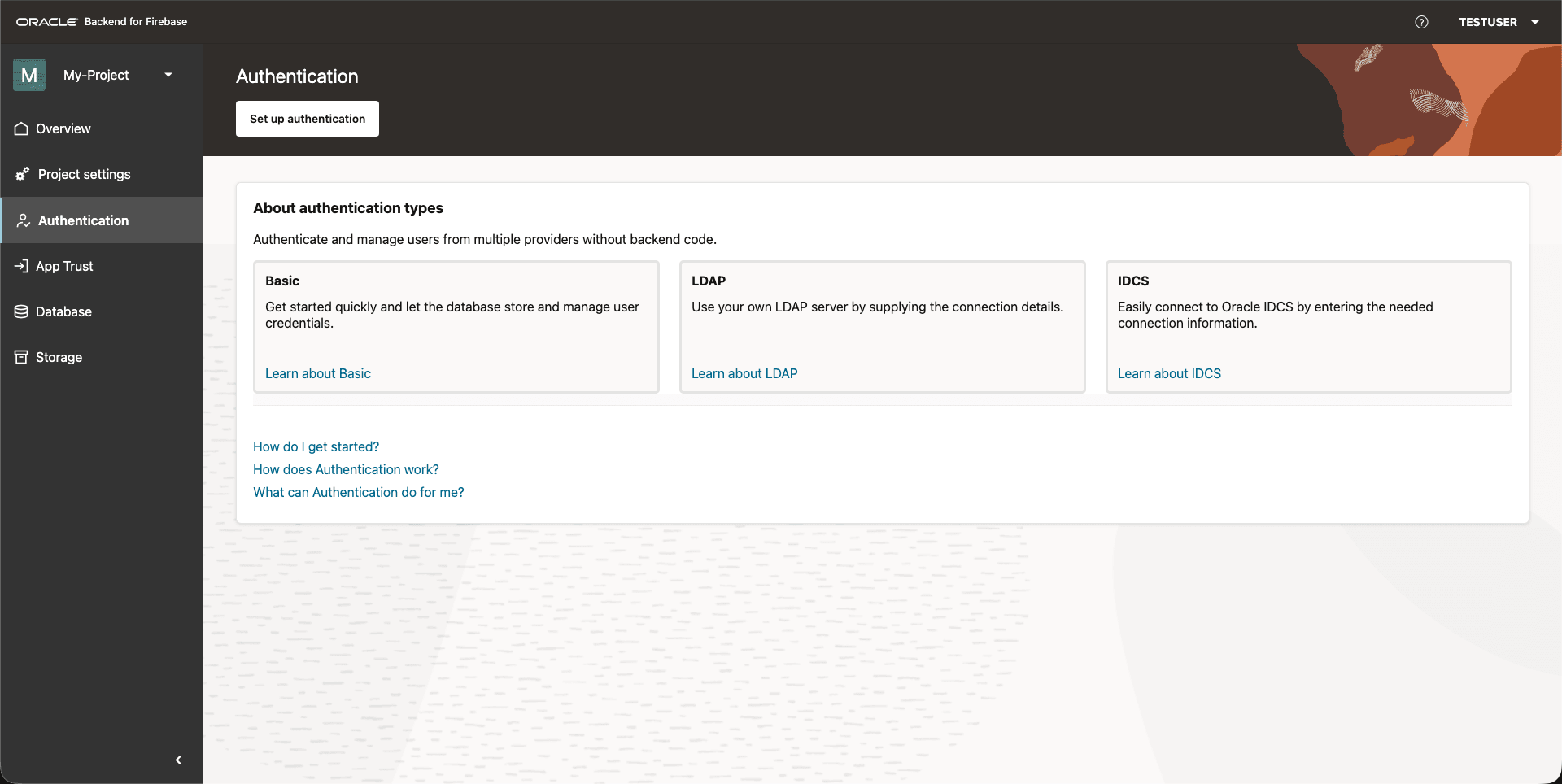
Click Set up authentication.
Figure 10-1 Authentication Setup
Parent topic: Setting Up Authentication
10.3 Basic Authentication Setup
Use BASIC authentication for development or testing. It supports email and password sign-in and the third-party sign-in methods listed in Basic Authentication.
Setup Steps
-
Open Authentication.
-
Select Authentication setup.
-
Choose Basic.
-
Save and apply the configuration.
Optional Settings:
-
Configure Password Policy:
-
Configure SMTP for email verification and password reset.
-
Save and apply the configuration.
10.4 LDAP Authentication Setup
Use LDAP authentication when your organization already manages users in LDAP and wants centralized user storage. Oracle Backend with Firebase APIs does not install LDAP for you. It connects to your existing LDAP server during setup.
-
Open Authentication.
-
Select Authentication setup.
-
Choose LDAP.
-
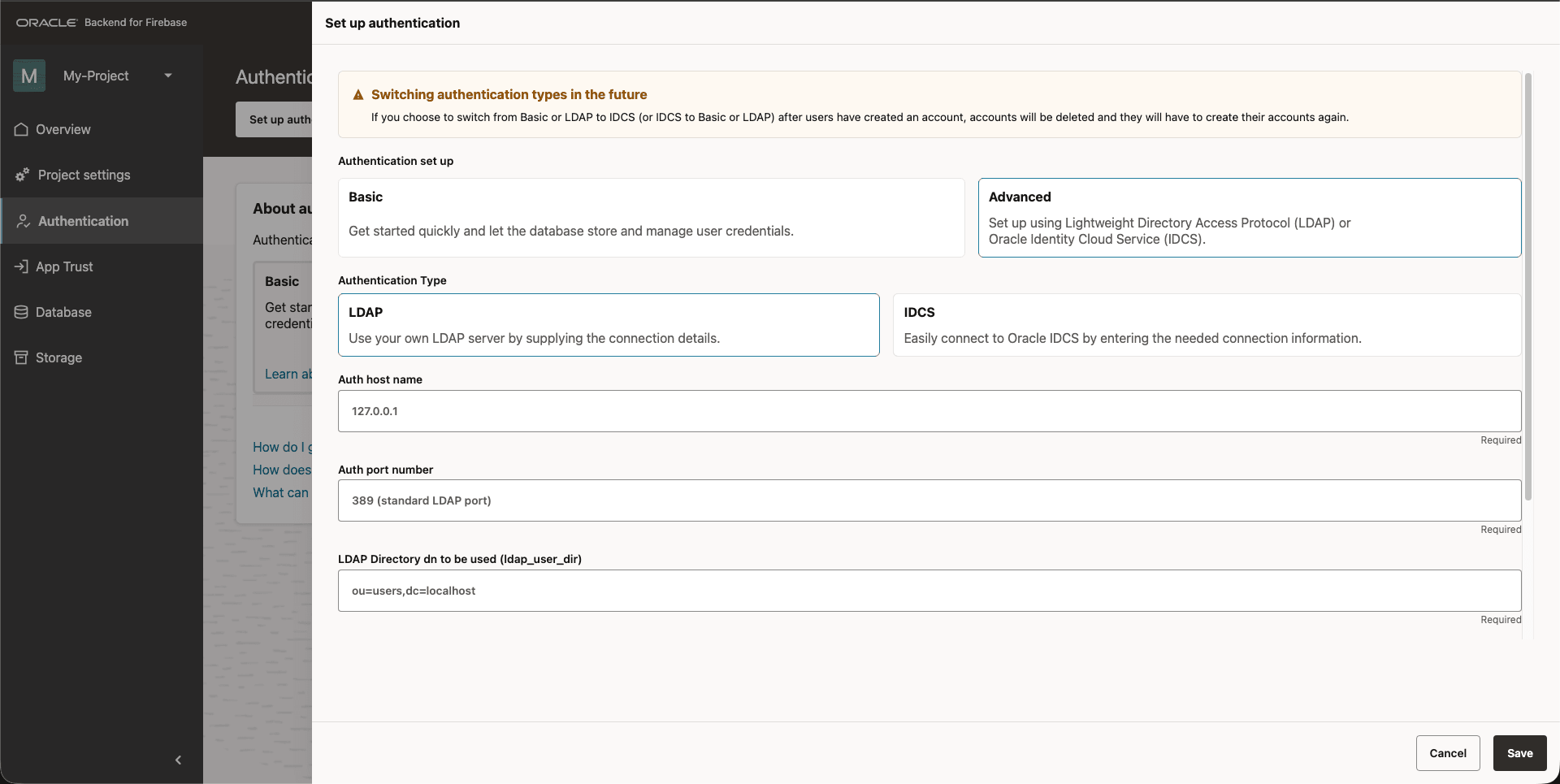
Enter the LDAP connection details:
-
Auth hostname:
LDAP_HOST -
Auth port number:
LDAP_PORT -
LDAP directory DN"
LDAP_USER_DIR -
LDAP directory admin username and LDAP directory admin password.
-
-
Save and apply the configuration.
Figure 10-2 LDAP Authentication Configuration
Optional Settings
-
Configure Password Policy.
-
Configure SMTP for email verification and password reset.
10.5 IDCS Authentication Setup
IDCS lets you use an OCI IAM Domain as the authentication server for your Oracle Backend with Firebase APIs project.
To integrate IDCS, you need:
-
Domain URL - the HTTPS URL of an Oracle Identity Domain (See Creating an Identity Domain) you administer. The URL must use HTTPS, point to a plain Oracle Identity Domain (for example,
https://<identity-domain>.identity.oraclecloud.com), and contain no path, query string, fragment, or embedded credentials. -
Access token with Identity Domain Administrator privileges.
Prerequisite
An Oracle IAM Identity Domain that is not the free edition for IDCS authentication. The free edition does not include end-user self-registration, and Oracle Backend with Firebase APIs uses that feature when it provisions the project's self-registration profile.
To obtain an access token:
-
Create a confidential application (See Adding a Confidential Application) in your domain with the Client Credentials grant type and the Identity Domain Administrator app role.
-
Request an access token (See Access Token) using the application's client ID and client secret.
Oracle Backend with Firebase APIs uses this token once, during setup, to configure the target domain on your behalf.
See Get Started with Oracle Identity Cloud Service for more information about setting up IDCS.
-
In the Oracle Backend with Firebase APIs Console, select Authentication and choose IDCS.
-
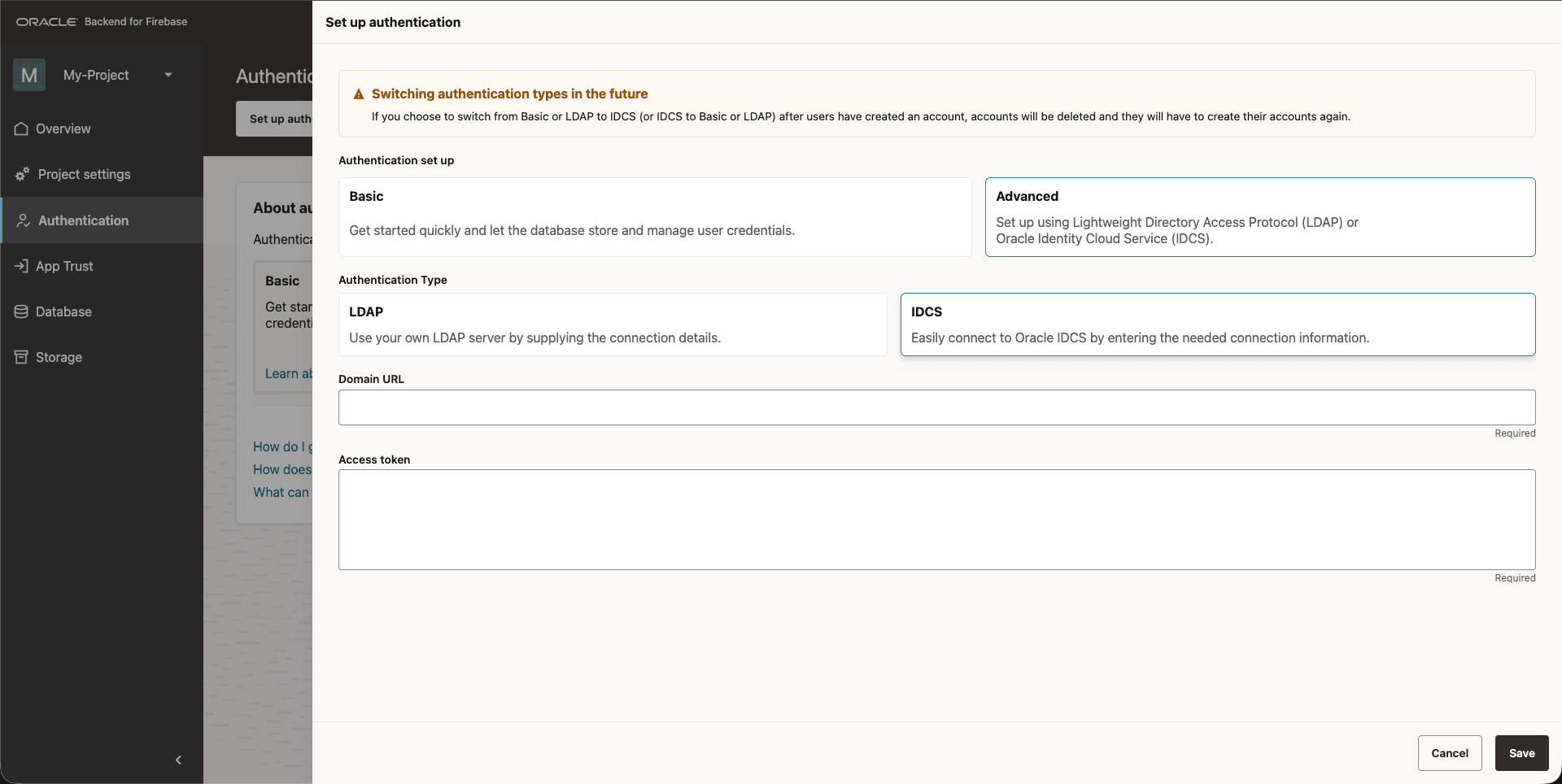
Enter the domain URL and access token.
-
Save the configuration.
Figure 10-3 IDCS Authentication Configuration
After Save
Your Oracle Identity Domain acts as the identity provider for this project. End users authenticate against IDCS, and the Oracle Backend with Firebase APIs SDK consumes the tokens IDCS issues.
For the SDK calls that initiate authentication, see Authentication SDK Reference.
WARNING:
-
Switching authentication modes does not migrate users. If you change a project from Basic or LDAP to IDCS (or conversely) after users have signed up, those accounts will not be carried over. Users must recreate them under the new mode.
-
Re-running IDCS setup is destructive. Saving IDCS configuration again replaces the previously provisioned IDCS applications and self-registration profile for this project.
Parent topic: Setting Up Authentication
10.6 Setting Up Third-Party Identity Providers
You can let the application users authenticate with Oracle Backend with Firebase APIs using different social accounts such as Google, Facebook and Github. These are integrated through OAuth2 flows and managed through custom LDAP and IDCS setups. You can also integrate any Identity Platform that supports OIDC or SAML protocol like Auth0, Okta, and so on.
Parent topic: Setting Up Authentication
10.6.1 Set up Social Sign-in (GitHub, Google, and more)
- In Google Cloud Console, open APIs & Services and then Credentials.
- Select Create credentials, and then create an OAuth client ID.
- Set Application type to Web application, and enter an app name.
-
Add the Oracle Backend with Firebase APIs OAuth redirect URI to the Authorized redirect URIs list.
-
Save the client and copy the Client ID and Client Secret.
-
In the Oracle Backend with Firebase APIs Console, enable Google, and enter the client ID and client secret.
On the Facebook for Developers site, get the App ID (Client ID) and an App Secret (Client Secret) for your app.
Enable Facebook Login:
- Open the Sign-in Method in the Authentication Section.
- Enable Facebook and specify Client ID and Client Secret you got from Facebook.
- Make sure the OAuth Redirect URI in the Console is listed as OAuth Redirect URIs in the Facebook App's settings page on the Facebook for Developers site in the Product Settings > Facebook Login config.
Enable Github Login:
- Register your app as a developer application on GitHub and get your app's OAuth 2.0 Client ID and Client Secret.
- Open the Sign-in Method in the Authentication section.
- Enable Github and specify Client ID and Client Secret you got from Facebook.
- Make sure the OAuth Redirect URI in the Console is set as your Authorization callback URL in your app's settings page on your GitHub app's config.
Parent topic: Setting Up Third-Party Identity Providers
10.6.2 Configuring OIDC and SAML Identity Providers
Oracle Backend with Firebase APIs supports user sign-in using external identity providers through both OpenID Connect (OIDC) and SAML. OIDC and SAML federation is bidirectional: you supply values from your identity provider to Oracle Backend with Firebase APIs, and Oracle Backend with Firebase APIs returns a callback URI that you must register back with your identity provider. Keep both consoles available while you complete setup.
Configure an OpenID Connect (OIDC) Provider
To sign in users using an OIDC provider, you must first collect the following information from the provider:
-
App ID: the client identifier issued by your identity provider for this application.
-
App secret: the matching client secret. Required for the authorization code flow.
-
Issuer (URL): your identity provider's issuer URL. Appending
/.well-known/openid-configurationto this URL must return the provider's OIDC discovery document. For example, an issuer ofhttps://auth.example.comrequireshttps://auth.example.com/.well-known/openid-configurationto be reachable.
Set Up in the Console
-
In the Oracle Backend with Firebase APIs Console, open your project and select Authentication.
-
Add a new provider and choose OIDC. The Enable OIDC dialog opens.
-
Enter a Name, then paste the Issuer (URL), App ID, and App secret.
-
Toggle Enable on.
-
Click Save.
Complete the loop on your identity provider:
-
In the OIDC dialog, click Copy URI to copy the OAuth redirect URI shown by the Console.
-
In your identity provider's application settings, add that URI to the list of allowed redirect URIs.
Until both sides of this loop are configured, sign-in attempts will fail.
Configure a SAML 2.0 Provider
To sign in users using a SAML identity provider, you must first collect the following information from the provider:
- Entity ID: a URI that identifies the identity provider.
- SAML SSO URL: the URL of the identity provider’s sign-in page.
- Public Key Certificate: the certificate used to validate SAML assertions signed by the identity provider.
After you have the above information, enable SAML as a sign-in provider in the Oracle Backend with Firebase APIs project Console:
-
In the Oracle Backend with Firebase APIs Console, open your project and select Authentication.
-
Add a new provider and choose SAML. The Enable SAML dialog opens.
-
Enter a Name, then paste the Entity ID, SSO URL, and Certificate.
-
Toggle Enable on.
-
Click Save.
-
Add the SAML provider's domain to the Authorized Origins list in your project's Authentication settings.
Complete the loop on your identity provider:
In your SAML identity provider's application settings, configure the following:
- Assertion Consumer Service (ACS) URI: copy from the SAML dialog in the Console using Copy URI.
- Audience: copy from the SAML dialog.
- Destination and Recipient: set both to the ACS URI.
- NameID: must map to a valid email address. Oracle Backend with Firebase APIs uses the user's email to identify and link the federated account. A SAML assertion without a valid email NameID will be rejected.
Use the provider from your app:
After saving, the Console shows the provider in the providers list with a generated
ID of the form oidc_<name> or saml_<name> —
for example, a SAML provider named example appears as saml_example.
Pass that exact string to your SDK's federated sign-in API.
import { getAuth, signInWithPopup, OAuthProvider } from "fusabase/auth";

const auth = getAuth(app);
const provider = new OAuthProvider("oidc_example");
const result = await signInWithPopup(auth, provider);
For SAML, use SAMLAuthProvider with a saml_*
provider ID. signInWithRedirect(auth, provider) is also
available if you prefer a full-page redirect over a popup.
import com.oracle.mobile.fusabase.auth.FusabaseAuth;
import com.oracle.mobile.fusabase.auth.OAuthProvider;

FusabaseAuth auth = FusabaseAuth.getInstance();
OAuthProvider provider = OAuthProvider.newBuilder("oidc_example").build();

auth.startActivityForSignInWithProvider(activity, provider)
    .addOnSuccessListener(authResult -> {
        // Signed in
    });
import FusabaseAuth
let provider = OAuthProvider(providerID: "oidc_example")
let credential = try await provider.getCredentialWith()For SAML, use SAMLAuthProvider(providerID: "saml_example").
getCredentialWith() runs the full flow and persists the
resulting session to Keychain — no additional signIn(...) call
is required.
Parent topic: Setting Up Third-Party Identity Providers
10.7 Configuring SMTP for Email Verification and Password Reset
You can send an address verification email to a user or an email to reset their password. Oracle Backend with Firebase APIs Console UI shows the list of users whose email is not verified. There you also get the option to send the email for Address Verification / Reset Password. The email contains a One Time Code to validate the intended operation.
For Oracle IDCS as Authentication server, Oracle IDCS uses its own email service to send these emails. From the IDCS console, you can also customize the email sent for these operations.
For BASIC / LDAP, you must set up the SMTP server credentials to enable the email service. Following details are needed to successfully set the SMTP server with the Oracle Backend with Firebase APIs Infrastructure.
smtp_host |
SMTP Server Host |
smtp_port |
SMTP Server Port |
smtp_auth_username |
Username to login to SMTP server |
smtp_auth_passkey |
Password to login to SMTP server |
default_from |
The sender of the email |
connection_type |
SSL / TLS |
wallet_path |
Wallet path for Secure connection and SSL certificates |
Console Steps
Note:
This setup is essential for BASE and LDAP users using email/password login flows described in:
-
User Lifecycle Management → Email Verification
-
User Lifecycle Management → Password Reset
-
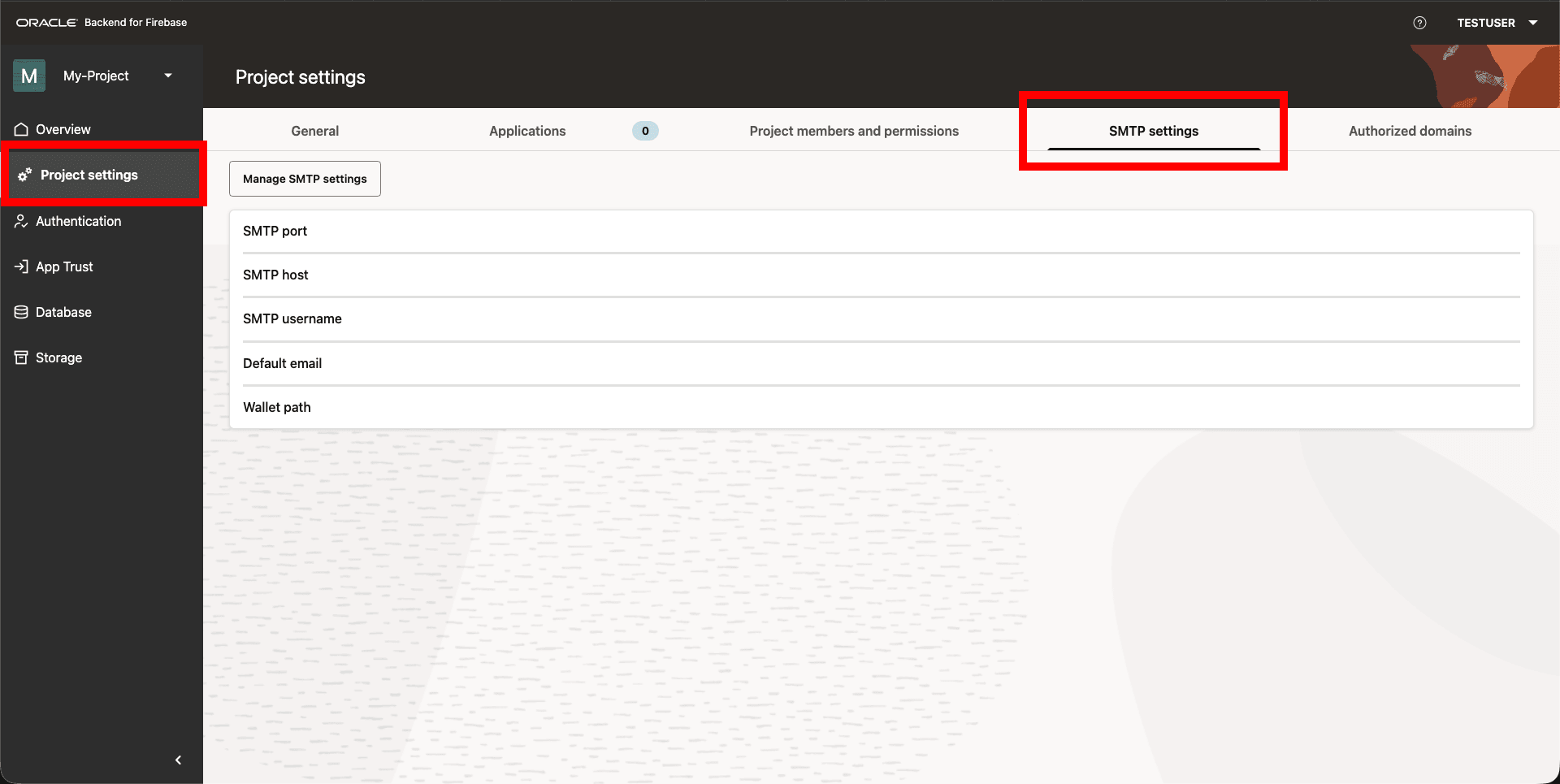
In the Console, navigate to the Project Settings > SMTP Settings.
Figure 10-4 SMTP Settings
-
Enter the following:
-
SMTP server hostname and port
-
Authentication credentials
-
Sender email address
-
-
Save the configuration.
Parent topic: Setting Up Authentication
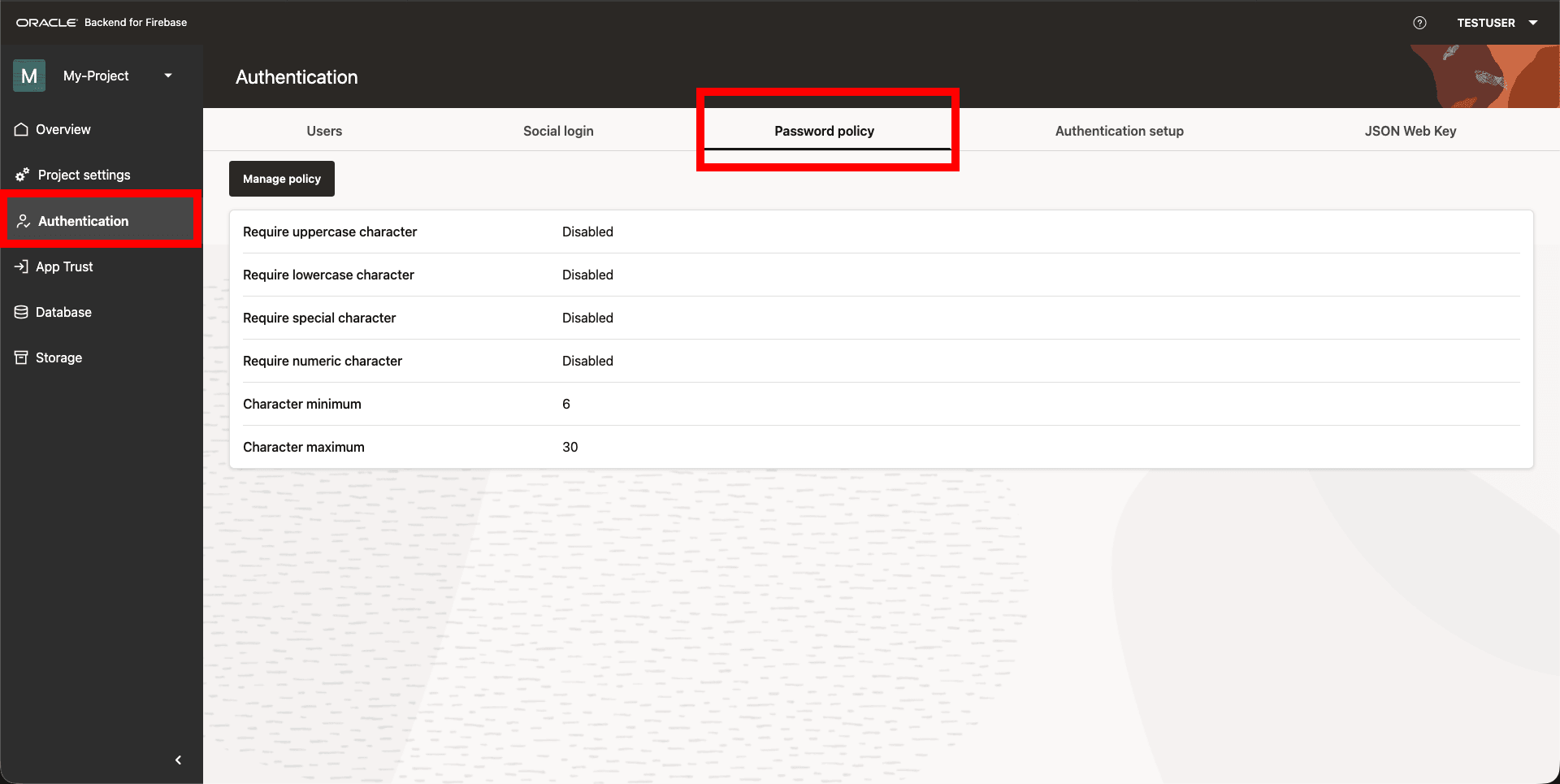
10.8 Defining Password Policies
Password policies apply to Basic and LDAP users and are enforced during sign-up and password reset.
Use a password policy to align with your organization’s security requirements.
Configurable Attributes:
Setting a password policy can improve account security by enforcing password complexity requirements. Password Policy support the following password requirements:
-
Lowercase character required
-
Uppercase character required
-
Numeric character required
-
Non-alphanumeric character required
-
Password length (ranges from 6 to 30 characters; defaults to 6)
Console Steps
-
In the Console, open Authentication , and then Password Policy.
Figure 10-5 Password Policy Settings
-
Set the policy requirements (length, uppercase, lowercase, numeric, special characters).
-
Save the policy.
Parent topic: Setting Up Authentication
10.9 Changing Authentication Providers
You can switch the authentication provider for a project. This affects all apps in the project.
Note:
If you switch from BASIC or LDAP to IDCS (or from IDCS to BASIC or LDAP), Oracle Backend with Firebase APIs does not migrate user accounts. Users must create new accounts under the new provider. For application users, this means they will lose access until they sign up again, and any account links tied to the old provider will no longer work. This happens because IDCS and BASIC/LDAP manage identities separately, and Oracle Backend with Firebase APIs does not copy or map identities between them.
Plan this change carefully because users might need to sign up again after the switch.
Before you change the provider:
-
Plan for users to sign up again under the new provider.
-
Configure SMTP again if the new provider requires it.
Parent topic: Setting Up Authentication
10.9.1 Switching Authentication Providers
-
Log in to the Oracle Backend with Firebase APIs Console.
-
Navigate to your project.
From the dashboard, select the project for which you want to change the authentication provider.
-
Open the Authentication Settings.
-
In the left-hand navigation panel, click on Authentication.
-
You can see the current authentication provider listed (For example, BASIC, LDAP, IDCS).
-
-
Click Manage Configuration.
Note:
This button is available only to users with the
OWNERorDEVELOPERrole for the project. -
Select the New Provider.
Choose from the following:
-
Basic: No external setup required.
-
LDAP: Requires LDAP host, port, admin DN, password, and user directory.
-
IDCS: Requires domain URL, client ID, and client secret.
-
-
Enter the configuration details:
-
For Basic: No additional input needed.
-
For LDAP, see LDAP Authentication Setup.
-
For IDCS, see IDCS Authentication Setup.
-
Parent topic: Changing Authentication Providers
10.10 Setting Up and Managing Authentication Using CLI
Prerequisite
Ensure that the setup of CLI for Oracle Backend with Firebase APIs is complete.
See Also:
Configure the CLI for detailed steps on how to set up the CLI for Oracle Backend with Firebase APIs
Set Authentication
The following command configures authentication for the current project:
fusabase set-auth --path=<path-to-authConfig.json>
Login
fusabase login <clientId>:<clientSecret>
Initialize Session
The following command builds a user access token.
fusabase initNote:
Tokens have expiry and may need to be refreshed.Authentication Management
-
List Users:
fusabase auth list --export=<filepath>fusabase auth list --filter=<criteria> --export=<filepath> -
Add a User:
fusabase auth add --path=<config> -
Remove a User:
fusabase auth delete --username=<username> -
Disable/Enable a User:
fusabase auth disable --username=<username> --disable=<true/false> -
Manage Sign-in Methods:
fusabase auth sign-in-method <google|facebook|epw|github>fusabase auth sign-in-method <provider> --path=<config> -
Get Provider Details:
fusabase auth get <provider>
Parent topic: Setting Up Authentication
10.11 Authorized Domains
Authentication APIs are protected through CORS enforcement for web SDK usage.
Operations such as signIn, signUp,
updateProfile, and all social login flows (Redirect, Popup, and
Manual) are restricted to authorized frontend domains only.
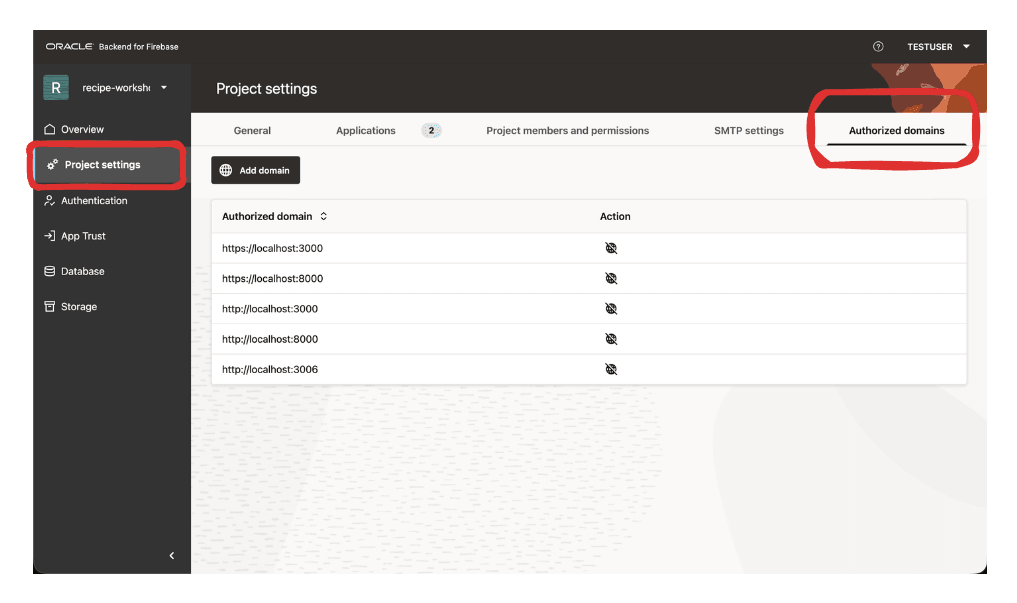
You can use the Console UI Project Settings to add or remove existing authorized domains.
Figure 10-6 Authorized Domains
Authorized Frontend Domains Protect Web SDK Authentication Calls
When a browser application uses the web SDK to call authentication APIs
such as signIn, signUp, or
updateProfile, the request must originate from a frontend
domain that has been authorized for the application. This prevents an untrusted
website from embedding the SDK, reusing a copied project configuration, and making
browser-based authentication calls against the same backend.
Social Sign In Redirects Return Only to Trusted Application Origins
In a redirect-based social login flow, the user temporarily leaves the application to authenticate with an identity provider such as Google, GitHub, Facebook, an OIDC provider, or a SAML provider. After the provider completes authentication, the service does not blindly return the result to any URL supplied by the browser. The application context/origin is checked against the configured authorized frontend domains before the flow is allowed to continue.
Popup Social Login Posts Results Only to the Initiating Application Origin
For popup-based social login, the authentication result is returned to the opener window using browser messaging. The target origin is derived from the original application context and normalized before the message is sent. This keeps the response scoped to the trusted application origin rather than broadcasting it broadly.
For example, a popup opened by https://app.example.com receives its
result through a message targeted to that origin. A different site cannot simply
open the same flow and receive the result unless its origin is also authorized.
Manual Token Exchange Is Still Domain-Gated for Browser Usage
Manual or token-based social login flows also go through the same browser-facing CORS allowlist. Even when the frontend already has a provider token, the backend exchange that registers, signs in, or links the user is available to browser applications only from authorized frontend domains.
This helps prevent copied SDK configuration or exposed public project identifiers from being used by arbitrary websites to perform social login operations from the browser.
Parent topic: Setting Up Authentication