15 Getting Started and Console Check
This quick start assumes you have already set up Oracle Backend with Firebase APIs. It introduces the basic database operations step‑by‑step, so developers can immediately see how to work with collections and documents.
- Overview
- Create a Project and Register an App
- Import and Initialize the SDK
- Write a Document
- Read it Back
- Secure the Collection
- Check the Console
Parent topic: Database
15.1 Overview
This chapter is a hands-on start for the Database section. You will set up a project, initialize an SDK, write a document, read it, and confirm the result in the Console.
Parent topic: Getting Started and Console Check
15.2 Create a Project and Register an App
- Open the Oracle Backend with Firebase APIs Console.
- Create a project. See: Creating a Project.
- Register an app (web, iOS, Android, or Flutter). See: Adding Oracle Backend with Firebase APIs to Your Apps.
- Download the app configuration generated by the Console.
You will use that configuration to initialize the SDK.
Parent topic: Getting Started and Console Check
15.3 Import and Initialize the SDK
If you have not added Oracle Backend with Firebase APIs to your app yet, follow the platform setup in: Adding Oracle Backend with Firebase APIs to Your Apps. Then, initialize the SDK using the configuration from the Console.
import { initializeApp } from "fusabase/app";
import { getOracledb } from "fusabase/oracledb";

const app = initializeApp(config);
const db = getOracledb(app);
const app = fusabase.initializeApp(config);
const db = fusabase.oracledb(app);import com.oracle.mobile.fusabase.FusabaseApp;
import com.oracle.mobile.fusabase.oracledb.FusabaseOracledb;
FusabaseApp.initializeApp(context);
FusabaseOracledb db = FusabaseOracledb.getInstance();import FusabaseCore
import FusabaseOracledb
_ = FusabaseApp.configure()
let db = FusabaseOracledb.oracledb()import 'package:fusabase/core.dart';
import 'package:fusabase/oracledb.dart';
final app = Fusabase.initializeApp(options: FusabaseOptions({
// ords_host, project_id, app_id, schema, auth_type, storage_bucket, etc.
}));
final db = FusabaseOracledb.instance;Parent topic: Getting Started and Console Check
15.4 Write a Document
This example writes a simple user profile based on the data model used in this section.
import { collection, addDoc } from "fusabase/oracledb";

const usersRef = collection(db, "users");
const docRef = await addDoc(usersRef, {
  displayName: "Jordan Park"
});
const usersRef = db.collection("users");
const docRef = await usersRef.add({
displayName: "Jordan Park"
});Map<String, Object> data = new HashMap<>();
data.put("displayName", "Jordan Park");
CollectionReference users = db.collection("users");
users.add(data)
.addOnSuccessListener(docRef -> {
// Document added
})
.addOnFailureListener(e -> {
// Handle error
});let users = db.collection("users")
let docRef = try await users.addDocument(data: [
"displayName": "Jordan Park"
])final users = db.collection('users');
final docRef = await users.add({
'displayName': 'Jordan Park'
});Parent topic: Getting Started and Console Check
15.5 Read it Back
import { getDoc } from "fusabase/oracledb";

const snap = await getDoc(docRef);
console.log(snap.id, snap.data());
const snap = await docRef.get();
console.log(snap.id, snap.data());docRef.get()
.addOnSuccessListener(snapshot -> {
Map<String, Object> data = snapshot.getData();
})
.addOnFailureListener(e -> {
// Handle error
});let snap = try await docRef.getDocument()
print(snap.data() ?? [:])final snap = await docRef.get();
print(snap.data());Parent topic: Getting Started and Console Check
15.6 Secure the Collection
Oracle Backend with Firebase APIs Security Rules control read and write access. Define rules for the collections your app uses before you move beyond local testing.
See the Chapter Security Rules for rule structure, examples, and deployment.
Parent topic: Getting Started and Console Check
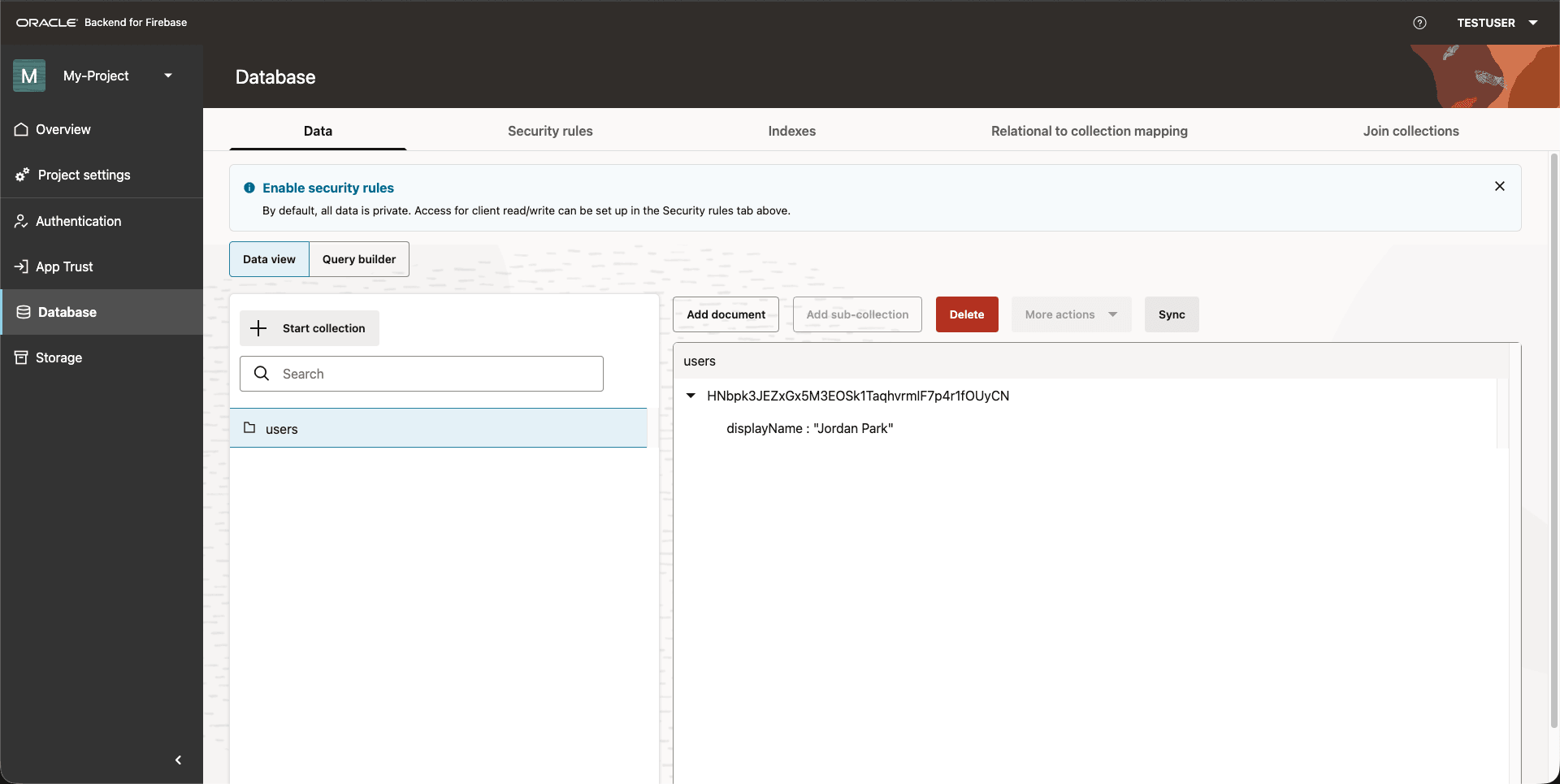
15.7 Check the Console
You can optionally use the Oracle Backend with Firebase APIs Console and view the
users collection to confirm that the document was
created and returned correctly.
Figure 15-1 Console: Users Collection
Parent topic: Getting Started and Console Check