25 Storage Setup and Configuration
This chapter describes how developers configure Object Storage for their Oracle Backend with Firebase APIs project using the Console. Configuration is required before any SDK or backend operations can be performed. Oracle Backend with Firebase APIs supports two storage backends—DBFS and OCI OBJS—each suited for different deployment environments.
- Enabling Object Storage in Console
- Backend Selection
- Application Configuration
- Security Rules
- Setting Up Storage Using CLI
Parent topic: Storage
25.1 Enabling Object Storage in Console
To activate Object Storage for your project:
-
Open the Oracle Backend with Firebase APIs Console.
-
From the left-hand menu, select Storage.
-
Enable the Object Storage service.
-
Choose the desired backend:
-
DBFS for on-premises Oracle AI Database
-
OCI OBJS for Oracle Cloud Infrastructure
-
Once enabled, the storage service becomes available to all applications linked to the project.
See Also:
Storage Console Tasks for detailed steps on how to set up and enable storage services
1. Create DBFS Filesystem
Before using object storage, a DBFS filesystem must be created. This can
be done manually using the Oracle provided SQL script:
@dbfs_create_filesystem.sql:
-
The tablespace exists and has sufficient space.
-
The user running the script has privileges to run the script.
@?/rdbms/admin/dbfs_create_filesystem.sql tbs_3 fs12122tbs_3: Name of the existing tablespace.fs12122: Desired name for the DBFS filesystem.
This script initializes the DBFS schema and prepares the database to store binary files.
2. Configure Object Storage for an Oracle Backend with Firebase APIs Project
Once the filesystem is created, configure it for your Oracle Backend with Firebase APIs project using the following API call:
Use the following endpoint:
POST /_/baas-panel/project/objs/{project_id}The payload format must be as follows:
{
  "objs_type": "dbfs",
  "createfs": 1,
  "bucket_name": "fs12122"
}
-
objs_type: Must be"dbfs"for on-prem. -
createfs: Set to1to auto-create the filesystem. -
bucket_name: Logical name for the DBFS bucket.
The following is an example:
curl --location 'http://<ords-host>/ords/<user>/_/baas-panel/project/objs/<project_id>' \
--header 'Content-Type: application/json' \
--header 'Authorization: Basic <base64-credentials>' \
--data '{
  "objs_type": "dbfs",
  "createfs": 1,
  "bucket_name": "fs12122"
}'
Verify Configuration
curl --location 'http://<ords-host>/ords/<user>/_/baas-panel/project/objs/<project_id>' \
--header 'Authorization: Basic <base64-credentials>'
{
  "bucket_name": "fs12122",
  "region": "dbfs"
}
25.1.1 Using DBFS
If you're running on Oracle AI Database, DBFS is the simplest way to get object storage up and running. It lets you store user-generated content (images, videos, documents, and so on) directly inside the database, using a filesystem-like interface.
When you select DBFS as your storage model in the console, Oracle Backend with Firebase APIs routes all storage operations through the database without external services required.
How it works:
-
Objects are stored in the database through DBFS.
-
Oracle Backend with Firebase APIs handles the mapping between your API calls and the underlying DBFS store.
Setup Behavior
If you don’t link an existing DBFS store, one is automatically created when you enable object storage in the console.
If you already have a DBFS setup, you can link it during configuration instead.
Once enabled, storage is immediately available to all apps in the project.
Note:
If you enabled storage after generating your app configuration, make sure to refresh it so the storage endpoints are included.
Parent topic: Enabling Object Storage in Console
25.1.2 Using OCI Object Storage
If you're deploying to Oracle Cloud or need scalable object storage, you can link your project to OCI Object Storage directly from the Oracle Backend with Firebase APIs console.
Unlike DBFS, OCI Object Storage requires explicit configuration. You’ll need to provide a set of credentials and identifiers so the backend can connect to your OCI bucket.
How it Works
-
You create a bucket in OCI.
-
You collect the required identifiers and credentials.
-
You enter those values in the Oracle Backend with Firebase APIs Console.
-
Oracle Backend with Firebase APIs uses them to authenticate and store objects in your bucket.
All storage operations still go through the SDK—no code changes required.
Required Configuration Values
To link OCI Object Storage, you must provide the following:
-
NAMESPACE: Your Object Storage namespace -
USER_OCID: OCID of the OCI user -
TENANCY_OCID: OCID of your tenancy -
FINGERPRINT: Fingerprint of your API key -
PRIVATE_KEY: Private key associated with the API key -
BUCKET_NAME: Target bucket for storing objects -
REGION: OCI region identifier
These values are entered in the Console when selecting OCI Object Storage as the storage model.
Steps to Gather Required Values
-
Create a bucket:
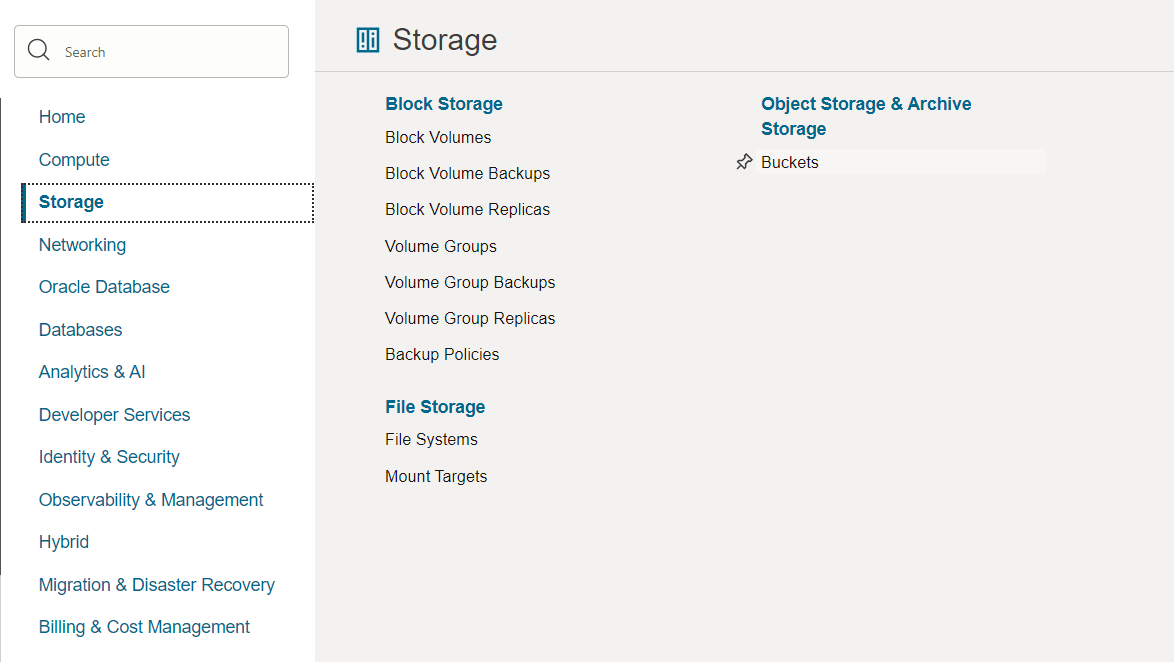
Open the OCI Console and navigate to Storage > Buckets.
Figure 25-1 Object Storage Bucket
-
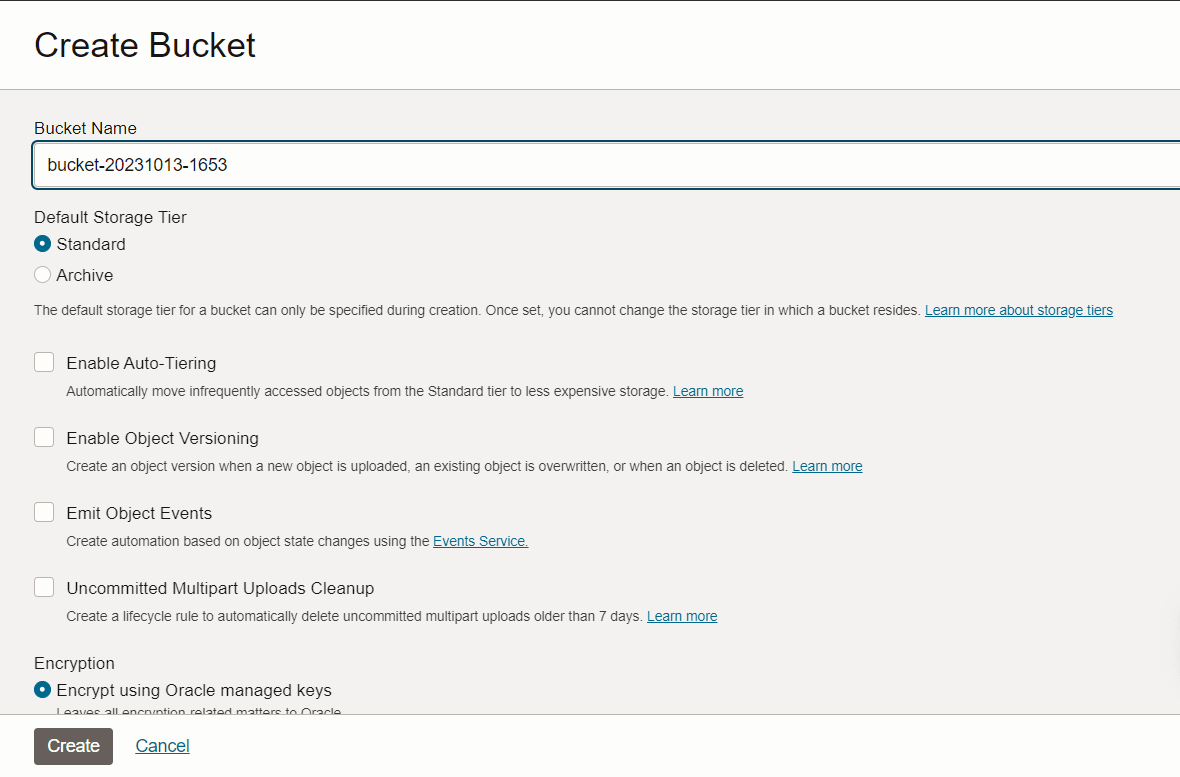
In the next screen, click Create bucket.
-
Complete the Create Bucket form and then click Create.
Figure 25-2 Create Bucket
-
Retrieve credentials and identifiers required for the process:
CRED_NAME:This is the credential name, which can be any value as per your requirements.
USER_OCID:To get the
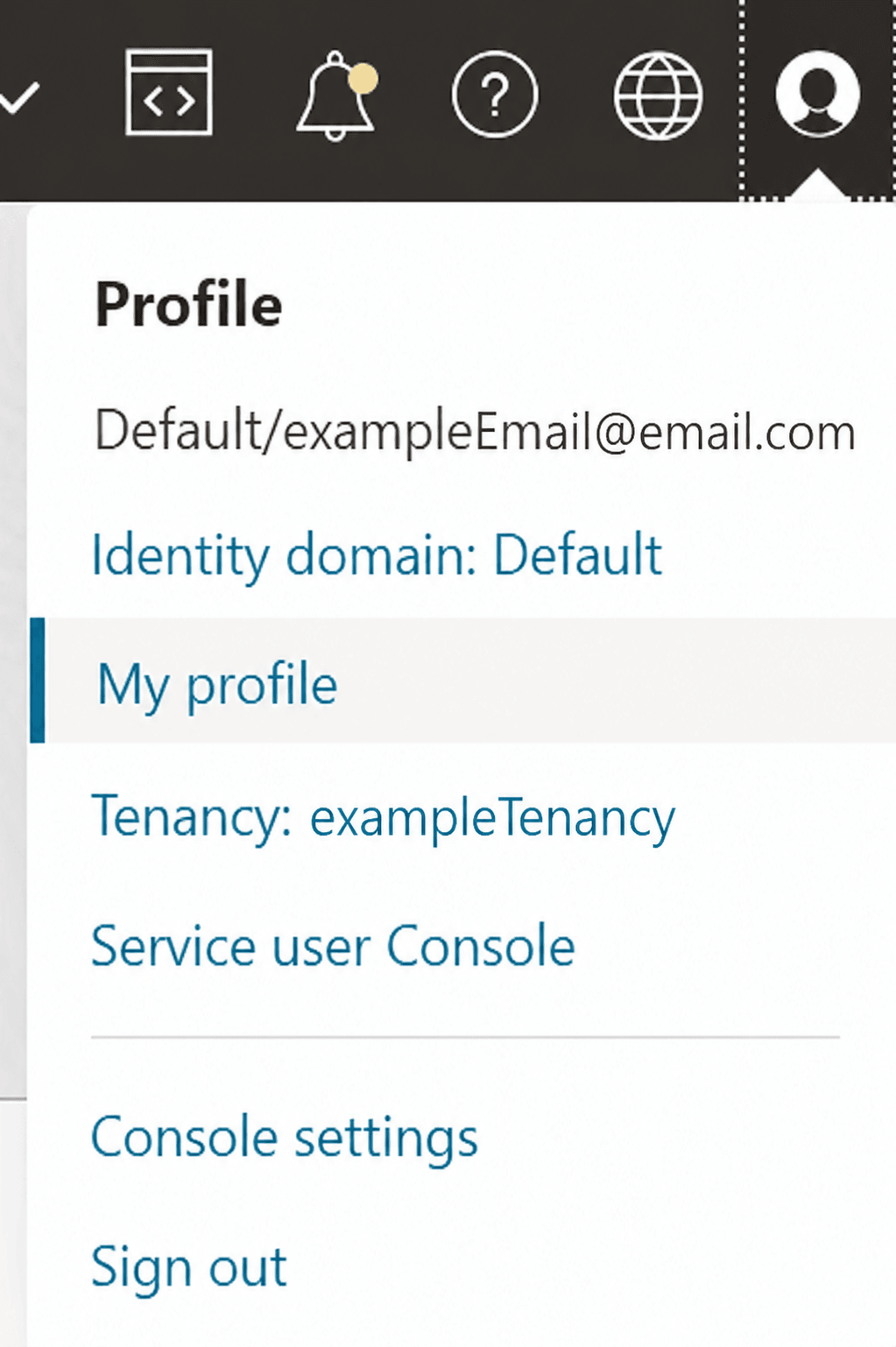
USER_OCID, use the following steps:- On the top navigation bar, click the profile icon,
and then select the My profile menu option.
Figure 25-3 My Profile Option
- In the User information tab, you can get the
USER_OCIDagainst OCID.
- On the top navigation bar, click the profile icon,
and then select the My profile menu option.
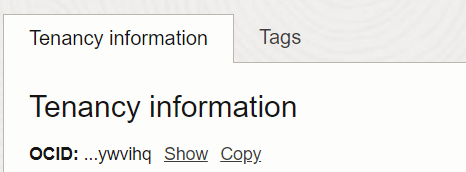
TENANCY_OCID:You can get the
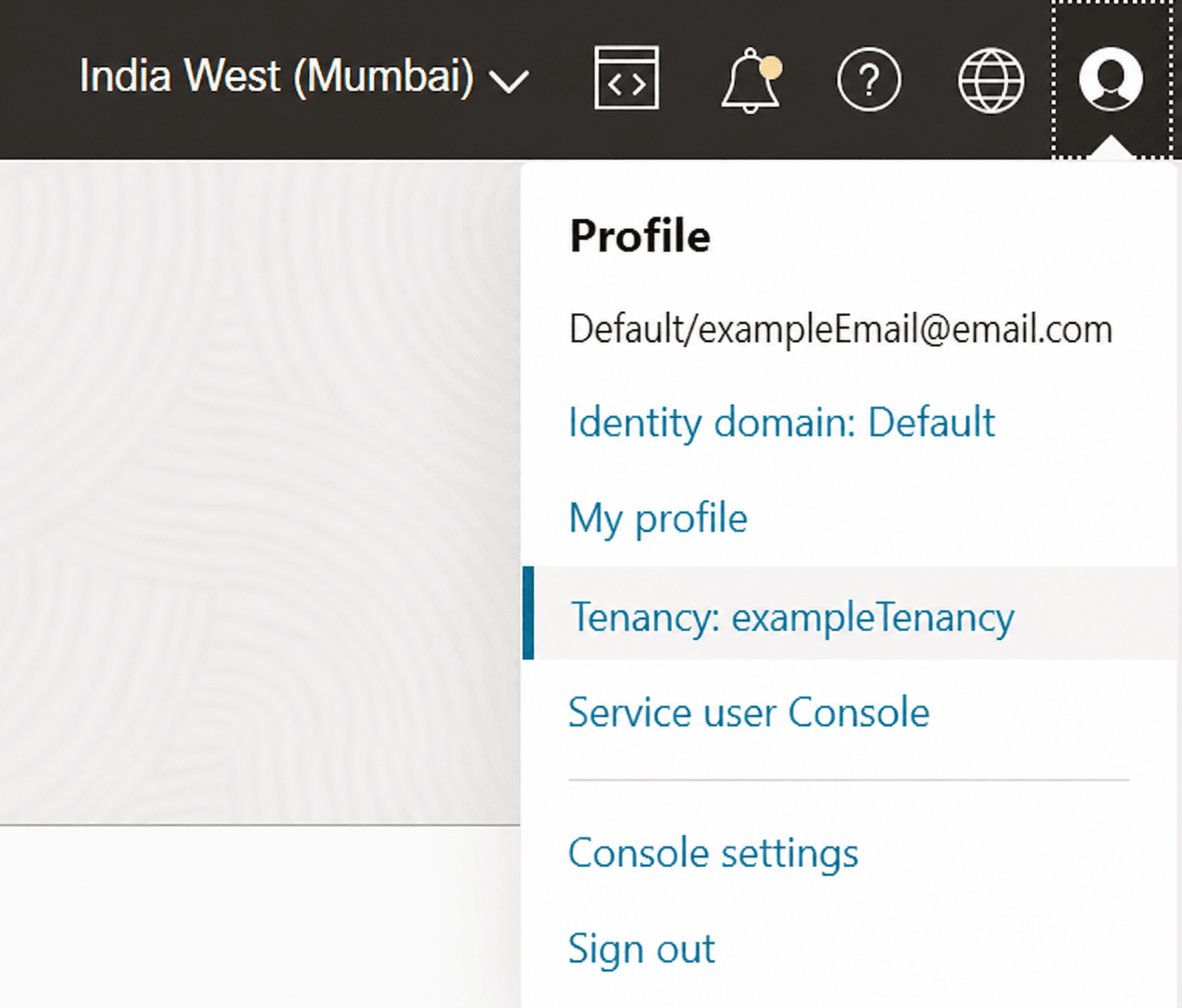
TENANCY_OCIDusing the following steps:- On the top navigation bar, click the profile icon,
and then select the Tenancy menu option.
Figure 25-4 Tenancy Option
- In the Tenancy information tab, you can get the
TENANCY_OCIDagainst OCID.Figure 25-5 Tenancy Option
- On the top navigation bar, click the profile icon,
and then select the Tenancy menu option.
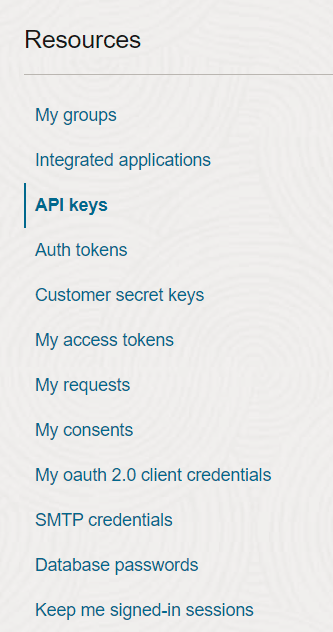
PRIVATE_KEYandFINGERPRINT:Get these values following these simple steps:
- On the top navigation bar, click the profile icon, and then select the My profile menu option.
- On the My Profile page, scroll down to the
Resources section and choose API keys.
Figure 25-6 API Keys Option
- On the next screen, click Add API key.
Figure 25-7 Add API Key Button

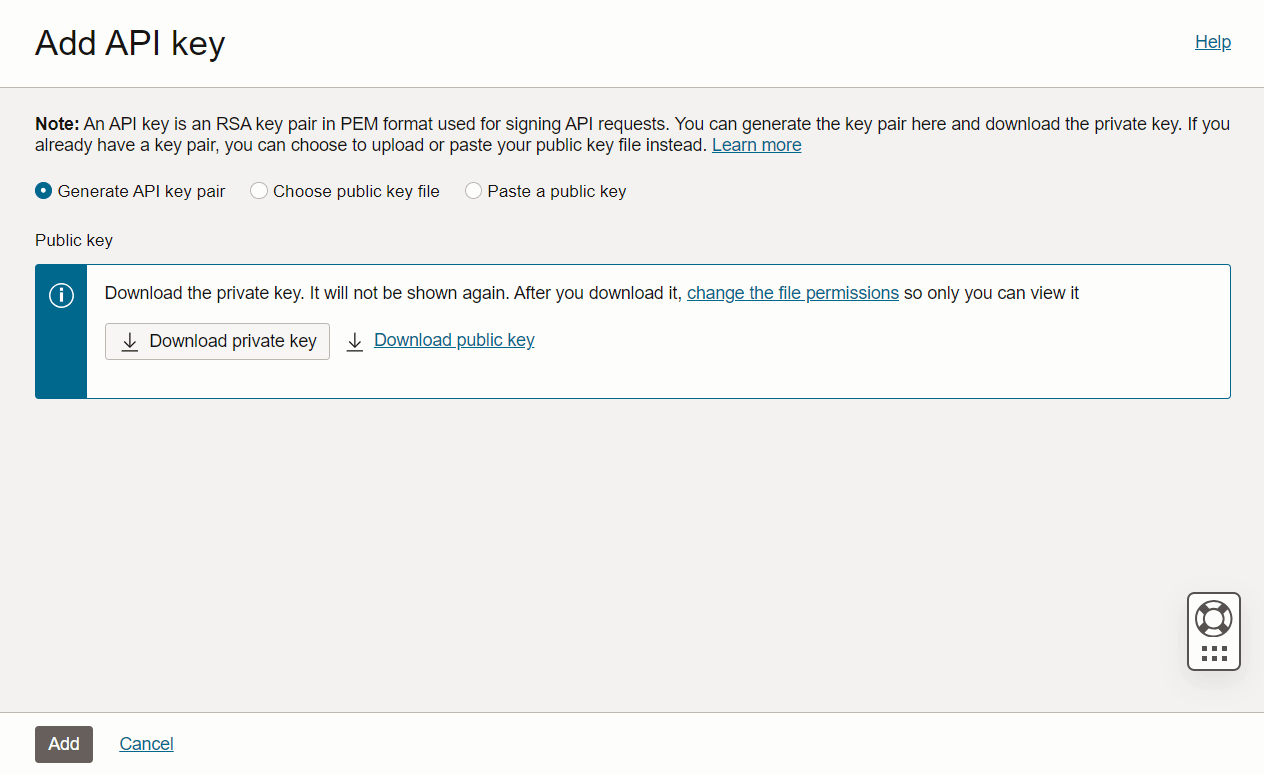
- In the new menu that opens, download the private key using
Download private key button and finally click
Add.
Figure 25-8 Download API Key Option
- In the same API keys section, you can find the
fingerprint of the newly generate private key.
Figure 25-9 Fingerprint Option

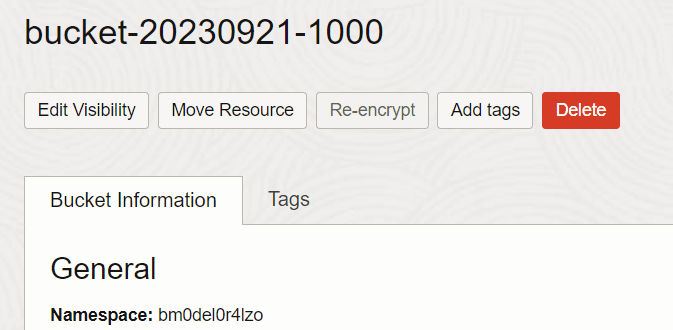
NAMESPACEandBUCKET_NAME:You can get the namespace and the bucket name using the following steps:
- Go the Buckets page and click the bucket you created. At
the top of the page, you can get the
BUCKET_NAME(in this case it isbucket-20230921-1000) and in the Bucket Information tab against Namespace, you can get theNAMESPACE.Figure 25-10 Bucket Name and Namespace Information
- Go the Buckets page and click the bucket you created. At
the top of the page, you can get the
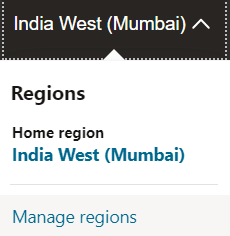
REGION:On the top navigation bar, you can get the
REGION.- Click on the region and select Manage
regions.
Figure 25-11 Manage Regions
- In the opened page, you can get the
REGIONagainst Region Identifier.Figure 25-12 Region Identifier

- Click on the region and select Manage
regions.
-
Once you have all the values:
-
Open the Oracle Backend with Firebase APIs Console.
-
Enable Object Storage.
-
Select OCI Object Storage as the storage model.
-
Enter all required values.
-
Save the configuration.
-
Parent topic: Enabling Object Storage in Console
25.2 Backend Selection
Backend selection affects how files are stored, accessed, and referenced in SDKs and security rules.
DBFS (Database File System)
-
Uses Oracle Database’s native file system.
-
Suitable for on-prem deployments.
-
Supports large object uploads and internal file management.
OCI OBJS (Oracle Cloud Infrastructure Object Storage)
-
Uses Oracle Cloud buckets.
-
Recommended for cloud-native applications.
-
Offers scalable, durable, and highly available storage.
Parent topic: Storage Setup and Configuration
25.3 Application Configuration
When you register an app, Oracle Backend with Firebase APIs generates an app configuration file based on the services that are enabled for the project at that point in time. If Storage was not enabled yet, the generated configuration will not include the storage settings your app needs. If you enable storage later in the Console, make sure you download or copy the updated app configuration and update your app to use it.
Console Steps
-
In Console, go to Application Settings.
-
Generate the App Config file.
-
The config includes:
-
ORDS Host IP
-
Schema
-
App Name and ID
-
Project ID
-
Storage backend type
-
This configuration is used during SDK initialization to establish a connection between the app and the Oracle Backend with Firebase APIs backend.
See Also:
Adding Oracle Backend with Firebase APIs to Your Apps for more information about SDK installation and initialization
Parent topic: Storage Setup and Configuration
25.4 Security Rules
Object Storage supports security rules to control access. Security rules are typically defined in the project configuration at the project level through the admin panel. Security rules determine whether a request is allowed to perform operations like:
-
read: Download or view file contents -
write: Upload or overwrite files -
delete: Remove files -
list: Enumerate files in a folder -
get: Retrieve file metadata
These rules are defined per project and evaluated dynamically based on the request context and resource metadata.
Rule Structure
Rules are written using the following syntax:
match /{bucket}/{allPaths=**} {
  allow read, write: if request.auth != null && request.auth.uid == resource.data.owner;
}
Key Components
| Component | Description |
|---|---|
|
|
Defines the path pattern for files or folders |
|
|
Specifies permitted operations (such as
|
|
|
Contains authentication information from the user's token |
|
|
Metadata associated with the file (such as, owner, tags, ACLs) |
|
|
Logical operators used to build conditions |
Contextual Variables
Security rules can use the following variables:
For the request object:
-
request.auth.uid: User ID from the access token -
request.time: Timestamp of the request -
request.method: HTTP method (such as,GET,POST) -
request.resource: Full path of the requested file
resource object
-
resource.data.owner: Owner field in file metadata -
resource.size: File size -
resource.contentType: MIME type
Example 25-1 Allow only authenticated users to read files
match /{bucket}/{allPaths=**} {
  allow read: if request.auth != null;
}
Example 25-2 Allow users to write only to their own folders
match /user_uploads/{userId}/{file=**} {
  allow write: if request.auth.uid == userId;
}
Example 25-3 Restrict access to files larger than 10MB
match /{bucket}/{file=**} {
  allow read: if resource.size < 10 * 1024 * 1024;
}
Enforcement & Evaluation
-
Rules are evaluated per request, not per session.
-
If no rule matches or the condition fails, the request is denied.
-
Admin SDKs may bypass certain rules depending on the configuration.
Parent topic: Storage Setup and Configuration
25.5 Setting Up Storage Using CLI
The following command sets up storage service for the current project.
fusabase set-objs
fusabase set-objs --path=<path-to-objsConfig.json>
Parent topic: Storage Setup and Configuration