Creating Credentials for Public LLMs
This topic describes the procedure to create AI credentials to work with public LLMs.
You can create credentials that are used to access language models offered by public LLM providers. These credentials when used along with an AI profile, allows you to access the public LLMs to interact with your data.
Follow these steps to create a new AI credential for public LLMs:
- From the Main menu of the Database Navigator toolbar, select DB Navigator > Settings > Assistant tab.
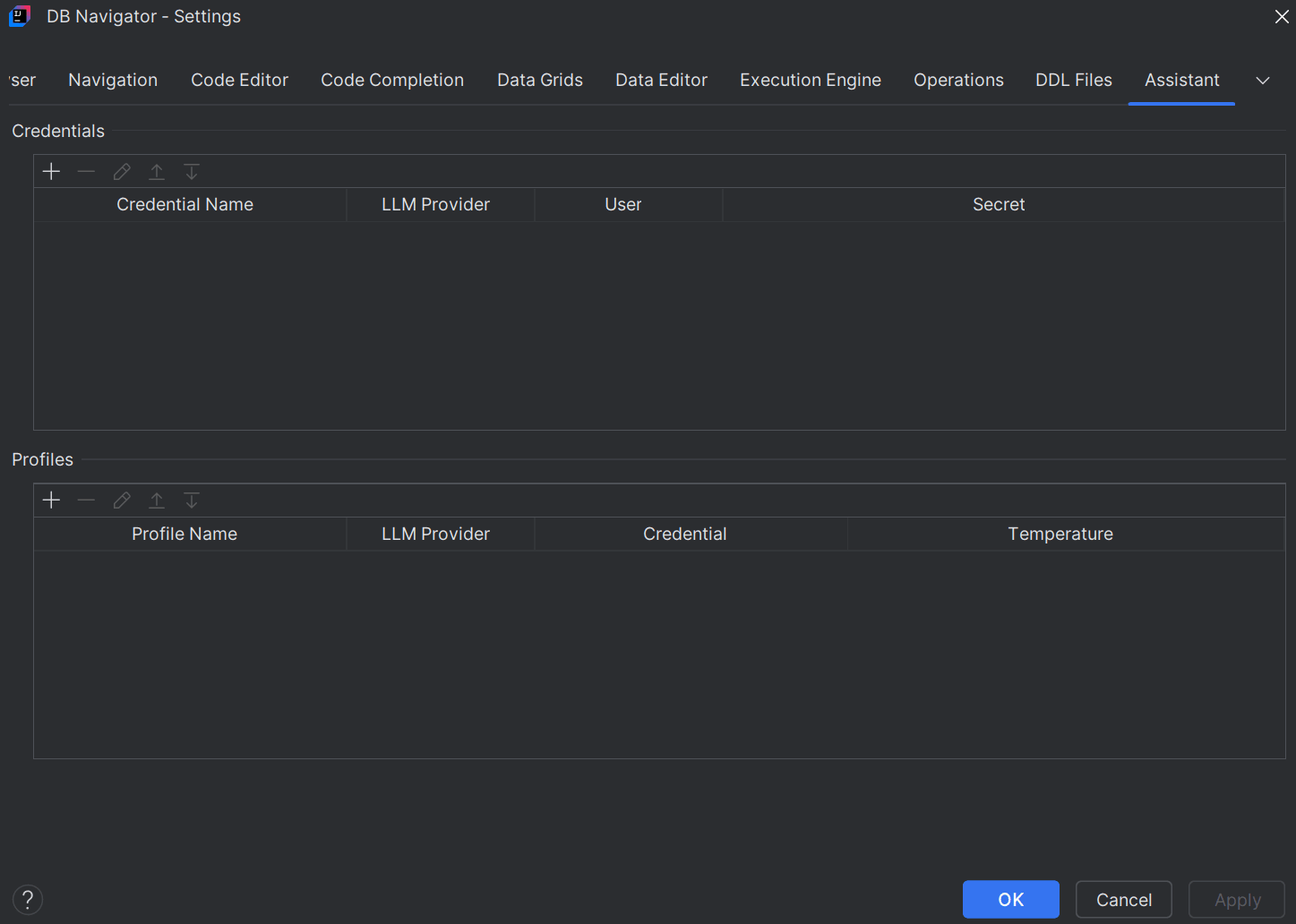
- In the Credentials section, click the Add (+) icon to open the DB Navigator - Create Credential dialog box.
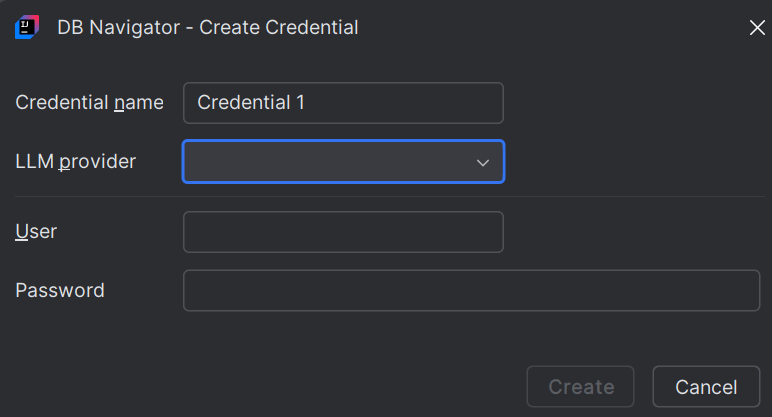
- Fill in the following details in the DB Navigator - Create Credential dialog box:
- Credential Name - Provide a name to identify the credential.
- LLM Provider - From the drop-down list, select the LLM for which you are creating the user credential. Options include:
- OCI Generative AI
- Open AI
- Anthropic
- Mistral AI
- X AI
- User - Provide the username if you have not selected any LLM Provider in the above field.
- Password - Provide the secret password if you have not selected any LLM Provider in the above field.
- API Key - If you select a public LLM in the LLM Provider field, provide an API key to use as a secret. The API key is required for all public LLMs, except if you select OCI Generative AI from the above drop-down.
If you do not have an existing API key, you can create a new key from the AI provider's web portal (such as Google AI Studio, OpenAI Platform, or Claude Console), for which the link is provided on the DB Navigator - Create Credential dialog box.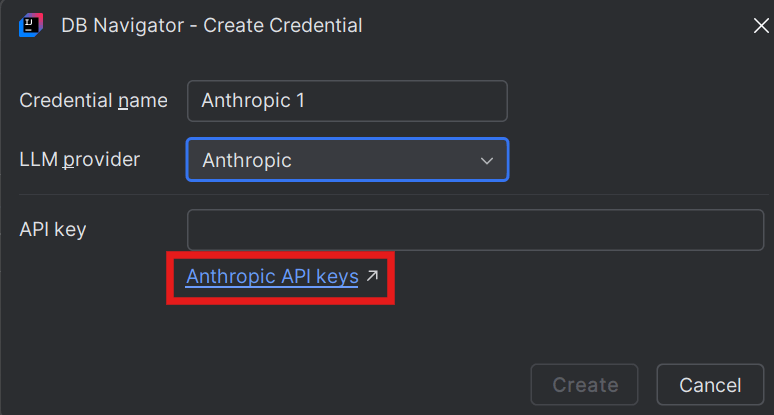 If you select OCI Generative AI option as the LLM Provider, you need to enter the following OCI Configuration details.
Using Config File based Configuration Type:

Field Description Config Type Select the type of OCI configuration you want. Options include File and Custom. Selecting the File option for OCI configuration asks you to provide the following details. Config File Select the folder ( .ocidirectory in your user's home directory) to upload the configuration file containing user details such as user OCID, tenancy OCID, region, fingerprint of the public key and the private key file path.Config Profile Select the profile (drop-down displays all available profiles in the configuration file selected above) to connect to a specific tenancy within the OCI connection. Compartment OCID Provide the compartment OCID to identify the specific compartment within the OCI tenancy. Using Custom Configuration Type:

Field Description Config Type Select the type of OCI configuration you want. Options include File and Custom. Selecting the Custom configuration type asks you to provide the following details. User OCID Enter the unique OCID of the user. Tenancy OCID Enter the unique OCID of the connection tenancy. Compartment OCID Enter the unique OCID of the tenancy compartment. Private Key File Select the downloaded Private key file saved in your .ocidirectory.Fingerprint Provide the fingerprint of the Private key that you added above, - Click Create.The new user credential is created and displayed in the list of credentials on the DB Navigator - Settings window.
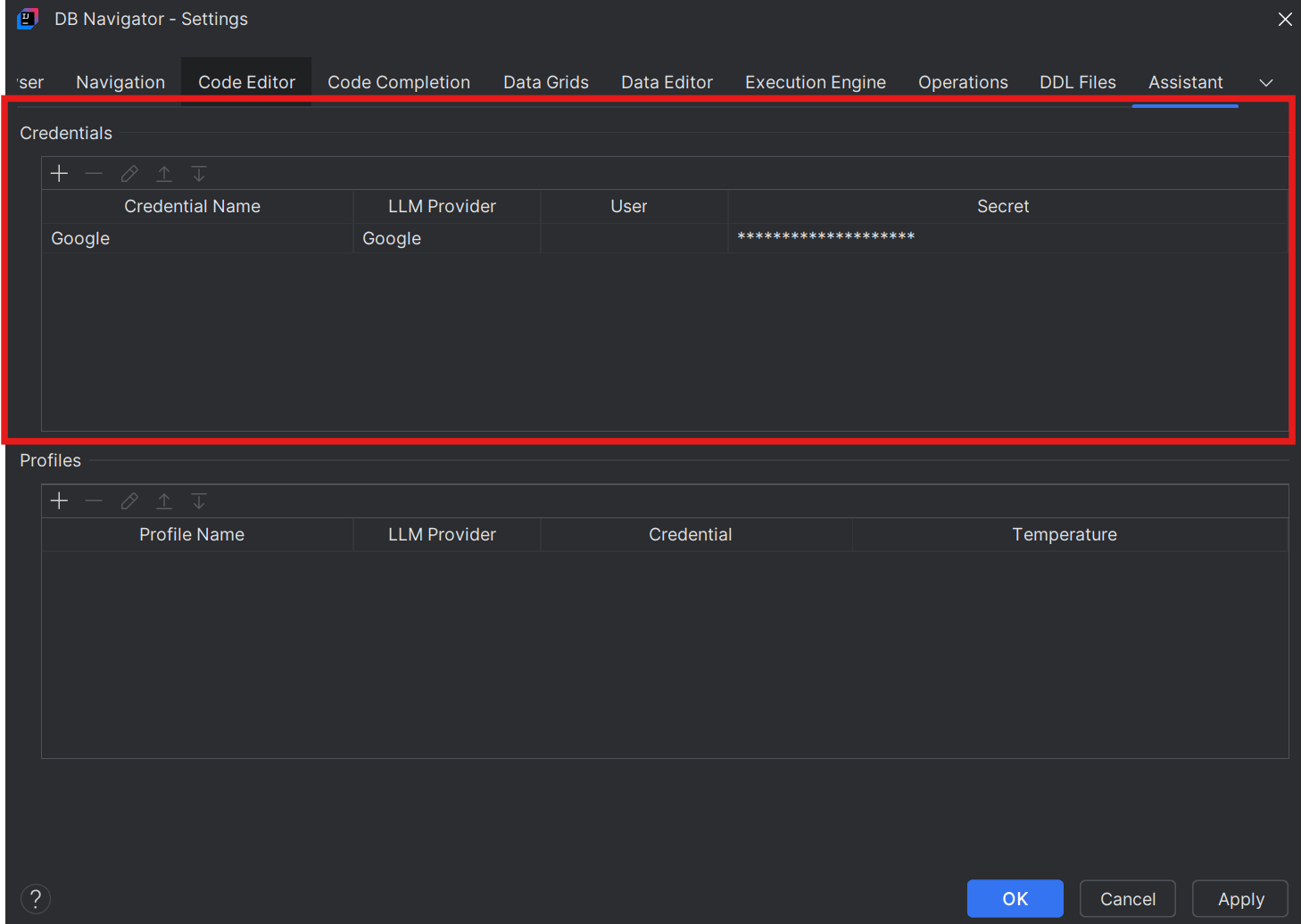
You are also presented with the option of creating a new Credential while creating a Profile. The Credential is associated with a Profile, and together used to access the language model.
Parent topic: Public LLMs