Creating AI Profiles for Public LLMs
This topic describes the procedure to create AI Profiles to work with public LLMs.
AI Profiles in DB Assistant enables you to select a Large Language Model and provide access of the data, metadata, and database connection information to the LLMs through MCP services in order to generate AI responses.
Follow these steps to create a new Profile for public LLMs:
- From the Main menu of Database Navigator toolbar, select DB Navigator > Settings > Assistant tab to open the DB Navigator - Settings window for DB Assistant.
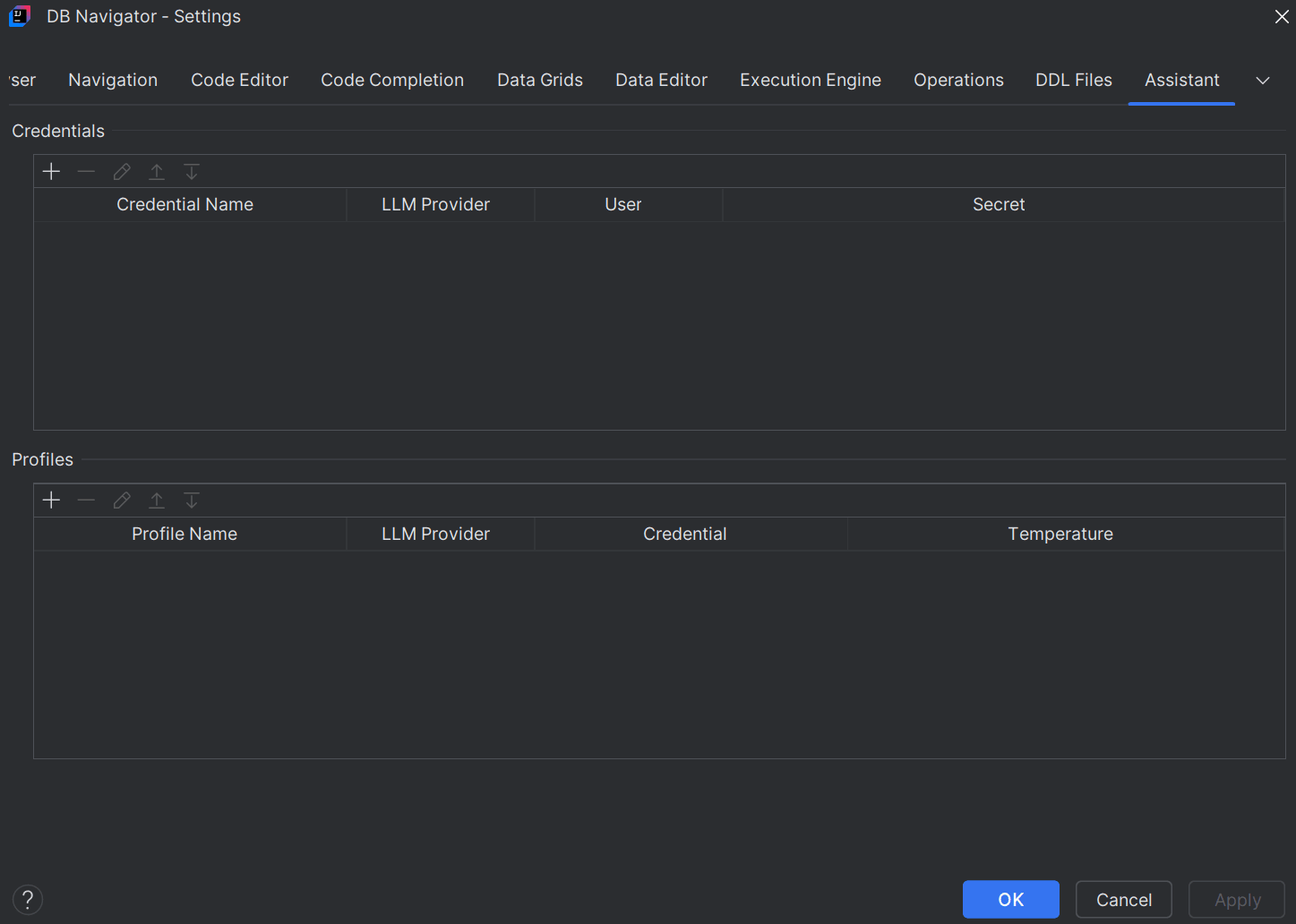
- Click Add Profile icon (+) in the Profiles section to open the DB Navigator - Create Profile dialog box.
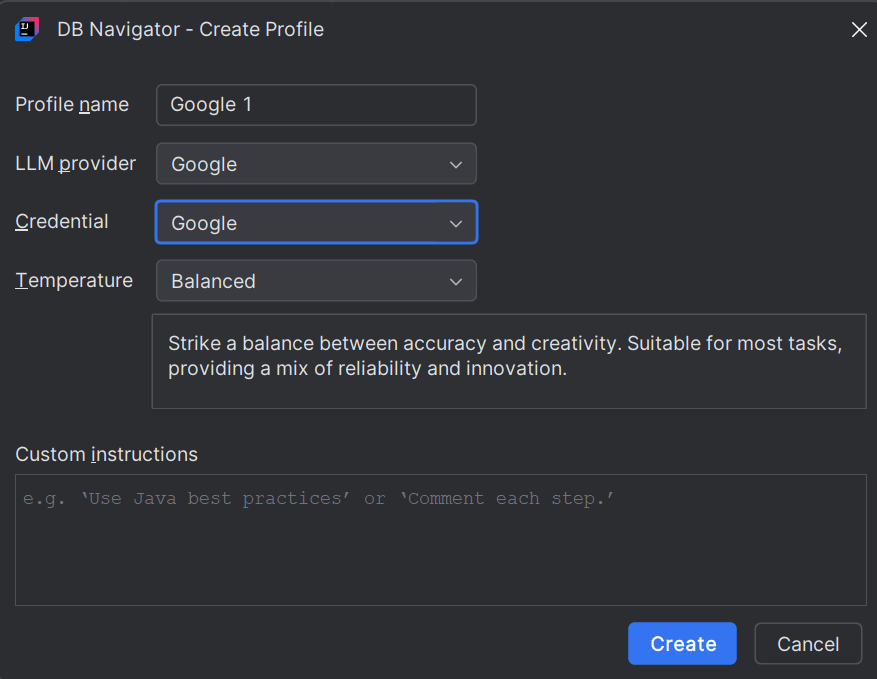
- Provide the following information for the new AI Profile:
- Profile Name - Enter a name to identify the AI profile.
- LLM Provider - From the drop-down list, select the public LLM Provider, such as Google, OpenAI, Anthropic, Mistral, and OCI Generative AI.
Note:
By default, the Profile Name displays as "Profile 1", if there are no existing profiles. The count of the default profile name thereafter increases along with the number of existing profiles. On selecting the LLM Provider in the next field, the default Profile Name changes to indicate the name of the provider. For example, if you select Google as the LLM Provider, the Profile Name changes to "Google 1". You can change the default Profile Name into a custom name for the profile. - Credential - From the drop-down list, select an AI Credential to use along with the Profile. If credentials are not available, click the + New Credential option in the drop-down to open the DB Navigator - Create Credential dialog box and complete creation of a user credential to use with the AI profile. See Create Credentials for Public LLMs.
- Temperature - Select from the following pre-defined temperature options to fine-tune the LLM generated response (making it extremely precise or elaborate):
- Precise
- Balanced
- Exploratory
- Experimental
- Custom (Selecting this option enables you to configure the temperature settings using the Temperature slide bar)
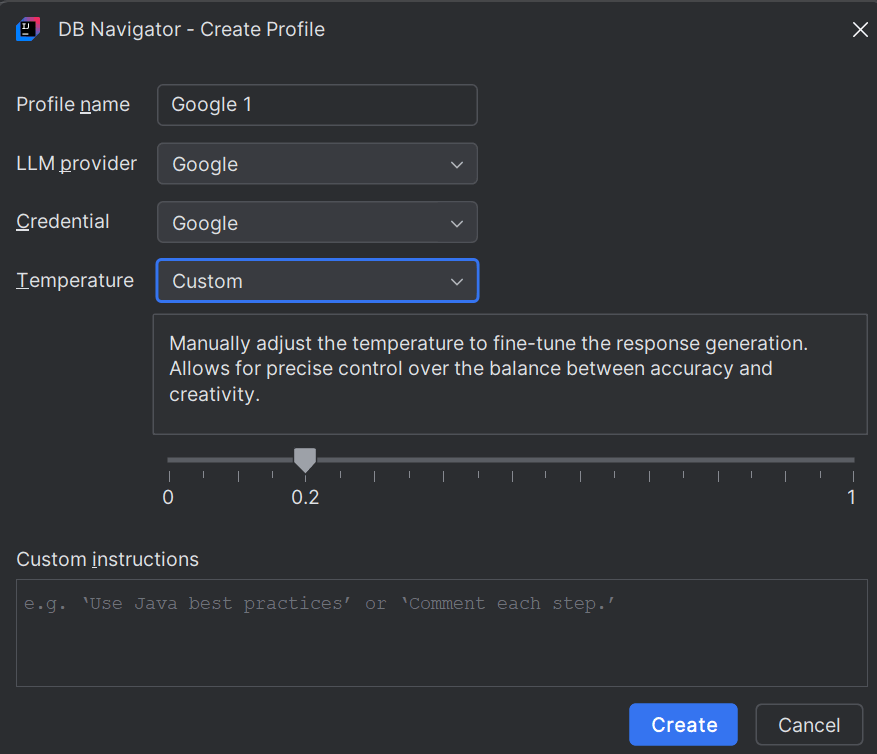
- Custom Instructions - (Optional) Provide any special instructions to the LLM that will be taken into account while generating the AI responses.
- Click Create.The new AI profile is added to the list of existing Profiles.
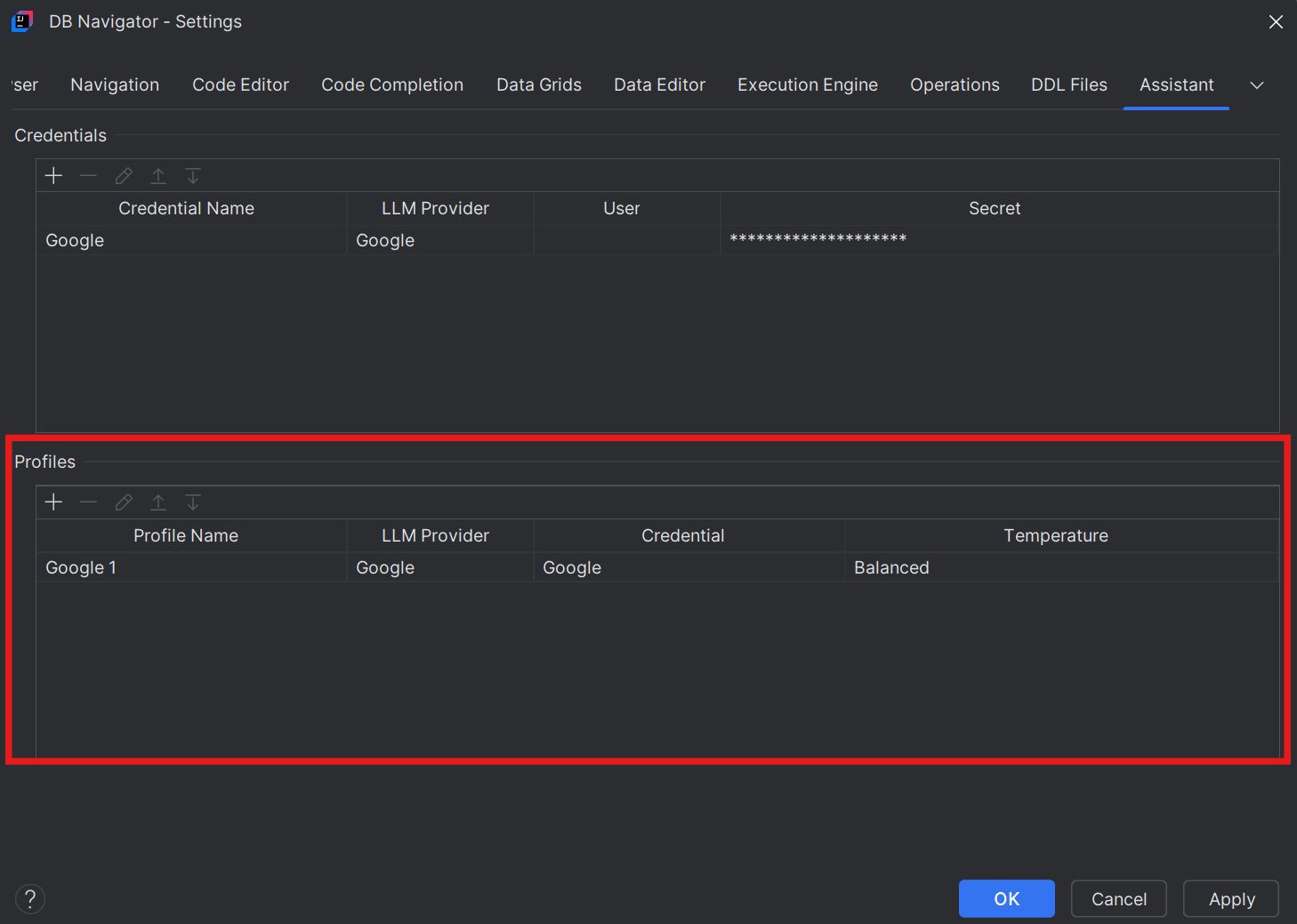
The profiles you create are also available as options of the Choose AI Profile drop-down field in the DB Assistant window toolbar, when working with Public LLMs.
If AI Profiles are not available for an LLM Provider, it is possible to create an implicit profile that will be saved locally in the Database Navigator settings, allowing you to interact with the public LLM.
To create an implicit profile, open the DB Assistant window with Public LLM mode selected in the window banner. From the AI Profiles drop-down list, select New, followed by the LLM provider for which profiles are not listed.
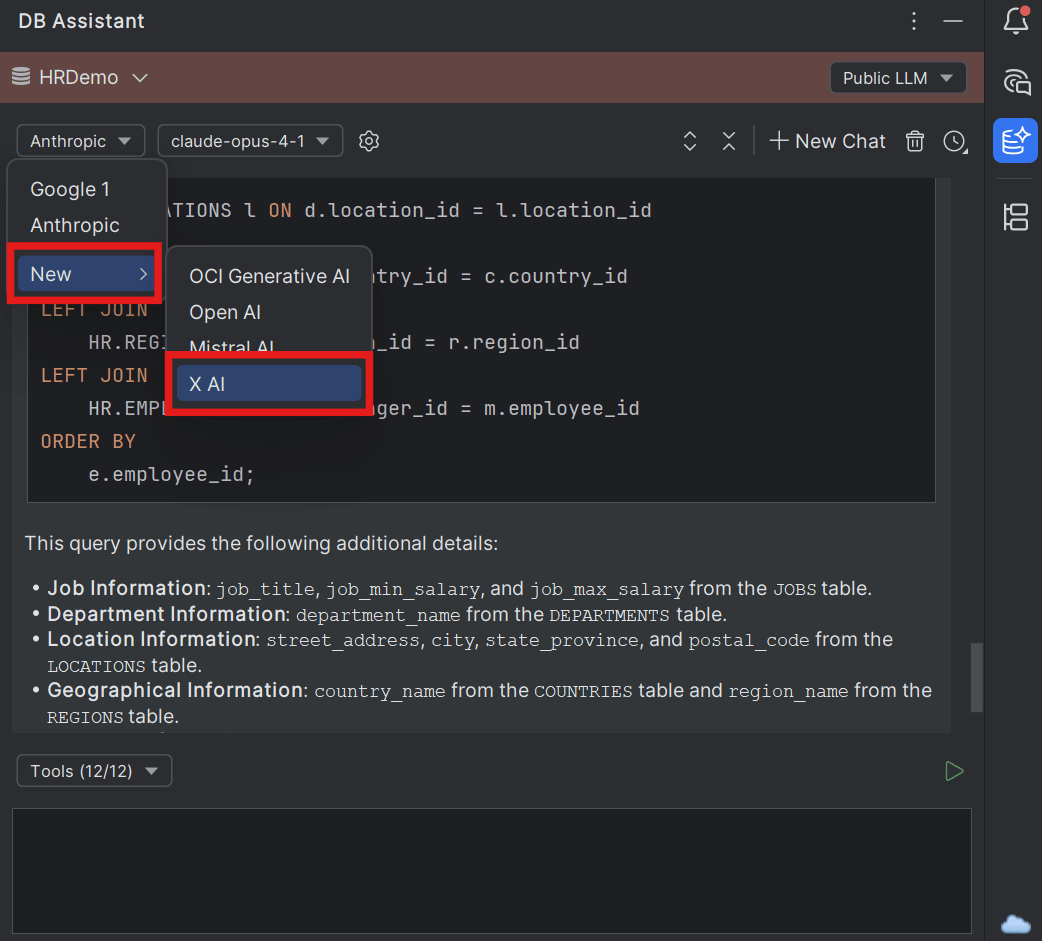
The DB Navigator - Provide Credential dialog box opens.
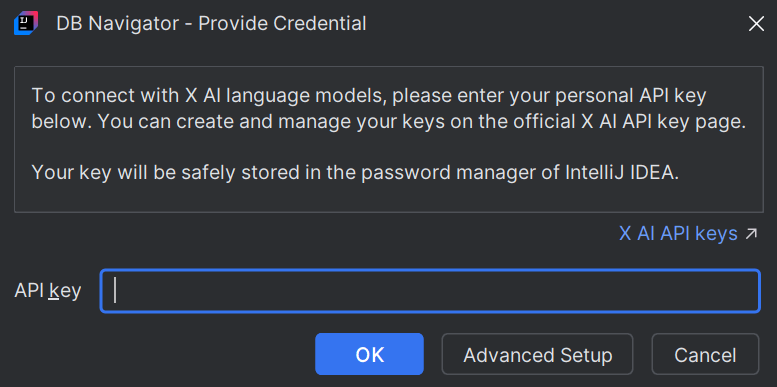
Provide the API key and click OK.
If you want to customize the implicit profile further to add custom instructions and control the LLM temperature, you can do so through the Advanced Setup button.
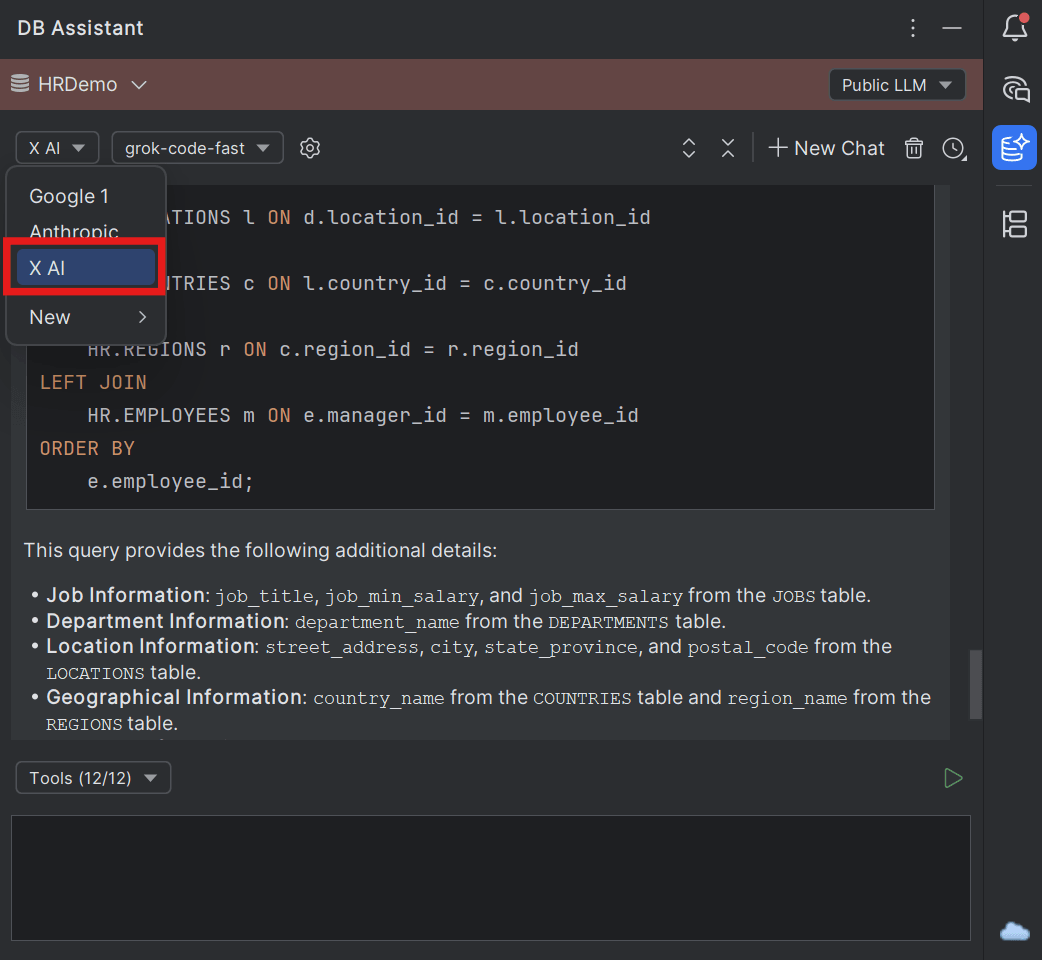
The implicit Profile for that LLM provider is created and listed in the AI Profiles drop-down list. You can select this profile and a corresponding Language Model available to start interacting with the LLM.
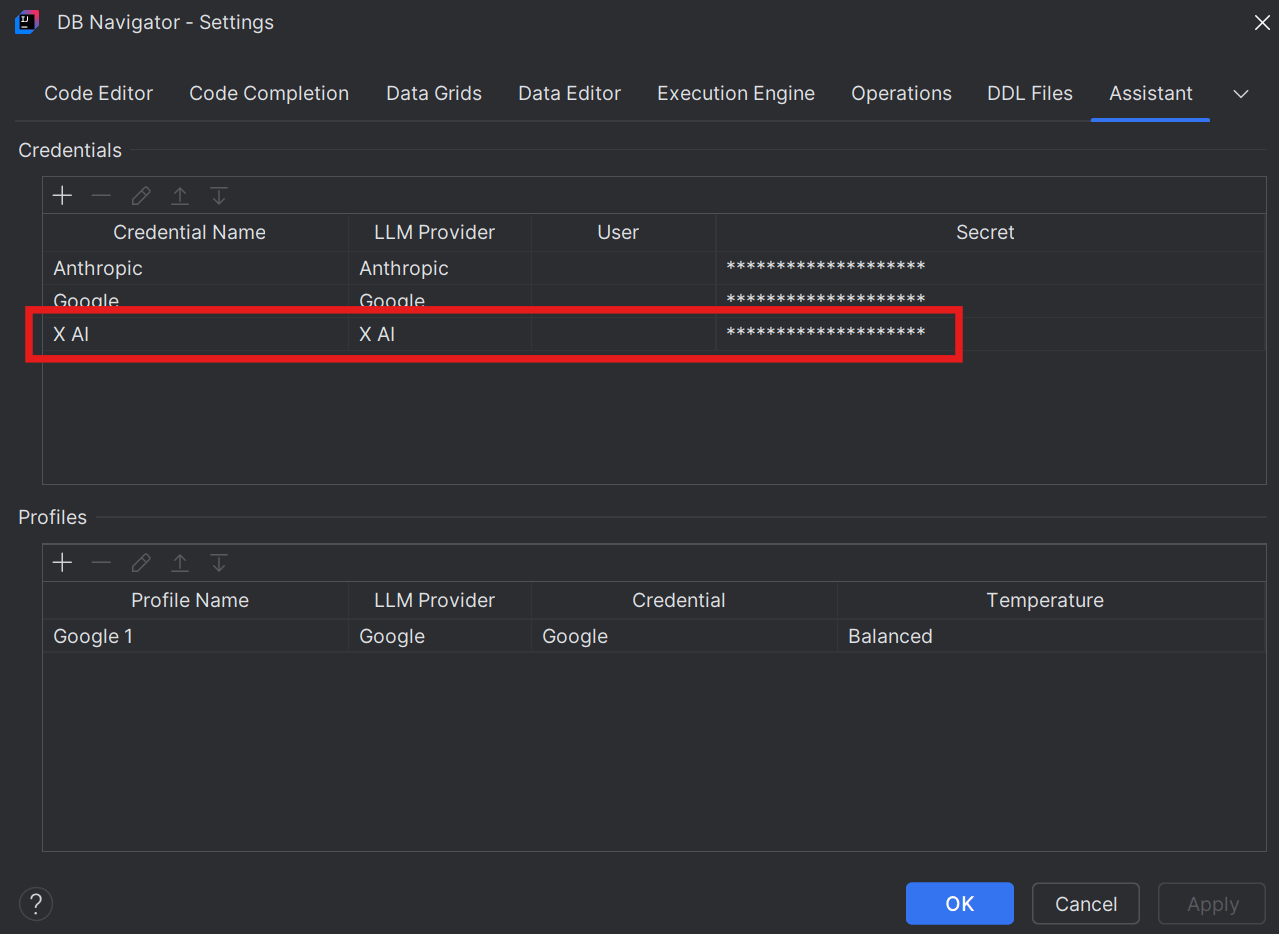
A temporary credential corresponding to the implicit profile gets listed on the DB Navigator Setting page > Assistant tab > Credentials section.
Parent topic: Public LLMs