Deploying Plug-ins and Registering Plug-in Hosts
Learn about deploying plug-ins and registering plug-in hosts.
About Plug-ins
Learn about plug-ins for Audit Vault Server.
Each type of target has a corresponding software plug-in in the Audit Vault Server, which enables the Audit Vault Agent to collect audit data. You can deploy more plug-ins, in addition to those shipped with Oracle Database Security Central, in order to collect audit data from more target types.
A plug-in supports only one target type. However, you may deploy more than one plug-in for the same target type if, for example, you acquired each plug-in from a different developer, or each plug-in supports a specific type of audit trail for the same target type. You can select the specific plug-in to use when you configure audit trail collections.
To start collecting audit data from the target type associated with a plug-in, you must also add the target in the Audit Vault Server, then configure and manually start audit trail collection.
See Also: Configuring Targets, Audit Trails, and Database Firewall Monitoring Points
Deploying a plug-in consists of three steps:
Ensuring that Auditing is Enabled in a Target
Learn how to ensure that auditing is enabled in a target.
Ensure that auditing has been enabled in the target. See the target’s product documentation for more information.
See Also: Ensuring that Auditing is Enabled on the Target for information on plug-ins for Oracle Database.
Registering the Plug-in Host in Audit Vault Server
Learn about registering a plug-in host in Audit Vault Server.
To register a host in the Audit Vault Server, see Registering Hosts on the Audit Vault Server.
Oracle Oracle Database Security Central provides out-of-the-box plug-ins for most commonly used trails. See Plug-In Reference for a complete list. You don’t need to deploy plug-ins for targets that have existing out-of-the-box plug-ins.
Deploying and Activating the Plug-in
Learn about deploying and activating a plug-in in Audit Vault Server.
To deploy and activate a plug-in:
-
Log in to the Oracle Database Security Central console as an administrator.
-
Select Settings.
-
In the left navigation menu, select System.
A status page appears, with pane for Configuration and Monitoring.
-
In the Monitoring pane, select Plug-ins.
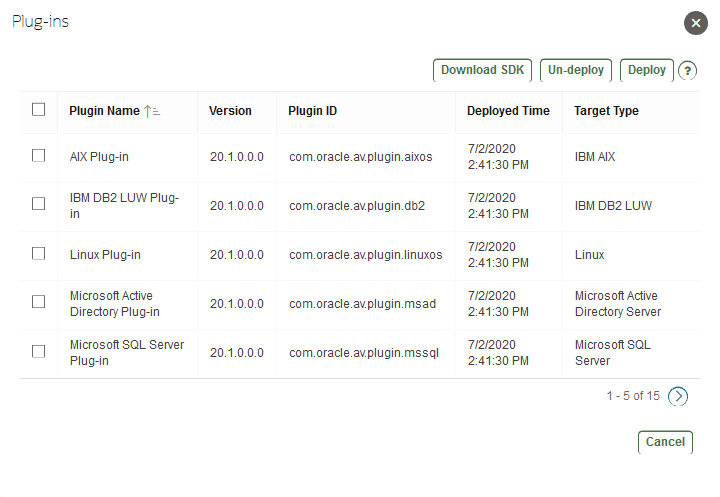
The Plug-ins page lists the currently deployed plug-ins:
-
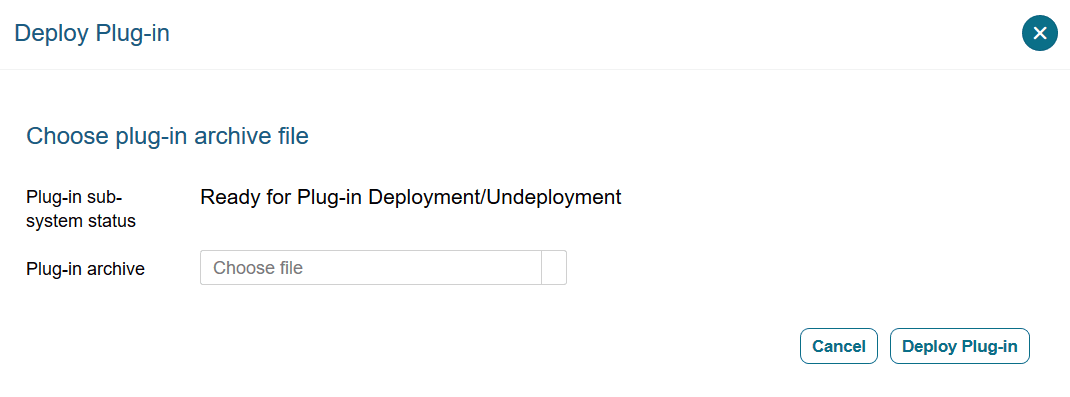
Copy the plug-in archive to the Audit Vault Server, and make a note of the location of the file. Select Deploy, and in the Plug-in Archive field, enter or browse for the name of the plug-in archive file.
-
Select Deploy Plug-in, then select Deploy.
The new plug-in is listed in the Plug-ins page. The updated
agent.jarfile has a new Deployed Time shown in this page.The Hosts page displays an Agent Generation Time column for each registered host, indicating the version of the
agent.jaron that host. -
Copy the updated
agent.jarfile to each registered host machine.Register the host machine in case it is not registered.
-
On the host machine, extract the agent:
java -jar agent.jar
Note: Do not download the Agent during the same login session in which the plug-in is deployed, as the agent.jar file is being updated. However, users in other sessions can download the most current version of the agent.jar file after the plug-in deployment process is complete and a new version is available.
See Also:
Removing Plug-ins
Learn about removing plug-ins.
To remove a plug-in:
-
Log in to the Oracle Database Security Central console as an administrator.
-
Select Settings.
-
In the left navigation menu, select System.
A status page appears, with pane for Configuration and Monitoring.
-
In the Monitoring pane, select Plug-ins.
-
Select the plug-in that you want, and then select Un-deploy.