Query Execution Settings
You can choose a variety of settings that control how the SQL and PL/SQL File Editor behaves including whether autocommit is enabled, whether the results window is cleared with each execution, and maximum number of rows that will be fetched.
Accessing the Query Execution Settings
To access the Query Execution Settings Page, select Options... from the Tools menu. From the Options menu, select Oracle Developer Tools. Then select Query Execution Settings.
Using the Query Execution Settings
The Query Execution Settings page appears similar to the following:
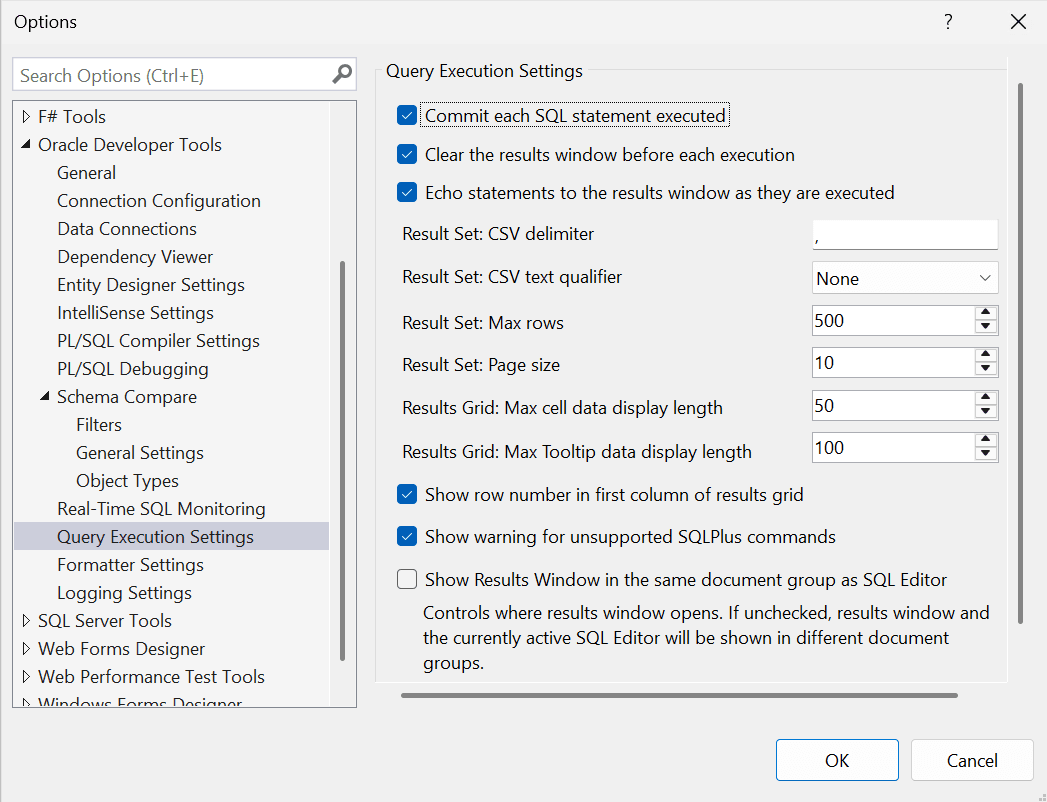
The controls of the Query Execution Settings page are as follows:
| Control | Description |
|---|---|
|
Commit each SQL statement executed |
Turns autocommit on or off |
|
Clear the results windows before each execution |
Clears the results before each execution so you don't have to manually do it |
|
Echo statements to the results window as they are executed |
Copies each statement being executed to the results window |
|
Result Set:CSV Delimiter |
For results saved as a CSV file, this sets the delimiter. Enter a single character or a valid escape character. Use \\t for tab |
|
Result Set: CSV Text qualifier |
For results saved as a CSV file, this character is used to quote text strings |
|
Result Set: Max Rows |
These are maximum number of rows that can be fetched. A value of -1 means to fetch all rows. |
|
Result Set: Page size |
Specify the number of rows displayed on a page of results |
|
Results Grid: Max cell data display length |
Maximum number of characters or bytes that can be displayed in a cell for certain data types. Additional data will be viewable via an overflow window. |
|
Results Grid: Max tooltip data display length |
Maximum number of characters or bytes that can be displayed in a tooltip for a cell for certain data types. |
|
Show row number in first column of results grid |
Includes the row number in the results |
|
Show warning for unsupported SQL*Plus commands |
Not all SQL*Plus commands are supported. If this option is checked a dialog will be displayed to warn about unsupported commands. |
|
Show Results Window in the same document group as the SQL Editor |
Controls where the results window opens. If unchecked, results window and editor will be shown in different document groups. |
|
OK |
Updates the options and closes the dialog |
|
Cancel |
Cancels the operation and makes no changes to settings. |