SQL and PL/SQL Formatter Settings
The SQL and PL/SQL File Editor and the PL/SQL Code Editor each have a Format option which formats the SQL or PL/SQL. You control how the SQL and PL/SQL formatter works by using these settings.
Accessing the SQL and PL/SQL Formatter Settings
To access the SQL and PL/SQL Formatter Settings right click on a Database Connection node in Server Explorer. Then select SQL and PL/SQL Formatter Settings. You may also access these settings by right clicking within the SQL and PL/SQL File Editor or the PL/SQL Code Editor and selecting SQL and PL/SQL Formatter Settings from the menu. There is also a SQL and PL/SQL Formatter Settings toolbar icon.
Using the SQL and PL/SQL Formatter Settings
The SQL and PL/SQL Formatter Settings page appears similar to the following:
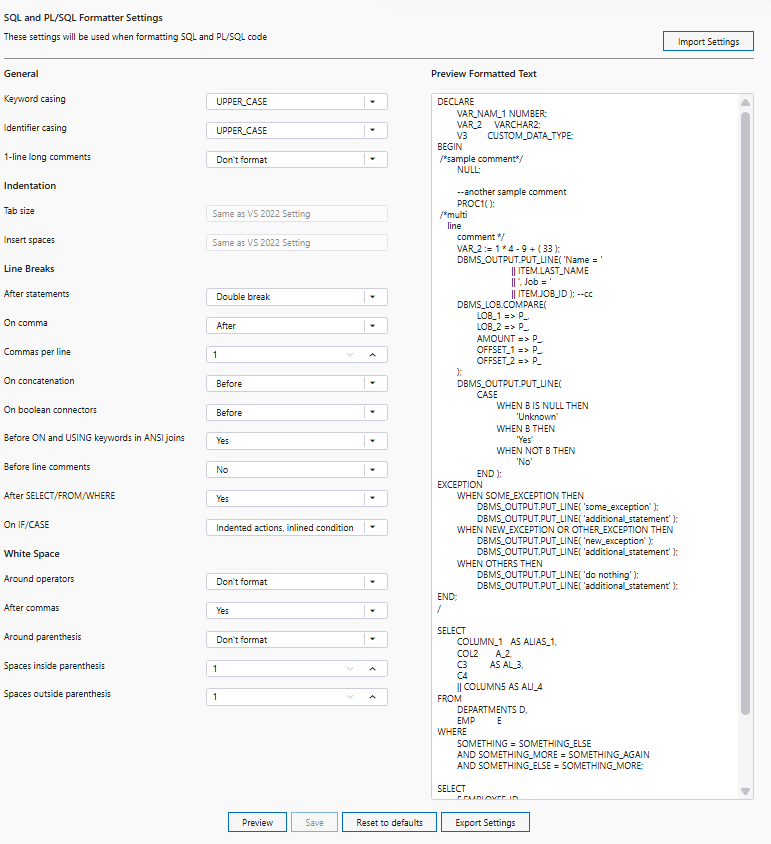
The controls of the SQL and PL/SQL Formatter Settings page are as follows:
| Control | Description |
|---|---|
|
Import Settings |
Import a formatter settings file that you have saved earlier using the Export Settings button. This will open a file browser dialog where you can locate the file. |
|
Various formatter options |
Select items from the various formatter option dropdown lists to modify the behavior of the formatter. You can preview the effect that a setting will have by clicking the Preview button and then viewing the Preview Formatted Text pane. |
|
Preview Formatted Text |
This pane allows you to view the impact of a change you make to a formatter option. After making a formatting change, click the Preview button and then view this window. You can choose to use the default SQL and PL/SQL provided in the pane or you may delete it replace it with your own example. |
|
Preview |
Updates the Preview Formatted Text pane to reflect the current formatter options. |
|
Save |
Saves any formatter settings changes. These changes will persist across Visual Studio launches. |
|
Reset to defaults |
Resets all the settings in the dialog to the default formatter settings. |
|
Export Settings |
Saves the settings in a JSON file which can be imported at a later time using the Import Settings button. |
When you change various formatter settings and click the Preview button, the Preview Formatted Text pane will display the effect that the setting has on the displayed SQL or PL/SQL. You can modify the SQL or PL/SQL in the Preview pane. You may also export or import the formatter settings. Press the Save button to save any formatter settings changes. These changes will persist across Visual Studio launches. Close the dialog without saving if you do not wish to save your changes.