Set Default AI Profile For Connection Dialog
The Set Default AI Profile For Connection dialog sets an AI Profile on a database connection in Server Explorer. After setting this profile, natural language queries (using SELECT AI) will be enabled in the SQL and PL/SQL File Editor. This profile will be used any time the connection is opened even across Visual Studio launches. Prior to using this dialog, you may need to create an AI profile using the Configure Select AI Profile Dialog.
See Also:
Opening the Set Default AI Profile For Connection Dialog
To open the Set Default AI Profile For Connection dialog, right click on the database connection node in Server Explorer and in the menu choose Select AI and then Set Default AI Profile For Connection.
Using the Set Default AI Profile For Connection Dialog
The Set Default AI Profile For Connection dialog appears as follows:
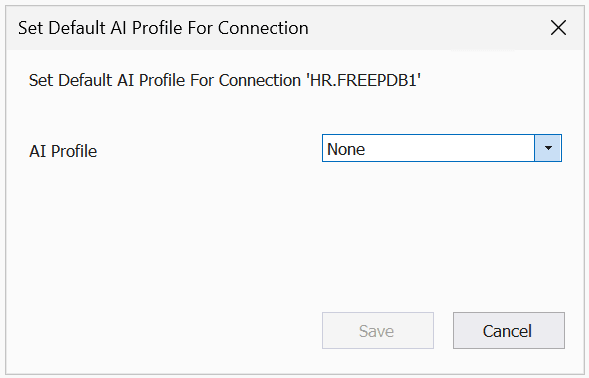
The Set Default AI Profile For Connection dialog has the following controls:
| Control | Description |
|---|---|
|
AI Profile |
Select the profile you wish to use from the drop down list. If you do not see a profile listed, you will need to create one via the Configure Select AI Profile Dialog. For more details, see Using Select AI: Natural Language to SQL. |
|
Save |
Associates the profile with this connection and closes the dialog. This profile will be used any time the connection is opened even across Visual Studio launches. |
|
Cancel |
Discards the changes and closes the dialog. |