Enable GPU Compute Capabilities in a Notebook through the Python Interpreter
This topic demonstrates how to enable GPU compute capabilities in a notebook through the Python interpreter. It also shows how to get information about the current GPU on which the notebook is running, and other details.
Prerequisites:
-
Paid Oracle Autonomous AI Database Serverless database instances.
-
The GPU feature is enabled for Oracle Autonomous AI Lakehouse Serverless or Oracle Autonomous AI Transaction Processing Serverless instances with 16 or more ECPUs specified for the OML application. For cost details, refer to the Oracle PaaS and IaaS Universal Credits Service Descriptions document available on the Oracle Cloud Services contracts page.
-
While basic NVIDIA libraries are included with the base environment, you are expected to create a custom Conda environment with the GPU-enabled 3rd party libraries required for your project. Only GPU-enabled packages will benefit from GPUs in Python paragraphs.
Note: By default, pre-installed and pre-configured NVIDIA libraries are provided to the GPU interpreter container in the host VM. However, third-party Python packages that use GPUs typically require specific versions of NVIDIA CUDA libraries as dependencies, which may override the included libraries.
- Third-party GPU-enabled Python packages. In this example, we use
pytorch.
Note: There is an expected delay in starting a notebook with GPU compute capabilities due to reserving and starting the GPU resources, which may take a few minutes.
Generating embeddings using transformer models can be done in Python memory using OML Notebooks’ Python interpreter. Using GPUs, transformer models, e.g., for generating sentence and image embeddings, can process larger volume data more quickly and efficiently.
To use the GPU compute capability in OML Notebooks:
-
Create a Conda environment with the desired third-party GPU-enabled Python packages (ADMIN role required).
-
Download and activate the Conda environment in OML Notebooks to use the GPU compute capabilities (OML_DEVELOPER role required).
-
In Oracle Machine Learning Notebooks, select the notebook type gpu from the Update Notebook Type drop-down menu in the notebook editor (OML_DEVELOPER role required). This setting is persisted in the notebook until you change it to another type.
To enable GPU compute capabilities in a notebook, and to view information on GPU:
-
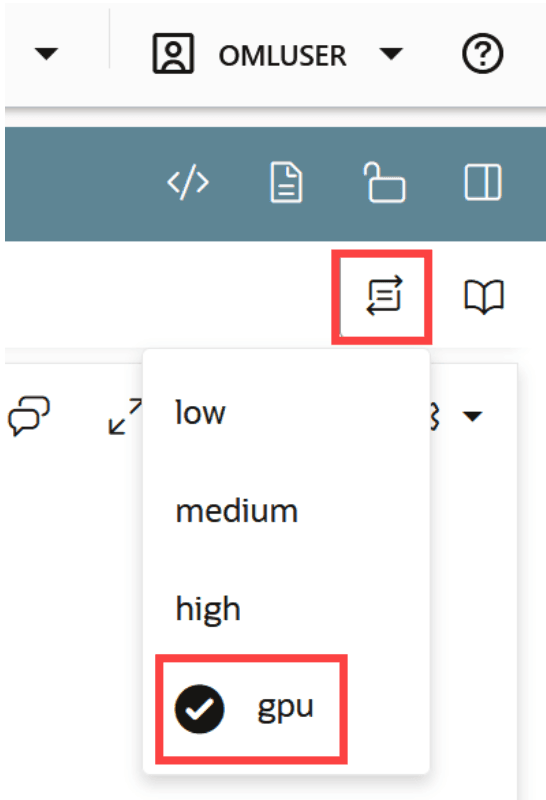
Create a notebook and open it in the notebook editor. Click on the Update Notebook Type icon and select gpu. By selecting gpu, you enable the notebook with GPU compute capabilities.
-
Run the following command to download and activate a Conda environment. To know more about how to create Conda environments for Python and R, see the Related Links section below.
%conda

download gpuenv
activate gpuenv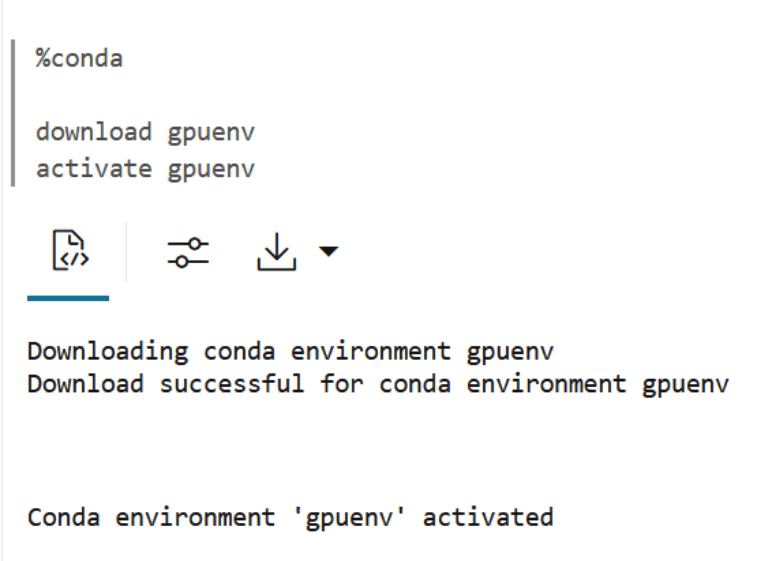
Description of the illustration conda-cmd-download-activate.png
-
In this Conda environment, you will import the third-party GPU-enabled Python library Torch. Add a Python paragraph in the notebook to import the Python library
torch. Type the directive%pythonand run the following command:%python import torch import torch.nn as nn import torch.optim as optim import time -
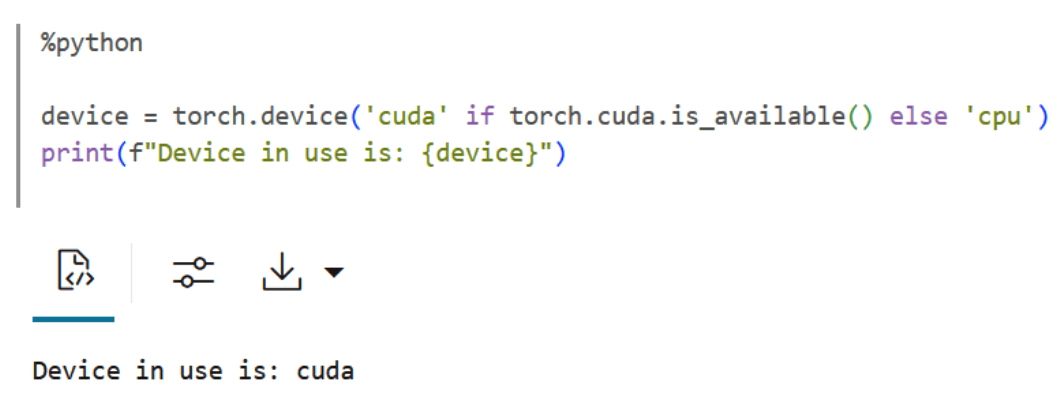
In another Python paragraph in the notebook and run the following command to check if GPU is available and use it:
%python
         device = torch.device('cuda' if torch.cuda.is_available()else 'cpu')
         print(f"Device in use is: {device}")
The command returns the following information:
-
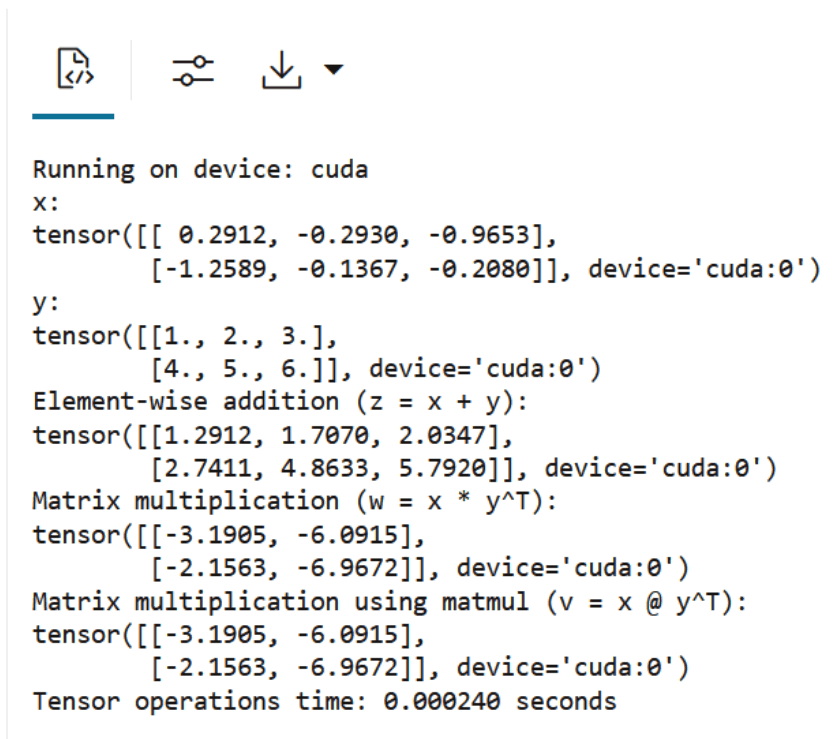
In this step, we will create another Python paragraph and run the following to:
-
Set the device to CPU or GPU if available
-
Create tensors on the specified device
-
Measure time for basic operations, and
-
Print the operations and results
%python

import torch
import time
import matplotlib.pyplot as plt

# Set the device to CPU or GPU if available
device = 'cuda' if torch.cuda.is_available() else 'cpu'
print(f"Running on device: {device}")

# Create tensors on the specified device
x = torch.randn(2, 3, device=device)
y = torch.tensor([[1.0, 2.0, 3.0], [4.0, 5.0, 6.0]], device=device)

# Measure time for basic operations
start_time = time.time()
z = x + y  # Element-wise addition
w = torch.mm(x, y.T)  # Matrix multiplication
v = torch.matmul(x, y.T)  # Another way to perform matrix multiplication
end_time = time.time()

# Print the operations and results
print(f"x:\n{x}")
print(f"y:\n{y}")
print(f"Element-wise addition (z = x + y):\n{z}")
print(f"Matrix multiplication (w = x * y^T):\n{w}")
print(f"Matrix multiplication using matmul (v = x @ y^T):\n{v}")
print(f"Tensor operations time: {end_time - start_time:.6f} seconds\n")
The command returns the following information:
-
Related Topics