Run Notebooks using different interpreters
An interpreter is a plug-in that allows you to use a specific data processing language backend. You select an interpreter by inserting its directive at the beginning of a notebook paragraph.
Topics:
- Use the SQL Interpreter in a Notebook Paragraph
An Oracle Machine Learning notebook supports multiple languages. Each paragraph is associated with a specific interpreter. For example, to run SQL statements use the SQL interpreter. To run PL/SQL statements, use thescriptinterpreter. - Use the Python Interpreter in a Notebook Paragraph
An Oracle Machine Learning notebook supports multiple languages. Each paragraph is associated with a specific interpreter. To run Python commands in a notebook, you must first connect to the Python interpreter. To use OML4Py, you must import theomlmodule. - Use the R Interpreter in a Notebook Paragraph
An Oracle Machine Learning notebook supports multiple languages. Each paragraph is associated with a specific interpreter. To run R functions in an Oracle Machine Learning notebook, you must first connect to the R interpreter. - Use the Conda Interpreter in a Notebook Paragraph
Oracle Machine Learning Notebooks provides a Conda interpreter to enable administrators to create conda environments with custom third-party Python and R libraries. Once created, you can download and activate Conda environments inside a notebook session also using the Conda interpreter. - Use the Markdown Interpreter and Generate Static html from Markdown Plain Text
Use the Markdown interpreter and generate static html from Markdown plain text.
Parent topic: OML Notebooks
Use the SQL Interpreter in a Notebook Paragraph
An Oracle Machine Learning notebook supports multiple languages. Each paragraph is associated with a specific
interpreter. For example, to run SQL statements use the SQL interpreter. To run PL/SQL
statements, use the script interpreter.
In an Oracle Machine Learning notebook, you can add multiple paragraphs, and each paragraph can be connected to
different interpreters such as SQL or Python. You identify which interpreter to use
by specifying % followed by the interpreter to use:
sql, script, r,
python, conda, markdown.
%sql: Supports standard SQL statements. In%sqlthe results of aSELECTstatement are directly displayed in a table viewer, with access to other visualization options. Use the options in the chart settings to perform groupings, summation, and other operations.%script: Supports both SQL statements and PL/SQL. In%script, the results of aSELECTstatement are provided as text string output.%conda: Supports the Conda environment. Type%condaat the beginning of the paragraph to connect to the Conda environment and work with third-party libraries for Python.%r: Supports R scripts. Type%rat the beginning of the paragraph to connect to the R interpreter.%python: Supports Python scripts. Type%pythonat the beginning of the paragraph to connect to the Python interpreter.%md: Supports Markdown markup language.
Note:
To run a Group By on all your data, then it is recommended to use SQL scripts to do the grouping in the database, and return the summary information for charting in the notebook. Grouping at the notebook level works well for small sets of data. If you pull too much data to the notebook, you may encounter issues due to insufficient memory. You can set the row limit for your notebook by using the option Render Row Limit on the Connections Group page.- Type the SQL statement to fetch data from an Oracle AI Database. For example, type
SELECT * FROM TABLENAMEand click . Alternatively, press Shift+Enter keys to run the notebook.
Note:
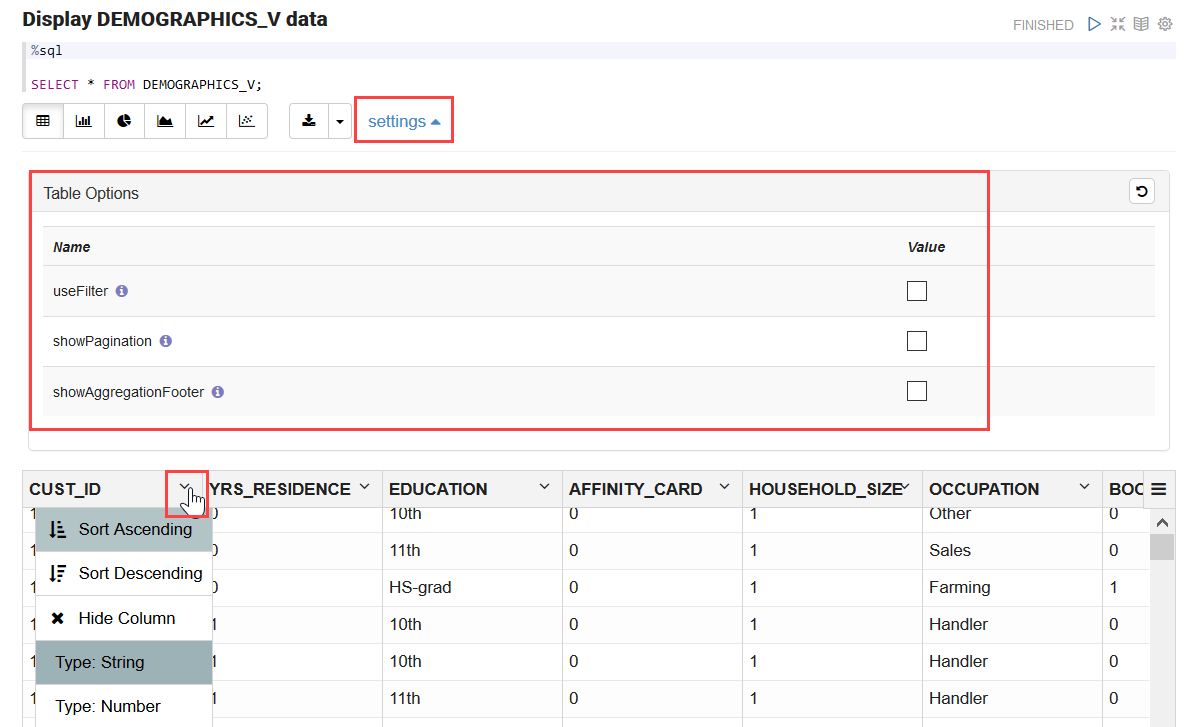
Notebooks must be opened as a regular user, that is, a non-administrator user. The Run notebook option is not available to the Administrator.This fetches the data in the notebook. - The data is displayed in the output of the paragraph. The results of the interpreter appear in the output section. The output section of the paragraph comprises a charting component that displays the results in graphical output. The chart interface allows you to interact with the output in the notebook paragraph. You have the option to run and edit single a paragraph or all paragraphs in a notebook.For Table Options, click settings and select:
-
useFilter: To enable filter for columns.
-
showPagination: To enable pagination for enhanced navigation.
-
showAggregationFooter: To enable a footer to display aggregated values.
You can also sort the columns by clicking the down arrow next to the column name.
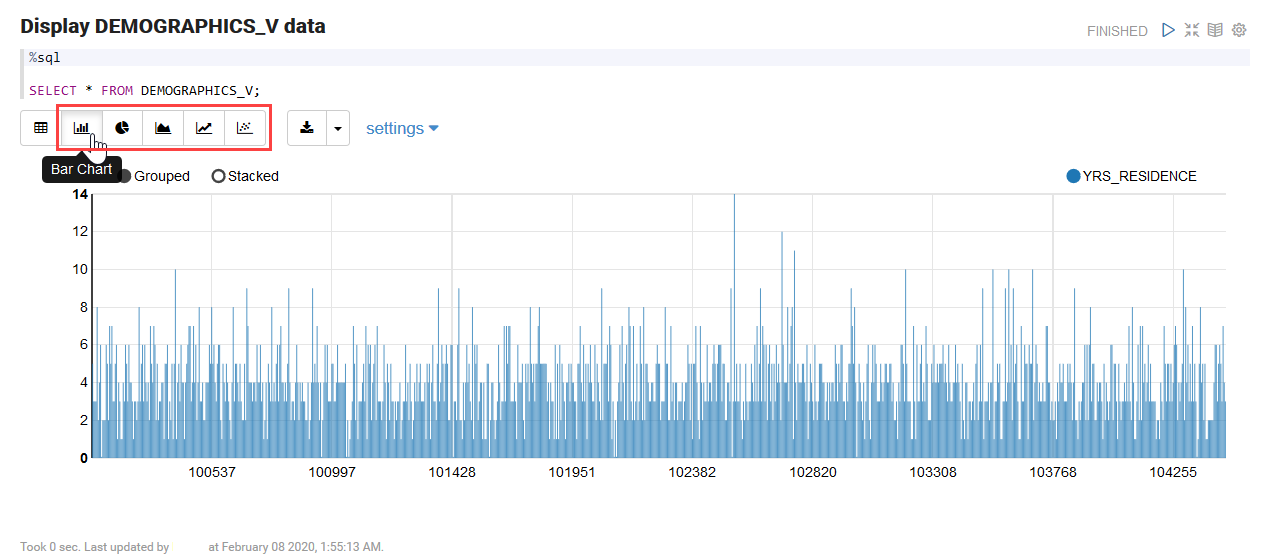
To visualize the tabular data, click the respective icons for each of the each graphical representation, as shown here:- Click
 to represent the data in a Bar Chart.
- Click
 to represent the data in a Pie Chart.
- Click
 to represent the data in an Area Chart.
- Click
 to represent the data in a Line Chart.
- Click
 to represent the data in a Scatter Chart.
-
- About Oracle Machine Learning for SQL
Oracle Machine Learning for SQL (OML4SQL) provides a powerful, state-of-the-art machine learning capability within Oracle AI Database. You can use Oracle Machine Learning for SQL to build and deploy predictive and descriptive machine learning models, add intelligent capabilities to existing and new applications. - Set Output Format in Notebooks
Oracle Machine Learning Notebooks allow you to preformat query output in notebooks. - Output Formats Supported by SET SQLFORMAT Command
By using theSET SQLFORMATcommand, you can generate the query output in a variety for formats.
Related Topics
Parent topic: Run Notebooks using different interpreters
About Oracle Machine Learning for SQL
Oracle Machine Learning for SQL (OML4SQL) provides a powerful, state-of-the-art machine learning capability within Oracle AI Database. You can use Oracle Machine Learning for SQL to build and deploy predictive and descriptive machine learning models, add intelligent capabilities to existing and new applications.
Oracle Machine Learning for SQL offers an extensive set of in-database algorithms for performing a variety of machine learning tasks, such as classification, regression, anomaly detection, feature extraction, clustering, and market basket analysis, among others. The programmatic interfaces to OML4SQL are PL/SQL for building and maintaining models and a family of SQL functions for scoring.
%sql)
and PL/SQL scripts (%script) respectively. Use Oracle Machine Learning for
SQL to:
- Perform data exploration and data analysis
- Build, evaluate and deploy machine learning models, and
- Score data using those models
Parent topic: Use the SQL Interpreter in a Notebook Paragraph
Set Output Format in Notebooks
Oracle Machine Learning Notebooks allow you to preformat query output in notebooks.
SET SQLFORMAT as follows:
Parent topic: Use the SQL Interpreter in a Notebook Paragraph
Output Formats Supported by SET SQLFORMAT Command
By using the SET SQLFORMAT command, you can generate the query output in a variety for formats.
Note:
These output formats are available for the Script interpreter. Therefore, you must include the prefix%script.
-
CSV: The CSV format produces standard comma-separated variable output, with string values enclosed in double quotes. The syntax is:
%scriptSET SQLFORMAT CSV -
HTML: The HTML format produces the HTML for a responsive table. The content of the table changes dynamically to match the search string entered in the text field. The syntax is:
%scriptSET SQLFORMAT HTML -
XML: The XML format produces a tag based XML document. All data is presented as
CDATAtags. The syntax is:%scriptSET SQLFORMAT XML -
JSON: The JSON format produces a JSON document containing the definitions of the columns along with the data that it contains. The syntax is:
%scriptSET SQLFORMAT JSON -
ANSICONSOLE: The ANSICONSOLE format resizes the columns to the width of the data to save space. It also underlines the columns, instead of separate line of output. The syntax is:
%scriptSET SQLFORMAT ANSICONSOLE -
INSERT: The INSERT format produces the INSERT statements that could be used to recreate the rows in a table. The syntax is:
%scriptSET SQLFORMAT INSERT -
LOADER: The LOADER format produces pipe delimited output with string values enclosed in double quotes. The column names are not included in the output. The syntax is:
%scriptSET SQLFORMAT LOADER -
FIXED: The FIXED format produces fixed width columns with all data enclosed in double-quotes. The syntax is:
%scriptSET SQLFORMAT FIXED -
DEFAULT: The DEFAULT option clears all previous
SQLFORMATsettings, and returns to the default output. The syntax is:%scriptSET SQLFORMAT DEFAULTNote:
You can also run this command without the format nameDEFAULTby simply typingSET SQLFORMAT. -
DELIMITED: The DELIMITED format allows you to manually define the delimiter string, and the characters that are enclosed in the string values. The syntax is:
%scriptSQLFORMAT DELIMITED delimiter left_enclosure right_enclosureFor example,
%scriptSET SQLFORMAT DELIMITED ~del~ " "SELECT * FROM emp WHERE deptno = 20;Output:
"EMPNO"~del~"ENAME"~del~"JOB"~del~"MGR"~del~"HIREDATE"~del~"SAL"~del~"COMM"~del~"DEPTNO"In this example, the delimiter string is
~del~and string values such asEMPNO, ENAME, JOBand so on, are enclosed in double quotes.
Parent topic: Use the SQL Interpreter in a Notebook Paragraph
Use the Python Interpreter in a Notebook Paragraph
An Oracle Machine Learning notebook supports multiple languages. Each paragraph is associated with a specific
interpreter. To run Python commands in a notebook, you must first connect to the Python
interpreter. To use OML4Py, you must import the oml module.
In an Oracle Machine Learning notebook, you can add multiple paragraphs, and each paragraph can be connected to
different interpreters such as SQL or Python. You identify which interpreter to use
by specifying % followed by the interpreter to use:
sql, script, r,
python, conda, markdown.
- Connect to a Python interpreter to run Python commands in a notebook
- Import the Python modules -
oml,matplotlib, andnumpy - Check if the
omlmodule is connected to the Oracle AI Database
Note:
z is a reserved keyword and
must not be used as a variable in %python paragraphs in Oracle Machine Learning notebooks.
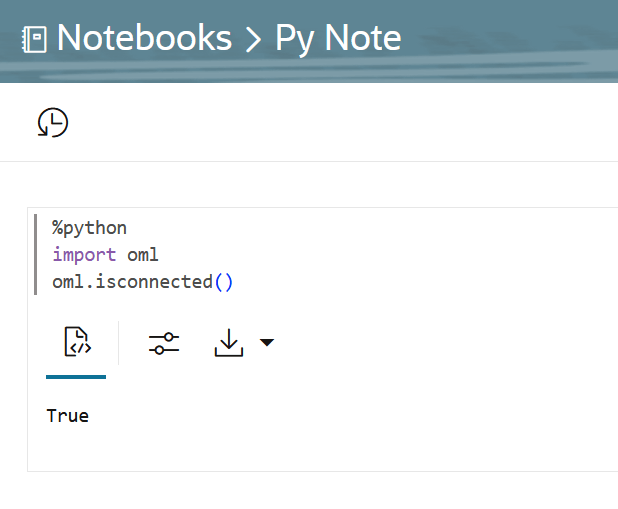
- To verify if the
omlmodule is connected to the Database, type:oml.isconnected()Once your notebook is connected, the command returnsTRUE.The notebook is now connected to the Python interpreter, and you are ready to run python commands in your notebook.
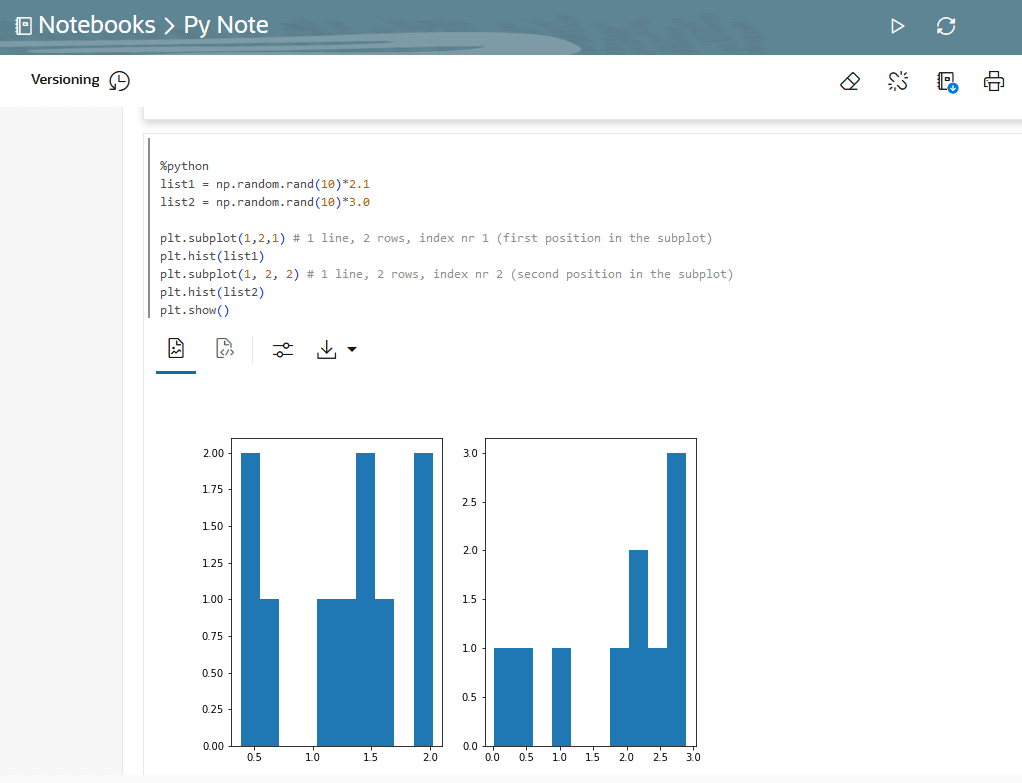
Example to demonstrate the use of the Python modules - matplotlib and numpy , and use random data to plot two histograms.
- Click Run.
The output section of the paragraph which contains a charting component displays the results in two histograms - list1 and list2, as shown in the screenshot.
- About Oracle Machine Learning for Python
Oracle Machine Learning for Python (OML4Py) is a component of Oracle Autonomous AI Database, which includes Oracle Autonomous AI Lakehouse (ADW), Oracle Autonomous AI Transaction Processing (ATP), and Oracle Autonomous AI JSON Database (AJD). By using Oracle Machine Learning UI notebooks, you can run Python functions on data for data exploration and preparation while leveraging Oracle AI Database as a high-performance computing environment. Oracle Machine Learning User Interface (UI) is available through Autonomous AI Lakehouse (ADW) , Autonomous AI Transaction Processing (ATP) and Autonomous AI JSON Database (AJD) services.
Parent topic: Run Notebooks using different interpreters
About Oracle Machine Learning for Python
Oracle Machine Learning for Python (OML4Py) is a component of Oracle Autonomous AI Database, which includes Oracle Autonomous AI Lakehouse (ADW), Oracle Autonomous AI Transaction Processing (ATP), and Oracle Autonomous AI JSON Database (AJD). By using Oracle Machine Learning UI notebooks, you can run Python functions on data for data exploration and preparation while leveraging Oracle AI Database as a high-performance computing environment. Oracle Machine Learning User Interface (UI) is available through Autonomous AI Lakehouse (ADW) , Autonomous AI Transaction Processing (ATP) and Autonomous AI JSON Database (AJD) services.
Oracle Machine Learning for Python (OML4Py) makes the open source Python scripting language and environment ready for the enterprise and big data. Designed for problems involving both large and small volumes of data, Oracle Machine Learning for Python integrates Python with Oracle Autonomous AI Database, including its powerful in-database machine learning algorithms, and enables deployment of Python code.
- Perform data exploration, data analysis, and machine learning using Python leveraging Oracle AI Database as a high performance compute engine
- Build and evaluate machine learning models and score data using those models from an integrated Python API using in-database algorithms
- Deploy user-defined Python functions through a REST interface with data-parallel and task-parallel processing
The Python interpreter uses Python 3.13.5 to process Python scripts in Oracle Machine Learning notebooks. To use the interpreter, specify the %python directive at the
beginning of the paragraph. The Python interpreter supports the following Python modules:
cffi-1.15.1contourpy-1.1.0cryptography-43.0.1cycler-0.10.0fonttools-4.49.0joblib-1.4.2kiwisolver-1.4.5matplotlib-3.8.4numpy-2.0.1oracledb-2.4.1packaging-23.1pandas-2.2.2pillow-10.4.0pycparser-2.21pyparsing-2.4.0python_dateutil-2.8.2pytz-2022.1scikit_learn-1.5.1scipy-1.14.0setuptools-70.0.0six-1.16.0threadpoolctl-3.5.0
Related Topics
Parent topic: Use the Python Interpreter in a Notebook Paragraph
Use the R Interpreter in a Notebook Paragraph
An Oracle Machine Learning notebook supports multiple languages. Each paragraph is associated with a specific interpreter. To run R functions in an Oracle Machine Learning notebook, you must first connect to the R interpreter.
In an Oracle Machine Learning notebook, you can add multiple paragraphs, and each paragraph can be connected to
different interpreters such as R or SQL or Python. You identify which interpreter to
use by specifying % followed by the interpreter to use:
sql, script, r,
python, conda, markdown.
- Connect to the R interpreter to run R commands in a notebook.
- Verify the connection to Oracle Autonomous AI Database, and
- Load the ORE libraries
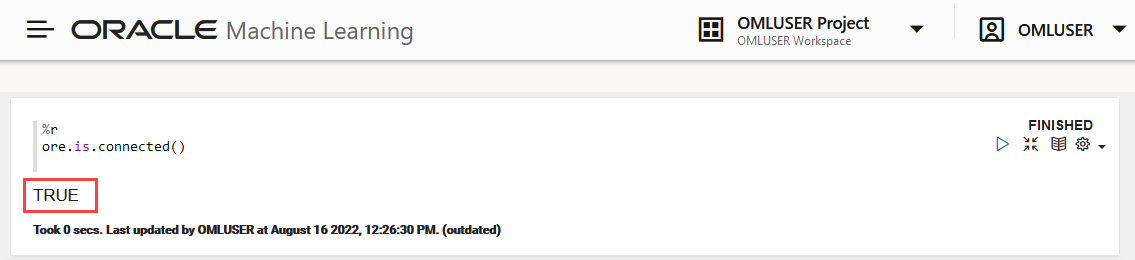
- To verify the database connection, type the following command and press Enter:
ore.is.connected()Once your notebook is connected, the command returnsTRUE, as shown in the screenshot here. The notebook is now connected to the R interpreter, and you are ready to run R commands in your notebook.Figure 4-85 Command to Test Database Connection
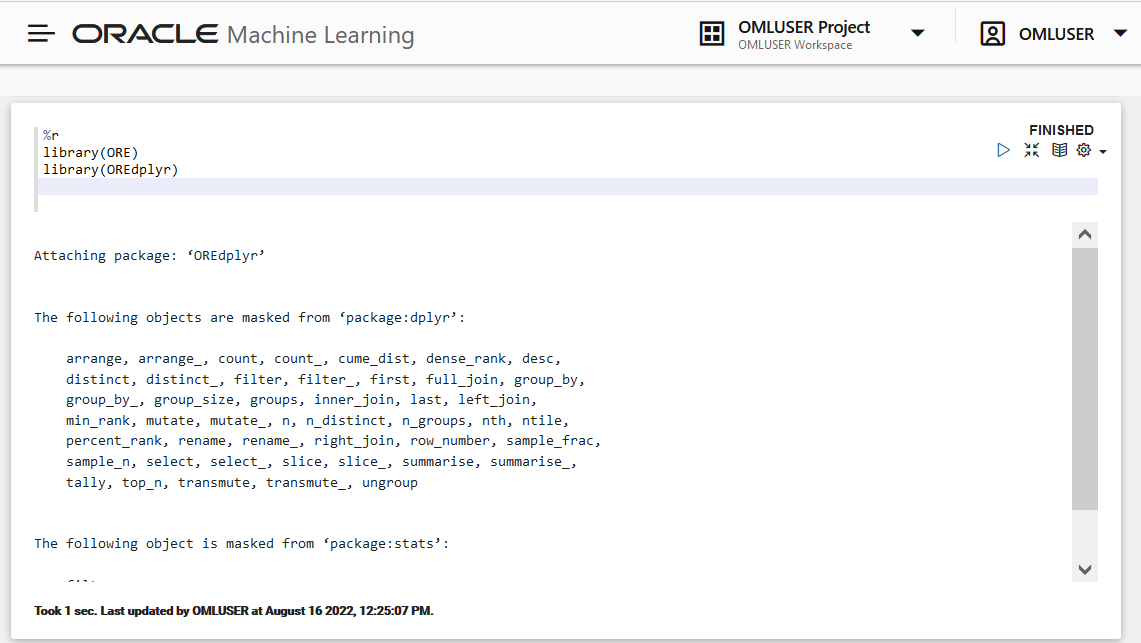
- To import R Libraries, run the following commands:
library(ORE)
library(OREdplyr)
Once the packages are loaded successfully, the list of ORE packages are displayed as shown in the screenshot here. Scroll down to view the entire list.
- About Oracle Machine Learning for R
Oracle Machine Learning for R (OML4R) is a component of the Oracle Machine Learning family of products, which integrates R with Oracle Autonomous AI Database.
Parent topic: Run Notebooks using different interpreters
About Oracle Machine Learning for R
Oracle Machine Learning for R (OML4R) is a component of the Oracle Machine Learning family of products, which integrates R with Oracle Autonomous AI Database.
Oracle Machine Learning for R makes the open source R scripting language and environment ready for enterprise and big data. It is designed for problems involving for both large and small data volumes. OML4R allows users to run R commands and scripts for statistical, machine learning, and perform visualization analyses on database tables and views using R syntax.
Oracle Machine Learning for R is available in Oracle Machine Learning UI, currently available through Oracle Autonomous AI Database, including Autonomous AI Lakehouse, Autonomous AI Transaction Processing, and Autonomous AI JSON Database. Oracle Machine Learning for R Embedded R Execution functionality can be deployed through SQL and REST APIs on Autonomous AI Database.
Use Oracle Machine Learning for R to:
- Perform data exploration and data preparation while seamlessly leveraging as a high-performance computing environment.
- Run user-defined R functions on database spawned and controlled R engines, with system-supported data-parallel and task-parallel capabilities.
- Access and use powerful in-database machine learning algorithms from R language.
To use the R interpreter, specify the %r directive at the beginning of the paragraph. The following R packages are installed to support Oracle Machine Learning for R.
Supported Oracle Machine Learning for R Proprietary R Packages
The supported Oracle Machine Learning for R proprietary R packages are:
ORE_1.5.1OREbase_1.5.1OREcommon_1.5.1OREdm_1.5.1OREdplyr_1.5.1OREeda_1.5.1OREembed_1.5.1OREgraphics_1.5.1OREmodels_1.5.1OREpredict_1.5.1OREstats_1.5.1ORExml_1.5.1
Supported Open Source R Modules
The following open source R packages are supported by Oracle Machine Learning for R:
-
R-4.0.5 Cairo_1.5-15ROracle_1.4-1: DBI_1.1-2arules_1.7-3png_0.1-7randomForest_4.6-14statmod_1.4-36dplyr_1.0-9:R6_2.5.1assertthat_0.2.1cli_3.3.0crayon_1.5.1ellipsis_0.3.2fansi_1.0.3generics_0.1.2glue_1.6.2lazyeval_0.2.2lifecycle_1.0.1magrittr_2.0.3pillar_1.7.0pkgconfig_2.0.3purrr_0.3.4rlang_1.0.2tibble_3.1.7tidyselect_1.1.2utf8_1.2.2vctrs_0.4.1
Oracle Machine Learning for R Interpreter Requirements
Rkernel 1.3:base64enc 0.1-3cli 3.3.0crayon 1.5.1digest 0.6.29ellipsis 0.3.2evaluate 0.15fansi 1.0.3fastmap 1.1.0glue 1.6.2htmltools 0.5.2IRdisplay 1.1jsonlite 1.8.0lifecycle 1.0.1pbdZMQ 0.3-7pillar 1.7.0repr 1.1.4rlang 1.0.2utf8 1.2.2uuid 1.1-0vctrs 0.4.1
knitr 1.39:evaluate_0.15glue_1.6.2highr_0.9magrittr_2.0.3stringi_1.7.6stringr_1.4.0xfun_0.31yaml_2.3.5
Parent topic: Use the R Interpreter in a Notebook Paragraph
Use the Conda Interpreter in a Notebook Paragraph
Oracle Machine Learning Notebooks provides a Conda interpreter to enable administrators to create conda environments with custom third-party Python and R libraries. Once created, you can download and activate Conda environments inside a notebook session also using the Conda interpreter.
An Oracle Machine Learning notebook supports multiple languages. For this, you must create a notebook with some paragraphs to run SQL queries, and other paragraphs to run PL/SQL scripts. To run a notebook in different scripting languages, you must first connect the notebook paragraphs with the respective interpreters such as SQL, PL/SQL, R, Python, or Conda.
- Connect to the Conda interpreter
- Download and activate the Conda environment
- View the list of packages in the Conda environment
- Run a Python function to import the Iris dataset, and use the seaborn package for visualization
- Next, download and activate the Conda environment. Type:
download sbenv
activate sbenv
In this example, the Conda environment is downloaded and activated. The name of the Conda environment in this example issbenv.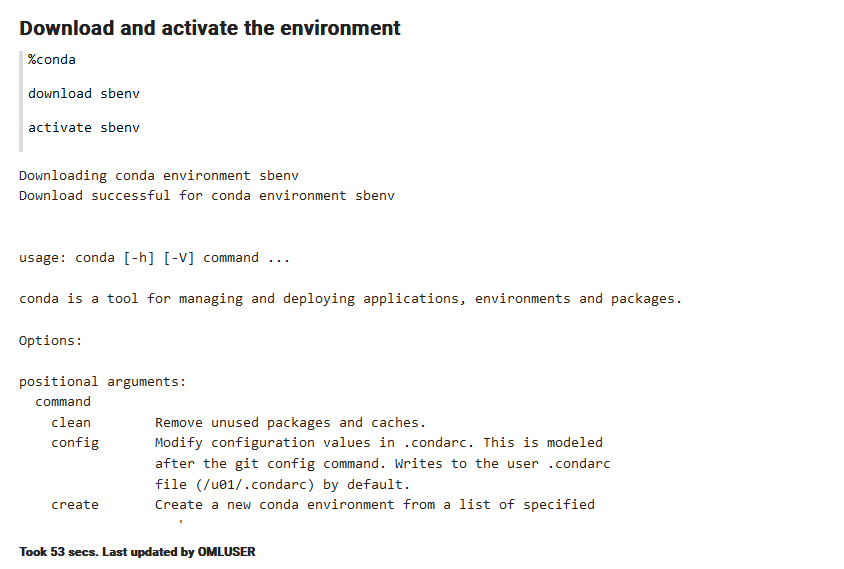
- You can view all the packages that are present in the Conda environment. To view the list of packages, type
list.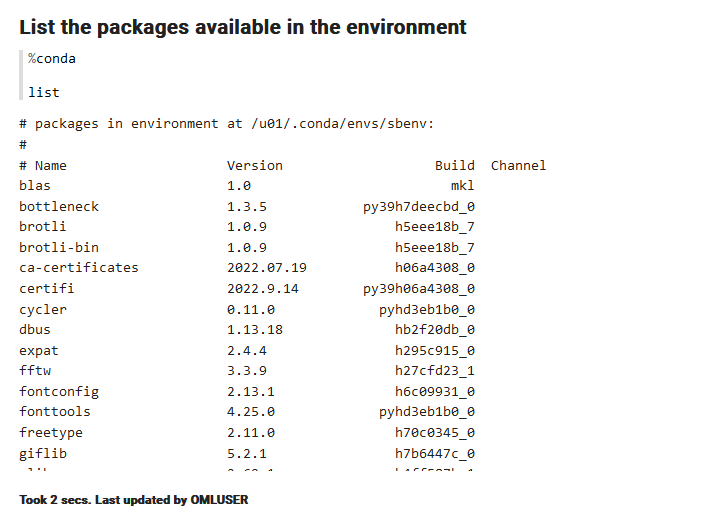
- Here's an example that demonstrates how to use the seaborn library package for visualization. Seaborn is a Python visualization library based on matplotlib. It provides a high-level interface for drawing attractive statistical graphics. This example
- Imports Pandas and seaborn
- Loads the Iris dataset
- Plots the datapoints, that is, the three different species of the Iris flower - Setosa, Virginica, and Versicolor based on its dimensions. It creates a scatter plot
Type:%python def sb_plot(): import pandas as pd import seaborn as sb from matplotlib import pyplot as plt df = sb.load_dataset('iris') sb.set_style("ticks") sb.pairplot(df,hue = 'species',diag_kind = "kde",kind = "scatter",palette = "husl") plt.show()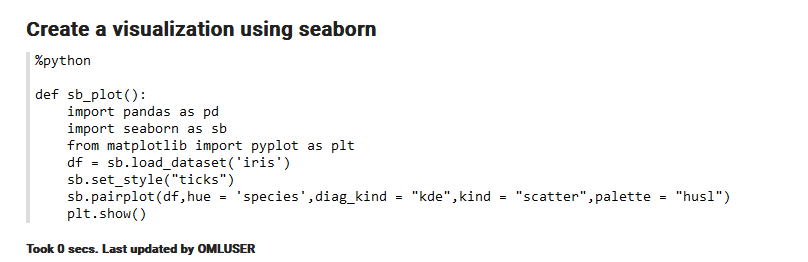
- Run the function in a Python paragraph. Type:
%python
sb_plot()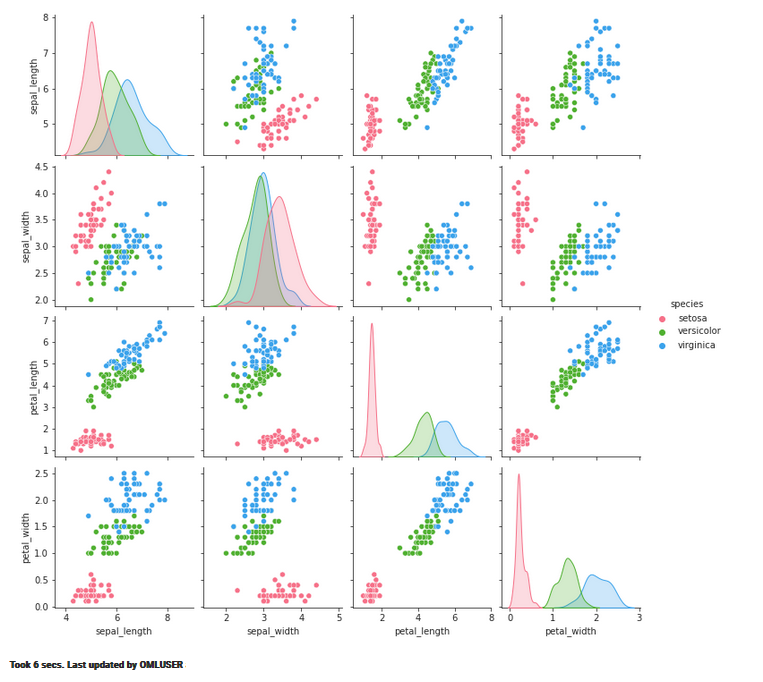
- About the Conda Environment and Conda Interpreter
Conda is an open-source package and environment management system that allows the use of environments containing third-party Python and R libraries. Oracle Machine Learning User Interface (UI) provide the conda interpreter to install third-party Python and R libraries inside a notebook session. - Conda Interpreter Commands
This table lists the commands for the Conda interpreter. - Create a Conda Environment for Python, Install a Python Package and Upload it to Object Storage
This topic demonstrates how to create a Conda environmentmypyenvfor Python packages, with Python 3.13.5 that is compatible with OML4Py. Here, you will also install the Python package seaborn from theconda-forgechannel, and upload the Conda environmentmypyenvto object storage. - Create a Conda Environment for R and Install R Package and Upload it to Object Storage
This topic shows how to create a Conda environmentmyrenvfor R packages, with R-4.0.5 for OML4R compatibility, install theforecastpackage, and upload the Conda environment to object storage. - Upload the Conda environments to an Object Storage bucket associated with the Autonomous AI Database
There is one Object Storage bucket for each data center region. The Conda environment is saved to a folder in Object Storage corresponding to the tenancy and database. The folder is managed by Autonomous AI Database and is only available to users through Oracle Machine Learning Notebooks. There is an 8G maximum size for a single Conda environment, and no size limit on Object Storage.
Parent topic: Run Notebooks using different interpreters
About the Conda Environment and Conda Interpreter
Conda is an open-source package and environment management system that allows the use of environments containing third-party Python and R libraries. Oracle Machine Learning User Interface (UI) provide the conda interpreter to install third-party Python and R libraries inside a notebook session.
- Standard Python
- Standard R
- Oracle Machine Learning for Python embedded Python execution from the Python, SQL and REST APIs
- Oracle Machine Learning for R embedded R execution from the R, SQL, and REST APIs
To start working in the Conda environment:
- Ensure that a Conda environment is saved to Object Storage, or update an existing
package by installing a new version.
Note:
You must be signed in as ADMIN user to create the Conda environment. The administrator manages the lifecycle of an environment, including adding or deleting packages from it, and removing environments. The Conda environments are stored in an Object Storage bucket associated with the Autonomous AI Database. - Sign into Oracle Machine Learning UI and download the Conda environment. To download the Conda environment, type:
%condadownload myenv - Activate the Conda environment. To activate the Conda environment, type:
activate myenvNote:
There is only one active Conda environment at a given point in time. - Create a notebook, use the Conda interpreter to use third-party libraries in the Object Storage. To use the Conda interpreter, type
%condaat the beginning of the paragraph to connect to the Conda environment, and work with third-party libraries for Python. You can switch between the preinstalled Conda environments. For example, you can have an environment for working with Graph analysis, and another environment for Oracle Machine Learning analysis. - Deactivate the Conda environment. As a best practice, deactivate the Conda environment after you have finished working on your machine learning analysis. To deactivate the environment, type:
deactivate
Parent topic: Use the Conda Interpreter in a Notebook Paragraph
Conda Interpreter Commands
This table lists the commands for the Conda interpreter.
Conda Interpreter Commands
Table 4-1 Conda Interpreter Commands
| Tasks | Commands | Role |
|---|---|---|
| Create a Conda environment. | create -n <env_name> <python_version> |
|
Remove a list of packages from a specified conda environment. It is also an alias for conda uninstall.
|
remove -n <env_name> --allNote: The Conda environment is deleted from the user session. |
|
| List user-created local environment. | env list |
|
| Remove user-created local environment. | env remove -n <env_name> |
|
| List all packages and versions installed in active environment. | list |
|
| Activate a user-created local environment. | activate -n <env_name> |
|
| Deactivate the current environment. | deactivate |
|
| Install an external package from a public Conda channel. | install -n <env_name> <package_name> |
|
Uninstall a specific package from a Conda environment. It is also an alias for remove.
|
uninstall -n <env_name> <package_name> |
|
| Display information about current conda install. | info |
|
| View the command line help. | COMMANDNAME --help |
|
| Upload a Conda environment to object storage.
Note: This is an Oracle Autonomous AI Database specific command. |
upload --overwrite <env_name> --description 'some description' -t <name> <value>Note: You can provide many tags. For example:-t <name1> <value1> -t <name2> <value2> .. |
|
| Download and unpack a specific Conda environment from the object storage.
Note: This is an Oracle Autonomous AI Database specific command. |
download --overwrite <env_name> |
|
| List local environments available to the user. | list-local-envs |
|
| List all Conda environments in the object storage.
Note: This is an Oracle Autonomous AI Database specific command. |
list-saved-envs --installed-packages -e <env_name> |
|
| Delete a Conda environment.
Note: This is an Oracle Autonomous AI Database specific command. |
delete <env_name>Note: The Conda environment is deleted from the Object Storage. |
|
| Update conda packages to the latest compatible version. | update |
|
Upgrade the current conda package. It is also an alias for conda update.
|
upgrade |
|
Search for packages and display associated information. The input is a MatchSpec, a query language for conda packages.
|
search |
|
Parent topic: Use the Conda Interpreter in a Notebook Paragraph
Create a Conda Environment for Python, Install a Python Package and Upload it to Object Storage
This topic demonstrates how to create a Conda environment
mypyenv for Python packages, with Python 3.13.5 that is compatible with
OML4Py. Here, you will also install the Python package seaborn from the
conda-forge channel, and upload the Conda environment
mypyenv to object storage.
conda-forge channel is a
community channel made up of thousands of contributors, and is free for all to use. You
can modify what remote channels are automatically searched. You might want to do this to
maintain a private or internal channel.
Note:
You must be signed in as ADMIN user to create the Conda environment.Note:
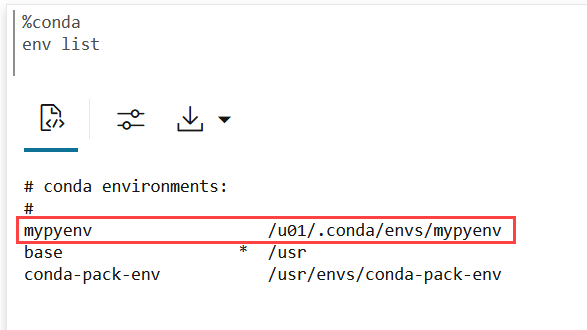
To avoid version conflicts, please do not install packages that are already included in OML4Py. For a complete list of pre-installed packages and their versions, see Python Libraries in OML4Py.- Run the following command to list the environments that are available by
default. Conda contains default environments with some core system libraries and
conda dependencies. Run the following command to list the available
environments.
%conda

env list
Note:
The active environment is marked with an asterisk (*).The command returns the list of following environments:Figure 4-87 Command to list Conda environments
- Now, run the following command to create an environment by the name
mypyenvfrom theconda-forgechannel, install the Python package seaborn, and upload the conda environmentmypyenvto Object Storage:%conda create -n mypyenv -c conda-forge --override-channels --strict-channel-priority python=3.13.5 seaborn upload mypyenv --overwrite -t application "OML4PY"Note:
This example uses Python version 3.13.5. You must ensure compatibility between the third-party package version and the Python version that OML4Py uses.To determine the Python version being used, run the following command:import sys sys.versionIn this command:-n: This is the name of the environment. In this example, it ismypyenv.-c: This is the channel name. In this example, theconda-forgechannel is used to install the Python package.--override-channels: This argument ensures that the system does not search default, and requires a channel to be mentioned.--strict-channel-priority: This argument ensures that packages in lower priority channels are not considered if a package with the same name appears in a higher priority channel. In this example, the priority is given to Python 3.13.5 and seaborn.upload: This argument uploads the Conda environment namedmypyenvto a target location.--overwrite: This argument ensures that if a file or directory with the same name already exists at the target location, it should be overwritten.-t application: This argument specifies the type of the target as an application."OML4PY": This is the name or path of the target application where the environment will be uploaded.
The command returns the following message once it creates the environment and installs the listed package. Scroll down the paragraph to view the complete details.Figure 4-88 Command to create a Conda environment
- Now, verify the environment that you created. Run the following command once
again to view the list of environments.
%conda

env list
Note:
Themypyenvenvironment is not yet active. The active environment is marked with an asterisk (*), and in this list, it is present against the base environment usr.Note that the environmentmypyenvis listed in the output. - To activate the environment
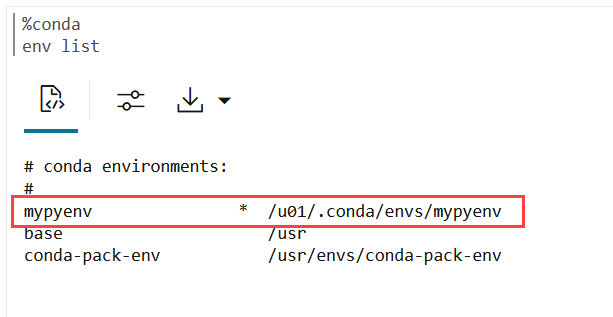
mypyenv, run the following command:%conda activate mypyenvFigure 4-90 Command to activate Conda environment
- Now, run the command to list the environment once again to view the list of
active environments. Note that the asterisk (*) is now present against the
mypyenvenvironment.Figure 4-91 Activated environment mypyenv listed



Parent topic: Use the Conda Interpreter in a Notebook Paragraph
Create a Conda Environment for R and Install R Package and Upload it to Object Storage
This topic shows how to create a Conda environment myrenv
for R packages, with R-4.0.5 for OML4R compatibility, install the forecast
package, and upload the Conda environment to object storage.
Note:
You must be signed in as ADMIN user to create the Conda environment.Note:
To avoid version conflicts, please do not install packages that are already included in OML4R. For a complete list of pre-installed packages and their versions, see About the OML4R Supporting Packagesmyrenv with
R-4.0.5 for OML4R compatibility, install the package forecast, and
upload the Conda environment myrenv to object storage:
- Run the following command to create the environment for R by the name
myrenv, install the packageforecastand upload the Conda environmentmyrenvto object storage:%conda create -n myrenv -c conda-forge --override-channels --strict-channel-priority r-base=4.0.5 r-forecast upload myrenv --overwrite -t application "OML4R"Note:
In this example, we are using theconda-forgechannel to install the R packages.In this command:-n: This is the name of the environment. In this example, it ismyrenv.-c: This is the channel name. In this example, it isconda-forge.--override-channels: This argument ensures that the system does not search default, and requires a channel to be mentioned.--strict-channel-priority: This argument ensures that packages in lower priority channels are not considered if a package with the same name appears in a higher priority channel. In this example, the priority is given toR-4.0.5andforecast.upload: This argument uploads the Conda environment namedmyrenvto a target location.--overwrite: This argument ensures that if a file or directory with the same name already exists at the target location, it should be overwritten.-t application: This argument specifies the type of the target as an application."OML4R": This is the name or path of the target application where the environment will be uploaded.
The command returns the following:Figure 4-92 Command to create Conda environment for R and install R Packages
- You may now verify the Conda environment for R that you just created. Run the
following command in a
%condaparagraph to view the list of environments.env listNote that themyrenvenvironment is now listed along with themypyenvin the output.Figure 4-93 myrenv environment created and listed
Note that the asterisk (*) is against the
mypyenv, indicating that this environment is active currently.


Parent topic: Use the Conda Interpreter in a Notebook Paragraph
Upload the Conda environments to an Object Storage bucket associated with the Autonomous AI Database
There is one Object Storage bucket for each data center region. The Conda environment is saved to a folder in Object Storage corresponding to the tenancy and database. The folder is managed by Autonomous AI Database and is only available to users through Oracle Machine Learning Notebooks. There is an 8G maximum size for a single Conda environment, and no size limit on Object Storage.
upload command. You will provide environment
descriptions and tags, one for the user name and one for the application name. You will
also overwrite any environment with the same name if it exists. The application tag is
required for use with embedded execution. For example, OML4Py embedded Python execution
works with Conda environments containing the OML4PY tag.
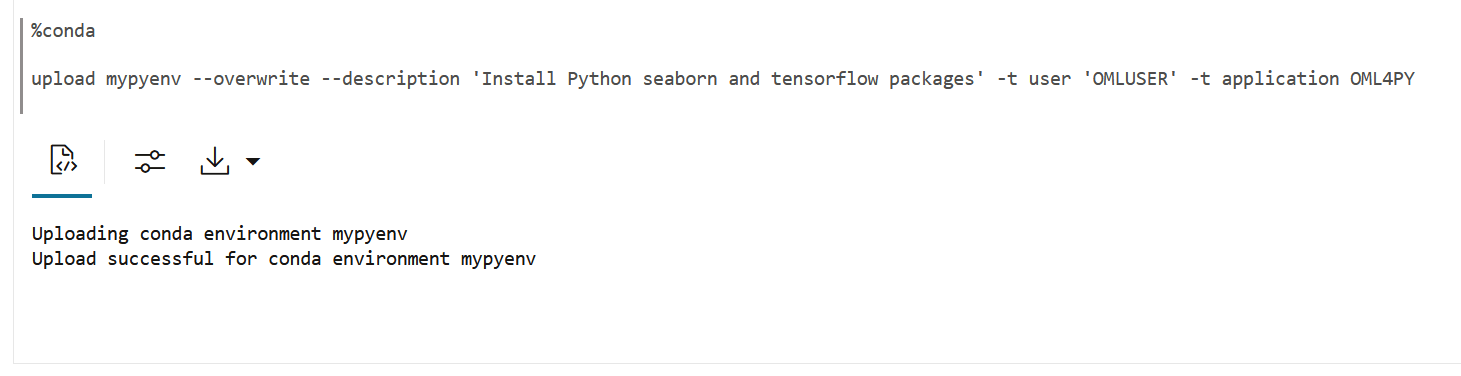
- In a Conda paragraph in your notebook, run the following command to upload the
mypyenvto the Object Storage bucket associated with the Autonomous AI Database.upload mypyenv --overwrite --description 'Install Python seaborn and tensorflow packages' -t user 'OMLUSER' -t application OML4PYIn this command, you use the upload command and provide the following:--description: a description of your task.-t: A tag for the userOMLUSERand for the applicationOML4PY.
Figure 4-94 Command to load the Conda environment for Py
- Now, run the following command to view the list of saved environments in
mypyenv:list-saved-envs -e mypyenvThe command returns the following:Figure 4-95 View saved environment mypyenv

- Now upload the
myrenvto the object storage by running the following command in a Conda paragraph:%conda upload myrenv --overwrite --description 'Install R forecast and ggplot2 packages' -t user 'OMLUSER' -t application 'OML4RThe command returns the following:Figure 4-96 Command to upload Conda environment for R

- Again, run the following command to view the list of saved environments in
myrenv:%conda list-saved-envs -e myrenvThe command returns the following:Figure 4-97 View saved environment myrenv

mypyenv and myrenv to the Object Storage
associated with the Autonomous AI Database. The environments are now available for you to download and use. The environments
will remain in the Object Storage until it is deleted.
Parent topic: Use the Conda Interpreter in a Notebook Paragraph
Use the Markdown Interpreter and Generate Static html from Markdown Plain Text
Use the Markdown interpreter and generate static html from Markdown plain text.
- Type
"Hello World!"and click Run. The static html text is generated, as seen in the screenshot below.
- You can format the text in bold. To display the text in bold, write the same text inside two asterisks pair and click Run.

- To display the text in italics, write the same text inside an asterisk pair or underscore pair as shown in the screenshot, and click Run.
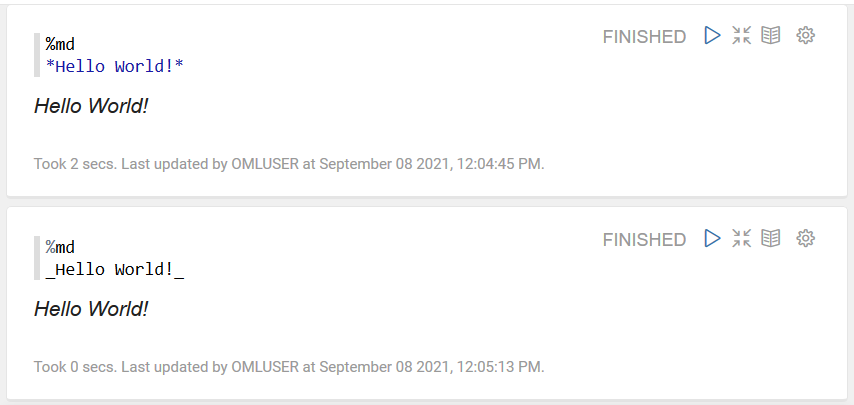
- To display the text in a bulleted list, prefix
*(asterisk) to the text, as shown in the screenshot below: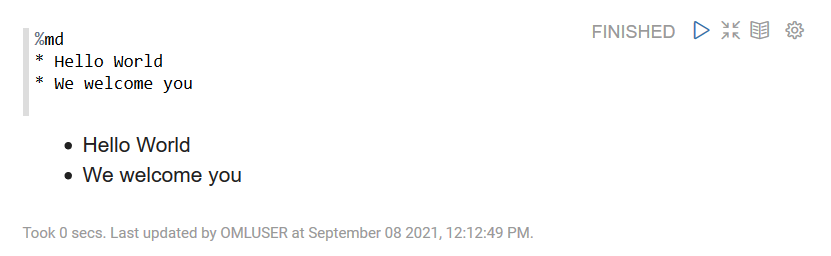
- To display the text in heading1, heading 2 and heading 2, prefix
#(hash) to the text and click Run. For H1, H2, and H3, you must prefix one, two, and three hashes respectively.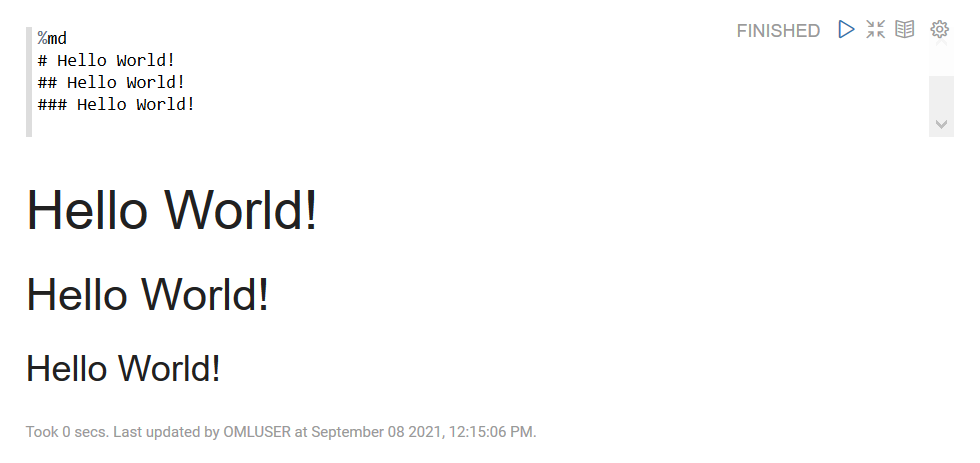
Parent topic: Run Notebooks using different interpreters