Getting Started
This chapter guides you through the procedures required to install and configure the Oracle Database ODBC driver.
The Oracle Database ODBC driver enables applications to connect to Oracle Database from a Windows client as well as a UNIX client that use Microsoft Open Database Connectivity (ODBC) API to read from and write to Oracle Databases.
The Oracle Database ODBC driver distribution kit consists of Dynamic Link Libraries and shared libraries (for UNIX platforms), help file (on Windows and UNIX platforms), a copy of the license, and this product description. To use an ODBC-enabled application, the following software is required in addition to the Oracle Database ODBC driver:
-
Oracle Client, such as full client install or Oracle Instant Client
-
Oracle Database Server
See Also: The OCI documentation in Oracle Call Interface Programmer’s Guide for more information about the OCI client and server software
Topics:
-
Installation This section guides you through the procedures required to install the Oracle Database ODBC driver.
-
Configuration This section guides you through the procedures required to configure the Oracle Database ODBC driver.
-
Patching Oracle Instant Client ODBC This section guides you through the procedures required to patch Oracle Instant Client ODBC.
-
Uninstallation This section takes you through the steps required to uninstall the Oracle Database ODBC driver.
Summary of Steps
The summary of steps for installing and configuring the Oracle Database ODBC driver is as follows.
Linux and UNIX
-
Confirm that the system requirements have been met for the installation.
-
Download and install the Oracle Instant Client Basic or Light package.
-
Download and install the
unixODBCDriver Manager. -
Download and extract the Instant Client ODBC package into the Instant Client directory.
-
Configure the path for the driver’s shared library and other environment variables.
-
Configure the Oracle net services (TNS service name) using the Oracle Net Configuration Assistant (NETCA) tool.
-
Run
odbc_update_ini.shfrom the Instant Client directory to configure the data source. -
Set globalization variables, if required for your locale.
Windows
-
Confirm that the system requirements have been met for the installation.
-
Download and install the Oracle Instant Client Basic or Light package.
-
Download and extract the Instant Client ODBC package into the Instant Client directory.
-
Run
odbc_install.exefrom the Instant Client directory. -
Configure the path for the driver’s shared library and other environment variables.
-
Configure the Oracle net services (TNS service name) using the Oracle NETCA tool.
-
Run ODBC Data Source Administrator to configure the data source.
Installation
This section guides you through the procedures required to install the Oracle Database ODBC driver.
Oracle’s Instant Client ODBC software is a standalone package that offers the full functionality of the Oracle Database ODBC driver (except the Oracle service for Microsoft Transaction Server) with a simple installation procedure.
The ODBC driver has Oracle’s standard client-server version interoperability (see Support Doc ID 207303.1). For example, Instant Client ODBC 19c can connect to Oracle Database 11.2, or later.
Topics:
System Requirements
Before installing the ODBC driver, verify that the hardware, the target operating system and server versions are compatible for use with the ODBC driver.
Topics:
-
Hardware Required The requirements for the Oracle Database ODBC driver system configuration for Windows and UNIX platforms.
Software Required
The Oracle Database ODBC driver was certified against the currently supported Windows and UNIX operating system versions, the most current release of Oracle Net Client and Oracle Universal Installer shipping with Oracle Database.
The Oracle Database ODBC driver was certified against the following versions of software:
-
Windows operating system versions: Windows Server 2008, Windows Server 2008 R2, Windows 7, Windows 8, and Windows Server 2012
-
UNIX operating system versions: 32-bit and 64-bit ports of Linux X86-64, AIX5L, Solaris.Sparc64, Solaris X64, HPUX.IA64, and ZLinux
-
Oracle Net Client 12.2
-
Oracle Universal Installer shipping with Oracle Database 12.2
Server Software Requirements
Oracle Database Server 12.2, or later, is the server software required to support ODBC-enabled applications that use the Oracle Database ODBC driver.
Hardware Required
The requirements for the Oracle Database ODBC driver system configuration for Windows and UNIX platforms.
The Oracle Database ODBC driver requires a system configuration that the certified Windows platforms as mentioned in Software Required supports, and on a few UNIX platforms, the hardware requirements are as documented in the Oracle Databse ODBC driver for UNIX Platforms Readme.
Installing Oracle Instant Client ODBC (Linux and UNIX)
-
Install the unixODBC Driver Manager from
unixODBC.org. To install the ODBC Driver Manager, first download.tarfile from http://www.unixodbc.org/.See Also: Recommended unixODBC Driver Manager Versions for Linux and UNIX for more information about the recommended unixODBC Driver Manager versions
-
Navigate to package from OTN to download Oracle Instant Client Basic or Basic Lite.
-
Download the Instant Client ODBC package.
-
Unzip the Instant Client package to the desired location, for example:
/opt/oracle/instantclient_xx_yy, or useyumto install the RPM packages on Linux.See Also: Installing Oracle Instant Client for more information about installing Oracle Instant Client
-
Unzip the ODBC package into the Instant Client folder, for example:
/opt/oracle/instantclient_xx_yy, which is the same directory as the Basic or Basic Light package. Alternatively, if using the RPM package on Linux, install it withyum.-
After the installation, set the environment variables, configure net services, and run
odbc_update_ini.sh(from the Instant Client directory) to configure data sources.See Also: Configuration for more post-installation configuration steps.
-
Set any Oracle globalization variables required for your locale. For example, on Linux, you could set
export NLS_LANG=JAPANESE_JAPAN.JA16EUCto work in the JA16EUC character in Japanese.
See Also: Oracle Database Globalization Support Guide for more information.
-
Recommended unixODBC Driver Manager Versions for Linux and UNIX
For Instant Client 23ai:
| Platform | unixODBC Driver Manager Version |
|---|---|
| Linux 32bit, 64bit | 2.3.14 |
| Solaris SPARC64 32bit, 64bit | 2.3.14 |
| Solaris 32bit, 64bit | 2.3.14 |
| AIX 5L 32bit, 64bit | 2.3.14 |
| HP IA64 32bit, 64bit | 2.3.14 |
| z/Linux 31bit, 64bit | 2.3.14 |
For Instant Client 21c:
| Platform | unixODBC Driver Manager Version |
|---|---|
| Linux 32bit, 64bit | 2.3.4 |
| Solaris SPARC64 32bit, 64bit | 2.3.4 |
| Solaris 32bit, 64bit | 2.3.4 |
| AIX 5L 32bit, 64bit | 2.3.4 |
| HP IA64 32bit, 64bit | 2.3.4 |
| z/Linux 31bit, 64bit | 2.3.4 |
For Instant Client 18c and 19c:
| Platform | unixODBC Driver Manager Version |
|---|---|
| Linux 32bit, 64bit | 2.3.4 |
| Solaris SPARC64 32bit, 64bit | 2.3.4 |
| Solaris 32bit, 64bit | 2.3.4 |
| AIX 5L 32bit, 64bit | 2.3.4 |
| HP IA64 32bit, 64bit | 2.3.4 |
| z/Linux 31bit, 64bit | 2.3.4 |
For Instant Client 12.1 and 12.2
| Platform | unixODBC Driver Manager Version |
|---|---|
| Linux 32bit, 64bit | 2.3.4 |
| Solaris SPARC64 32bit, 64bit | 2.3.4 |
| Solaris 32bit, 64bit | 2.3.4 |
| AIX 5L 32bit, 64bit | 2.3.4 |
| HP IA64 32bit, 64bit | 2.3.4 |
| z/Linux 31bit, 64bit | 2.3.4 |
Installing Oracle Instant Client ODBC (Windows)
-
Navigate to https://www.oracle.com/database/technologies/instant-client/microsoft-windows-32-downloads.html or https://www.oracle.com/database/technologies/instant-client/winx64-64-downloads.html
-
Download and install the Instant Client Basic or Basic Light package.
-
Download the Instant Client ODBC package.
-
Unzip the Instant Client folder (
instantclient_xx_yy) to the desired location. For example:C:\Users\app. -
Unzip the ODBC package and put the contents of the zip file:
instantclient_xx_yyinto the Instant Client folder (in the same directory as your Instant Client Basic or Basic Light package). -
Run
odbc_install.exefrom the Instant Client directory.This registers the ODBC driver with the ODBC Data Sources GUI.
-
To install with Japanese language support, execute the command
odbc_install.exe JA.After the installation, set the environment variables, configure net services, and configure the data sources.
See Also: Configuration for more post-installation configuration steps.
Content of the Oracle Instant Client ODBC Package
| Description | Linux and UNIX | Windows |
|---|---|---|
| Oracle Database ODBC driver shared library | libsqora.so.XX.Y. For example libsqora.so.23.1 |
sqora32.dll |
| Installation file | odbc_update_ini.sh |
odbc_install.exe, odbc_uninstall.exe |
| Oracle Database ODBC driver configuration dialog box (GUI) | Not available | sqoras32.dll, sqresus.dll, sqresja.dll |
| Help System | help/ |
help/ |
Files Created by the Installation
The following table describes the files that are installed by the Oracle Database ODBC driver kit.
Table 1 Files Installed by the Oracle Database ODBC
| Description | File Name for Windows Installation | File Name for UNIX Installation |
|---|---|---|
| Oracle ODBC Database Access DLL | sqora32.dll |
libsqora.so.nn.n (where nn.n reflects a version number; for example, libsqora.so.23.1) |
| Oracle Database ODBC driver Setup DLL | sqoras32.dll |
None |
| Oracle ODBC Resource DLL | sqresus.dll |
None |
| Oracle ODBC Resource DLL for Japanese | sqresja.dll |
None |
| Oracle Database ODBC driver message file | oraodbcus.msb |
oraodbcus.msb |
| Oracle Database ODBC driver message file for Japanese | oraodbcja.msb |
oraodbcja.msb |
| Oracle Database ODBC driver release notes | Oracle AI Database ODBC Driver Release Notes | Oracle AI Database ODBC Driver Release Notes |
| Oracle Database ODBC driver Instant Client Release Notes | ODBC_IC_Readme_Win.html |
ODBC_IC_Readme_Unix.html |
| Oracle Database ODBC driver help file | sqora.htm |
sqora.htm |
| Oracle Database ODBC driver help file for Japanese | sqora.htm |
sqora.htm |
| Oracle Database ODBC driver Instant Client install script | odbc_install.exe |
odbc_update_ini.sh |
| Oracle Database ODBC driver Instant Client uninstall script | odbc_uninstall.exe |
None |
Microsoft Driver Manager and Administrator Files
See the Microsoft ODBC 3.52 Software Development Kit and Programmer’s Reference for the list of files that are installed with Microsoft’s ODBC 3.52 Components.
The Microsoft ODBC components are packages in the Microsoft Data Access Component (MDAC) kit. The Oracle Database ODBC driver on Windows has been tested using MDAC version 2.8.
unixODBC Driver Manager and Administrator Files
See the unixODBC readme and INSTALL files for the list of files that are installed with unixODBC Driver Manager.
See Also:
- MDAC Kit to download MDAC kit
- Unix ODBC Driver Manager to download unixODBC Driver
Configuration
This section guides you through the procedures required to configure the Oracle Database ODBC driver.
Post installation, you must set environment variables for ODBC applications, configure network database services, and configure the data sources on Windows and UNIX platforms.
Use the Microsoft ODBC Administrator to configure your Oracle Database ODBC driver data sources on Windows. For more information, see the information about configuring the data source in Configuring the Data Source.
To configure the Oracle Database ODBC driver data source on a UNIX Client, see Configuration for UNIX Platforms.
Topics:
-
Configuration for UNIX Platforms Complete these post-installation configuration tasks for the Oracle Database ODBC driver on UNIX platforms.
-
Configuration for Windows Complete these post-installation configuration tasks for the Oracle Database ODBC driver on Windows.
Environment Setup for ODBC Applications
An ODBC application must load the Oracle Instant Client ODBC driver’s shared library file to connect to Oracle Database. On Linux/Unix, the directory path of the shared library file libsqora.so.XX.Y (for example libsqora.so.19.1) should be set in the LD_LIBRARY_PATH environment variable, or in a platform equivalent. It can also be configured in /etc/ld.so.conf. On Windows, the directory path of the shared library file should be set in the PATH environment variable.
See Also:
-
Content of the Oracle Instant Client ODBC Package for more information about the ODBC driver's shared library
-
Environment Variables for Oracle Instant Client for more information about related environment variables, such as
TNS_ADMIN,TWO_TASK, andLOCAL -
Database Connection Strings in Oracle Call Interface Programmer's Guide for information about setting up a database connection string
Configuring Oracle Net Services
Before configuring the data source, you must configure network database services to ensure that there is an entry for each Transparent Network Substrate (TNS) Service Name. To do this, use the Oracle Net Configuration Assistant (NETCA) tool.
TNS service name is the location of the Oracle database from which the ODBC driver retrieves data.
Using NETCA, you can create an entry in the tnsnames.ora file for each TNS Service Name.
Note: NETCA is installed when you install Oracle Net Services.
See Also: Using Oracle Net Configuration Assistant to Configure Network Components in Oracle Database Net Services Administrator’s Guide for more information about using the NETCA tool.
Configuration for UNIX Platforms
Complete these post-installation configuration tasks for the Oracle Database ODBC driver on UNIX platforms.
-
Run install-home
/odbc/utl/odbc_update_ini.shto configure the Oracle Database ODBC driver on UNIX.The utility
odbc_update_ini.shtakes four command-line arguments:-
arg-1: Complete path where
unixODBC DMhas been installed. -
arg-2: Complete path of driver install location (optional); if this argument is not passed, the driver path is set to the directory from where the utility is run.
-
arg-3: Driver name (optional); if this argument is not passed, the driver name is set to the downloaded version.
-
arg-4: Data Source Name or DSN (optional); if no value is passed, the DSN is set to the downloaded version.
See Also: Usage for detailed information about how to use
odbc_update_ini.sh. -
-
Update and verify values of environment variables such as:
PATH,LD_LIBRARY_PATH,LIBPATH, andTNS_ADMIN.
Usage
odbc_update_ini.sh <ODBCDM_Home> [<Install_Location> <Driver_Name> <DSN> <ODBCINI>]Table 2 Parameter
| Parameter | Required/Optional | Description |
|---|---|---|
ODBCDM_Home |
Required | unixODBC Driver Manager home directory path. |
Install_Location |
Optional | Oracle Instant Client directory path. The default path is the current directory. |
Driver_Name |
Optional | Driver name to identify the Oracle Database ODBC driver residing in current Oracle Instant Client home. The default name is like “Oracle 23ai ODBC driver.” |
DSN |
Optional | Sets ODBC Data Source Name (DSN). The default name is “OracleODBC-23ai.” |
ODBCINI |
Optional | Directory path of the .odbc.ini file. The default path is the user’s home directory, for example ~/.odbc.ini. |
Configuration for Windows
Complete these post-installation configuration tasks for the Oracle Database ODBC driver on Windows.
Topics:
Configuring the Data Source
Note: The following configuration steps are for Windows users. Unix users must use the odbc_update_ini.sh file to create a Data Source Name (DSN).
After installing the Oracle Database ODBC driver and Configuring Oracle Net Services, and before using the Oracle Database ODBC driver, you must configure the data source.
Before an application can communicate with the data source, you must provide configuration information. The configuration information informs the Oracle Database ODBC driver as to which information you want to access.
The data source consists of the data that you want to access, its associated operating system, database management system, and network platform used to access the database management system. The data source for requests submitted by the Oracle Database ODBC driver is an Oracle Database and supports transports available under Oracle Net Services.
To configure or add an Oracle data source:
After you have installed the Oracle Database ODBC driver, use the ODBC Data Source Administrator to configure or add an Oracle data source for each of your Oracle Databases. the Oracle Database ODBC driver uses the information you enter when you add the data source to access the data. Follow these steps:
-
From the start menu, select Programs, Administrative Tools, Data Sources (ODBC).
In the ODBC Data Source Administrator dialog box, in the Drivers tab, a list of installed drivers is displayed. Ensure that the Drivers tab displays the Oracle Database ODBC driver that you just installed.
-
On the System DSN tab, click Add to display the Create New Data Source dialog box.
-
In the Create New Data Source dialog box, from the list of installed drivers, select the Oracle Database ODBC driver for which you want to set up a data source.
-
Click Finish.
The Oracle ODBC Driver Configuration dialog box is displayed. You must enter the DSN and TNS Service Name. You can provide the other information requested in the dialog box, or you can leave the fields blank and provide the information when you run the application.
-
After you have entered the data, click OK or click Return.
You can change or delete a data source at any time. The following subtopics explain how to add, change, or delete a data source.
To modify an Oracle data source:
-
From the start menu, select Programs, Administrative Tools, Data Sources(ODBC).
-
In the ODBC Data Source Administrator dialog box, select the data source from the Data Sources list and click Configure.
The Oracle ODBC Driver Configuration dialog box is displayed.
-
In the Oracle ODBC Driver Configuration dialog box, modify the option values as necessary and click OK.
To delete an Oracle data source:
-
From the start menu, select Programs, Administrative Tools, Data Sources(ODBC).
-
In the ODBC Data Source Administrator dialog box, select the data source you want to delete from the Data Sources list.
-
Click Remove, and then click Yes to confirm the deletion.
Oracle Database ODBC Driver Configuration Dialog Box
Note: The Oracle Database ODBC Driver Configuration dialog box is available only to Microsoft Windows users.
The following screenshot shows an example of the Oracle Database ODBC Driver Configuration dialog box.
Figure 1: Oracle ODBC Driver Configuration Dialog Box
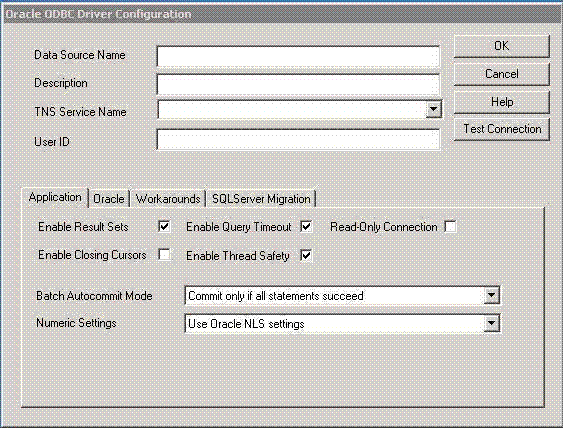
Description of the illustration setup_app-2.gif
The following list is an explanation of the main setup options and fields found on the Oracle Database ODBC Driver Configuration dialog box shown in the preceding graphic. The tabs found on the lower half of this dialog box are described in the subsequent topics.
-
Data Source Name (DSN) - The name used to identify the data source to ODBC. For example, “odbc-pc”. You must enter a DSN.
-
Description - A description or comment about the data in the data source. For example, “Hire date, salary history, and current review of all employees.” The Description field is optional.
-
TNS Service Name - The location of the Oracle database from which the ODBC driver will retrieve data. This is the same name entered inConfiguring Oracle Net Services using the Oracle Net Configuration Assistant (NETCA). For more information, see the NETCA documentation and About Using Oracle Database ODBC Driver for the First Time. The TNS Service Name can be selected from a pull-down list of available TNS names. For example, “ODBC-PC.” You must enter a TNS Service Name.
-
User ID - The user name of the account on the server used to access the data. For example, “scott.” The User ID field is optional.
You must enter the DSN and the TNS Service Name. You can provide the other information requested in the dialog box or you can leave the fields blank and provide the information when you run the application.
In addition to the main setup options previously described, there is a Test Connection option available. The Test Connection option verifies whether the ODBC environment is configured properly, by connecting to the database specified by the DSN definition. When you click Test Connection, you are prompted for the username and password.
For an explanation of the options tabs found on the lower half of the Oracle Database ODBC Driver Configuration dialog box, click any of these links:
Application Options
The following screenshot shows an example of the Application options tab found on the Oracle ODBC Driver Configuration dialog box.
Figure 2: The Application Options Tab of the Oracle ODBC Driver Configuration Dialog Box
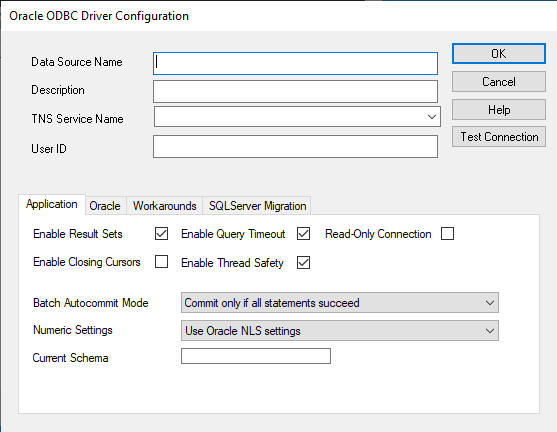
The following list is an explanation of the fields found on the Application options tab shown in the preceding graphic:
-
Enable Result Sets enables the processing of Oracle Result Sets. If Result Sets are not required for your application, Result Set support can be disabled. There is a small performance penalty for procedures called from packages not containing Result Sets. Result Sets are enabled by default.
-
Enable Query Timeout enables query timeout for SQL queries. By default, the Oracle Database ODBC driver supports the
SQL_ATTR_QUERY_TIMEOUTattribute for the SQLSetStmtAttr function. If this box is not checked, the Oracle Database ODBC driver responds with a “not capable” message. Query Timeout is enabled by default. -
Read-Only Connection - Check this box to force read-only access. The default is write access.
-
Enable Closing Cursors enables closing cursors. By default, closing cursors is disabled (the field is empty), meaning a call to close a cursor does not force the closing of OCI cursors when this behavior is not desired because it can cause an unnecessary performance hit. Enable closing cursors when you want to force the closing of OCI cursors upon a call to close a cursor.
Note: There is an impact on performance each time a cursor is closed.
-
Enable Thread Safety - Thread safety can be disabled for a data source. If thread safety is not required, disabling this option eliminates the overhead of using thread safety. By default, thread safety is enabled.
-
Batch Autocommit Mode - By default, commit is executed only if all statements succeed.
-
Numeric Settings allows you to choose the numeric settings that determine the decimal and group separator characters when receiving and returning numeric data that is bound as strings. This option allows you to choose Oracle NLS settings (the default setting), Microsoft default regional settings (to provide a way to mirror the Oracle OLE DB driver’s behavior for greater interoperability), or US numeric settings (which are necessary when using MS Access or DAO (Database Access Objects) in non-US environments).
See Also: Oracle ODBC Driver Configuration Dialog Box for the main configuration setup options
Oracle Options
The following screenshot shows an example of the Oracle options tab found on the Oracle Database ODBC Driver Configuration dialog box.
Figure 3: The Oracle Options Tab of the Oracle ODBC Driver Configuration Dialog Box
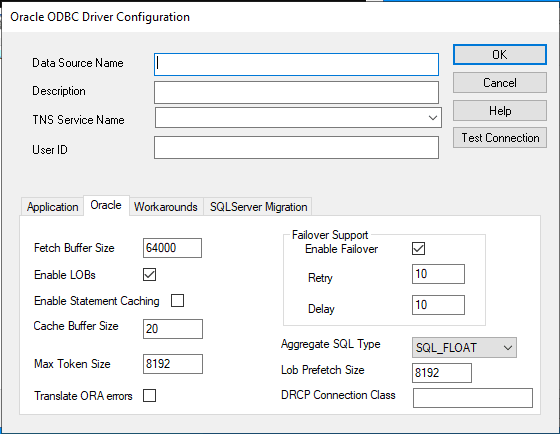
The following list is an explanation of the fields found on the Oracle options tab shown in the preceding graphic:
- Fetch Buffer Size - The amount of memory used to determine how many rows of data the ODBC driver prefetches at a time from an Oracle database regardless of the number of rows the application program requests in a single query. However, the number of prefetched rows depends on the width and number of columns specified in a single query. Applications that typically fetch fewer than 20 rows of data at a time improve their response time, particularly over slow network connections or on heavily loaded servers. Setting the Fetch Buffer Size too high can make response time worse or consume large amounts of memory.
Note: When LONG and LOB data types are present, the number of rows prefetched by the ODBC driver is not determined by the Fetch Buffer Size. The inclusion of the LONG and LOB data types minimizes the performance improvement and could result in excessive memory use. The ODBC driver disregards the Fetch Buffer Size and prefetches a set number of rows only in the presence of the LONG and LOB data types.
-
Enable LOBs - Enables the writing of Oracle LOBs. If writing Oracle LOBs is not required for your application, LOB support can be disabled. There is a small performance penalty for insert and update statements when LOBs are enabled. LOB writing is enabled by default but disabled for Oracle databases that do not support the LOB data type.
-
Enable Statement Caching - Enables statement caching feature, which increases the performance of parsing the query, in case the user has to parse the same text of query and related parameters multiple times. The default is disabled.
-
Cache Buffer Size - The statement cache has a maximum size (number of statements) that can be modified by an attribute on the service context,
OCI_ATTR_STMTCACHESIZE. The default cache buffer size is 20 that are used only if statement caching option is enabled. Setting cache buffer size to 0 disables statement caching feature. -
Max Token Size - Sets the token size to the nearest multiple of 1 KB (1024 bytes) beginning at 4 KB (4096 bytes). The default size is 8 KB (8192 bytes). The maximum value that can be set is 128 KB (131068 bytes).
-
Translate ORA errors - Any migrated third party ODBC application, which is using the SQL Translation Framework feature, expects that the errors returned by the server need to be in their native database format, then users can enable this option to receive native errors based on the error translation registered with SQL Translation Profile.
-
The Failover area of the Oracle options tab contains the following fields:
-
Enable Failover - Enables Oracle Fail Safe and Oracle Parallel Server failover retry. This option in an enhancement to the failover capabilities of Oracle Fail Safe and Oracle Parallel Server. Enable this option to configure additional failover retries. The default is enabled.
-
Retry - The number of times the connection failover is attempted. The default is 10 attempts.
-
Delay - The number of seconds to delay between failover attempts. The default is 10 seconds.
-
-
Aggregate SQL Type - Specifies the number type return for aggregate functions:
SQL_FLOAT,SQL_DOUBLE, orSQL_DECIMAL. -
Lob Prefetch Size - Sets the amount of LOB data (in bytes) to prefetch from the database at one time. The default size is 8192.
-
DRCP Connection Class - Specifies the optional connection class that the Oracle ODBC driver sends when requesting a connection from the database server’s DRCP pool. DRCP uses the class to group requests for pooled servers. This field has no default value. Configure DRCP on the database server before using this setting. See Setting Up Connection Class in Oracle ODBC Driver for information about setting the class.
Note: Oracle Fail Safe is deprecated and it can be desupported and unavailable in a future release. Oracle recommends that you evaluate other single-node failover options, such as Oracle RAC One Node.
Note: See the Oracle Fail Safe and Oracle Parallel Server documentation on how to set up and use both of these products.
See Also: Oracle ODBC Driver Configuration Dialog Box for the main configuration setup options
Workarounds Options
The following screenshot shows an example of the Workarounds options tab found on the Oracle Database ODBC Driver Configuration dialog box.
Figure 4: The Workarounds Options Tab of the Oracle ODBC Driver Configuration Dialog Box
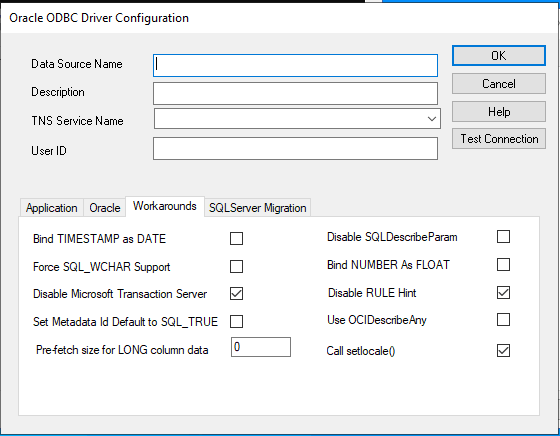
The following list is an explanation of the fields found on the Workarounds options tab shown in the preceding graphic:
-
Bind TIMESTAMP as DATE - Check this box to force the Oracle Database ODBC driver to bind
SQL_TIMESTAMPparameters as the OracleDATEtype instead of as the OracleTIMESTAMPtype (the default). -
Force SQL_WCHAR Support - Check this box to enable SQLDescribeCol, SQLColumns, and SQLProcedureColumns to unconditionally return the data type of
SQL_WCHARforSQL_CHARcolumns;SQL_WVARCHARforSQL_VARCHARcolumns; andSQL_WLONGVARCHARforSQL_LONGVARCHARcolumns. This feature enables Unicode support in applications that rely on the results of these ODBC calls (for example, ADO). This support is disabled by default. -
Disable Microsoft Transaction Server - Clear the check in this box to enable Microsoft Transaction Server (MTS) support. By default, MTS support is disabled.
-
Set Metadata Id Default to SQL_TRUE - Check this box to change the default value of the
SQL_ATTR_METADATA_IDconnection and statement attribute at connection time toSQL_TRUE. Under normal circumstances,SQL_ATTR_METADATA_IDwould default toSQL_FALSE. ODBC calls made by the application to specifically change the value of the attribute after connection time are unaffected by this option and complete their functions as expected. By default, this option is off. -
Prefetch size for LONG column data - Set this value to prefetch
LONGorLONG RAWdata to improve performance of ODBC applications. This enhancement improves the performance of Oracle ODBC driver up to 10 times, depending on the prefetch size set by the user. The default value is 0. The maximum value that you can set is 64 KB (65536 bytes).If the value of prefetch size is greater than 65536, the data fetched is only 65536 bytes. If you have
LONGorLONG RAWdata in the database that is greater than 65536 bytes, then set the prefetch size to 0 (the default value), which causes single-row fetch and fetches completeLONGdata. If you pass a buffer size less than the prefetch size in nonpolling mode, a data truncation error occurs if theLONGdata size in the database is greater than the buffer size. -
Disable SQLDescribeParam - If the
SQLDescribeParamfunction is enabled, theSQL_VARCHARdata type is returned for all parameters. If the Force SQL_WCHAR Support function is also enabled, theSQL_WVARCHARdata type is returned for all parameters. By default, this function is enabled. -
Bind NUMBER as FLOAT - Check this box to force the Oracle Database ODBC driver to bind
NUMBERcolumn containingFLOATdata as Float instead of as the Binary Float (the default). -
Disable RULE Hint - Clear the check in this box to enable
RULE Hintspecified with catalogue queries. By default,RULE Hintoption is disabled. -
Use OCIDescribeAny - Check this box to gain a performance improvement by forcing the driver to use
OCIDescribeAny()when an application makes heavy calls to small packaged procedures that returnREF CURSORS.
See Also:
- Implementation of Data Types (Advanced) for more information about DATE and TIMESTAMP
- Implementation of ODBC API Functions for more information about the
SQL_ATTR_METADATA_IDattribute - Oracle ODBC Driver Configuration Dialog Box for the main configuration setup options
- About Using OCIDescribeAny() for more information about
OCIDescribeAny()
SQL Server Migration Options
The following screenshot shows an example of the SQL Server Migration options tab found on the Oracle ODBC Driver Configuration dialog box.
Figure 5: The SQL Server Migration Options Tab of the Oracle ODBC Driver Configuration Dialog Box
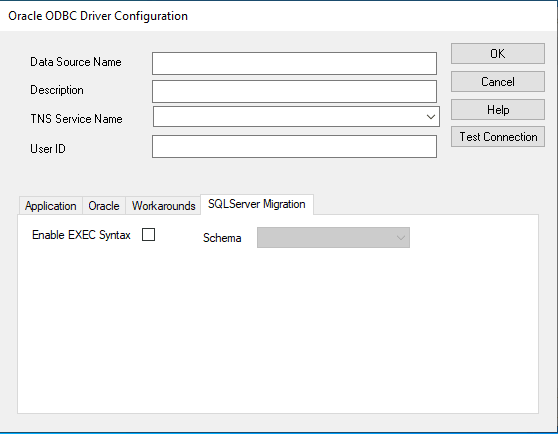
The fields of the SQL Server Migration options tab in the preceding graphic are:
-
EXEC Syntax Enabled enables support for SQL Server EXEC syntax. A subprogram call specified in an EXEC statement is translated to its equivalent Oracle subprogram call before being processed by an Oracle database server. By default this option is disabled.
-
Schema is the translated Oracle subprogram assumed to be defined in the user’s default schema. However, if all subprograms from the same SQL Server database are migrated to the same Oracle schema with their database name as the schema name, then set this field to database. If all subprograms owned by the same SQL Server user are defined in the same Oracle schema, then set this field to owner. This field is empty by default.
See Also: Oracle ODBC Driver Configuration Dialog Box for the main configuration setup options
Reducing Lock Timeout
An Oracle server waits indefinitely for lock conflicts between transactions to be resolved. You can limit the amount of time that an Oracle server waits for locks to be resolved by setting the Oracle Database ODBC driver’s LockTimeOut entry in the oraodbc.ini file. The value you enter for the LockTimeOut parameter is the number of seconds after which an Oracle server times out if it cannot obtain the requested locks. In the following example, the Oracle server times out after 60 seconds:
[Oracle ODBC Driver Common]
LockTimeOut=60
Patching Oracle Instant Client ODBC
This section guides you through the procedures required to patch Oracle Instant Client ODBC.
Note: Back up the Oracle Database ODBC driver shared library and other files before patching them.
You must rebuild your Oracle Instant Client packages and libraries as part of the patching process.
Topics:
-
Patching Oracle Instant Client ODBC on Linux and UNIX Method 1
-
Patching Oracle Instant Client ODBC on Linux and UNIX Method 2
Patching Oracle Instant Client ODBC on Linux and UNIX Method 1
Patching the Instant Client ODBC driver on Linux/UNIX can be done by generating the Instant Client ODBC package and Basic or Basic Light package in a patched ORACLE_HOME. These new packages should then be unzipped into the Instant Client directory that needs to be patched. This method of patching is recommended.
See Also: Patching Oracle Instant Client explains the procedure for patching and generating Instant Client Basic and Basic Light packages and Instant Client ODBC.
Patching Oracle Instant Client ODBC on Linux and UNIX Method 2
Alternatively, to patch Oracle Instant Client ODBC Driver, copy the following files from a patched ORACLE_HOME:
-
ODBC driver shared library file:
-
For 23ai: libsqora.so. 23.1
-
For 21c: libsqora.so.21.1
-
For 19c: libsqora.so.19.1
-
For 18c: libsqora.so.18.1
-
For 12c: libsqora.so.12.1
-
-
Required additional files when using Oracle Instant Client Basic:
-
For 23ai: libociei.so, libclntshcore.so.23.1, libclntsh.so.23.1, libnnz23.so, libons.so
-
For 21c: libociei.so, libclntshcore.so.21.1, libclntsh.so.21.1, libnnz21.so, libons.so
-
For 19c: libociei.so, libclntshcore.so.19.1, libclntsh.so.19.1, libnnz19.so, libons.so
-
For 18c: libociei.so, libclntshcore.so.18.1, libclntsh.so.18.1, libnnz18.so, libons.so
-
For 12c: libociei.so, libclntshcore.so.12.1, libclntsh.so.12.1, libnnz12.so, libons.so
-
-
Required additional files when using Oracle Instant Client Basic Light:
-
For 23ai: libclntsh.so.23.1, libclntshcore.so.23.1, libociicus.so, libnnz23.so, libons.so
-
For 21c: libclntsh.so.21.1, libclntshcore.so.21.1, libociicus.so, libnnz21.so, libons.so
-
For 19c: libclntsh.so.19.1, libclntshcore.so.19.1, libociicus.so, libnnz19.so, libons.so
-
For 18c: libclntsh.so.18.1, libclntshcore.so.18.1, libociicus.so, libnnz18.so, libons.so
-
For 12c: libclntsh.so.12.1, libclntshcore.so.12.1, libociicus.so, libnnz12.so, libons.so
-
Patching on Windows
You can patch Instant Client ODBC Driver on Windows only manually by copying the ODBC driver shared library files and supporting library files from a patched ORACLE_HOME or from an unpacked Oracle Database Bundle patch. These should be copied into the Instant Client directory. Generating an Instant Client ODBC package is not available on Windows.
The files that must be copied to the Instant Client directory:
-
ODBC driver shared library files: sqora32.dll, sqoras32.dll, sqresus.dll, sqresja.dll
-
Required additional files when using Oracle Basic Instant Client:
-
For 23ai: oraociei23.dll, orannzsbb23.dll, oci.dll, oraons.dll, ociw32.dll, oraociei23.sym, orannzsbb23.sym, oci.sym, ociw32.sym
-
For 21c: oraociei21.dll, orannzsbb21.dll, oci.dll, oraons.dll, ociw32.dll, oraociei21.sym, orannzsbb21.sym, oci.sym, ociw32.sym
-
For 19c: oraociei19.dll, orannzsbb19.dll, oci.dll, oraons.dll, ociw32.dll, oraociei19.sym, orannzsbb19.sym, oci.sym, ociw32.sym
-
For 18c: oraociei18.dll, orannzsbb18.dll, oci.dll, oraons.dll, ociw32.dll, oraociei18.sym, orannzsbb18.sym, oci.sym, ociw32.sym
-
For 12c: oraociei12.dll, orannzsbb12.dll, oci.dll, oraons.dll, ociw32.dll, oraociei12.sym, orannzsbb12.sym, oci.sym, ociw32.sym
-
-
Required additional files when using Oracle Basic Light Instant Client:
-
For 23ai: oraociicus23.dll, orannzsbb23.dll, oci.dll, oraons.dll, ociw32.dll, oraociicus23.sym, orannzsbb23.sym, oci.sym, ociw32.sym
-
For 21c: oraociicus21.dll, orannzsbb21.dll, oci.dll, oraons.dll, ociw32.dll, oraociicus21.sym, orannzsbb21.sym, oci.sym, ociw32.sym
-
For 19c: oraociicus19.dll, orannzsbb19.dll, oci.dll, oraons.dll, ociw32.dll, oraociicus19.sym, orannzsbb19.sym, oci.sym, ociw32.sym
-
For 18c: oraociicus18.dll, orannzsbb18.dll, oci.dll, oraons.dll, ociw32.dll, oraociicus18.sym, orannzsbb18.sym, oci.sym, ociw32.sym
-
For 12c: oraociicus12.dll, orannzsbb12.dll, oci.dll, oraons.dll, ociw32.dll, oraociicus12.sym, orannzsbb12.sym, oci.sym, ociw32.sym
-
Note: While copying from the Oracle Database Bundle patch, some of the aforementioned files may be missing. This implies that those files are unchanged and do not need to be patched.
Uninstallation
This section takes you through the steps required to uninstall the Oracle Database ODBC driver.
Topics:
-
Uninstalling Oracle Instant Client ODBC on Linux and UNIX Use the following procedure to uninstall Oracle Instant Client ODBC on Linux and UNIX.
-
Uninstalling Oracle Instant Client ODBC on Windows Use the following procedure to uninstall Instant Client ODBC on Windows.
Uninstalling Oracle Instant Client ODBC on Linux and UNIX
Use the following procedure to uninstall Oracle Instant Client ODBC on Linux and UNIX.
-
Remove the Oracle Database ODBC driver entry from the
odbcinst.inifile of the unixODBC Driver Manager.The default name of this entry is like:
[Oracle 19c ODBC driver]. -
Remove the DSN entry of the Oracle Database ODBC driver from
odbc.ini.The default name of the DSN entry is like
[OracleODBC-19c]. -
Delete all files and directories in the Instant Client ODBC directory.
Uninstalling Oracle Instant Client ODBC on Windows
Use the following procedure to uninstall Instant Client ODBC on Windows.
-
Remove the DSN associated with the Oracle Database ODBC driver in the ODBC Data Source Administrator (
odbcad32) console. -
Execute the
odbc_uninstall.exefile from the Instant Client ODBC directory. -
Delete all files and directories in the Instant Client ODBC directory.