Support for Result Tables
Result tables (also known as Subject-Property-Matrix auxiliary tables) can be used to speed up SPARQL query execution. It is recommended you first refer to Speeding up Query Execution with Result Tables, for a detailed description of result tables. These auxiliary tables are associated with individual RDF graphs. Once they are created, they are automatically used during execution of SPARQL queries, unless specific options (see SPARQL Query Options for Result Tables) are passed in to indicate otherwise (note that the query cache may need to be cleared if the same SPARQL query is to be executed right after creating a result table).
There are three types of result tables based on the type of the query pattern used for producing the results to be stored:
-
Star-Pattern tables (also known as Single-Valued Property or SVP tables) hold values for single-valued RDF properties. A property
pis single-valued in an RDF model if each resource in the model has at most one value forp. -
Triple-Pattern tables (also known as Multi-Valued Property (MVP) tables) hold values for individual RDF properties.The property used for a triple-pattern table may be single-valued or multi-valued. (A property p is multi-valued in an RDF graph if it contains two triples
(s p o1)and(s p o2)witho1not equal too2.) -
Chain-Pattern tables (also known as Property Chain (PCN) tables) hold paths in the RDF graph. A sequence of triples form a path if for each consecutive pair of triples,
TiandTj, the object value ofTiis equal to the subject value ofTj.
Star-pattern and chain-pattern tables can be used to reduce joins during SPARQL query execution, while triple-pattern tables allow for more compact representation for triples involving individual properties. Additionally, if lexical values are included in the result tables, then joins needed for looking up lexical values can be avoided as well.
The RDF Server and Query UI web application provides support for creation and management of result tables. You can manage these auxiliary tables by right clicking the RDF graph and selecting the Manage Result Tables menu item as shown:
Figure: Result Tables
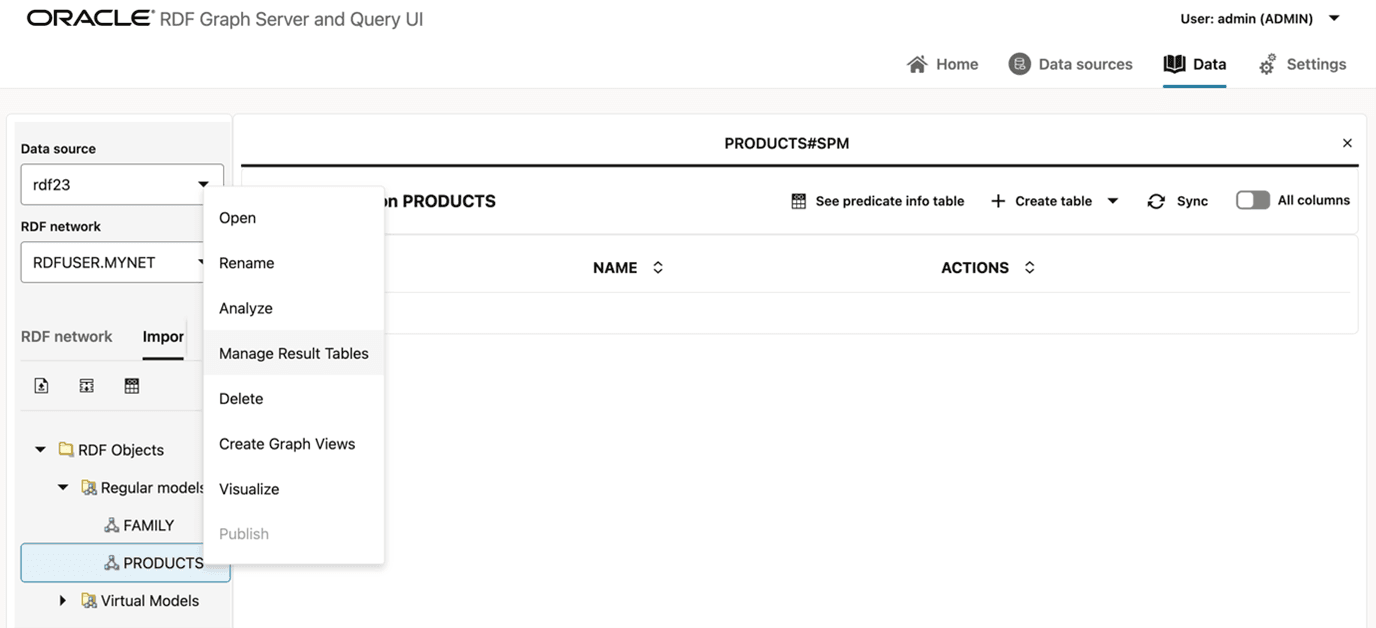
Description of the illustration rdf_auxiliary_tables_menu.png
The Result Tables page displays a table which lists the result tables present in the RDF graph. If you are a first time user, then this table list will be empty. In such a case, you need to create the Predicate Info Table that is required for creating and managing the result tables. The predicate info table stores information about each property used as predicate in the RDF graph. For each property (or its inverse), the stored information includes its id (or negative id, for the inverse), name, and statistics on cardinality (that is, the number of triples that use this property) per distinct subject (or, object, for the inverse). A value of one in the MAX_CNT column indicates that the property was single-valued when the statistics were last computed.
To create the predicate info table, click See predicate info table in the table menu bar and then select Create info table. Note that you also have the option to recreate the table at a later time as shown in the following image:
Figure: Predicate Info Table
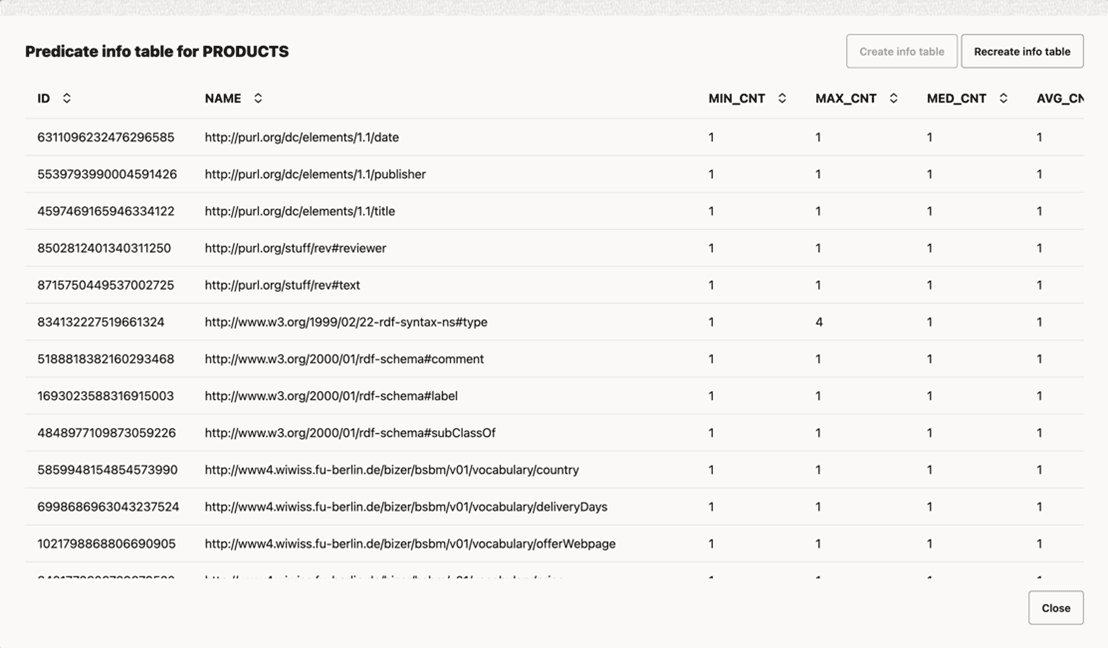
Description of the illustration pred_info_table.png
Once the predicate info table is created, you can then create and manage the result tables.
Creating Result Tables
You can create a result table by performing the following steps:
-
Click the + Create table menu in the Result Tables menu bar, and select the type of the result table to be created.
Figure: Select the Type of Result Table
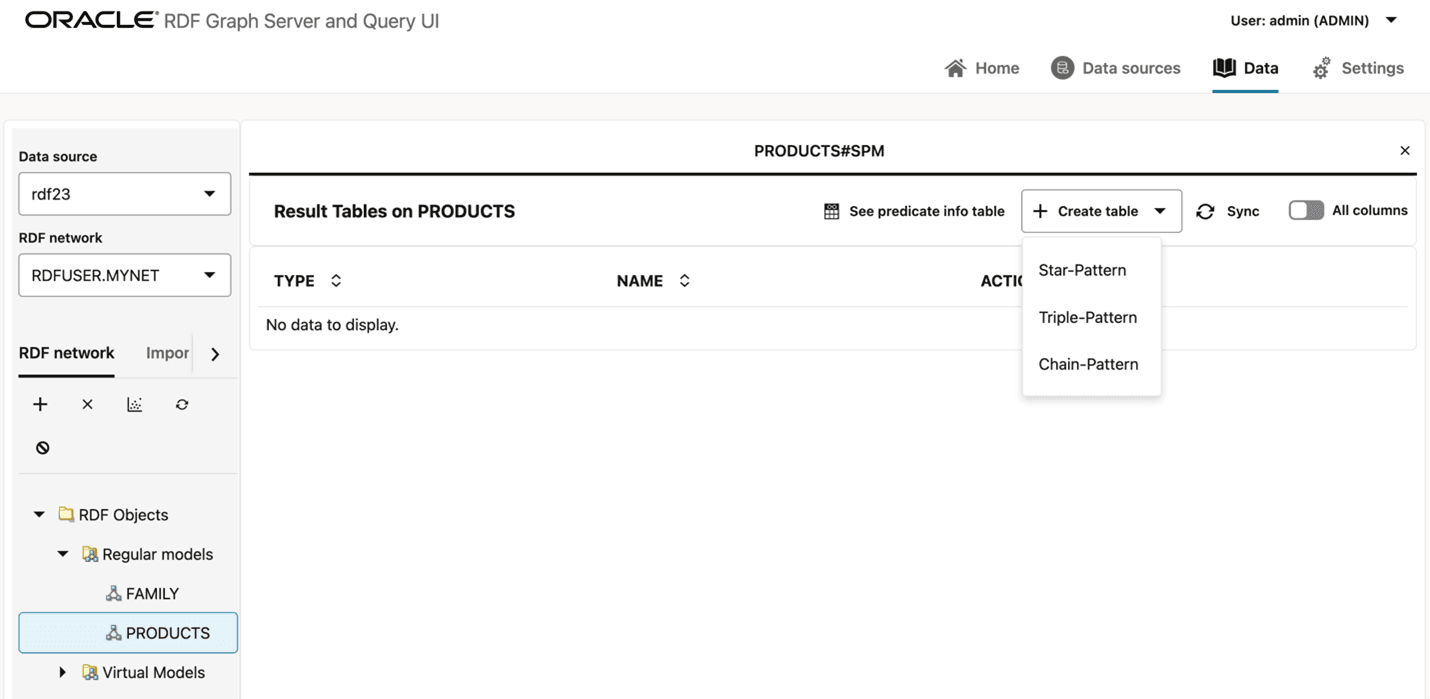
Description of the illustration create_auxiliary_tables.png
The Create table wizard opens and displays the first (Name) step of the workflow as shown:
Figure: Step1: Name of the Result Table
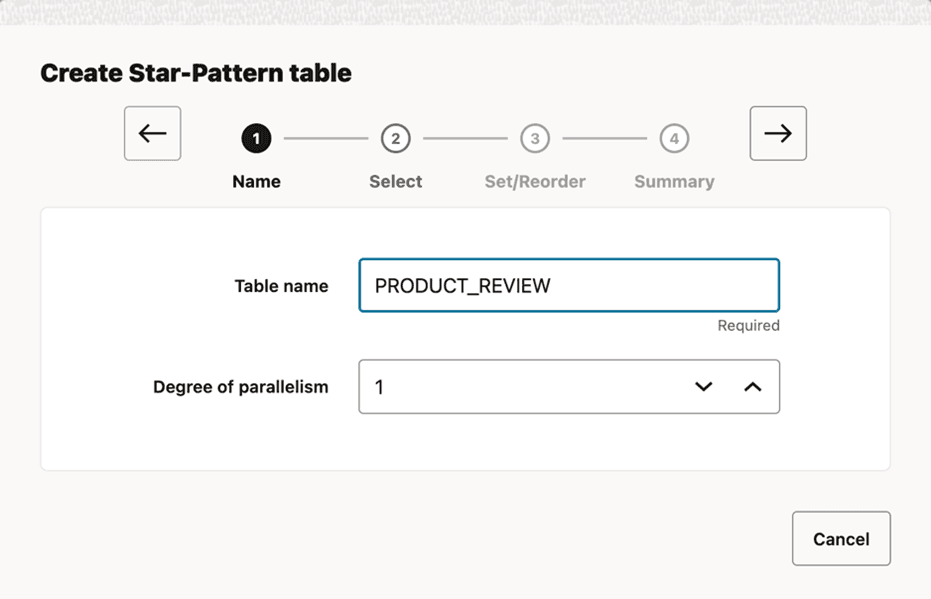
-
Enter the Table name.
-
Optionally, select the Degree of parallelism.
-
Click → to move to the next step.
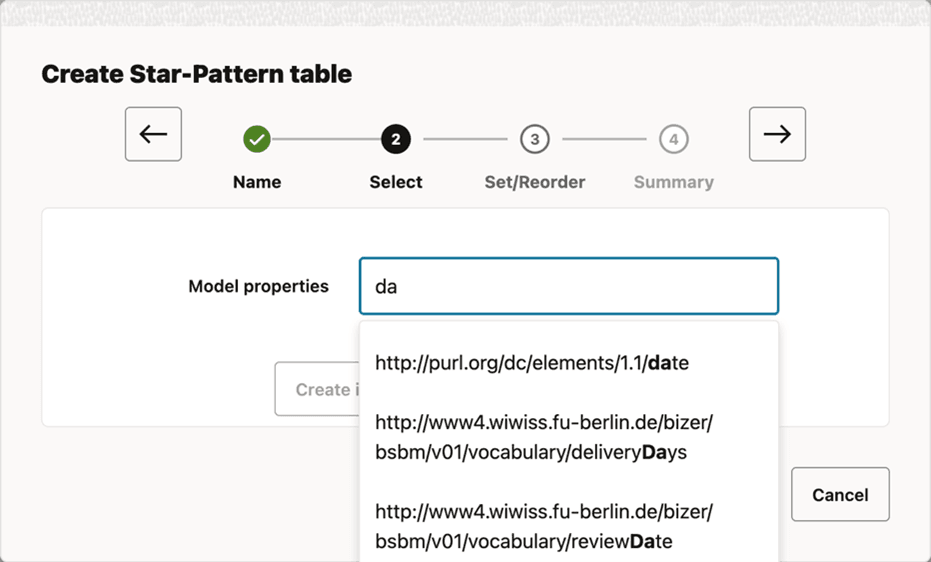
The second (Select) step of the workflow opens as shown:
Figure: Step2: Select the Properties
-
Select the result table properties from the Model properties dropdown or alternatively, you can type in a custom property.
The dropdown contains all the properties present in the RDF graph.
-
Click → to move to the next step.
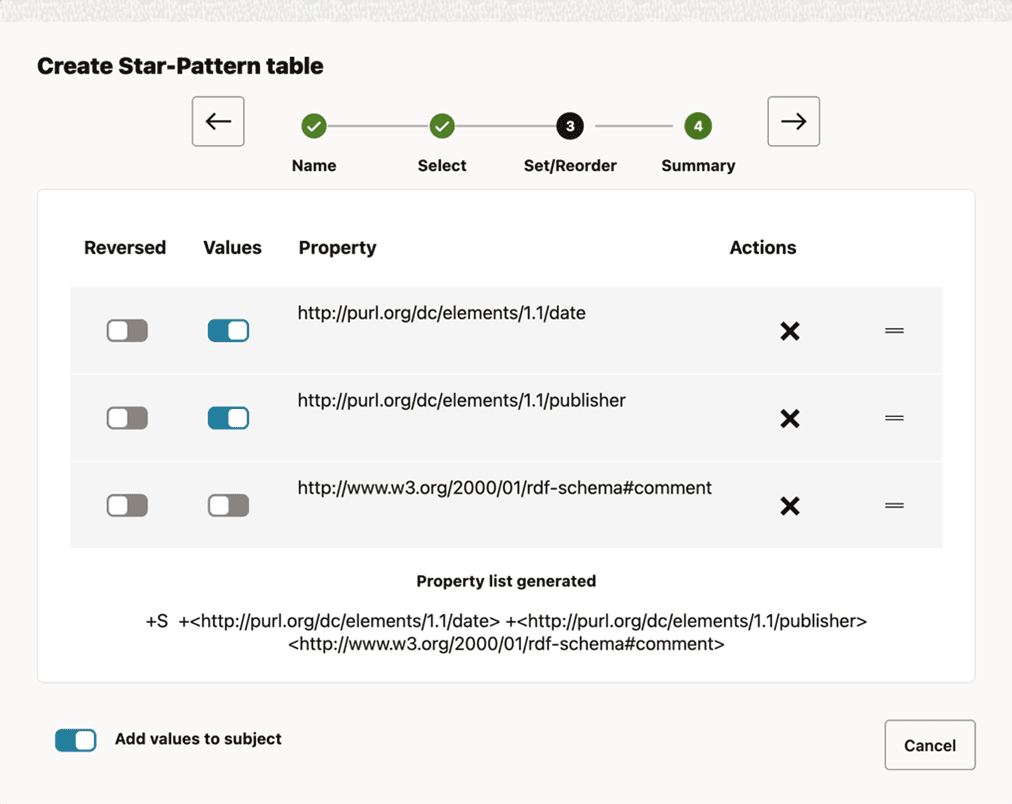
The third (Set/Reorder) step of the workflow opens as shown:
Figure: Step3: Reorder and Configure Properties
-
Drag and drop each property to reorder them as desired, include or exclude value columns and optionally configure any property inverse (not available for triple-pattern tables).
This step leverages the all new complete flexibility present in 26ai to create your auxiliary table as desired.
-
Click → to move to the next step.
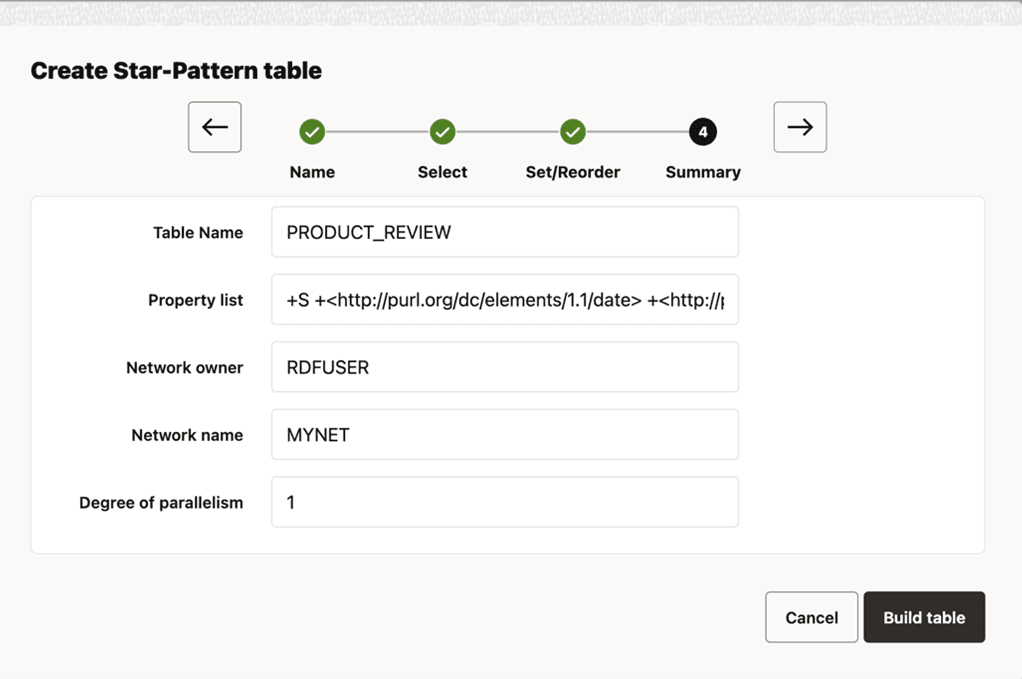
The final (Summary) step of the workflow opens as shown:
Figure: Step4: Review the Selections
-
Review your selections and click Build table to create the result table.
The preceding workflow steps are common when creating any type of result table. However, the following 26ai features are available only for certain types of tables:
-
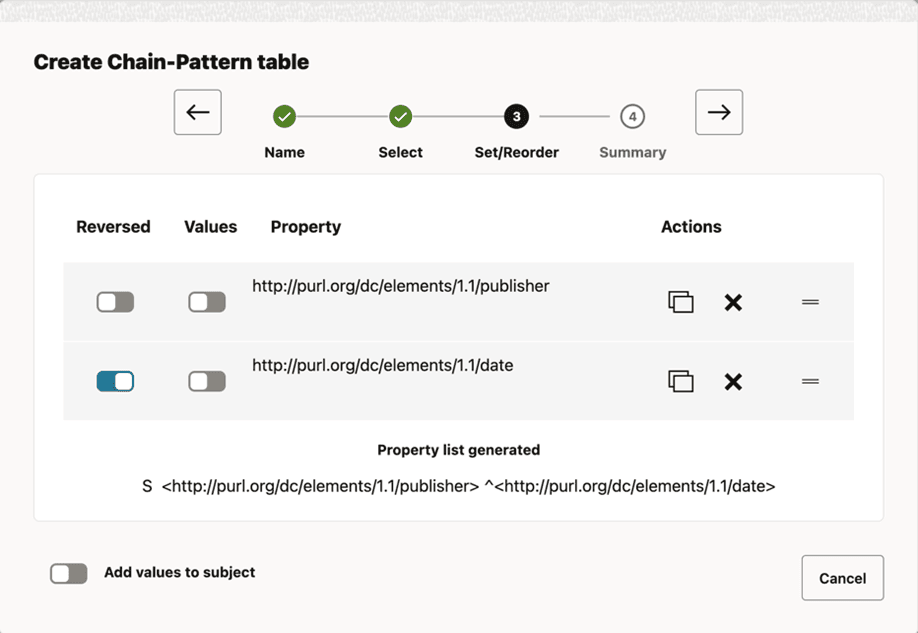
Inverse Property Path: This feature is only available for chain-pattern or star-pattern tables. It can be enabled individually for each property, directly from the Set/Reorder properties step. In the following example, the property
http://purl.org/dc/elements/1.1/dateis shown Reversed. This implies that the subject and object of the triple switch places. See the W3C documentation for more information on inverse property path.Figure: Configuring Inverse property path
-
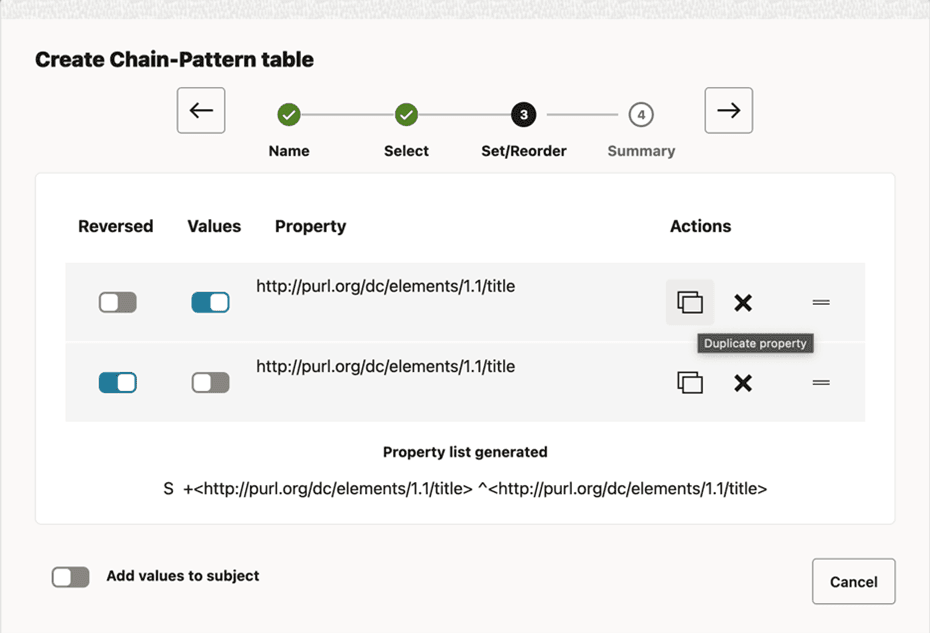
Multi-Occurrence: This new feature in which the same property can be replicated multiple times is only available for chain-pattern tables. To duplicate a property, click the Duplicate property button under the Actions column on the Set/Reorder step. Note that once the table is created, for ease of differentiation, each replicated property is appended an identifier consisting of a “#” followed by a cardinal number.
Figure: Configuring Multi-Occurrence
Managing Result Tables
You can manage all your result tables directly from the Result Tables page which displays the list of the result tables. You can edit or delete result tables, and also view or create indexes on individual result tables. Make sure the result table view is set to Tables only to enable the Actions column, which displays the supported actions:
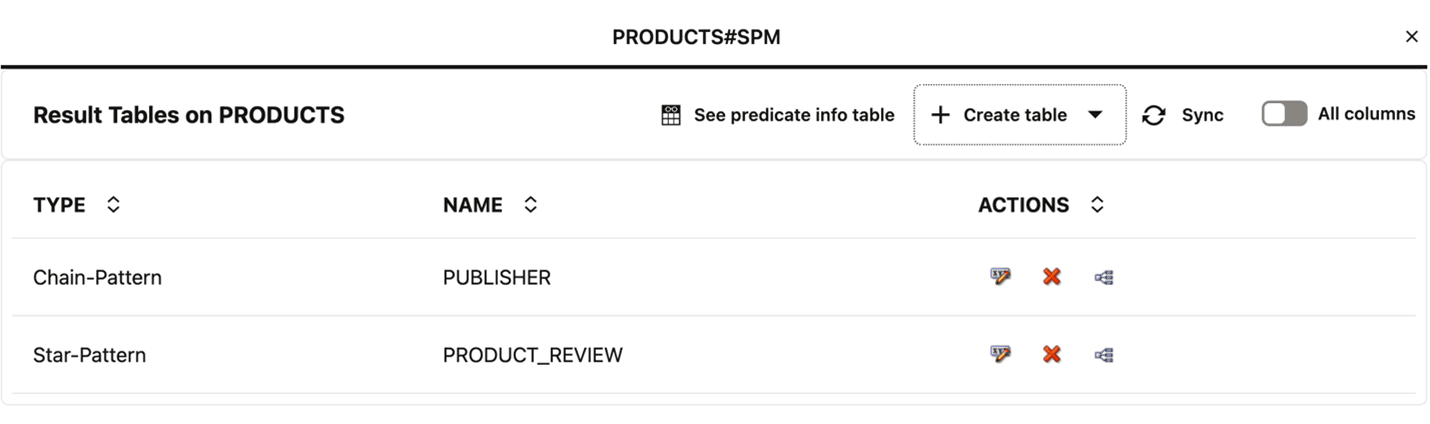
Description of the illustration manage_actions_result_table.png
You can then choose to perform any of the following actions:
-
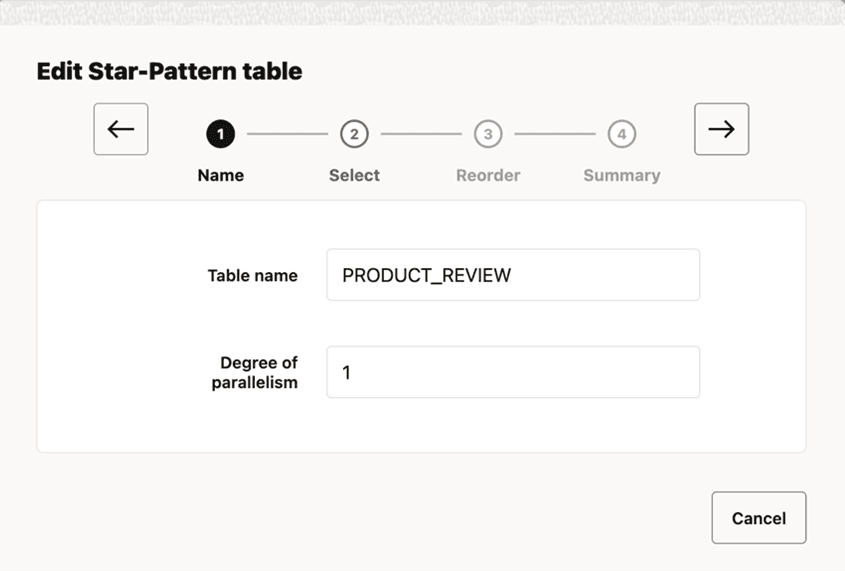
Click the edit action icon if you wish to edit a result table. This initiates the edit result table workflow which is similar to the workflow for creating a result table. You can add or remove any property, edit the order of the properties, or change the settings for value columns or inverse property path.
Figure: Edit Result Table
-
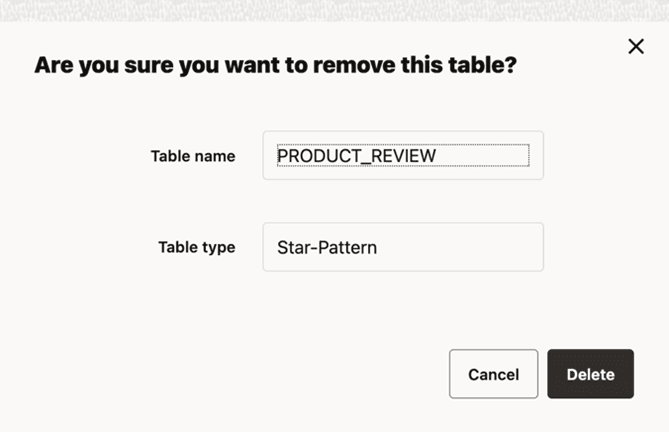
Click the delete action icon if you wish to delete a result table. A delete confirmation dialog is displayed as shown:
Figure: Deleting a Result table
-
Click the view indexes action icon to view the secondary indexes for a result table as shown:
Figure: Viewing Secondary Indexes
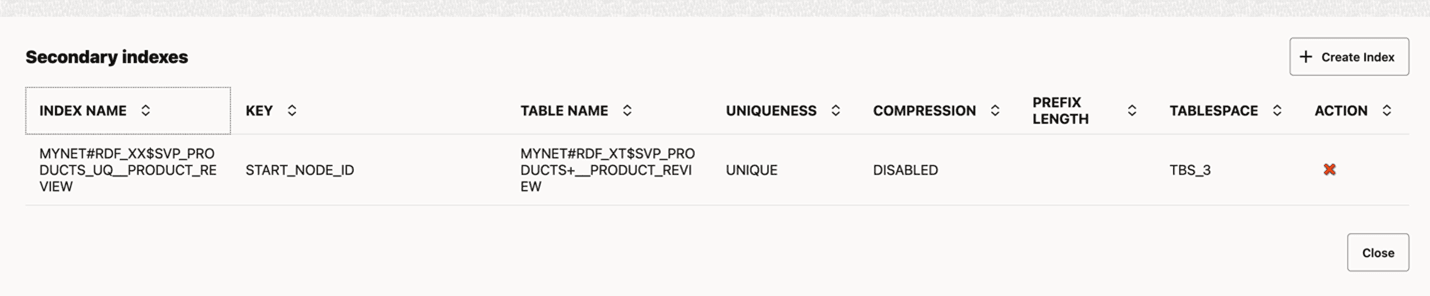
Description of the illustration view_indexes.png
You can perform the following actions on this page:
-
Delete a specific index.
-
Create a new index. See Creating an Index on a Result Table for more information.
-
Creating an Index on a Result Table
You can create an index on a result table by performing the following steps:
-
Click + Create Index on the top right corner of the Secondary Indexes page.
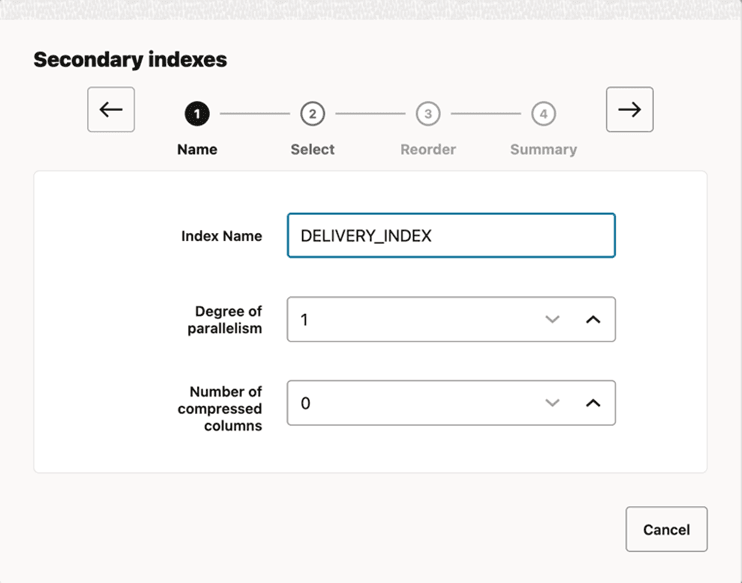
The Secondary indexes wizard opens and displays the first (Name) step of the workflow as shown:
Figure: Step1: Defining the Index Name
-
Enter the Index Name.
-
Optionally, select the Degree of parallelism and the Number of compressed columns.
-
Click → to move to the next step.
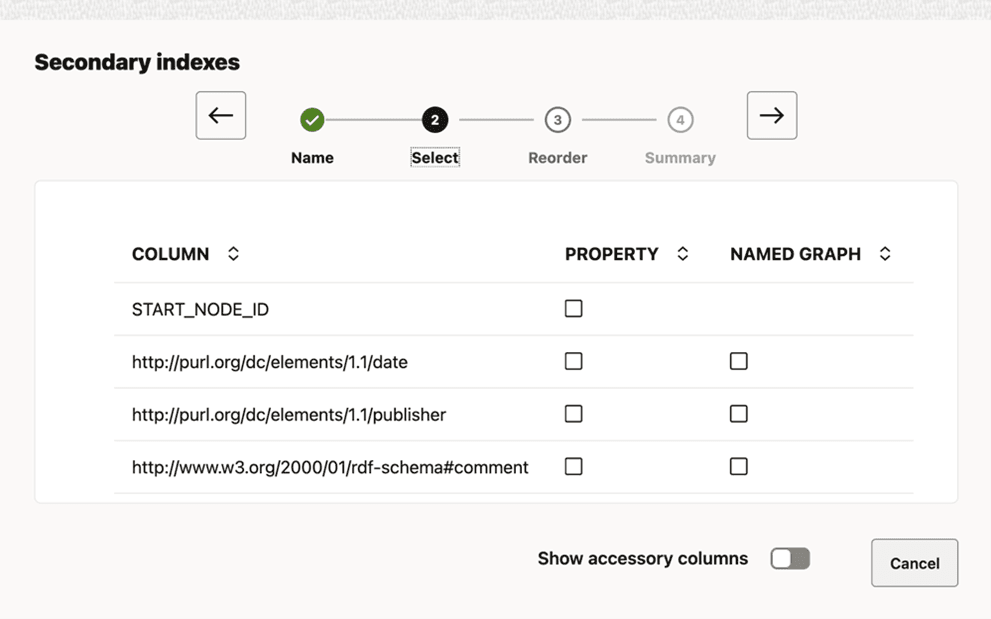
The second (Select) step of the workflow opens as shown:
Figure: Step2: Selecting the Properties
-
Select the required properties, graph values, or accessory columns.
In contrast to previous versions, 26ai allows you to include any accessory column or the graph value without the need to include the property itself. This gives you complete flexibility and control when creating an index for a result table.
If any one of the properties in the table have accessory columns, then you can optionally switch ON the Show accessory columns to display all the columns as shown:
Figure: Step2: Selecting Accessory Columns
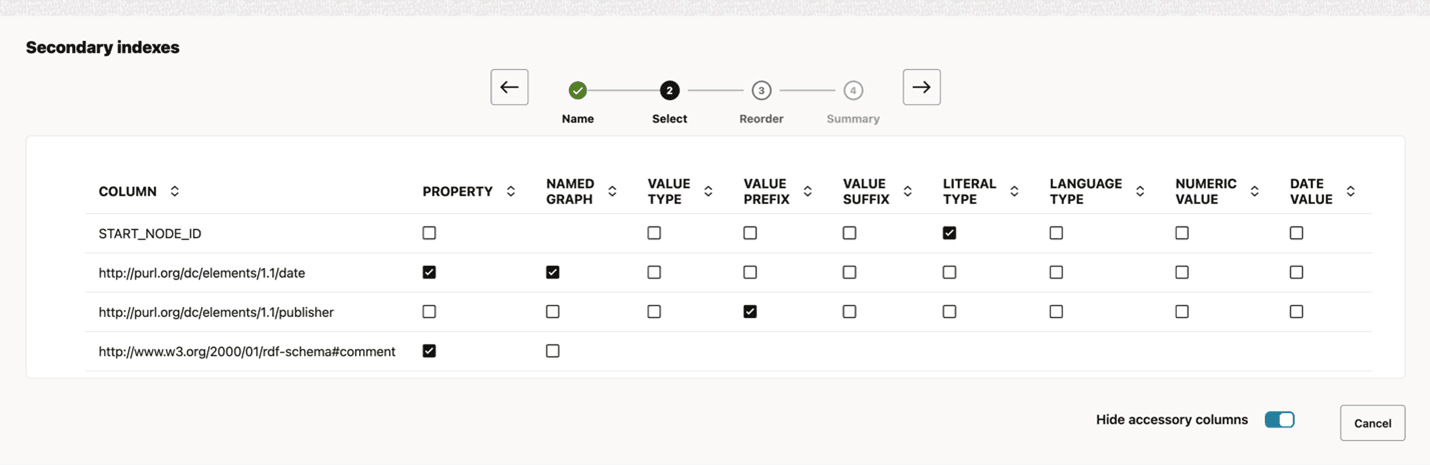
Description of the illustration create_sec_index_step2_adv_view.png
-
Click → to move to the next step.
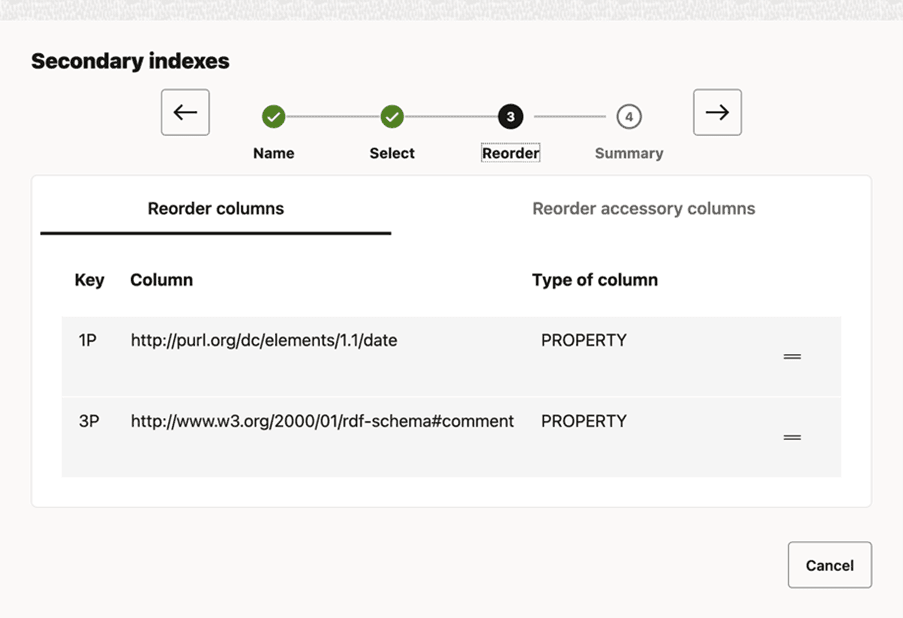
The third (Reorder) step of the workflow opens as shown:
Figure: Step3: Reordering Properties
-
Drag and drop each property to reorder the selected columns as desired.
If you added accessory columns in the preceding step, then in addition to the properties, you can also reorder the accessory columns as shown:
Figure: Step3: Reordering All the Columns
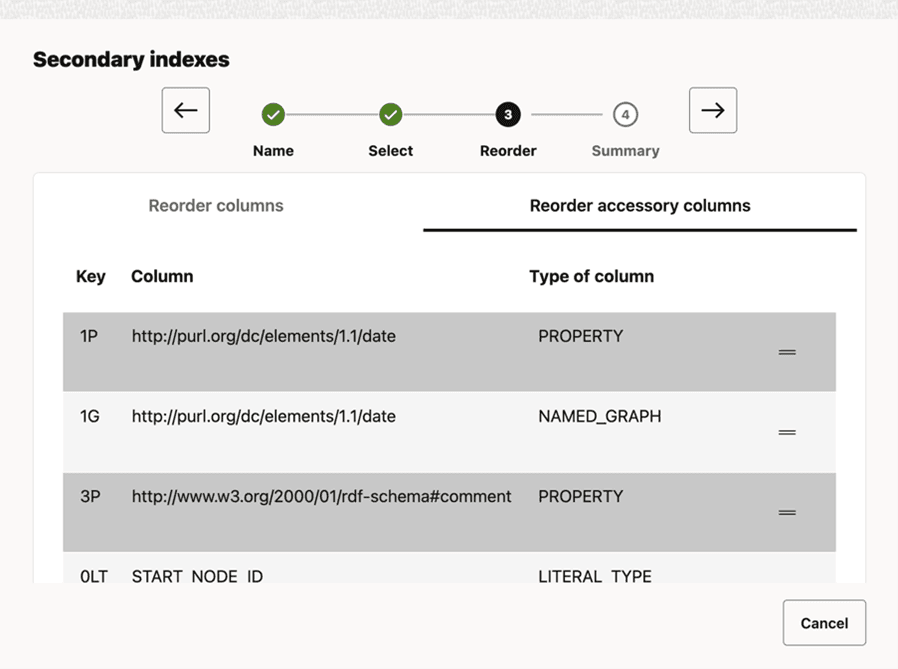
Description of the illustration create_sec_index_step3_reorder_cols.png
-
Click → to move to the next step.
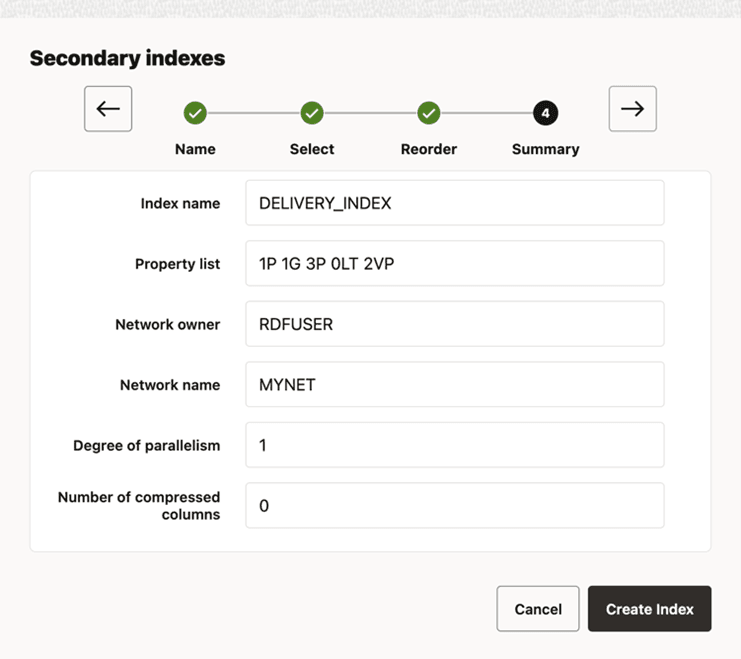
The final (Summary) step of the workflow opens as shown:
Figure: Step4: Reviewing the Selections
-
Review the summary and click Create Index to create the new index for the result table.