Configuring Settings in Graph Visualization for VS Code
You can click the Settings gear icon to open the Visualization settings slider.
The slider comprises the following two tabs:
General
The General tab is displayed as shown:
The following table describes the attributes in the General tab:
Figure: General Settings
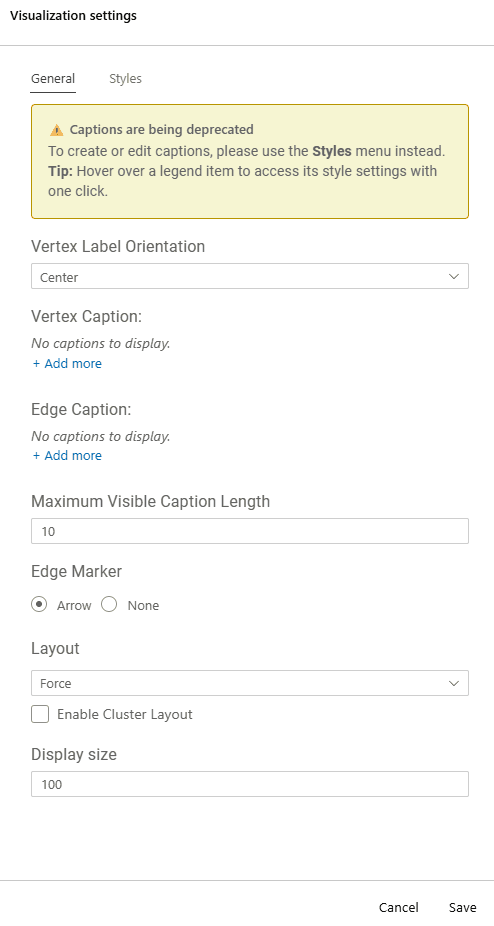
Description of the illustration vscode_general_tab.png
Table: General Tab Attributes
| Attribute | Description |
|---|---|
| Vertex Label Orientation | Determines where the selected vertex property will be displayed. |
| Vertex Caption | Determines the property to be displayed for a vertex. Click + Add more to add a vertex caption and select the required vertex Label and vertex Property. Caution: Adding Vertex Caption in the General tab will not be supported in future releases of the Oracle SQL Developer Graph Visualization for VSCode extension. It is recommended that you add or edit a vertex caption by editing the style of the vertex element in the legend panel of your graph visualization. |
| Edge Caption | Determines the property to be displayed for an edge. Click + Add more to add an edge caption and select the required edge Label and edge Property. Caution: Adding Edge Caption in the General tab will not be supported in future releases of the Oracle SQL Developer Graph Visualization for VSCode extension. It is recommended that you add or edit an edge caption by editing the style of the edge element in the legend panel of your graph visualization. |
| Maximum Visible Caption Length | Determines the maximum caption length before truncating. |
| Edge Marker | Supported edge markers are:
|
| Layout | Supported layouts are: Circle, Concentric, Force (default), Grid, Hierarchical, Preset, Radial, Random, and Geographical. The Force layout also supports a clustering option, which allows you to visualize a graph with clustered vertices. See Layouts in Property Graph Visualization Developer's Guide and Reference for more information. |
| Display Size | Determines the number of graph elements to be visualized on a page from the result set. |
Styles
The Styles tab is displayed as shown:
Figure: Styles Settings
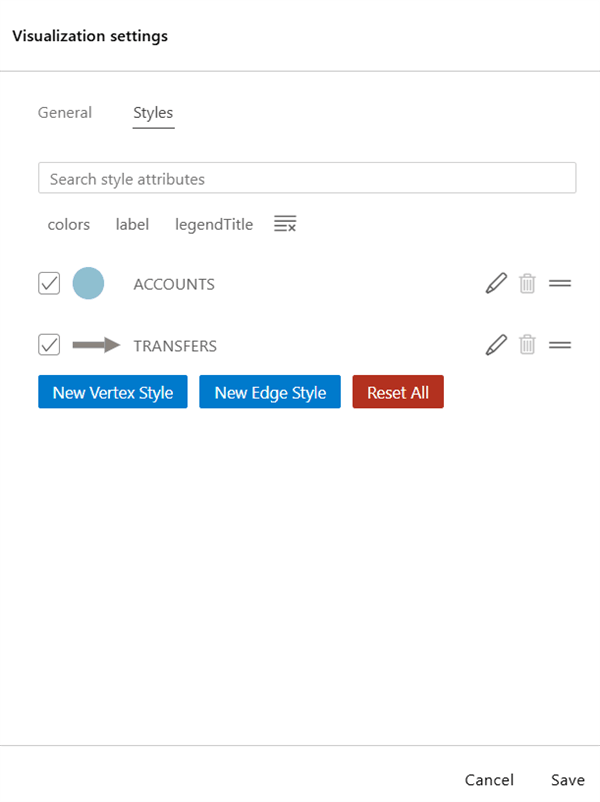
Description of the illustration vscode_styles_tab.png
To add a new vertex or edge style, click New vertex style or New edge style as appropriate and configure the values shown in the following table:
Table: Configuring Vertex or Edge Style Attributes
| Attribute | Description |
|---|---|
| Name | Name of the style. |
| Conditions | Click + to add a condition for an element (vertex or edge) and provide the following values:
For all elements that meet the conditions, you can configure any of the following styling highlights:
|
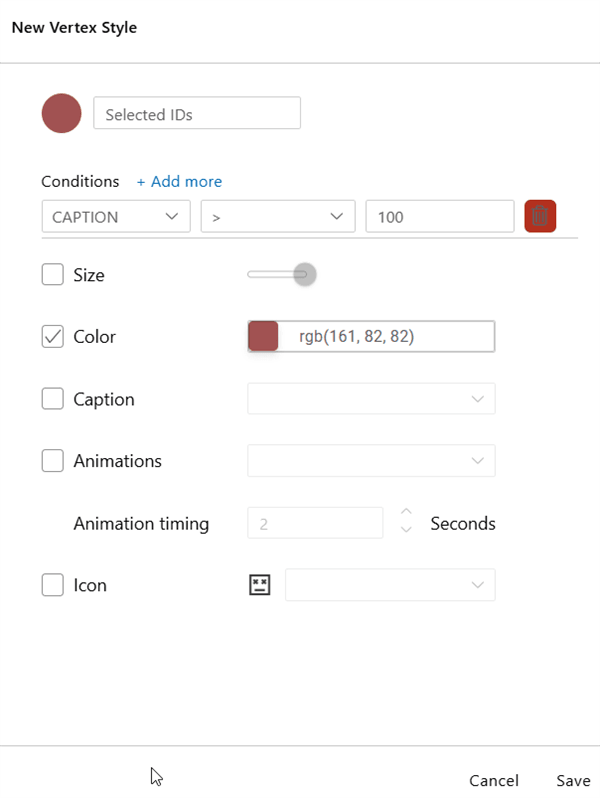
The following shows an example of vertex style configuration.
Figure: Adding a New Vertex Style