Getting Started with the Graph Visualization Extension for VS Code
Oracle SQL Developer Graph Visualization for VSCode enables you to visualize the results of SQL graph queries when using Oracle SQL Developer for Visual Studio Code (VS Code).
VS Code is a powerful open-source code editor supported on multiple operating systems (such as Linux, Windows, and macOS). SQL Developer for VS Code allows you to connect to your target database where you can open a SQL Worksheet to execute SQL statements and queries. The Graph Visualization extension extends the capability of the SQL Developer extension to support graph visualization when running SQL graph queries.
Before you begin using the Graph Visualization extension, ensure that you have VS Code Editor installed in your system and you are using Oracle AI Database 26ai. The instructions also assume that you have a SQL property graph already created in your database.
-
Open the VS Code Editor and click open the Extensions view.
-
Search and install Oracle SQL Developer Graph Visualization for VSCode.
The Oracle SQL Developer Extension for VS Code gets automatically installed as a dependency. You can view the SQL Developer icon in the Activity Bar on the left. If the SQL Developer extension was already installed in your system, then the extension gets updated with the graph visualization feature.
-
Connect to Oracle AI Database 26ai using the SQL Developer extension.
-
Open a SQL Worksheet and enter a SQL graph query.
Note that to visualize the output of a SQL graph query, the query must use the
VERTEX_IDandEDGE_IDfunctions to return the vertex and edge IDs. For example:SELECT id_a, id_e, id_b FROM GRAPH_TABLE ( GRAPHUSER.BANK_GRAPH MATCH (a IS Accounts WHERE a.caption=816) -[e IS Transfers]-> (b IS Accounts) COLUMNS (vertex_id(a) AS id_a, edge_id(e) AS id_e, vertex_id(b) AS id_b ) ) -
Click the Visualize SQL Graph button in the editor toolbar on the top or use the command palette (
Ctrl+Shift+P) and select Visualize SQL Graph.
The output graph is displayed in the SQL Worksheet output panel in the Graph Visualization tab as shown:
Figure: Graph Visualization of SQL Graph Queries in VS Code
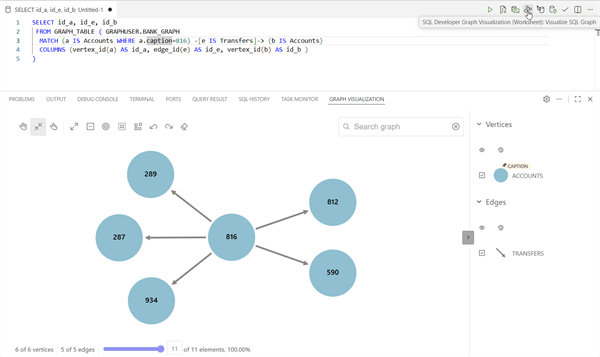
Description of the illustration gviz_vscode.png
You can perform the following actions in the Graph Visualization tab:
-
Interact with the graph using the graph visualization toolbar displayed on top of the graph. See Graph Interaction Options in Property Graph Visualization Developer's Guide and Reference for more information.
-
Add new custom styles or edit the default style for a vertex or an edge in the graph visualization legend panel. See About the Graph Visualization Legend Panel for more information.
-
Customize your graph visualization by clicking Visualization Settings to add or change captions, configure new styles, or edit the default legend styles. See Configuring Settings in Graph Visualization for VS Code for more information.
-
Reset all previously saved style settings by clicking SQL Developer Graph Visualization: Reset All Saved Style Settings in the Views and More Actions menu.