Query Visualization Settings
You can configure settings for you graph visualization by clicking the Settings gear icon in the Query Visualization tab.
The Visualization Settings slider contains the following three tabs:
General Tab
The General tab contains the following configurations:
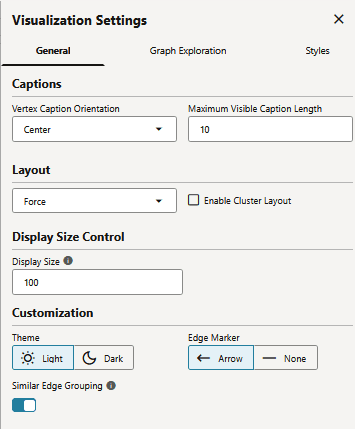
Description of the illustration query_viz_general_tab.png
Table: General Tab Attributes
| Attribute | Description |
|---|---|
| Vertex Caption Orientation | Determines where the selected vertex property will be displayed. |
| Maximum Visible Caption Length | Determines the maximum caption length before truncating. |
| Layout | Supported layouts are: Circle, Concentric, Force (default), Grid, Hierarchical, Preset, Radial, Random, and Geographical. The Force layout also supports a clustering option, which allows you to visualize a graph with clustered vertices. See Layouts in Property Graph Visualization Developer's Guide and Reference for more information. |
| Display Size | Determines the number of graph elements to be visualized on a page from the result set. |
| Theme | Supported themes are:
|
| Edge Marker | Supported edge markers are:
|
| Similar Edge Grouping | When this option is enabled, multiple edges between the same source and target vertices are grouped in the graph. Grouped edges appear as a single edge labeled with a number indicating how many edges were grouped. For example, the following figure shows two graph visualizations side by side in Graph Explorer. The visualization on the left displays multiple edges from the source vertex (ID=816) to the destination vertices (ID=287 and ID=289). The visualization on the right shows edges with the same source and target vertex IDs grouped together because Similar Edge Grouping is enabled in the visualization settings. |
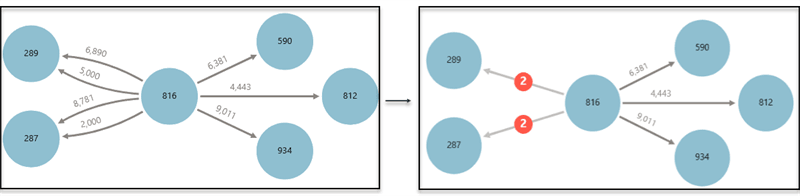
Description of the illustration explorer_multiple_edge_grp.png
Graph Exploration Tab
You can enable and configure Network Evolution in the Graph Exploration tab in Visualization Settings. See Using Network Evolution in Graph Visualization for more information.
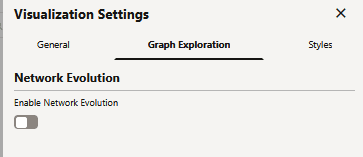
Description of the illustration query_viz_graph_explorer_tab.png
Styles Tab
You can configure and manage vertex and edge styles to customize the appearance of vertices and edges in the graph. The Styles tab in Visualization Settings displays both the default and custom vertex and edge styles.
You can perform the following actions in this tab:
-
Add a new custom vertex style.
-
Add a new custom edge style.
-
Edit the default styling of a vertex or an edge element.
-
Edit or delete the custom styling of a vertex or an edge element.
-
Restore the default style settings.
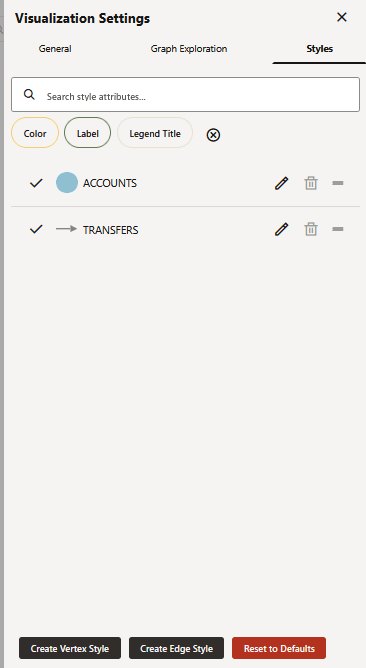
Description of the illustration query_viz_styles_tab.png
Adding a new custom style for a vertex or an edge
To add a new vertex or an edge style, click New vertex style or New edge style as required. The following shows the screenshot for configuring a new vertex style.
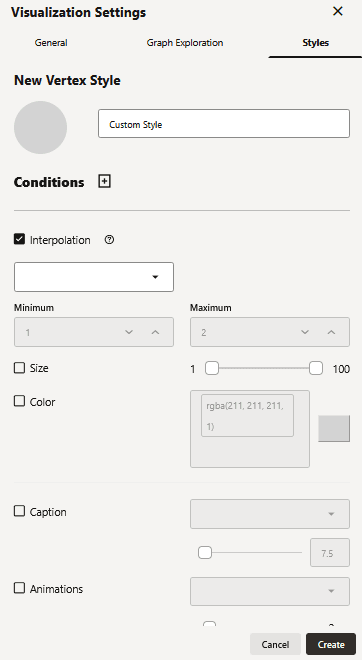
Description of the illustration custom_vertex_style.png
You can configure the following values as appropriate:
-
Name: Name of the style
-
Conditions: Click + to add a condition for an element (vertex or edge) and provide the following values:
-
Property of the vertex or edge element.
-
Operator to be applied. The following operators are supported:
-
=(equal to) -
<(less than) -
<=(less than or equal to) -
>(greater than) -
>=(greater than or equal to) -
!=(not equal to) -
~(filter is a regular expression) -
CONTAINS(applies for labels only) -
CONTAINS_REGEX(applies for labels only)
Also, note the changes in the behavior of the following operator groups:
-
Equality operators (
=,!=):-
When applied on a property that holds a string array value and a condition that holds a simple string, text matching will be performed based on equality instead of contains.
CONTAINSoperator can be used for checking if the simple string is a substring of the property string value. -
When applied on a property that holds a number value and a condition that holds a non-numeric string, text matching will yield an empty result.
-
When applied on a property that holds a boolean value and a condition that holds a non-boolean string, text matching will yield an empty result.
-
-
Comparison operators (
>,>=,<,<=): When applied on a property that holds a string array value and a condition that holds a simple string, text comparison will yield an empty result. -
Regex operator (
~):-
When applied on a property that holds a string array value and a condition that holds a simple string, text matching will yield an empty result. Instead, you can use the
CONTAINS_REGEXoperator. -
When applied on a property that holds a number value and a condition that holds a simple string, text matching will yield an empty result.
-
When applied on a property that holds a boolean value and a condition that holds a simple string, text matching will yield an empty result.
-
-
-
Value that needs to be fulfilled for the property and the operator
You can add as many conditions as required. For all elements that meet the conditions, you can configure any of the following styling highlights:
-
Interpolation: Configure interpolation based on the size or color of the vertices or edges. Interpolation will be applied proportionally, between the Minimum and Maximum values. The following figure shows linear color interpolation based on the
AMOUNTproperty between the minimum (4000) and maximum (10000) values.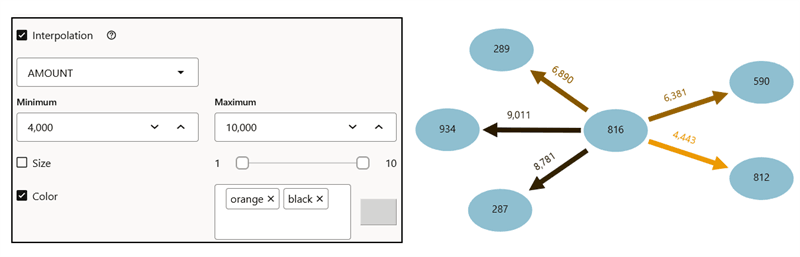
-
Size: Size of the vertex or edge.
-
Color: Color of the vertex or edge.
-
Caption: Caption for the vertex or edge.
-
Animations: Animation (Pulsating or Flashing) and duration of the animation cycle.
-
Icon: Image for the vertex (does not apply for edges).
-
Shape: Shape of the vertex (does not apply for edges). Supported values are Circle, Ellipse Square, Rectangle, Triangle, Diamond, Pentagon, Hexagon, and Octagon.
-