Creating a Property Graph from Foreign Keys
You can automatically generate a property graph from the selected database tables by detecting foreign key relationships.
-
Select Modeler under Graph Tools in the Graph Studio navigation menu.
-
Select New Graph on the Modeler landing page.
A new graph tab opens. If Auto-name New Graphs is enabled in Settings, a default graph name is generated automatically and displayed as the tab name. Otherwise, you can specify the graph name before creating the graph.
-
Select the required Graph Type.
Modeler supports the creation of two types of property graphs:
-
SQL Property Graph: The option to create a SQL property graph is available only if you are using a database instance with Oracle Database 26ai.
-
PGQL Property Graph: The option to create a PGQL property graph is available on all supported database versions.
-
-
Select Generate from Foreign Keys in the Modeler toolbar at the top of the page.
Alternatively, select Generate from Foreign Keys in the right panel.
The Generate from Foreign Keys slider opens.
-
Select the source data tables that are required as input for the graph.
Figure: Generate from Foreign Keys: Select Tables
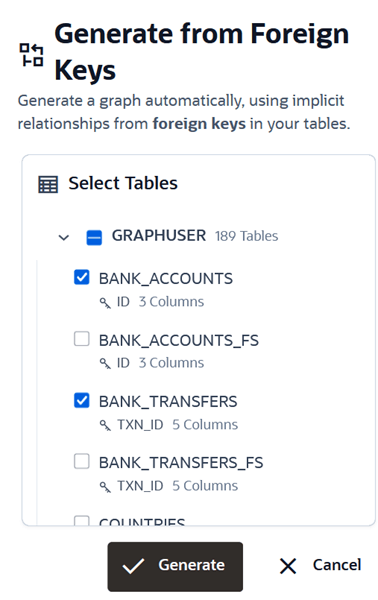
Description of the illustration modeler_auto_map_select_tables.png
-
Optionally, configure the graph options if you are creating a SQL property graph.
See Configuring Graph Options in Modeler for more information.
-
Select Generate.
The vertices and edges of a graph are automatically deduced by Modeler and the graph is visually displayed on the canvas automatically.
Figure: Generate from Foreign Keys
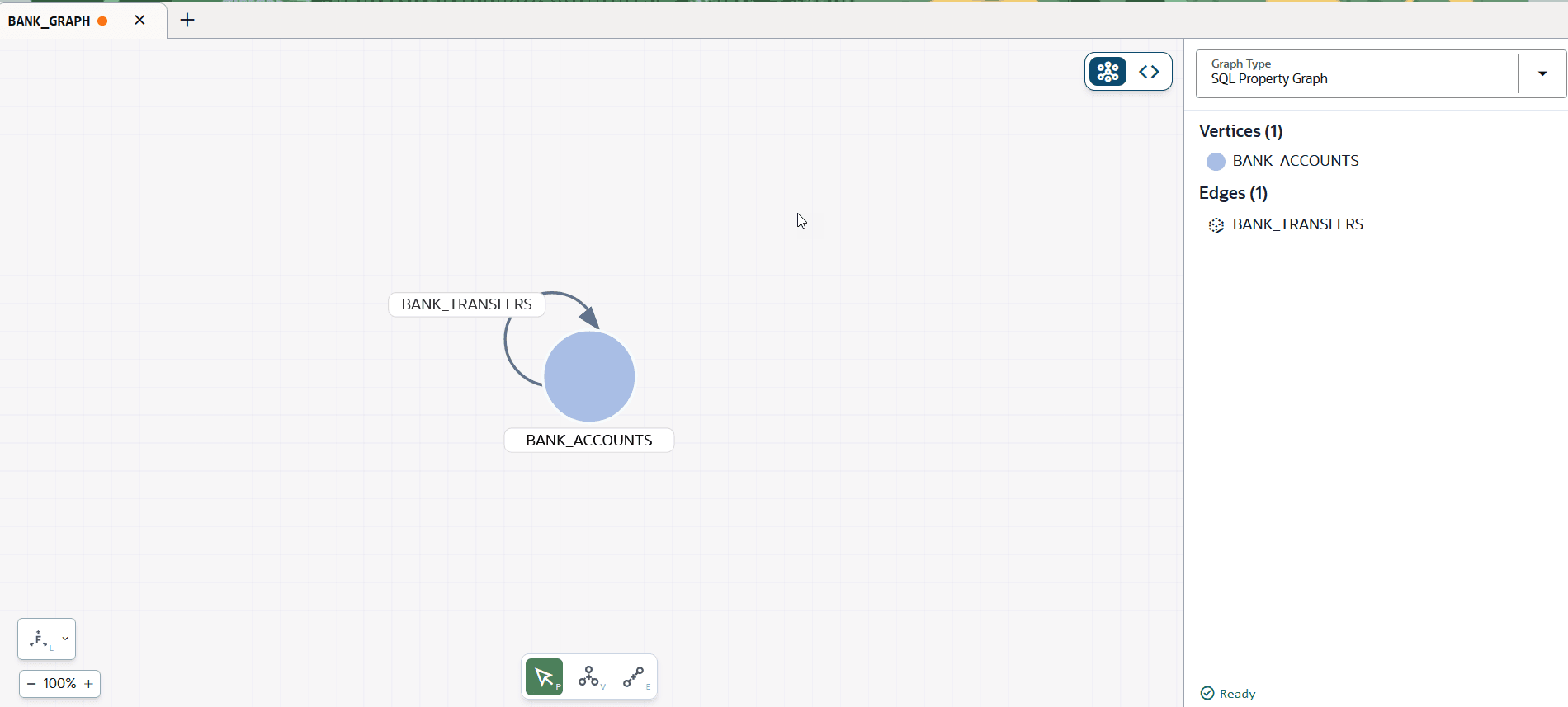
Description of the illustration modeler_auto_map_generate_graph.png
You can perform any of the following actions if required:
-
You can modify the graph definition using the visual editing tools. See Creating a Property Graph Using the Visual Editor on how to manually update the graph definition.
-
Switch ON the code editor toggle to review or update the
CREATE PROPERTY GRAPHDDL statement. -
Verify if the vertex and edge table keys are defined for the graph by clicking on the specific graph element or label name on the canvas. These keys are generated automatically by the modeler. In case the modeler is unable to generate the vertex and edge table keys, then you must manually specify these keys. See Managing Vertex and Edge Details for more information on how to add or edit the vertex and edge table keys.
-
Also, see Handling Errors and Warnings While Creating a Graph for more information.
-
-
Select Create Graph in the top right of the page.
The graph gets created and you can interact with the graph using Graph Explorer.