Memory Usage
The Memory Usage dashboard provides in-depth information on the amount of memory used by the graph server (PGX).
Note: The Memory Usage dashboard is available only if you have the PGX_SERVER_GET_INFO privilege that is granted through the GRAPH_ADMINISTRATOR role.
You can view data charts on real-time memory usage, study the current memory consumption patterns and identify any potential issues.
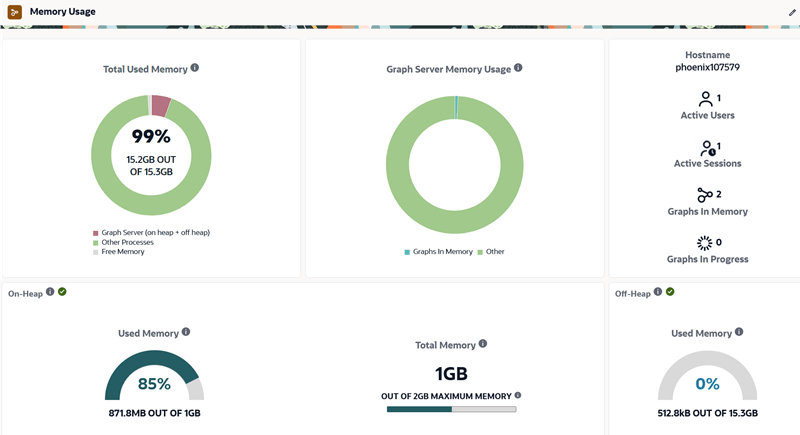
Description of the illustration memory_usage_dashboard.png
The dashboard comprises the following sections:
-
Total Used Memory: This chart displays the total memory usage at the system level. It shows the memory consumption by the graph server (sum of on-heap and off-heap memory) and other processes. You can also view the available amount of free memory.
-
Graph Server Memory Usage: This chart displays the memory consumed by graphs that are loaded into the graph server and also the memory usage for other graph operations such as loading graphs, running graph algorithms and so on.
-
On-Heap: This section provides the following details:
-
Used Memory: This displays the on-heap memory used currently by the graph server out of the total heap size that is dynamically allocated by the JVM.
-
Total Memory: This displays the total (determined by the -Xms flag) and maximum heap size (determined by the -Xmx flag) allocated by the JVM.
-
-
Off-heap: This displays the off-heap memory used currently by the graph server.
-
Hostname: Graph server hostname.
-
Active Users: Number of active users.
-
Active Sessions: Number of active sessions.
-
Graphs In Memory: Number of graphs loaded in to memory.
-
Graphs in Progress: Number of graphs that are being loaded into memory.
Click on Active Users or Active Sessions to open the Sessions manager page. Click on Graphs in Memory or Graphs in Progress to open the Graphs manager page.
To customize the Memory Usage dashboard panel layout, click the Customize layout icon in the page header. You can then:
- Rearrange a panel by dragging it to the required location.
- Resize a panel by dragging the resize handle in its lower-right corner.
- Hide a panel by clicking the eye icon in its upper-right corner.
- Restore the default arrangement by clicking the reset icon in the page header.
Once you finish editing, click the check mark icon in the page header. Your customized layout is saved in the browser.