3.2.4 GenAI Task
A GenAI Task lets you call a large language model (LLM) from a workflow for single-prompt use cases. Use this task when you want the workflow to send a prompt, optional runtime variables, and optional supporting data to an LLM and use the generated response in downstream workflow steps.
GenAI tasks are useful for operations such as summarization, translation, classification, content generation, text extraction, and response generation. Unlike an Agentic Task or Agentic Planner, a GenAI Task does not run an autonomous agent or dynamically orchestrate other tasks. It performs one direct LLM interaction based on the prompt and input that you provide.
At runtime, MicroTx Workflows resolves the prompt or prompt template, substitutes prompt variables, loads any configured data source, appends the data content to the prompt, invokes the selected model, and stores the generated response as the task output.
Prerequisites
Before you begin, ensure that you have completed the following tasks.
- Create an LLM definition. See Create an LLM Definition.
- Create a prompt definition. See Create a Prompt Template Definition.
- Identify if you want to provide any additional data to execute the task and the location of the file. If you want to use a file that is available on your local system, upload it to the storage. See Upload Files to Storage.
To add a GenAI Task
You must define a custom prompt tailored to the specific context of your
workflow. Additionally, you can fine-tune the task's behavior, by
using configurable parameters such as temperature,
stop_words, top_p,
top_k, and maxTokens. This
allows precise control over the generation process, improving
relevance and accuracy for different business scenarios.
-
Navigate to the Task tab in a workflow and view all the tasks that you can add using the Workflow Builder. See Access the Task Tab in Workflow Builder.
- In the More Tasks dialog box, click GenAI Task to add it to the workflow.
-
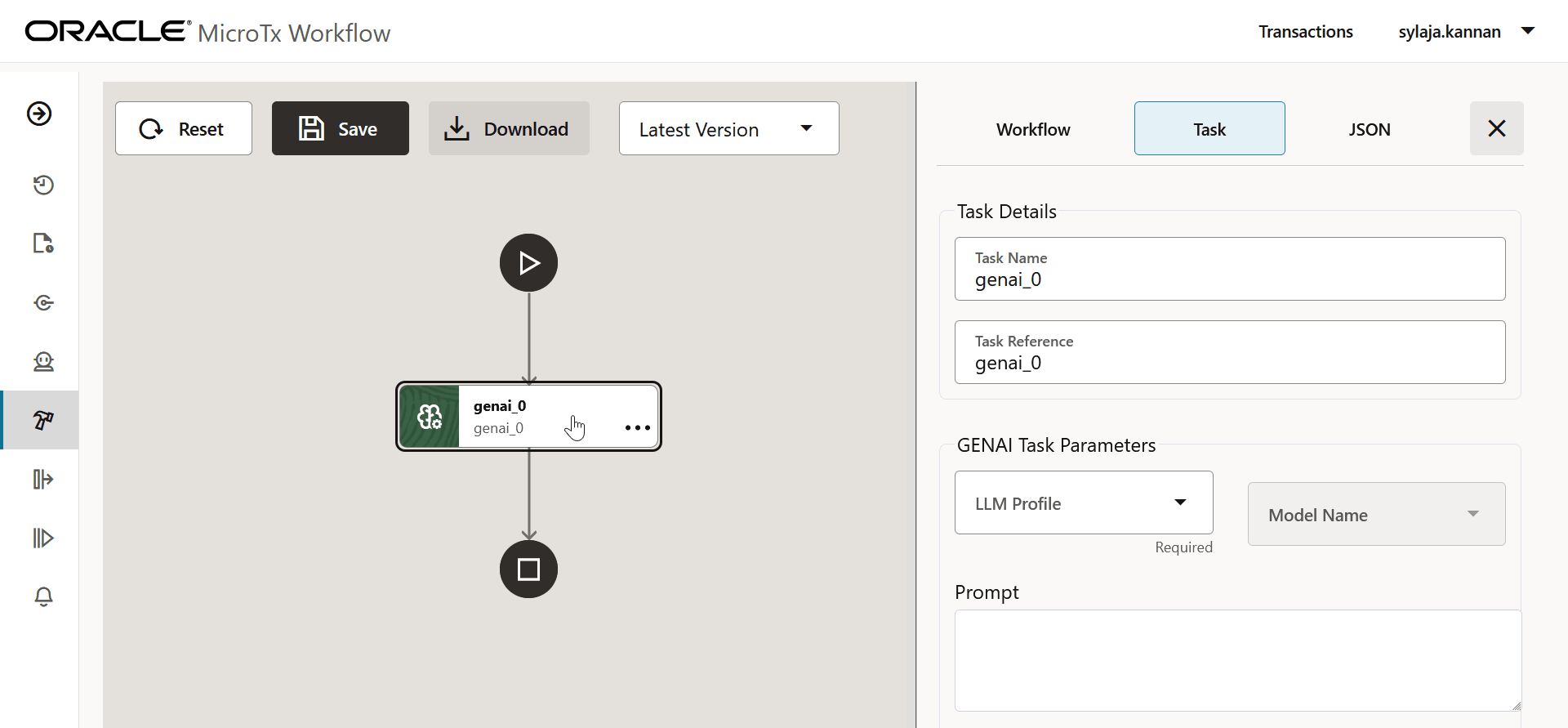
Click the task that you have added in the left pane. The Task tab in the right pane displays details about the task, such as its name and parameters. Next, let's provide details for the task.
-
In the Task Details group, enter the following information.
- Task Name: Mandatory. Enter a unique name for the task. The name must be between 1 to 128 alphanumeric characters in length and cannot contain spaces or any special characters. Optionally, you can use underscore (_) and hyphen (-).
- Task Reference: Mandatory. Enter a value to refer to the task within a workflow definition. This value must be unique within a workflow. The task reference value must be between 1 to 128 alphanumeric characters in length and cannot contain spaces or any special characters. Optionally, you can use underscore (_) and hyphen (-).
- In the GenAI Task Parameters group, provide
the following information.
- LLM Profile: Mandatory. Select the LLM definition that the task uses to connect to the LLM provider.
- Model Name: Mandatory. Select the model to use from the LLM definition.
- Prompt or Prompt Template: Mandatory. Enter a prompt directly or select a prompt template definition. You must provide at least one of these values. If you provide both, MicroTx Workflows combines the inline prompt and the resolved prompt template.
- Prompt Variables: Optional. If the
prompt template contains variables, specify the values that replace
those variables at runtime. You can use workflow input expressions, such
as
workflow.input.customerMessage. - Temperature: Optional. Controls randomness of the generated response. Lower values generate more deterministic responses. Higher values generate more varied responses. The default value is 0.2.
- Max Tokens: Optional. Sets the maximum number of tokens that the model can generate. The default value is 1024.
- Top K: Optional. Sets the number of highest-probability tokens considered during generation. The default value is 40.
- Top P: Optional. Sets the cumulative probability threshold for nucleus sampling. The default value is 0.9.
- Guardrails: Optional. Configure stop words to mask or reject input or output text based on the guardrail action.
- Add Data Source: Optional. Select
this option when the prompt needs additional supporting data. You can
provide data from one of the following sources:
- WEB: Select this option when you want to access data from the web, and then enter the complete URL to the data in the URL field.
- OCI: Select this option when you want to access data that is available in Oracle Cloud Infrastructure (OCI), and then enter the complete URL to the data in the URL field.
- LOCAL: Select this option when you want to use a file that you have uploaded to the local storage, and then select or provide a file name in the File Path drop-down list.
- TEXT: Select this option when you want to provide the text as supporting data in the TEXT field.
-
Click Save to save the changes to the workflow.
MicroTx Workflows displays the changes in JSON code.
-
Review all the changes, and then click Confirm Save to save the changes.
If you do not want to save the changes, click Cancel, and then click Reset to undo all the changes that you have made since the workflow was last saved.
Example
When you enter information in the Task tab, the corresponding code of the task is updated in the JSON tab. The following example displays the JSON code for a GenAI task with sample values.
{
    "name": "Summarize_Text",
    "taskReferenceName": "genai_summarize_text",
    "inputParameters": {
        "llmProfile": {
            "name": "openai-dev",
            "model": "gpt-4o-mini"
        },
        "prompt": "Summarize the following content clearly and concisely, highlighting the key points, main ideas, and any important conclusions or actions. Avoid unnecessary details, but preserve the original meaning and intent.",
        "data": {
            "source": "local",
            "filePath": "${workflow.input.filePath}"
        },
        "maxTokens": 4000,
        "temperature": 0.7,
        "top_p": 0.9,
        "top_k": 50
    },
    "type": "GENAI_TASK"
}
Parent topic: Create System Tasks and Operator Tasks